How to convert Google Docs to PDF
author
Kevin McHugh
published
Aug 7, 2025
categories
PDF editing
read time
4 mins

Need a reliable way to save your Google Doc as a proper PDF? Here’s how to do it right, on any device.
You can also read this article in Português, Tiếng Việt, Français and Español.
Table of Contents
1. The Google Docs PDF problem (and why it happens)
2. Method 1: The standard Google Docs download
3. Method 2: Use Lumin's Word to PDF converter
4. Troubleshooting common issues
5. Need more than just a PDF converter?
- 1. The Google Docs PDF problem (and why it happens)
- 2. Method 1: The standard Google Docs download
- 3. Method 2: Use Lumin's Word to PDF converter
- 4. Troubleshooting common issues
- 5. Need more than just a PDF converter?
share this post
Converting a Google Doc to PDF should be straightforward, but Google's export options are not as straightforward as they could be.
This guide covers three reliable methods to convert your Google Docs to PDF, including solutions for when Google's built-in options don't work as expected.
The Google Docs PDF problem (and why it happens)
Understanding why converting a Google Doc to a PDF sometimes goes wrong can help you avoid frustration.
One common issue: you're working with a Microsoft Word (.docx) file opened in Google Docs, not a fully converted Google Doc. In this case, Google may limit what you can do — for example, you might not see the usual “Download as PDF” option. To fix this, simply go to File > Save as Google Docs, then you’ll get access to the full export menu.
Another common confusion is the difference between downloading a PDF and sharing a PDF link. When you download, you get a real file stored on your computer. When you share a link, it points to a file stored in your Google Drive — opening in the recipient’s browser, not theirs to keep. Both methods are valid, but they serve different purposes.
Method 1: The standard Google Docs download
This is the most direct method for converting your Google Doc into a PDF.
For desktop users:
1. Open your Google Doc
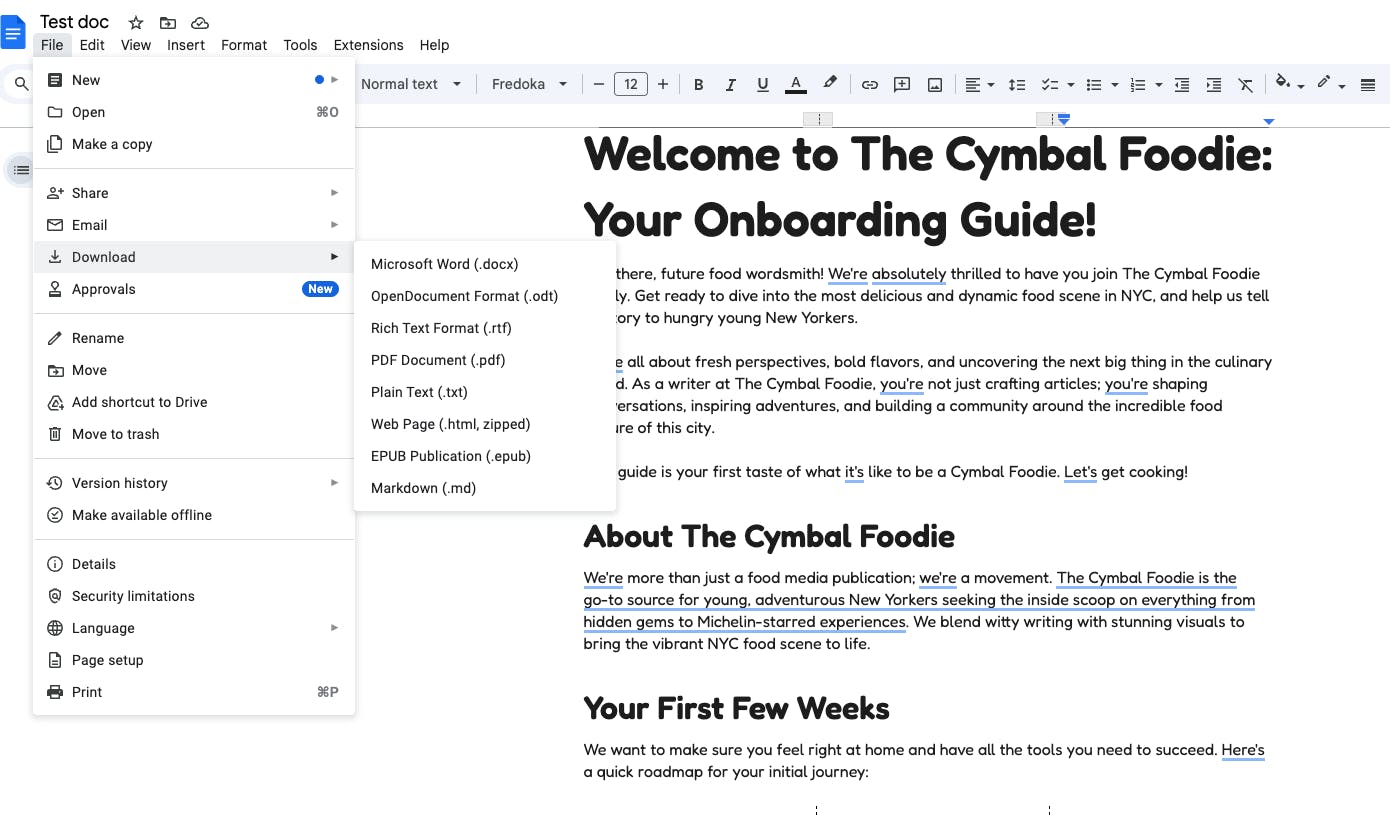
2. Go to “File” > “Download” > “PDF Document (.pdf)”
3. The PDF will download to your computer's default Downloads folder
For mobile users (Android):
1. Open the document in the Google Docs app
2. Tap the three dots (⋮) in the top-right corner
3. Select “Share & export”
4. Tap “Send a copy”
5. Choose “PDF”
6. Tap “Save to Drive, Email”, or use the Android share menu to save elsewhere.
For mobile users (iOS):
1. Open the Google Docs app
2. Tap the three dots menu
3. Select “Share & export” > “Send a copy”
4. Choose PDF from the options
5. Select “Save to Files”
When this method fails: If you only see .docx as an option, you're probably working with a Word document that hasn't been converted to Google Docs format. Jump to method 2 below.
Method 2: Use Lumin's Word to PDF converter
When you want more control over your PDF output, a dedicated converter like Lumin's Word to PDF tool provides the most reliable solution.
Here’s how to do it:
1. Download your Google Doc as a Word document.
- Open Lumin’s free Word to PDF converter and upload your document.
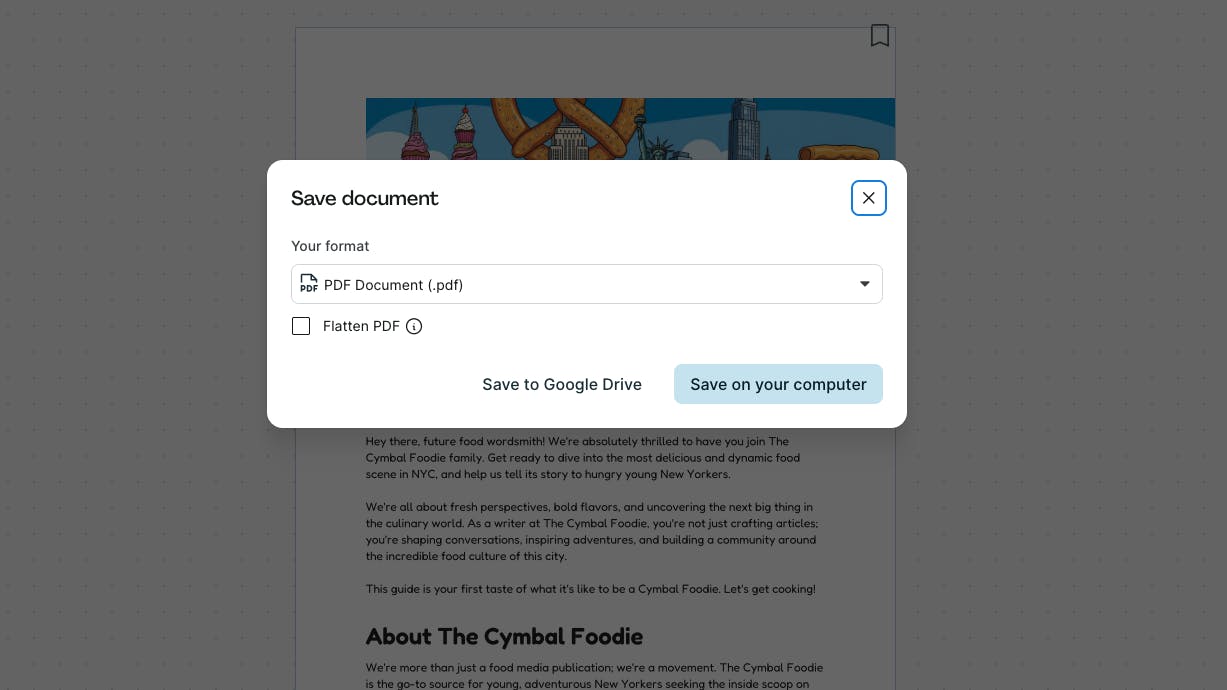
2. The “PDF Document” option will already be selected from the format dropdown menu.
3. Select “Save on your computer” or you can choose or save the PDF directly to your Google Drive.
Method 3: The print workaround
This method works when the standard download option doesn’t cooperate. It’s particularly useful on different devices or browsers.
Here’s how to do it:
1. Open your Google Doc
2. Press Ctrl+P (or Cmd+P on Mac) or go to “File” > “Print”
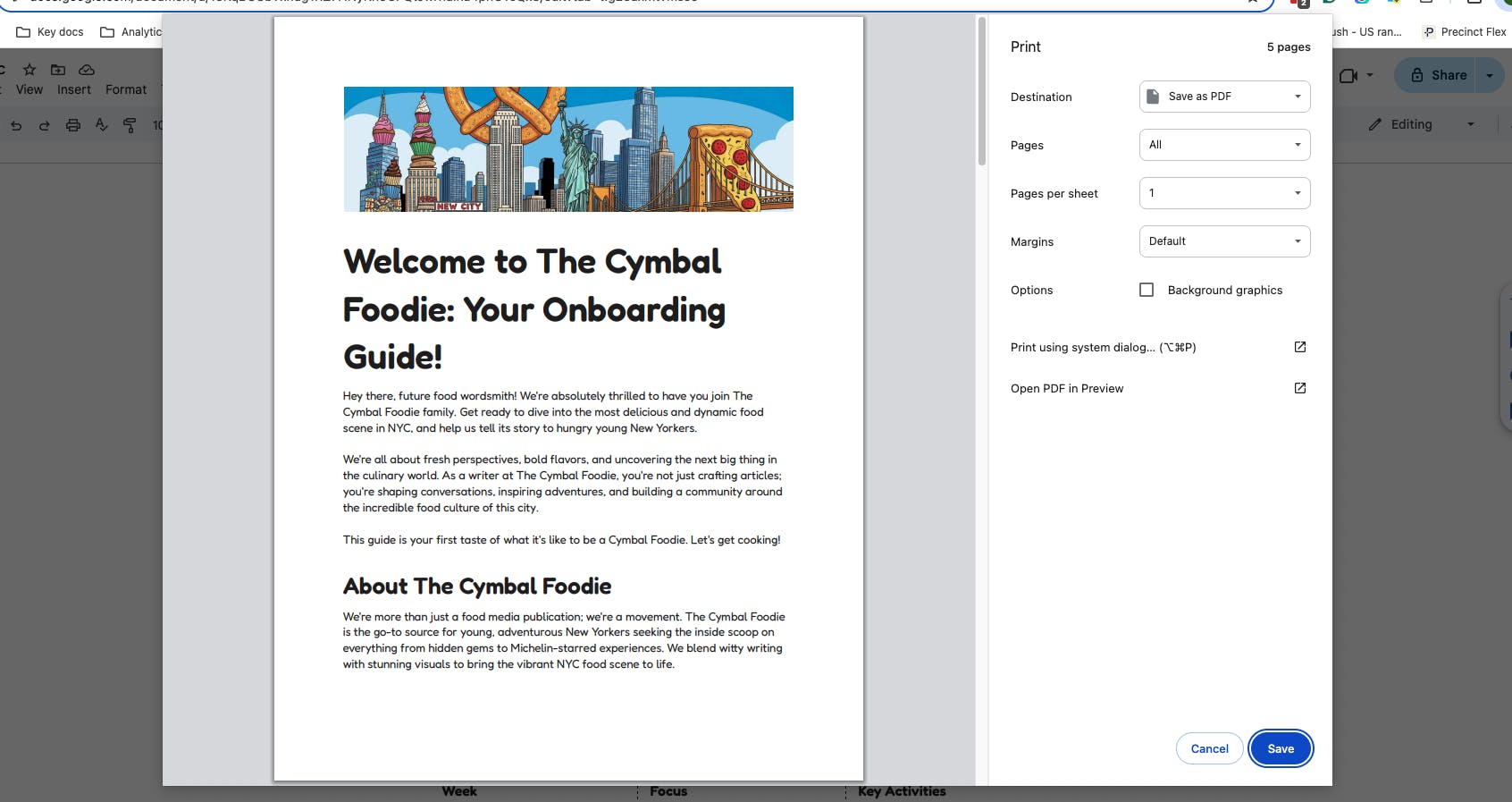
3. In the print dialog, look for the “Destination” dropdown
4. Select “Save as PDF” (or “Microsoft Print to PDF” on Windows)
5. Click “Save” and choose your location
Why this works: The print function bypasses some of Google's file format restrictions and treats everything as a printable document. Google's own support documentation actually recommends this method for larger files.
Troubleshooting common issues
“I only see .docx as a download option."
This happens when you're working with a Word document in Google Docs rather than a native Google Doc. Solution: Use the print method (Method 2) or first convert the document by going to File > Save as Google Docs, then try the standard download.
“The PDF looks different from my Google Doc.”
Google’s built-in PDF export can misalign complex formatting — especially in documents with tables, images, or multi-column layouts. For better formatting accuracy, convert your document to Word first and use Lumin’s Word to PDF converter.
“The download option is grayed out.”
You might not have permission to download the document. Contact the owner to change sharing settings, or try the print method if it’s available.
“I need to share a PDF link, not download a file."
Google offers both options.
To create a direct PDF link:
- Copy your document’s shareable link
- Replace /edit at the end with /export?format=pdf
- Share this link to let others view or download the PDF instantly
Need more than just a PDF converter?
Lumin’s free Word to PDF tool is just the start. Create a free account to unlock powerful PDF editing features — annotate, merge, sign, and more, all in your browser.
Related guides and tools:
share this post