
How to merge Word documents

Combining multiple Word documents into a single file helps you consolidate projects, compile reports from different team members, or organize scattered documents. No matter the purpose, merging Word files doesn’t have to be complicated. We'll show you three straightforward methods to get it done, and answer the most common questions you face along the way.
Table of contents
- 1. Method 2: Copy and paste for simple merges with Microsoft Word
- 2. Frequently asked questions
- 3. Take control of your documents
Share this post
Method 1: Merge Word documents online with Lumin (fastest approach)
The quickest way to merge Word documents is to use Lumin's online PDF editor, which handles the entire process seamlessly. This method works on any device with a browser and doesn't require Microsoft Word. Lumin automatically converts and merges your Word documents in one simple workflow.
Steps to merge documents with Lumin:
- First, convert your Word documents into a PDF to upload them to the merge tool.
- Once converted, open Lumin’s Merge Tool and upload your first file.
- Select “Click here” on the right sidebar to upload additional Word documents you want to combine.
- Drag and drop the files to arrange them in your preferred order.
- Click “Merge” to combine your documents into one PDF.
- Download your merged file, then choose the Word document as your output file.
Note: This approach is especially useful when merging Word documents into a single PDF, which is ideal for sharing finalized files that retain consistent formatting across devices and platforms. Lumin’s Merge Tool preserves your document quality and allows you to edit, rearrange, and manage your files seamlessly in one place.
Method 2: Copy and paste for simple merges with Microsoft Word
Sometimes the simplest approach is the best one. If you're merging just a few short documents or specific sections, copying and pasting might be all you need.
Quick merge process:
- Open both Word documents in Microsoft Word.
- In the source document, press “Ctrl+A (Cmd+A on Mac)” to select all content.
- Press “Ctrl+C (Cmd+C”) to copy.
- Switch to your destination document.
- Position your cursor where you want the content.
- Press “Ctrl+V (Cmd+V)” to paste.
- Save your merged document.
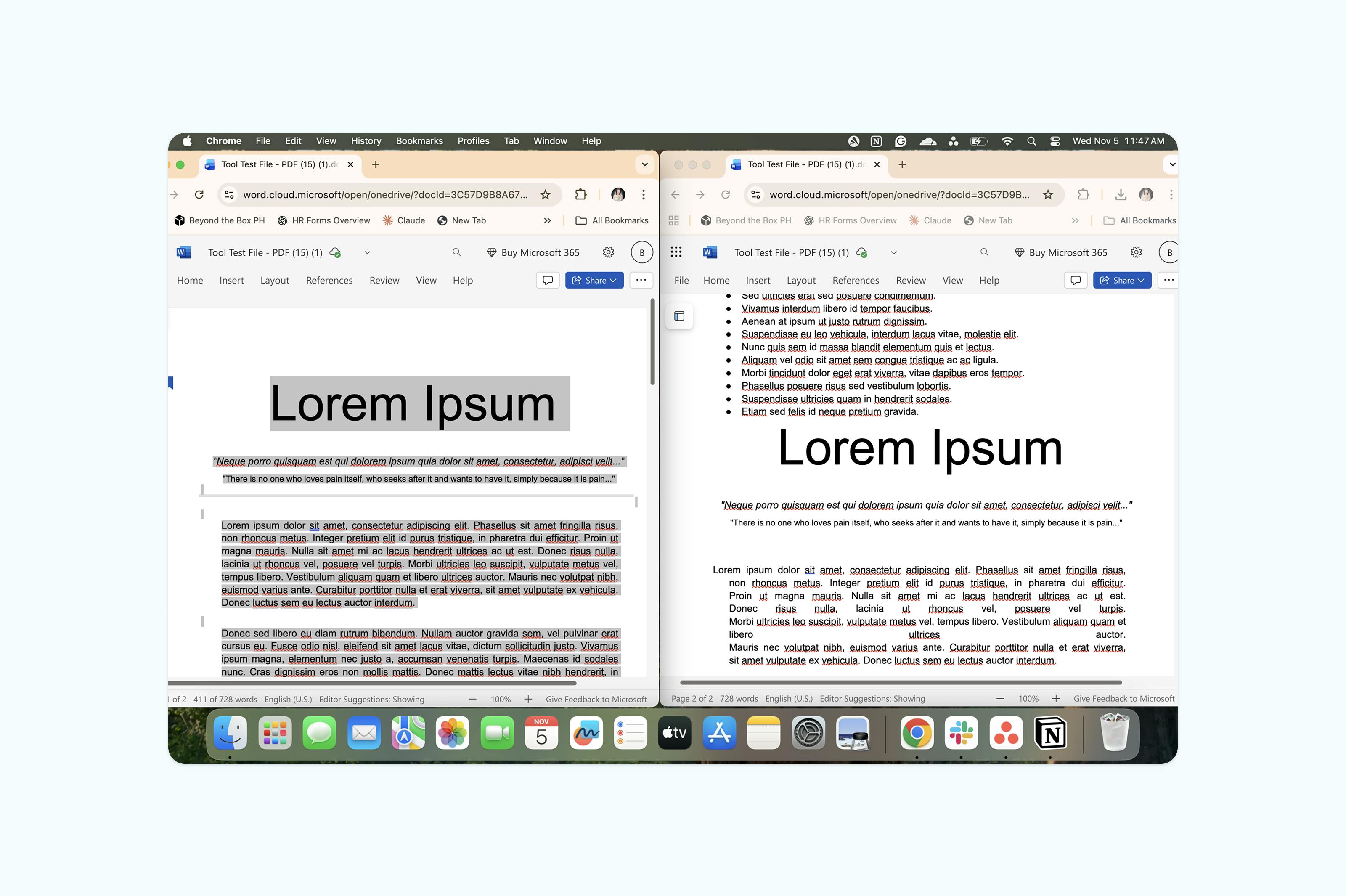
Note: While this method works for simple merges, it can become tedious when handling multiple documents or trying to preserve formatting elements like headers, footers, or page numbers.
Frequently asked questions
Can I merge Word documents without Microsoft Word?
Yes. You can merge Word documents without installing Microsoft Word by using online tools like Lumin. These browser-based tools automatically combine your files and maintain high-quality formatting.
How do I merge Word documents and keep formatting?
To preserve formatting, use Word’s Insert > Object > Text from File feature, or paste the text and select Keep Source Formatting from the paste options. This helps maintain the original styles, fonts, and layout of each document. With Lumin, you can upload your file and keep its original format intact. It’s a much more effective option than copying and pasting content into a Word document.
Is it safe to merge Word documents online?
Yes. Lumin is built with enterprise-grade security and compliance standards, including SOC 2 Type 2 attestation, CCPA, GDPR, and PCI-DSS compliance. Your data is protected through AWS security infrastructure and Google’s verified OAuth assessment.
Take control of your documents
Merging Word documents is just the beginning of efficient document management. Whether you're preparing client proposals, assembling research papers, organizing business documentation, or need to flip a PDF page, having the right tools makes all the difference. With Lumin's document tools, you can merge, convert, edit, and share your files seamlessly, all from your browser.
Ready to streamline your document workflow? Try Lumin's free tools today and discover how easy document management can be.

Share this post