
How to resize a PDF
Need to resize a PDF but not sure where to start? Whether you're shrinking a file for email, adjusting page dimensions for printing, or freeing up storage space, this guide covers every method you’ll need.
Table of contents
- 1. Understanding PDF resizing: file size vs. page size
- 2. When to use each resizing method
- 3. Method 1: Compress your PDF file size with Lumin
- 4. Method 2: Resize PDFs on Mac using Preview
- 5. Method 3: Resize PDFs on Windows using Microsoft Word
- 6. Frequently asked questions
Share this post
PDFs can be tricky when it comes to size. Sometimes you need to compress a large file to meet email limits, and other times you need to change the actual page dimensions for proper printing. Whatever your resizing needs, we'll walk you through exactly how to manage them using free, easy-to-use tools.
Understanding PDF resizing: file size vs. page size
Before exploring the different methods, it's important to understand what "resizing" means for PDFs. There are two types of resizing, and knowing which one you need will save you time and frustration.
File size reduction refers to compressing your PDF so it takes up less storage space. This is useful when you need to email a large document or free up drive space. Compression reduces the file size in megabytes without changing how the pages look when viewed or printed.
Page dimension adjustment refers to changing the actual size of the PDF pages. You might need this when converting a document from letter size to A4, preparing a file for specific printing requirements, or fitting content onto different paper sizes.
When to use each resizing method
Choosing the right resizing approach depends on your specific needs. Use file compression when dealing with email limits, storage constraints, or slow upload speeds. This preserves your page layout while reducing the overall file footprint.
Page dimension resizing is necessary when your document needs to fit specific paper sizes or printing requirements. This is common when working with international clients who use different standard paper sizes or when preparing documents for professional printing.
For the best results, you might need to use both methods: first adjusting page dimensions to your target size, then compressing the file for efficient sharing or storage.
Method 1: Compress your PDF file size with Lumin
When you need to reduce file size for email or storage, Lumin's free compression tool delivers the best balance of quality and size reduction.
Here's how to compress your PDF:
- Open Lumin's free PDF compressor and upload your file.
- Sign in to your account and select “PDF” as the output format.
- Choose your preferred compression level: None, Standard, or Maximum.
- Click “Save on your computer” or select “Save to Google Drive” to download your newly compressed file.
The compression process preserves text clarity while adjusting image quality just enough to reduce the file size. For most business documents, you won't notice any visual difference. Keep in mind that choosing “None” keeps your file at its original quality, “Standard” reduces the size while maintaining good visual quality, and “Maximum” provides the smallest file size with noticeably lower image quality.
Method 2: Resize PDFs on Mac using Preview
Mac users have a built-in option for basic PDF resizing through Preview. While not as feature-rich as dedicated tools, it works well for quick compressions.
To compress a PDF in Preview:
- Open your PDF in Preview (right-click and select "Open With" > "Preview".)
- Go to “File > Export”.
- In the Quartz Filter dropdown, select "Reduce File Size".
- Choose your save location and click "Save".
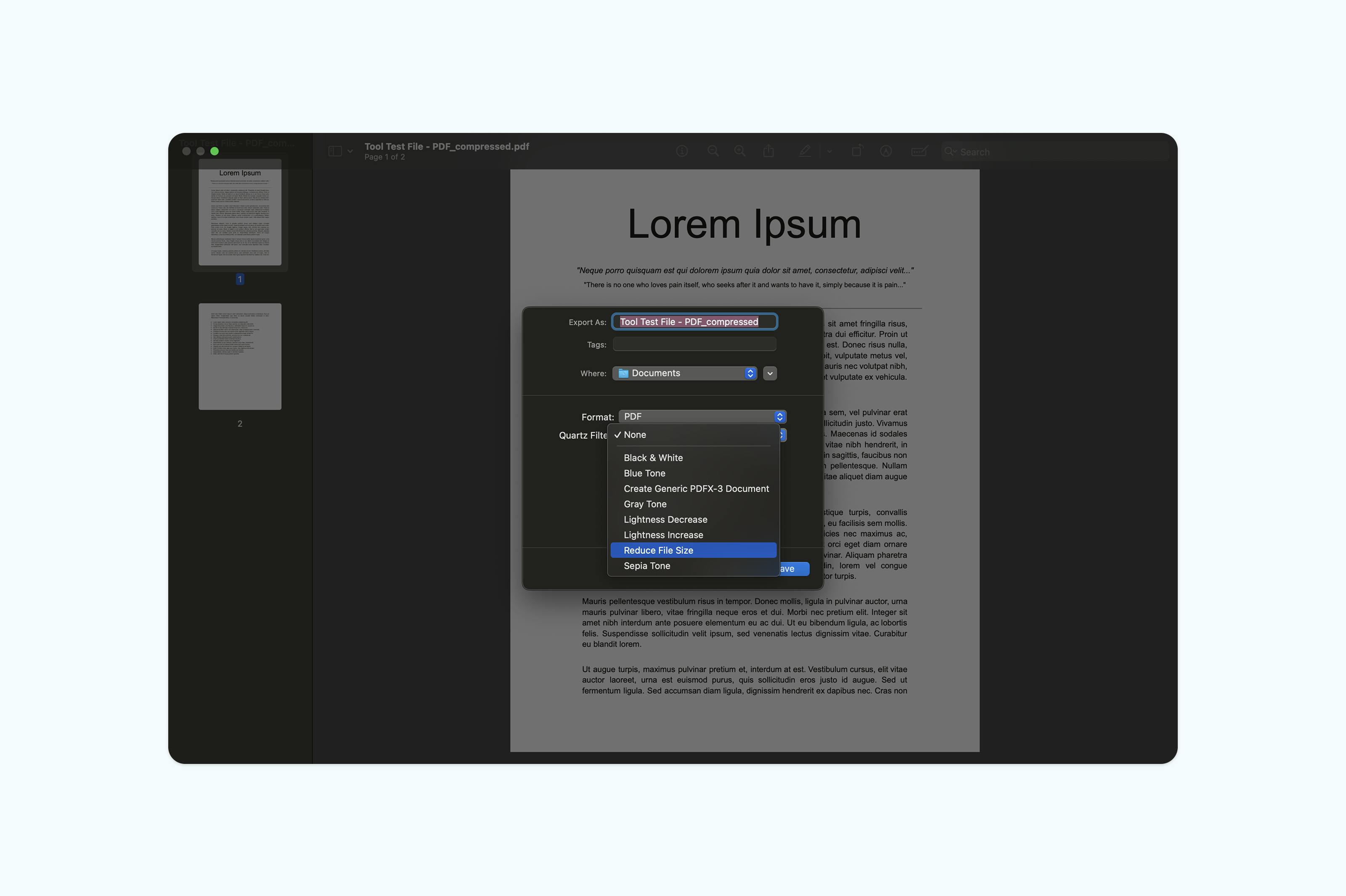
Note that Preview's compression can be aggressive, sometimes causing text or images to appear blurry. For documents where quality is important, this method offers limited control over compression levels.
Method 3: Resize PDFs on Windows using Microsoft Word
Windows users can resize PDFs using Microsoft Word. While Word is not primarily a PDF editor, it allows basic resizing by adjusting page dimensions before exporting back to PDF.
To resize a PDF in Word:
- Open Word and go to “File > Open”.
- Find and select your PDF file (Word will convert it for editing).
- Go to the “Layout” (or “Page Layout”) tab.
- In the Page Setup group, click “Size”.
- Choose one of the preset page sizes or select “More Paper Sizes” to enter custom dimensions.
- Ensure Apply to is set to the whole document and click “OK”.
- Go to File > Save As PDF, choose a location, and click “Save”.
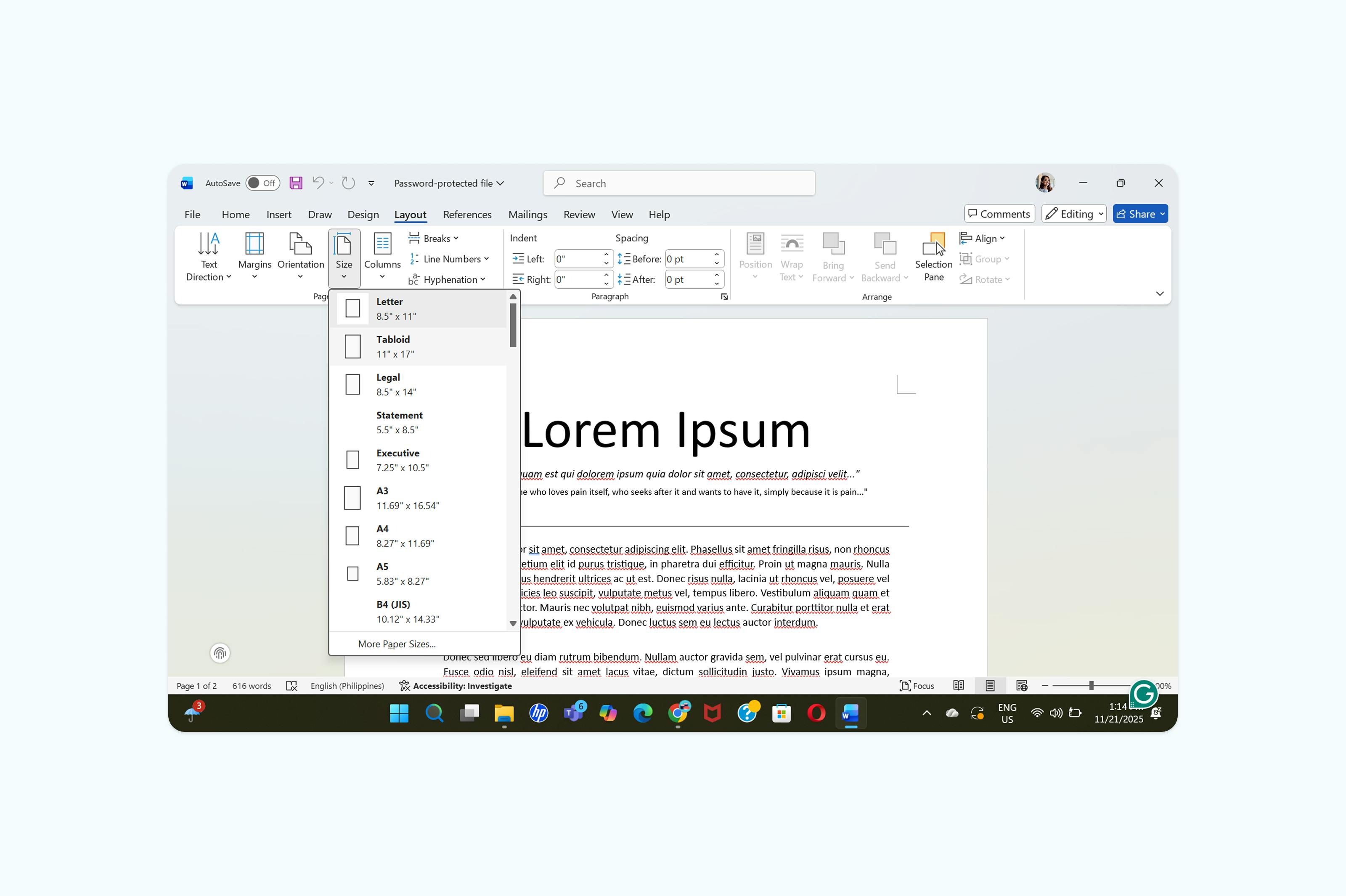
Word’s PDF resizing is limited and may affect formatting or text clarity. For more precise control and higher-quality compression, try Lumin’s PDF tools.
Frequently asked questions
How much can I reduce PDF file size?
Compression can typically reduce PDF file sizes by 50–70% without noticeable quality loss. Documents with many high-resolution images or uncompressed elements may see even greater reductions. The exact amount depends on the content and how optimized the file already is.
Will resizing affect print quality?
Adjusting page dimensions usually does not affect print quality if done correctly. File compression may impact quality depending on the level chosen. Standard compression generally preserves text and images, while maximum compression can make them appear blurry when printed.
Can I resize a scanned PDF?
Yes, but scanned PDFs require special handling since they are essentially images. Compression works differently compared to text-based PDFs. Lumin’s compression tool automatically detects and optimizes scanned documents, or you can use OCR to convert the scan to searchable text before resizing or compressing.

Share this post