
How to add a signature block to a PDF

Need to add signature blocks to your PDF documents? Whether you're preparing contracts, agreements, forms, or other business documents, properly formatted signature areas are essential for professional document workflows.
Table of contents
- 1. The fastest way to add a signature block
- 2. Types of signature blocks to add
- 3. Making your signature blocks fillable
- 4. Tips for professional signature blocks
- 5. Common questions
- 6. Add signature blocks to your PDFs today
Share this post
Adding signature blocks might seem complex, especially when you need multiple signers, witness sections, or specific formatting requirements. But with the right approach, you can create professional signature blocks in any PDF within minutes, without expensive software or technical expertise.
This guide shows you exactly how to insert signature blocks into PDFs, from simple signature lines to comprehensive blocks with all necessary fields. We'll cover practical methods that work for any document type and signing scenario.
The fastest way to add a signature block
Adding signature blocks to PDFs is simple with Lumin's online editor. No software to install, no complex steps, just upload your document and add the signature fields where you need them.
Here's how to add a signature block to your PDF:
- Open Lumin eSign PDF and click “Upload” to add the document where you want to place a signature block.
- Click “Add signer” and enter the signer’s email, or just select “Next ” if you’re the one signing.
- Click “Add due date” to set when the document must be completed.
- Select “Prepare” and add a signature block, then assign text, date, and signature fields to the right signers.
- Click “Review” to see the auto-generated summary of your document.
- Click “Send” to send the document for signing, and check your dashboard to track its progress.
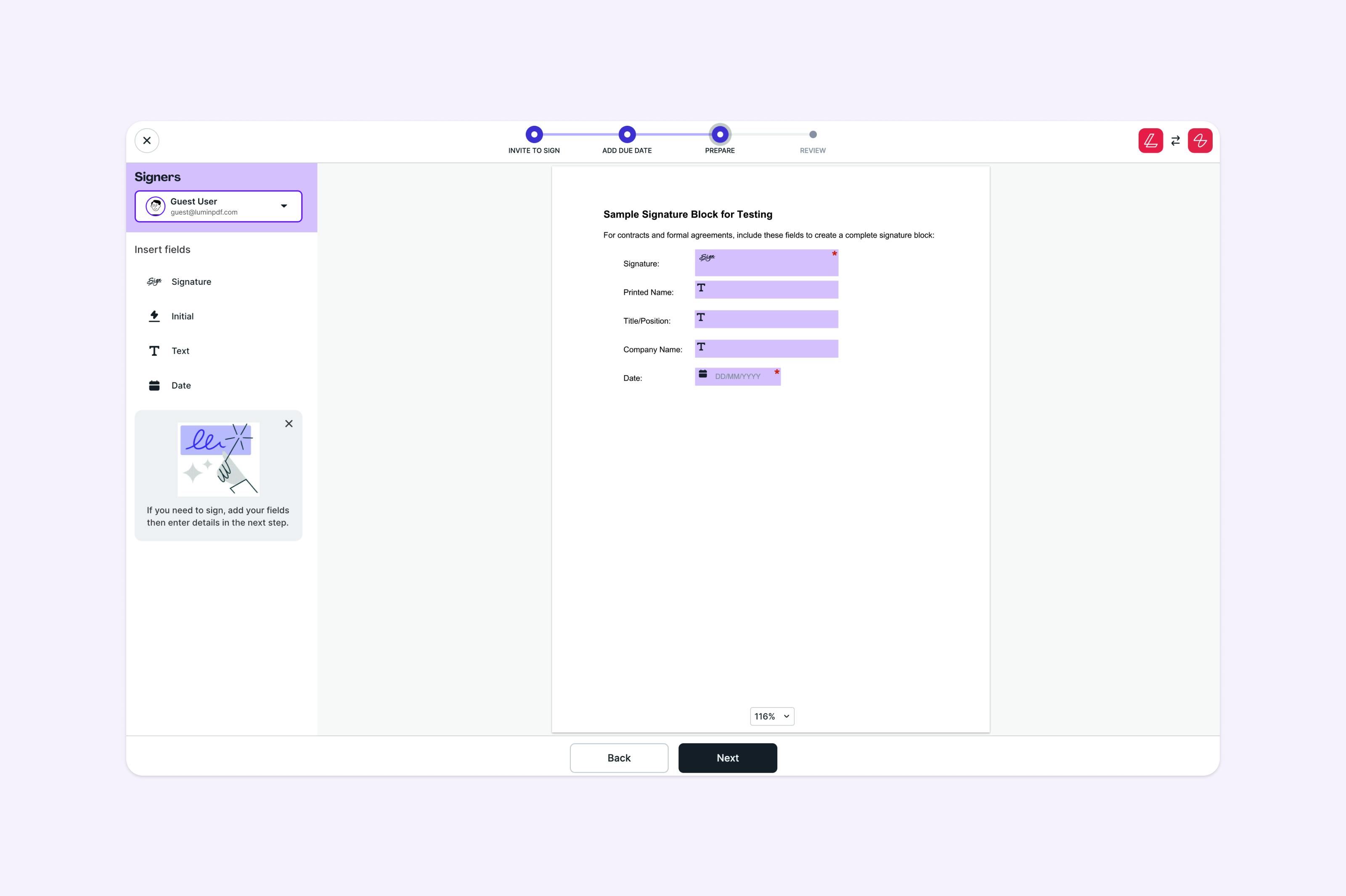
Note: Now you have a signature block added to your PDF. Your document is ready for signing, and you can track its progress anytime from your dashboard.
Other tools for adding signature blocks
Before we walk through the different types of signature blocks, it’s worth noting that there are many ways to add them across different document editors. While Lumin makes the process fast and intuitive, you may also come across built-in options in other platforms. Being aware of these alternatives can help you decide which method best fits your workflow.
Types of signature blocks to add
Different documents require different signature block formats. Here's how to create the most common types.
Standard signature block
A standard signature block typically includes:
- A line for the signature
- Name field below the signature
- Date field to the right or below
This format works well for most business documents, forms, and simple agreements. Keep the layout clean with consistent spacing between elements.
Professional signature block with title
For contracts and formal agreements, create a more complete signature block:
- Signature line (often with "Signature" label above)
- Printed name field
- Title/Position field
- Company name field
- Date field
Arrange these elements vertically with clear labels. This format ensures you capture all necessary information from each signer.
Multiple signature blocks
When multiple parties need to sign, a proper layout is essential. For two signers, place signature blocks side-by-side with clear labels like "Buyer" and "Seller" or use company names. For documents with many signers, stack the blocks vertically with adequate spacing between each section.
Each signature block should mirror the others in format and spacing to maintain a professional appearance throughout the document.
Witness signature blocks
Legal documents often require witness signatures. Add these as separate, clearly labeled sections below the main signature blocks. Include fields for witness name, signature, and date, keeping them visually distinct from the primary signers.
Making your signature blocks fillable
There’s an important difference between visual signature blocks and functional fillable fields in PDFs.
Visual blocks are simply lines or text on the page, fine for printing but not interactive. Fillable signature blocks, on the other hand, are actual form fields that recipients can click and complete electronically. This removes the need for printing, scanning, or manual handling.
With Lumin, every signature block you add is fully fillable. Recipients can type, draw, or upload their signature directly in the PDF, keeping the entire process digital and efficient.
Tips for professional signature blocks
Creating effective signature blocks goes beyond just adding fields. Follow these guidelines for best results:
Consistent spacing: Keep an equal distance between signature lines and text fields. A cluttered signature block looks unprofessional and can confuse signers.
Clear labels: Always label each field clearly. Use "Signature," "Print Name," "Title," and "Date" labels positioned above each field.
Appropriate sizing: Make signature fields large enough for handwritten signatures, about 2 inches wide by 0.5 inches tall. Name and title fields can be slightly smaller.
Logical flow: Arrange fields in the order signers expect: signature first, then name, title, and date. This creates an intuitive signing experience.
Common questions
Can I create reusable signature block templates?
Yes, once you've created a PDF with properly formatted signature blocks, save it as a template. Remove specific content but keep the signature fields in place. This template can be reused whenever you need the same signature block layout.
How do I ensure my signature block is legally valid?
Legal validity depends more on clear intent than specific formatting. Include fields that clearly identify signers (name, title, date) and ensure the document shows what's being agreed to. For specific legal requirements in your jurisdiction, consult with legal counsel.
What's the difference between a signature field and a signature block?
A signature field is a single area in a PDF where someone adds their signature. A signature block includes not only the signature field but also supporting fields like name, title, company, and date. With Lumin, you can try this out by adding complete signature blocks to your documents, ensuring all the necessary information is captured in one place.
Can I add signature blocks on a mobile device?
Yes, Lumin works on tablets and smartphones through your web browser. While a desktop gives you more precise control, you can add signature blocks from any device when needed.
How do I convert Word to PDF and keep signature blocks intact?
Convert your Word file to PDF with Lumin, then add fillable signature fields to the document. This way, your signature blocks will function correctly across all PDF readers.
How do I add a CAC signature block to a PDF?
CAC (Common Access Card) signature blocks follow standard military format. Add fields for signature, printed name, rank/grade, title, and date. Ensure the block includes space for the longer format used in military correspondence. The process is the same.—j Just adjust field labels to match military requirements.
Add signature blocks to your PDFs today
Creating professional signature blocks doesn’t require costly software or advanced skills. With the right tools, you can prepare documents for signing in just minutes.
Whether you need a simple signature line or a detailed multi-party block, well-formatted signature areas make your workflow smoother and give your documents a polished, professional look.
Ready to add signature blocks to your PDFs? Start with Lumin's free PDF editor and create signature-ready documents instantly.

Share this post