
How to insert a PDF into Word
Author
Regine Dy
Published
Dec 15, 2025
Categories
PDF editing
Read time
4 mins

Need to add a PDF to your Word document? If you're compiling reports, creating proposals, or organizing research materials, inserting PDFs into Word can feel a bit tricky. The good news is that several reliable methods make the process easy and efficient.
Table of contents
- 1. Method 1: Convert first and insert later with Lumin
- 2. Method 2: Insert a PDF into Word using Microsoft Word
- 3. Frequently asked questions
- 4. Conclusion
Share this post
This tutorial shows how to insert PDFs into Microsoft Word in ways that let you work with the content. You’ll learn practical approaches: using Lumin’s free converter for the cleanest editable output and Microsoft Word’s built-in insert option for quick placement, with helpful tips to make managing your documents easier.
Method 1: Convert first and insert later with Lumin
Converting your PDF to Word on Lumin gives you the most control and the best results. This method preserves formatting as much as possible, allows full editing of text and images, and ensures your content is easy to work with. While some annotations or complex formatting may not transfer perfectly, Lumin keeps your document highly editable and usable.
How to convert using Lumin:
- Open Lumin's free PDF to Word converter and upload your PDF file.
- Click "Convert" and select "Word Document (.docx)" from the format options.
- Click “Save on your computer” or choose “Save to Google Drive” to store your new Word file.
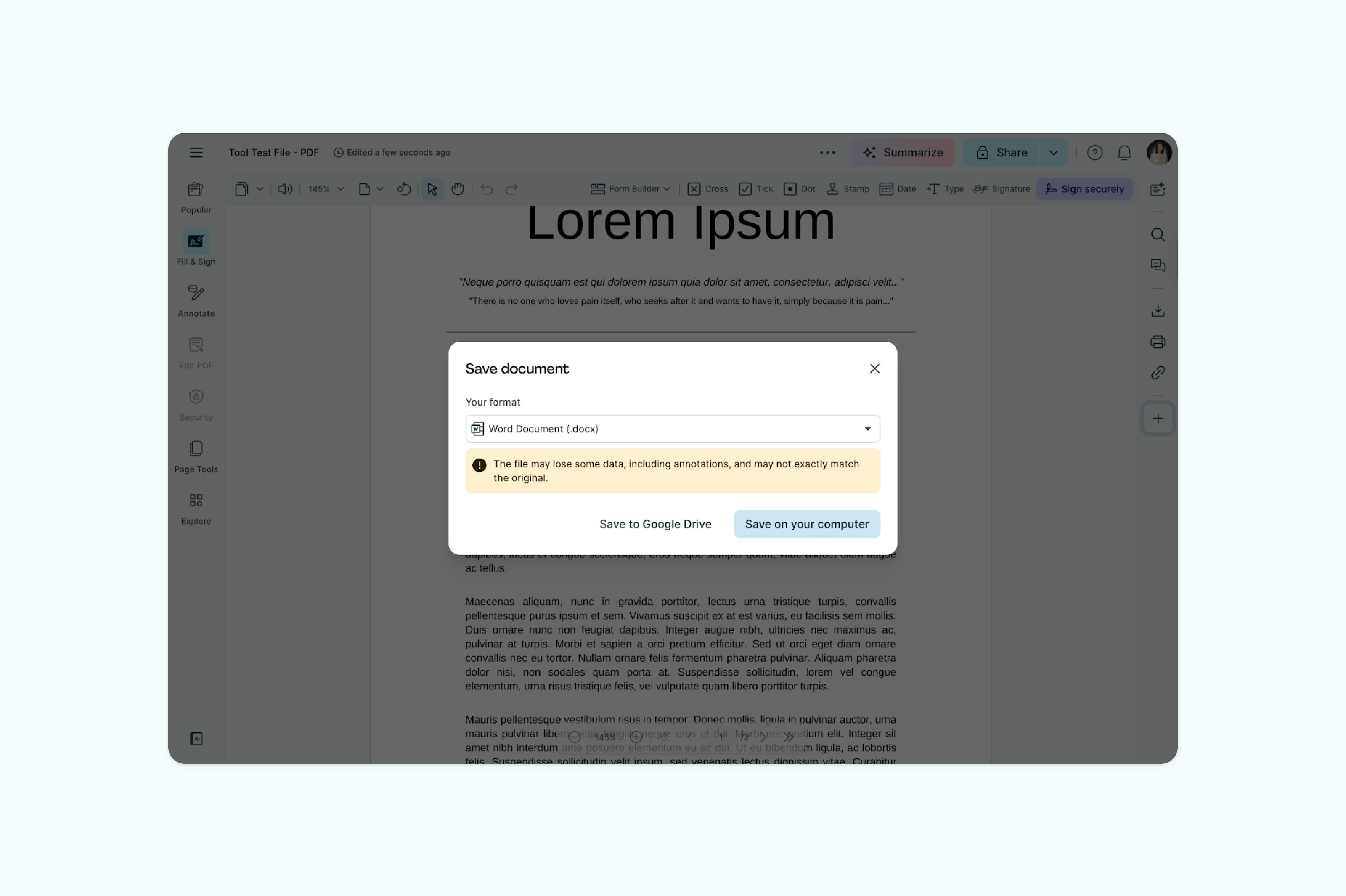
Now your PDF content appears as fully editable text in your Word document, ready to be inserted into your Microsoft Word wherever you need it.
Why this method works best:
Converting the PDF first avoids the limitations of embedded files. The content becomes native Word text and images, allowing you to edit freely, maintain consistent formatting throughout your document, and prevent file size bloat from embedded objects.
Method 2: Insert a PDF into Word using Microsoft Word
This method embeds a PDF into Word, converting its content into editable text and images.
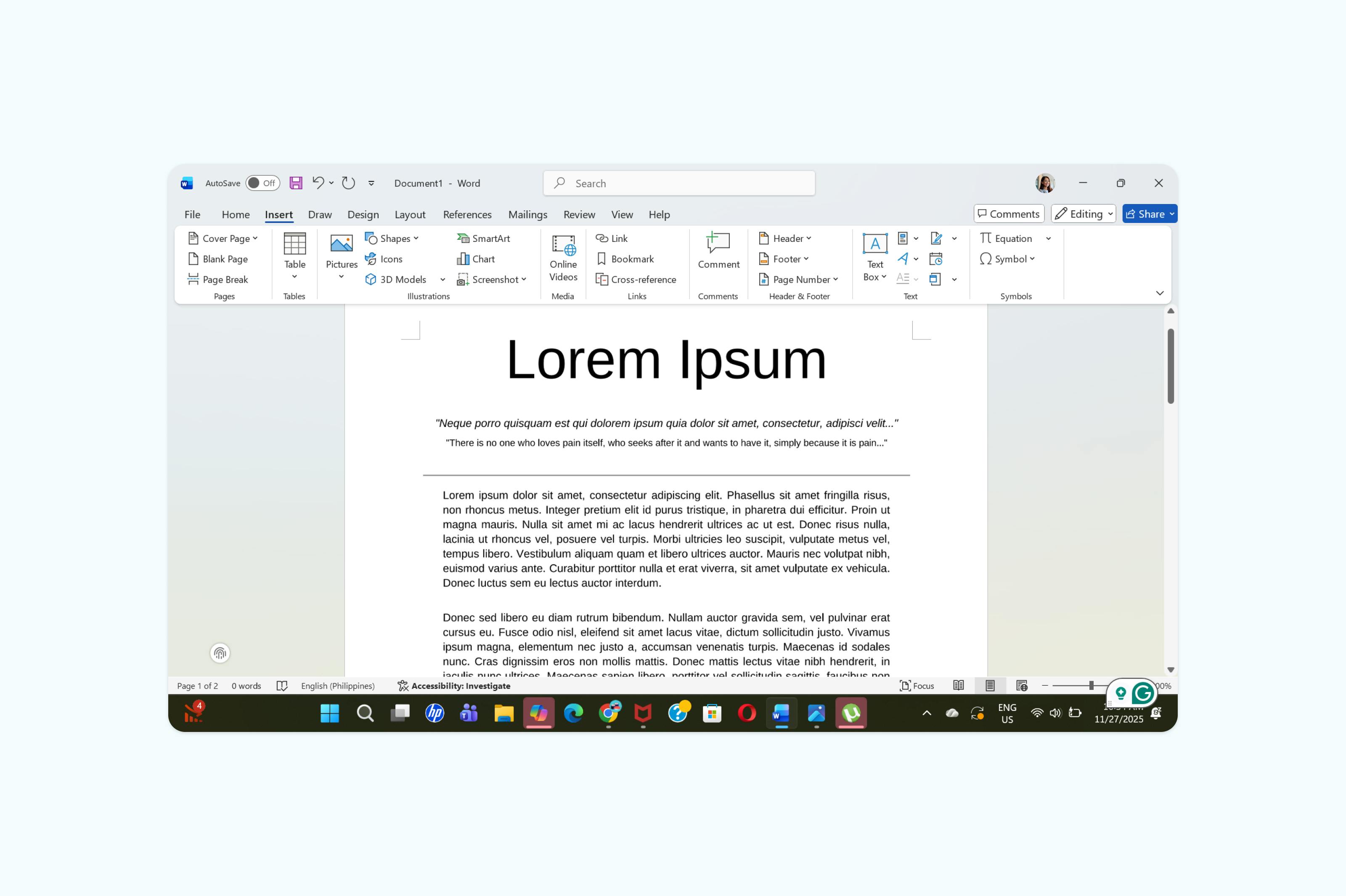
Steps to insert a PDF into Microsoft Word:
• Open your Word document and place your cursor where you want the PDF content.
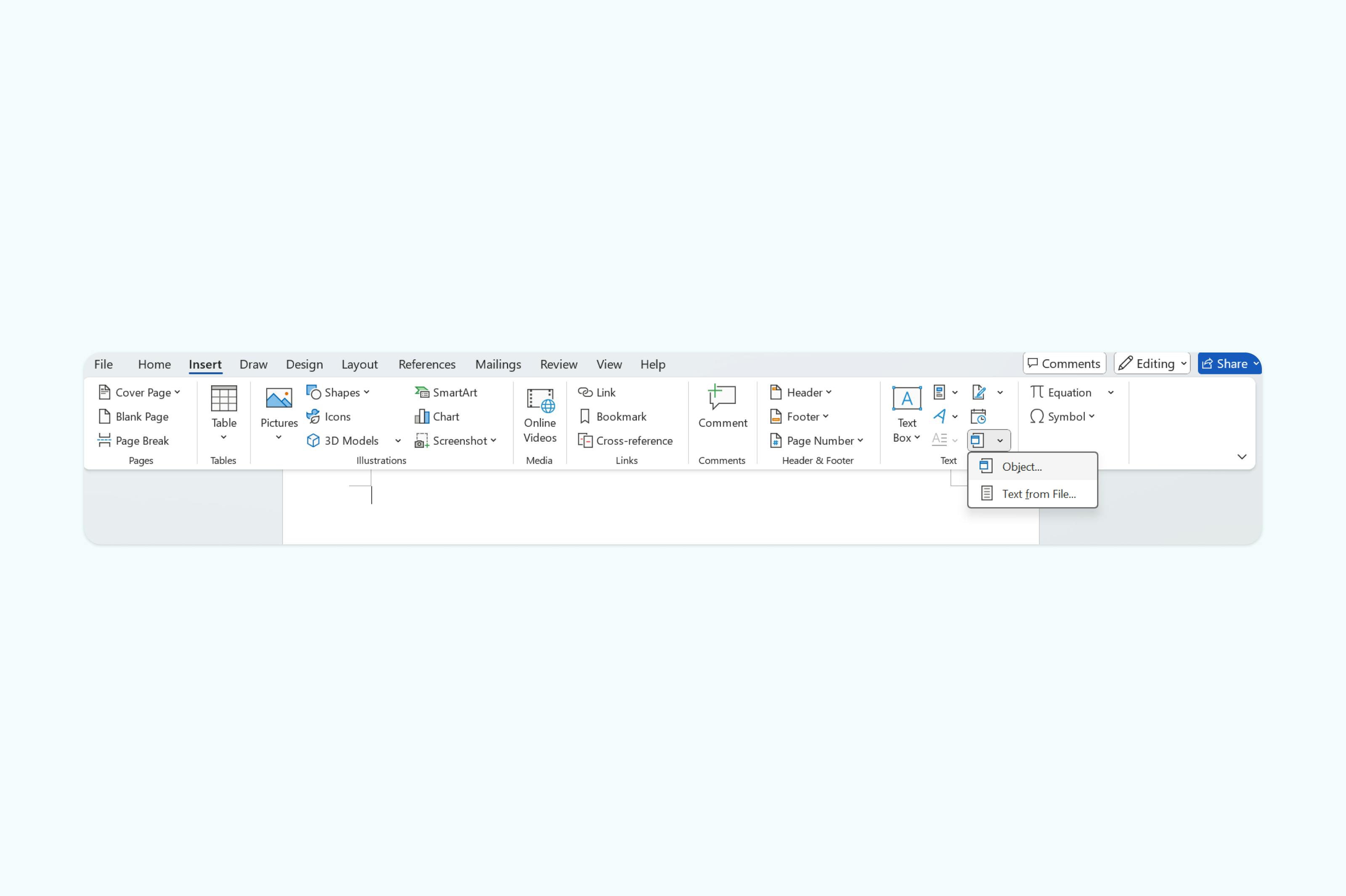
• Go to “Insert > Object” in the ribbon menu.
• Click the “Object” dropdown button and select “Text from File”.
• Locate and select your PDF in the dialog box. If the PDF isn’t visible, choose “All Files” from the file type menu.
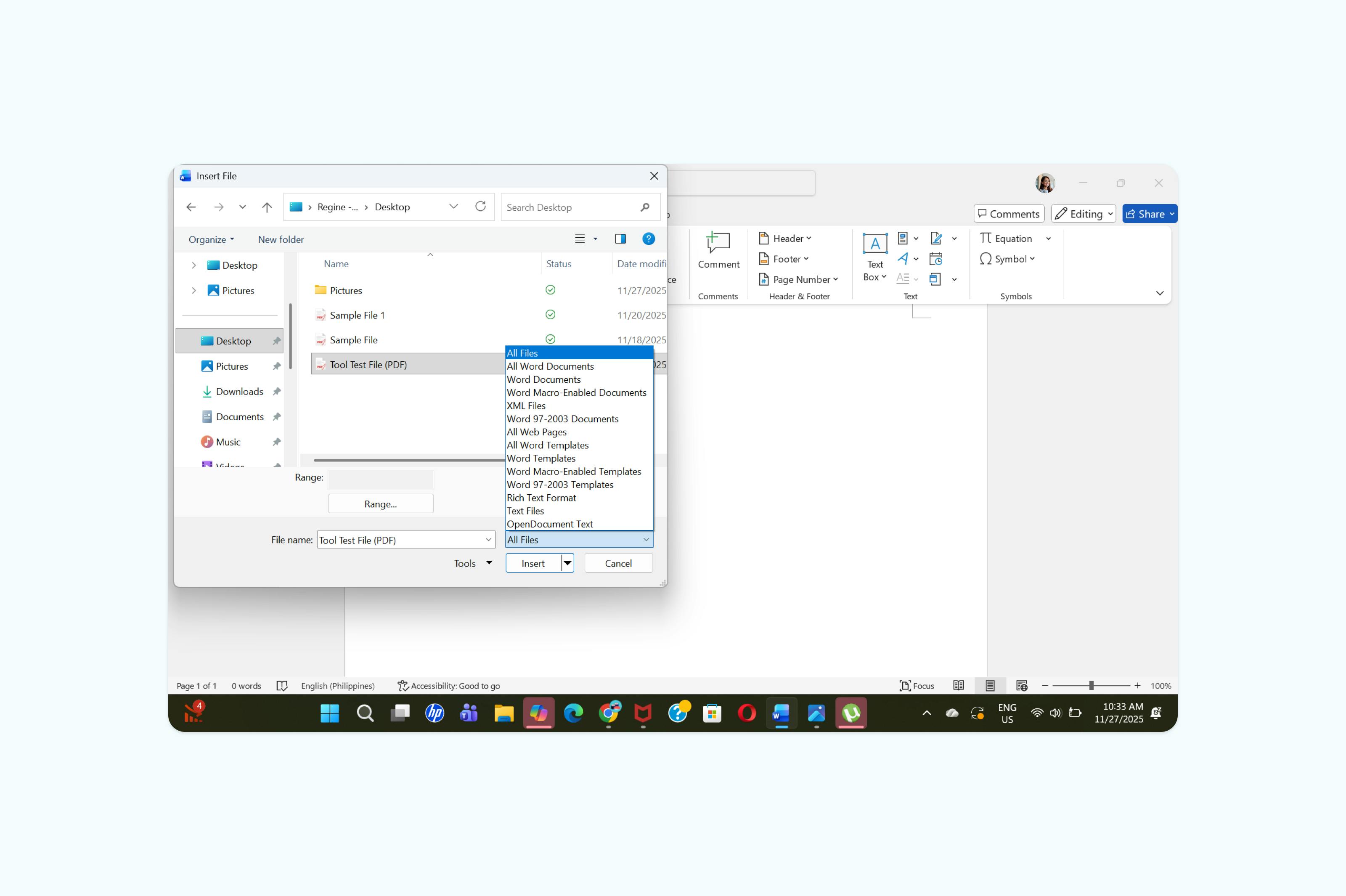
For Mac users: If the PDF appears grayed out, click the Options button and choose All Files from the Enable menu.
• Click “Insert”, then click “OK” in the dialog box explaining that the PDF will be converted to Word.
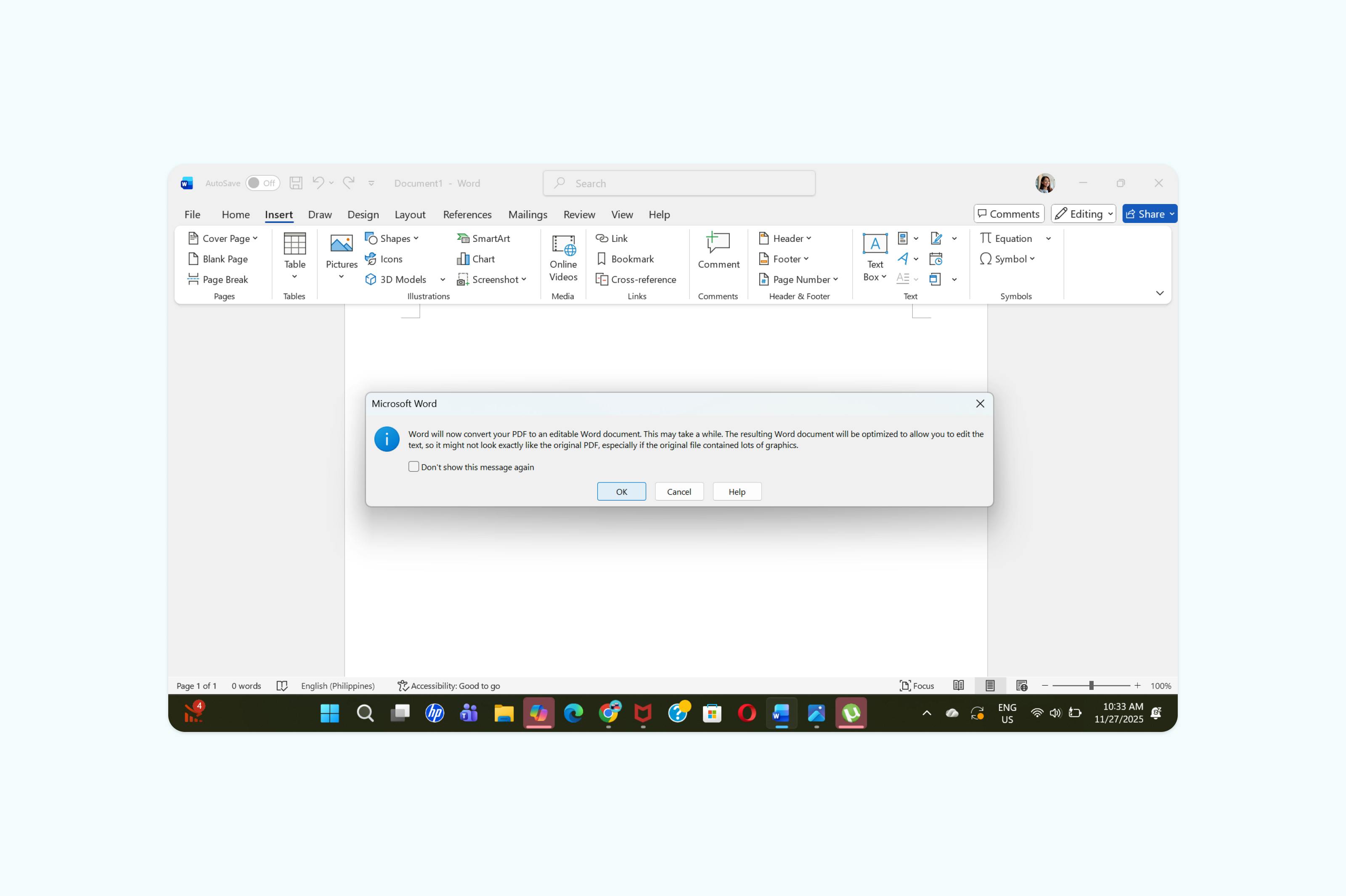
• The PDF content now appears in your document as editable text and images.
When to use this method:
This approach is ideal when you want to bring PDF text and images directly into Word for editing, such as when compiling reports, proposals, or research materials.
Frequently asked questions
Can I edit a PDF after inserting it into Word?
It depends on your insertion method. PDFs converted to Word format using Lumin become fully editable. PDFs inserted as objects remain locked and require external editing.
Why can't I insert my PDF into Word?
Common issues include password-protected PDFs, corrupted files, or Word compatibility problems. Try opening the PDF separately first to ensure it’s not damaged. If it’s protected, you’ll need to unlock it before insertion.
How do I insert only specific pages from a PDF?
For selective page insertion, first extract the pages you need using Lumin's free PDF extract tool, then insert the resulting file. Alternatively, convert the entire PDF and delete unwanted content after insertion.
Will inserting a PDF increase my Word file size?
Yes, embedding PDFs as objects significantly increases file size. Converting to Word format or linking to external PDFs keeps file sizes manageable while maintaining document functionality.
Conclusion
Inserting PDFs into Word doesn’t have to be complicated. Using Lumin’s PDF to Word converter gives you the cleanest, most editable results, preserving formatting and allowing full control over your content. If you prefer a quicker method, Microsoft Word’s built-in insert feature works well for embedding PDFs, though it may increase file size and limit editability. By choosing the method that fits your needs, you can efficiently integrate PDF content into your Word documents, making report creation, proposals, and research compilation smoother and more flexible.
Share this post