
How to password-protect a Word document
Sending important files? Keep them secure with password protection.
Table of contents
- 1. Method 1: Secure your document with Lumin’s password protect tool
- 2. Method 2: Use Mac’s built-in protection
- 3. Method 3: Password-protect your file on Windows with Microsoft Word
- 4. Frequently asked questions
- 5. Final Thoughts
Share this post
Adding a password to your Word documents helps safeguard confidential reports, contracts, and personal information. In this guide, we’ll cover how to password-protect your files, answer common questions, and provide key takeaways to keep your documents safe.
Method 1: Secure your document with Lumin’s password protect tool
The easiest way to password-protect your Word documents is to use Lumin’s online PDF editor. This method works on any device with a browser and doesn’t require any app installation. Lumin lets you add a password and encrypt your files in one simple workflow, keeping your documents secure without extra steps.
Follow these simple steps to add a password and secure your file:
- First, convert your Word documents into PDFs before uploading them to the merge tool.
- Once converted, open Lumin’s Password Protect tool and upload your file.
- If the password option appears automatically, set your desired password to encrypt the file.
- If not, click “Security,” select “Set Password,” and create a password manually.
- Finally, download your password-protected PDF.
Note: This method offers clear advantages over basic password protection, as PDFs preserve formatting across devices, prevent unauthorized editing, and allow secure collaboration by sharing the password with your team.
Method 2: Use Mac’s built-in protection
MacOS doesn’t offer a straightforward way to password-protect individual files or folders. A convenient solution is to combine your files into a single encrypted PDF using Lumin, which functions like a password-protected folder for your sensitive documents.
This workflow works on any Mac and doesn’t require installing any additional software—just a web browser.
Here’s a step-by-step guide to password-protecting your files:
• Press “Command (⌘) + Spacebar” on your keyboard, then type and open 'Disk Utility'.
• Click File > New Image > Blank Image.
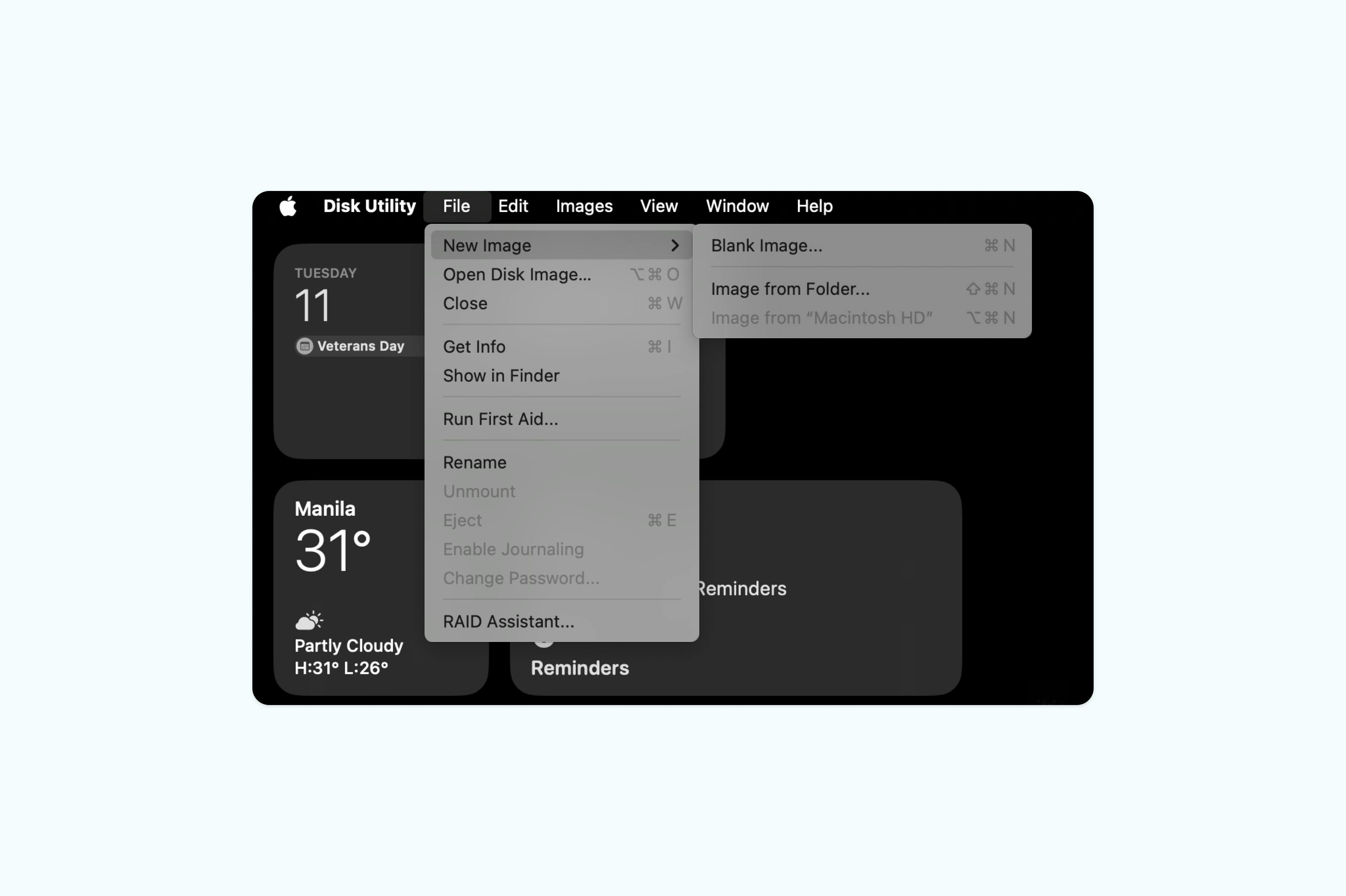
• Name the disk image and choose a location, such as Documents, Desktop, or Downloads.
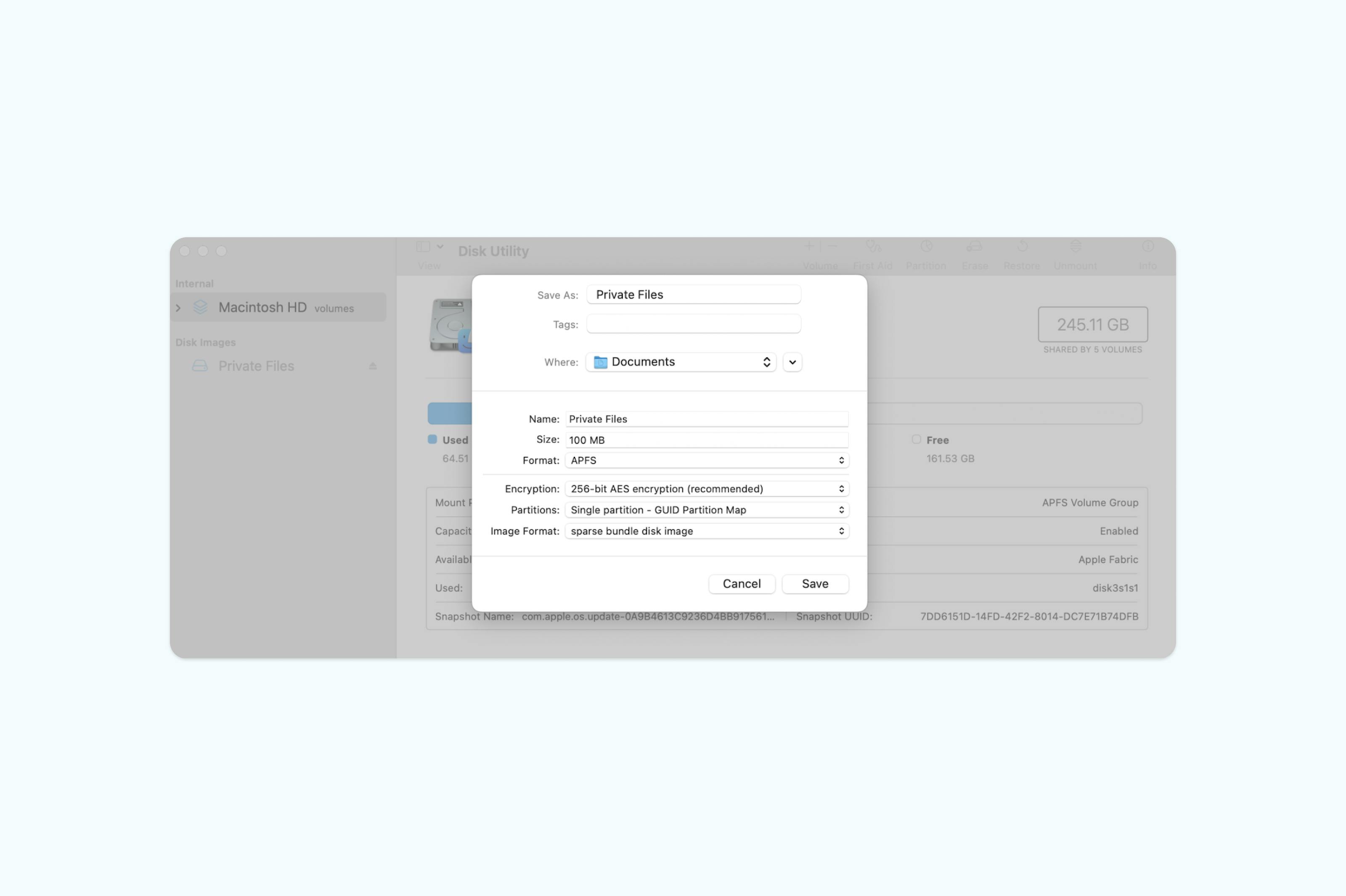
• Choose a size based on your needs, such as 100 MB, 300 MB, or 500 MB.
• Click “Encryption” (256-bit AES recommended) and enter a strong password.
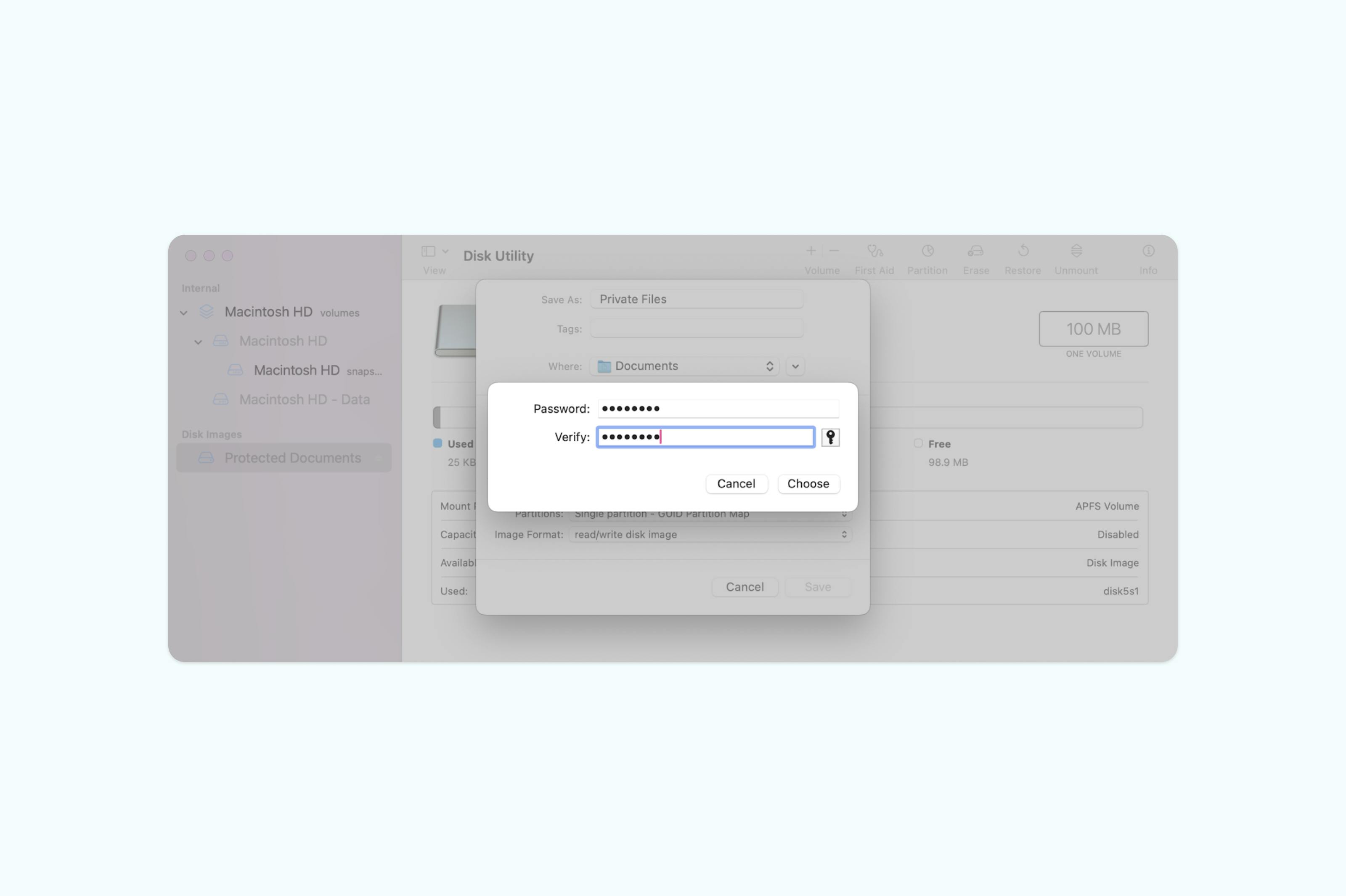
• Click “Save” to create your disk image and wait for the process to complete.
• Go to where you saved your disk image (Documents, Desktop, or Downloads).
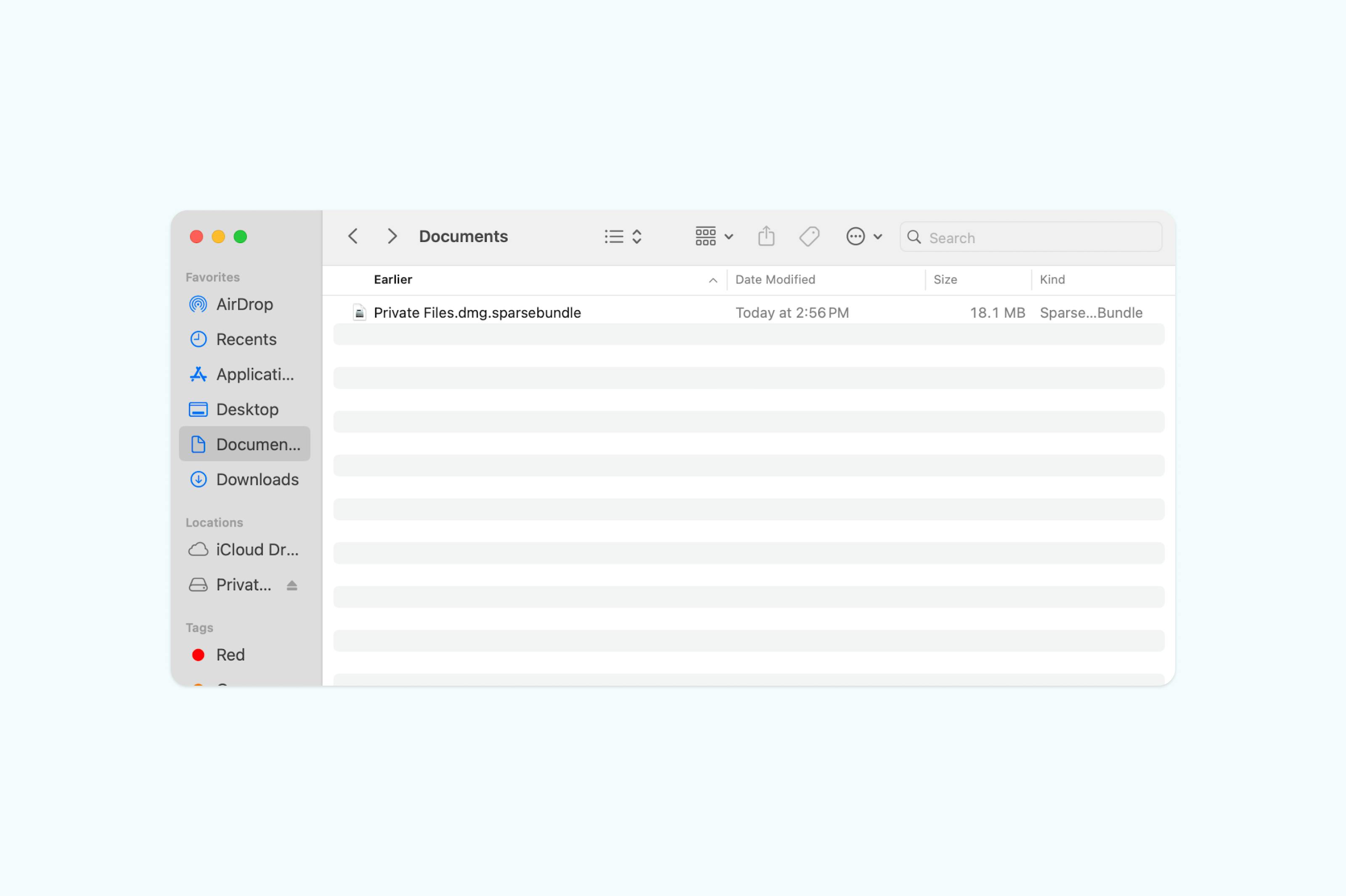
• Drag your sensitive Word document files into the disk image, then delete the originals and empty the Trash.
• Close the disk image to keep your files password-protected.
• To access them later, double-click it and enter your password.
Note: Mac doesn’t provide a simple way to password-protect individual files. Using Disk Utility, you can create an encrypted disk image, a kind of secure virtual folder where you can drop one or multiple files. While the process is a bit complex, it does the job of protecting your files.
Method 3: Password-protect your file on Windows with Microsoft Word
Windows allows you to secure individual Word documents by setting a password directly within Microsoft Word. This method protects your sensitive content from unauthorized access and ensures only people with the password can open or modify it.
Here’s how to password-protect your Word file:
- Open your document in Microsoft Word.
- Click “File” in the top-left corner, then select “Info”.
- Choose “Protect Document” and select “Encrypt with Password”.
- Enter your desired password, then click “OK”.
- Re-enter the password to confirm and save your document.
- (Optional) Save the document to your PC as a PDF or Word file. You can also view it directly in Microsoft Word.

Note: If you forget your password, Microsoft cannot recover it, so make sure to store it somewhere safe.
Frequently asked questions
Can I password-protect a Word document without Microsoft Office?
Yes. You can convert your document to a PDF using Lumin's free converter and then apply password protection. This method works on any device with internet access and doesn’t require installing any software.
How secure is Word document password protection?
Modern versions of Word use AES-256 encryption when you set a password. However, the actual security depends on your password strength and how you share it. Using PDF protection through Lumin adds extra security layers, such as access tracking and the ability to revoke permissions.
What’s the best approach for sharing sensitive documents via email?
For stronger security, convert your file to a PDF and protect it with Lumin before sending. Share the password through a separate channel, like text message or phone call. Lumin’s secure sharing tools also let you see when recipients open the document and revoke access if necessary.
Can I protect specific sections while allowing some editing?
Yes, you can secure specific sections of a document while allowing other parts to be edited. In programs like Microsoft Word and Excel, features such as "Restrict Editing" or "Protect Sheet" let you lock certain areas while keeping others editable. You can select which sections remain open or set exceptions for specific users who are allowed to make changes.
Final Thoughts
Password protection is important for keeping sensitive documents secure, but the right method depends on your workflow. With Lumin’s PDF-based protection, you can still edit, collaborate, and share files using links or passwords while maintaining full control over access. Lumin works across both Mac and Windows. While Mac’s built-in encryption can be complex and Windows often requires third-party tools, Lumin provides a simpler and more secure all-in-one solution.
If you’re exploring more ways to manage PDFs, check out these guides:

Share this post