From built-in browser features to third-party tools that preserve perfect formatting, this guide covers every method you need to know. We’ll also help you troubleshoot common issues such as missing images, broken layouts, or password-protected pages so your saved file looks exactly as expected.
While no method is completely flawless, some webpages may not render perfectly. These approaches will give you reliable results and ensure your content stays accessible, secure, and easy to share.
Method 1: Use your browser's built-in print-to-PDF feature
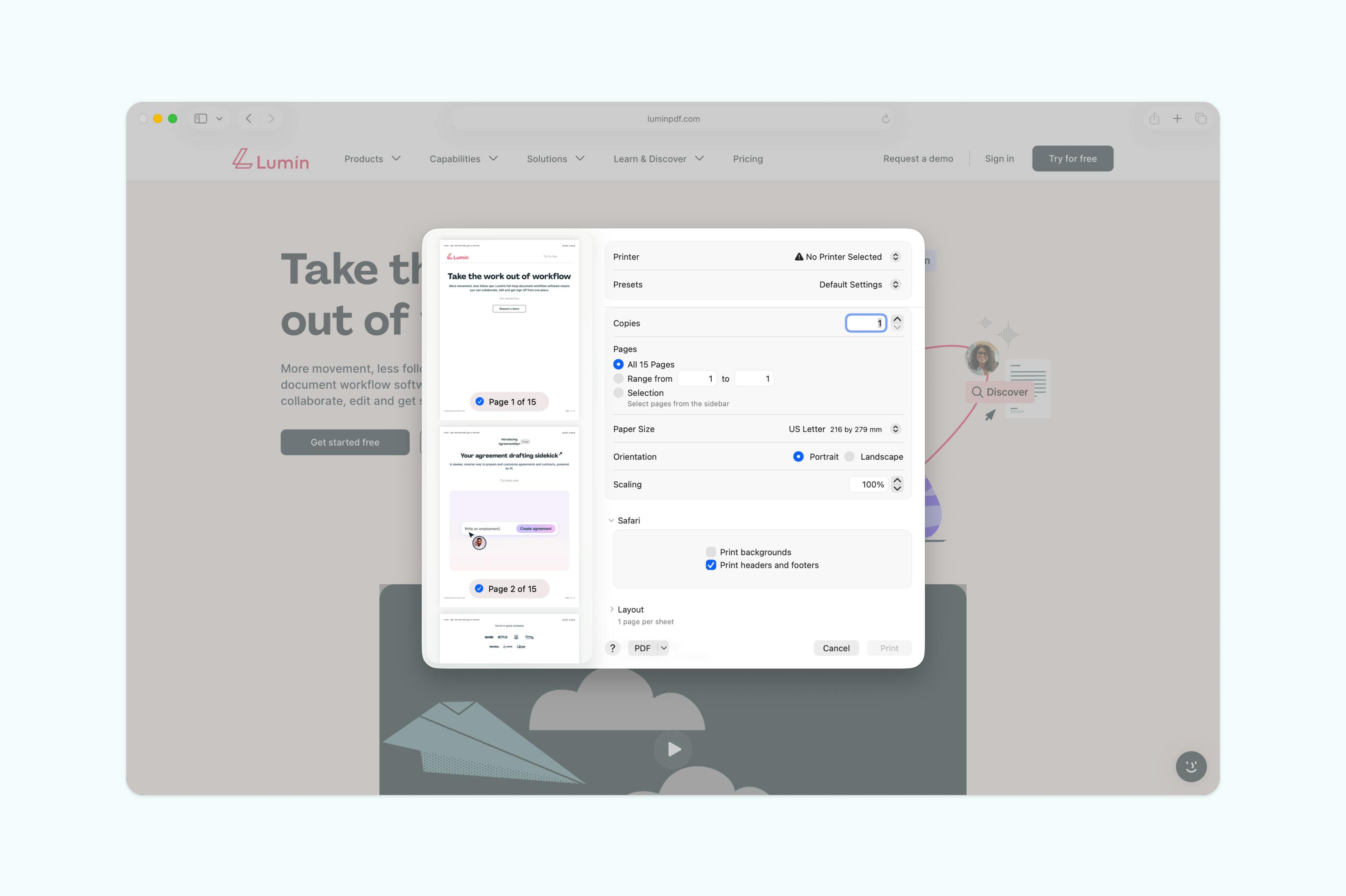
The fastest way to save a webpage as a PDF is using the print function built into every modern browser. This method works on Chrome, Firefox, Safari, and Edge without installing anything.
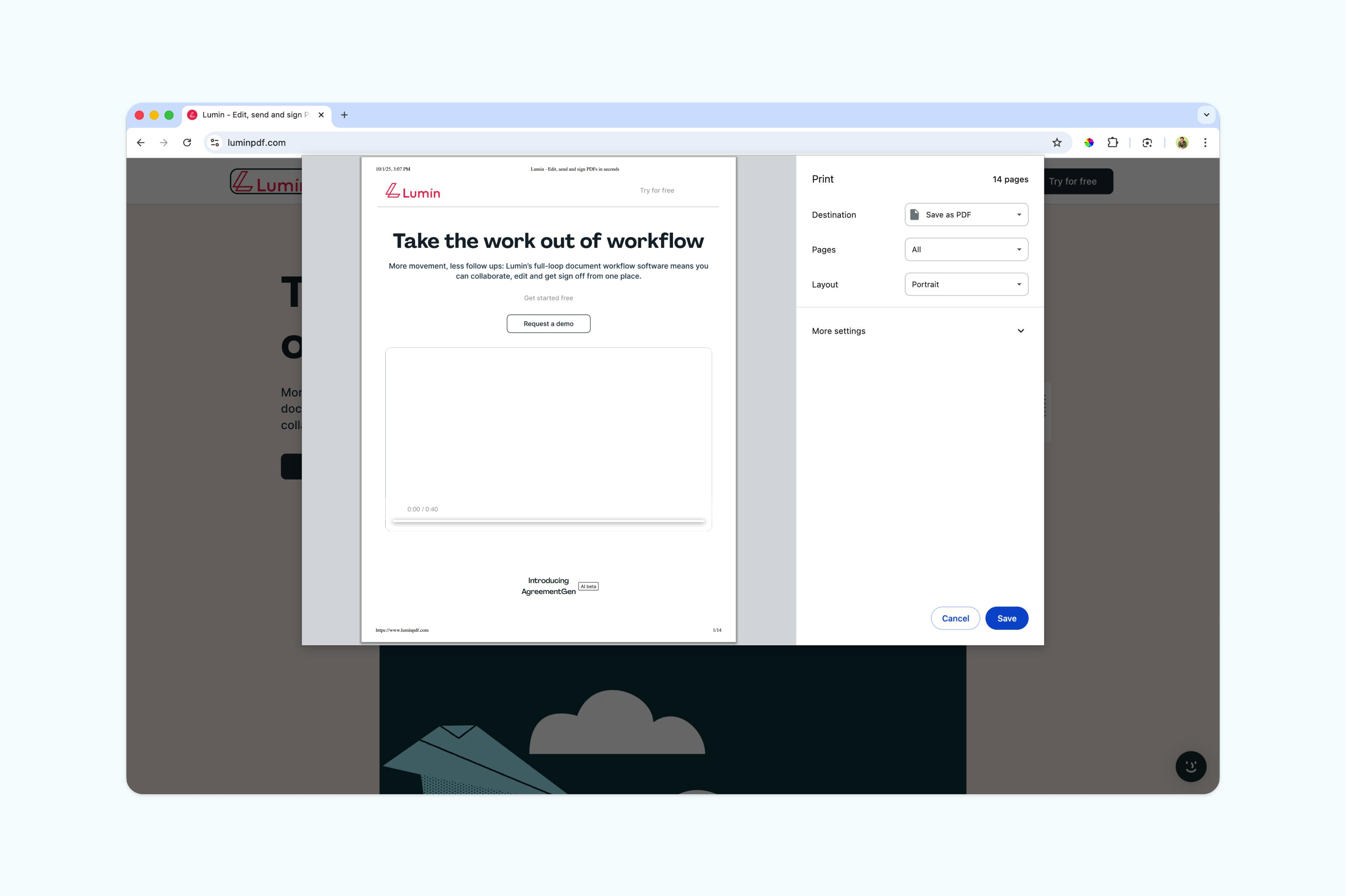
For Chrome users:
- Open the webpage you want to save.
- Press "Ctrl+P" (Windows) or "Cmd+P" (Mac).
- Adjust your settings (pages, layout, margins, etc.).
- In the Destination dropdown, select "Save as PDF."
- Click "Save" and choose where to store your PDF.
Note: This method preserves text and basic formatting but may struggle with complex layouts or interactive elements.
Method 2: Save webpages on mobile devices
Saving webpages as PDFs on your phone requires slightly different steps but is just as straightforward.
On iPhone (Safari):
- Open the webpage in Safari.
- Tap the "three-dot menu" icon.
- Tap the "Share" icon at the bottom.
- Select "Options" at the top of the share sheet.
- Choose "PDF" instead of "Automatic."
- Tap "Done", then "Save to Files."
On Android (Chrome):
- Open the webpage in Chrome.
- Tap the "three-dot menu" icon.
- Select "Share."
- Choose "Print."
- Select "Save as PDF" from the printer options.
- Tap the "PDF" icon to save.
Note: Mobile browsers compress files efficiently, making them perfect for saving articles or receipts on the go.
Method 3: Online webpage to PDF converters
For the most reliable results with complex websites, online converters often preserve formatting better than browser tools. These services render pages on their servers, capturing elements that browser printing might miss.
When choosing an online converter, look for options that offer features such as preserving hyperlinks within the PDF, maintaining responsive design elements, handling JavaScript-heavy pages correctly, and automatically removing ads or pop-ups.
Many free tools are suitable for basic needs, while premium options are designed to handle enterprise websites and password-protected content.
Common issues and solutions
Why is my saved PDF missing images or showing broken formatting?
Webpages load content dynamically, and your browser might capture the page before everything renders. Try waiting a few seconds after the page loads before saving, or use an online converter that processes JavaScript properly.
Can I save a password-protected webpage as a PDF?
Yes, but you'll need to log in first. Your browser can only capture what you can see, so sign into the website before using any PDF saving method. Online converters typically cannot access pages behind login walls.
How do I save just part of a webpage?
Most browsers let you select specific content before printing. Highlight the text and images you want, then choose "Selection only" in your print dialog. This creates a cleaner PDF with just the content you need.
The PDF is too large. How can I reduce the file size?
Browser print dialogs often include quality settings. Choose lower quality or black-and-white printing to reduce size. After saving, you can also use a PDF compressor to shrink the file further without losing readability.
What about editing saved PDFs?
Once you've saved a webpage as a PDF, you might need to make changes. Maybe you want to remove ads that slipped through, add annotations for research, or combine multiple saved pages into one document.
This is where dedicated PDF tools become essential. While browsers are great for creating PDFs, they can't edit them. Free PDF editors like Lumin let you edit saved webpages converted to PDF by adding notes and highlights, removing unwanted pages or content, merging multiple files, and converting them to other formats when needed.
Make your saved webpages work harder
Saving webpages as PDFs is just the beginning. With Lumin’s free tools like Edit PDF, Merge PDF, and Redact PDF, you can annotate research articles, combine multiple saved pages, remove unwanted content, and share documents securely.
Create your free Lumin account to unlock powerful PDF editing features that go beyond basic saving.