Merge PDF files
Select multiple PDF files and merge them together in seconds. Drop your first document, upload your second, and then click merge. Easily combine PDF files online for free.

or drop your first file here
You're in good company


How to merge PDF files online
Follow these simple steps to combine your PDF documents into a single file:
- 1
Upload
Drop a PDF file into the dropzone above or select 'Upload'.
- 2
Upload a file to merge
Sign-in and upload your second file by selecting the 'Upload files' button
- 3
Select location to save
Easily select the location where you'd like to place the second file
- 4
Merge
Click 'Merge' to combine the documents.
- 5
Download
From here, you can continue editing the merged document or download it.
Merging PDFs made simple
Merge PDFs effortlessly with Lumin’s free tool. Combine multiple files into one organized document in just a few clicks.
Combine PDFs in seconds
Combine multiple PDFs or file types into one polished document in seconds. Keep everything organized and easy to share with a single click. Create professional documents by seamlessly joining files of different formats into a unified PDF.
Works seamlessly with Google Drive
Import files straight from Google Drive, merge them, and save back instantly. Stay productive without leaving your workspace. Access and combine documents from your cloud storage with seamless Google Workspace connectivity.
Enterprise-level security for your files
Your documents stay safe with enterprise-grade encryption. Every file is protected and automatically deleted after processing. Industry-standard security protocols ensure your sensitive information remains confidential throughout the merging process.
Merge PDFs on any device
Combine multiple PDFs into a single, organized file on Mac, Windows, or Linux — all from your browser. No matter which system you use, you can merge files instantly and keep everything in one easy-to-share document.
Full control over your pages
Take control of your PDFs. Rearrange pages, split large files, or rotate pages to create the perfect document order. Fine-tune your merged documents with precision page management tools for professional results.
Works online or offline
No internet? No problem. Merge and edit PDFs offline, and your changes will sync when you reconnect. Continue working seamlessly whether you're connected or not, with automatic synchronization when you're back online.
Frequently asked questions
Yes, Lumin offers free PDF merging. Simply drag and drop or upload your documents to Lumin's desktop app to combine them instantly. The tool is accessible online without any hidden fees for basic merging functionality.
Lumin works on your browser, or you can download our desktop app and keep Lumin handy on your computer. We’ve also got a mobile and tablet app which includes our most popular features.
Our mobile app doesn't have the merge feature currently. Stay tuned, it'll be here real soon!
The merge PDF tool allows unlimited pages. We do have a file size limit of 20MB for the Free plan and 200MB for the Pro plan.
After uploading a PDF document, you can easily delete and reorder pages by dragging and dropping them into their placement. Simply hover over the page thumbnail to delete, reorder or rotate pages.
Yes, you can merge a JPG with a PDF using the Merge tool. However, when you download the merged file from Lumin it will be a PDF - you may need to convert it back to JPG.
Yes, you can combine JPG files into a PDF using Lumin on your phone or desktop. On mobile, open the Lumin app for iOS or Android, tap Tools, and then choose Merge to upload and arrange your images before merging them into a single PDF. You can also use the desktop app to drag and drop multiple files, organize them, and combine them into a single document.
Yes, you have full control over page organization. After uploading, use the drag-and-drop interface to reorder individual pages or entire documents.
You can remove unwanted pages, rotate pages that need adjustment, and preview changes in real time before finalizing the merge. This ensures your final document flows exactly as intended.Yes. Your merged PDF retains all original formatting, fonts, images, and layouts from each source document.
Lumin preserves file integrity throughout the merge process, ensuring that text remains sharp, images stay clear, and all formatting elements appear exactly as they did in the originals.Lumin connects directly with Google Drive through the desktop app or web interface. Open Lumin, go to Page Tools, and select the Merge tool.
When prompted to upload files, choose Google Drive and select the PDFs you want to combine. The files will merge into Lumin, where you can then rearrange pages, adjust the order, or make changes before finalizing your document.
Trusted by more than 100 million customers
Featured articles

Education
• Jul 25, 2025
Split & Merge: how to organize classroom materials
Every successful classroom requires organization, but what do you do when you need to organize a digital classroom?
Read more Split & Merge: how to organize classroom materials
PDF editing
• Nov 20, 2025
How to merge Word documents
Combining multiple Word documents into a single file helps you consolidate projects, compile reports from different team members, or organize scattered documents. No matter the purpose, merging Word files doesn’t have to be complicated. We'll show you three straightforward methods to get it done, and answer the most common questions you face along the way.
Read more How to merge Word documents
PDF editing
• Jul 24, 2025
How to add pages to a PDF
Need to add pages to a PDF? This guide shows you how to insert blank pages or merge pages from another PDF quickly and securely.
Read more How to add pages to a PDF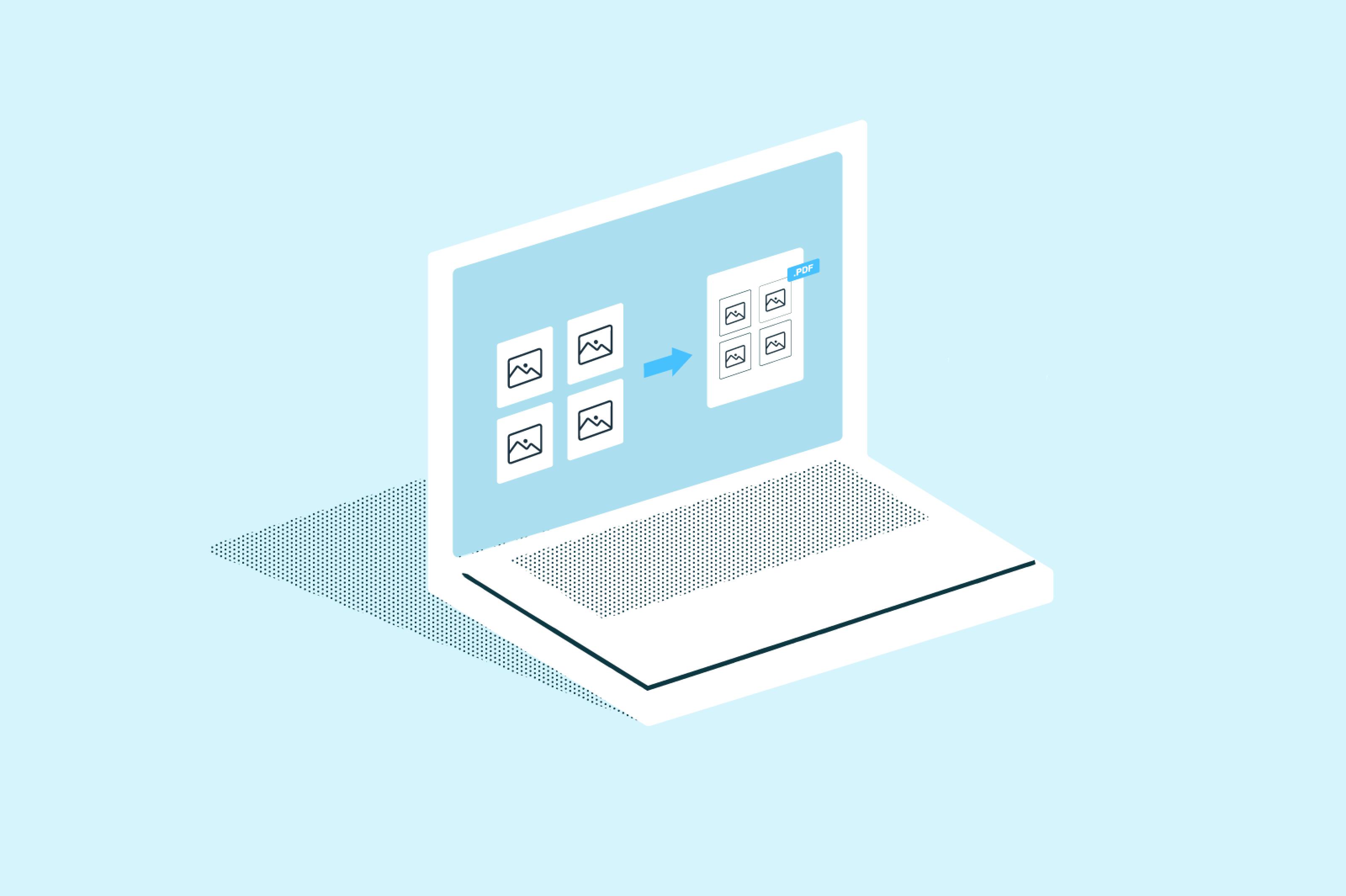
PDF editing
• Nov 4, 2025
How to merge multiple JPGs into one PDF
Do you need to combine several JPG images into one PDF document? Whether you're consolidating scanned receipts, creating a photo portfolio, or preparing documents for submission, merging multiple JPGs into a single PDF is a common task that should be simple.
Read more How to merge multiple JPGs into one PDF
Discover Lumin’s products
Collaborate with existing colleagues and onboard new ones with Lumin and Lumin Sign. Our innovative solutions work great on their own, but they’re even better together.
Lumin Sign
A digital signature workflow tool that seals deals with legally-compliant signatures.
Learn moreLumin Sign API
An eSignature API designed to be plugged into your platform with minimal effort.
Learn more