
How to merge multiple JPGs into one PDF
Do you need to combine several JPG images into one PDF document? Whether you're consolidating scanned receipts, creating a photo portfolio, or preparing documents for submission, merging multiple JPGs into a single PDF is a common task that should be simple.
Table of contents
- 1. Method 1: Use Lumin's free JPG to PDF converter
- 2. Method 2: Combine JPGs on Mac using Preview
- 3. Method 3: Merge JPGs using the Microsoft Print to PDF feature
- 4. Common questions about merging JPGs to PDF
- 5. Tips for better results when merging JPGs
- 6. Beyond merging: What else can you do?
- 7. Start merging your JPGs now
Share this post
The good news is that you don't need expensive software or complicated workarounds. This guide shows you three free, reliable methods to combine your JPG files into one PDF, starting with the easiest online option.
Method 1: Use Lumin's free JPG to PDF converter
The fastest way to merge multiple JPGs into a single PDF is to use Lumin's online converter. It's browser-based, works on any device, and requires no software installation.
How to combine JPGs into a PDF with Lumin:
- Open Lumin’s free JPG to PDF converter and upload your JPG images. Convert them to PDF files first.
- After converting your JPGs to PDFs, go to the Merge PDF tool.
- Upload one of your converted PDF files to start.
Note: You’ll be directed to Lumin’s browser-based editor — no installation needed.
- Select “Page Tools”, then “Merge” from the options.
- Upload all your converted PDF files.
- Once your files are uploaded, arrange them in the correct order by dragging and dropping.
- Click “Merge” to combine all your files into a single PDF.
- When the process is complete, download your merged document, ready to use, share, or print.

Why choose Lumin?
Lumin makes combining JPGs into PDFs simple and secure. The tool is free to use with no watermarks, supports batch uploads for efficiency, and maintains your original image quality. Your files are processed securely and deleted from servers shortly after conversion.
Method 2: Combine JPGs on Mac using Preview
Mac users have a built-in option with Preview that makes merging JPGs into PDFs straightforward without any additional software.
How to merge JPGs on Mac:
- Open your JPG images from your desktop or saved folder.
- Right-click and choose “Open With > Preview”.
- Rearrange the images by dragging the thumbnails up or down in the sidebar.
- When you're satisfied with the order, go to “File > Print”, then click the “PDF” dropdown in the bottom-left corner and select “Save as PDF”
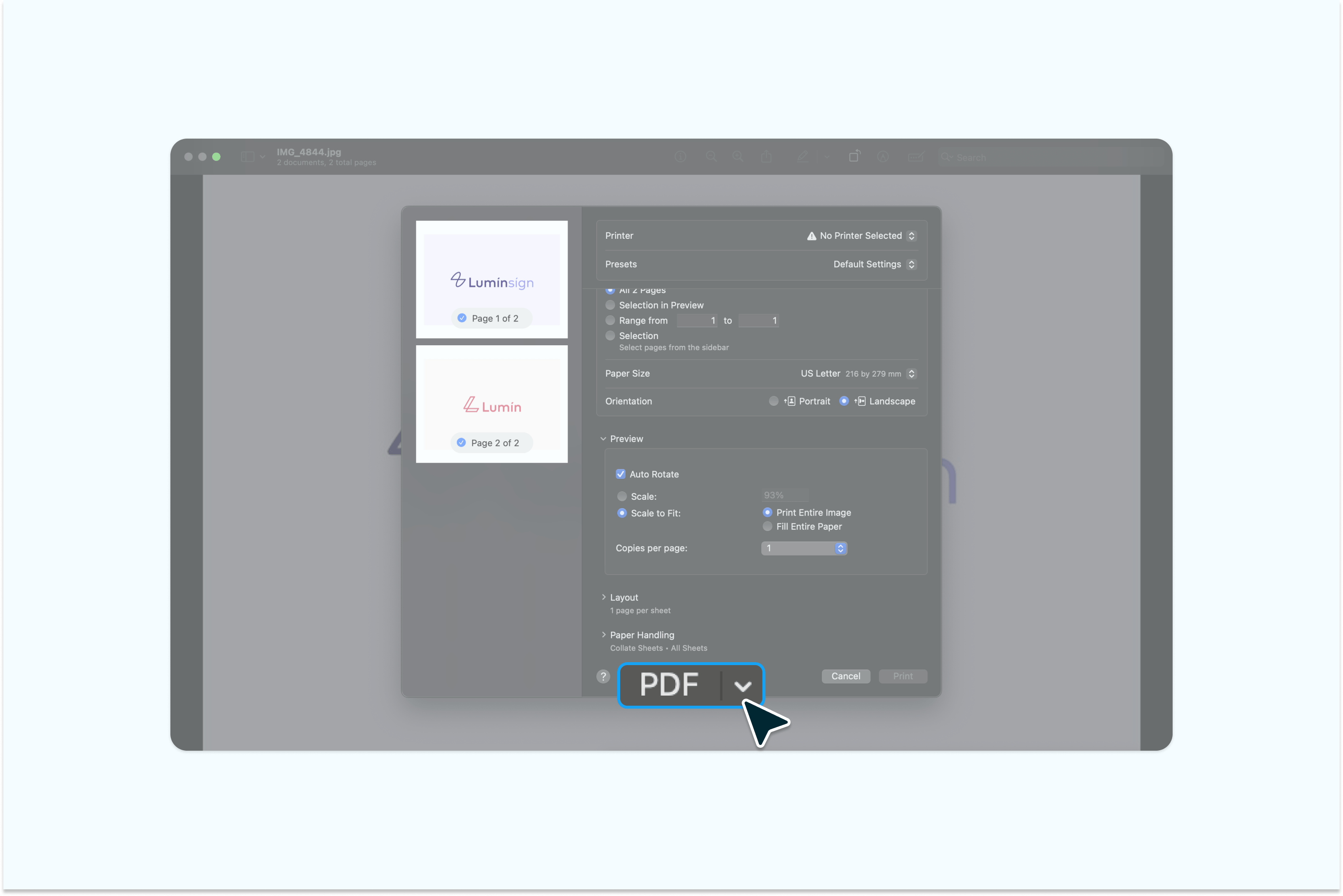
Note: Preview preserves image quality well but lacks advanced features like compression control or batch processing for large collections.
Method 3: Merge JPGs using the Microsoft Print to PDF feature
If you're on Windows and prefer working offline, you can use the Microsoft Print to PDF feature to combine multiple JPGs.
Steps for Windows users:
- Select all the JPG images you want to merge in File Explorer. Hold Ctrl and click each file, or press “Ctrl+A” to select all files in a folder.
- Right-click on the selected files and choose "Print" from the context menu.
- In the print dialog, select "Microsoft Print to PDF" as your printer.
- Adjust the layout settings if needed—you can choose how many images appear per page.
- Click "Print" and choose where to save your new PDF file.
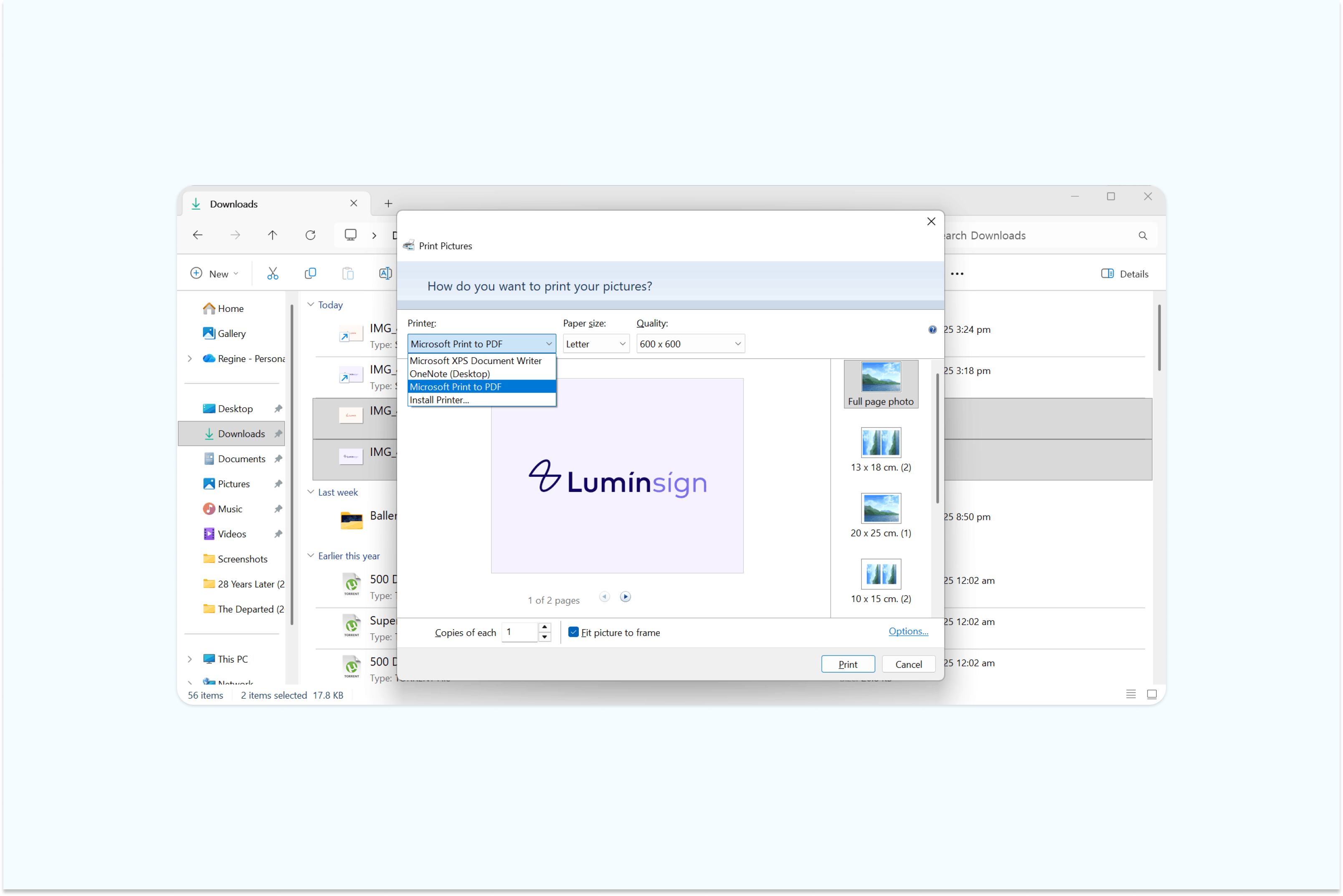
Note: Make sure the Microsoft Print to PDF feature is enabled on your device. This method works for basic merging but offers limited control over image order and may compress photos depending on print settings.
How to enable Microsoft Print to PDF:
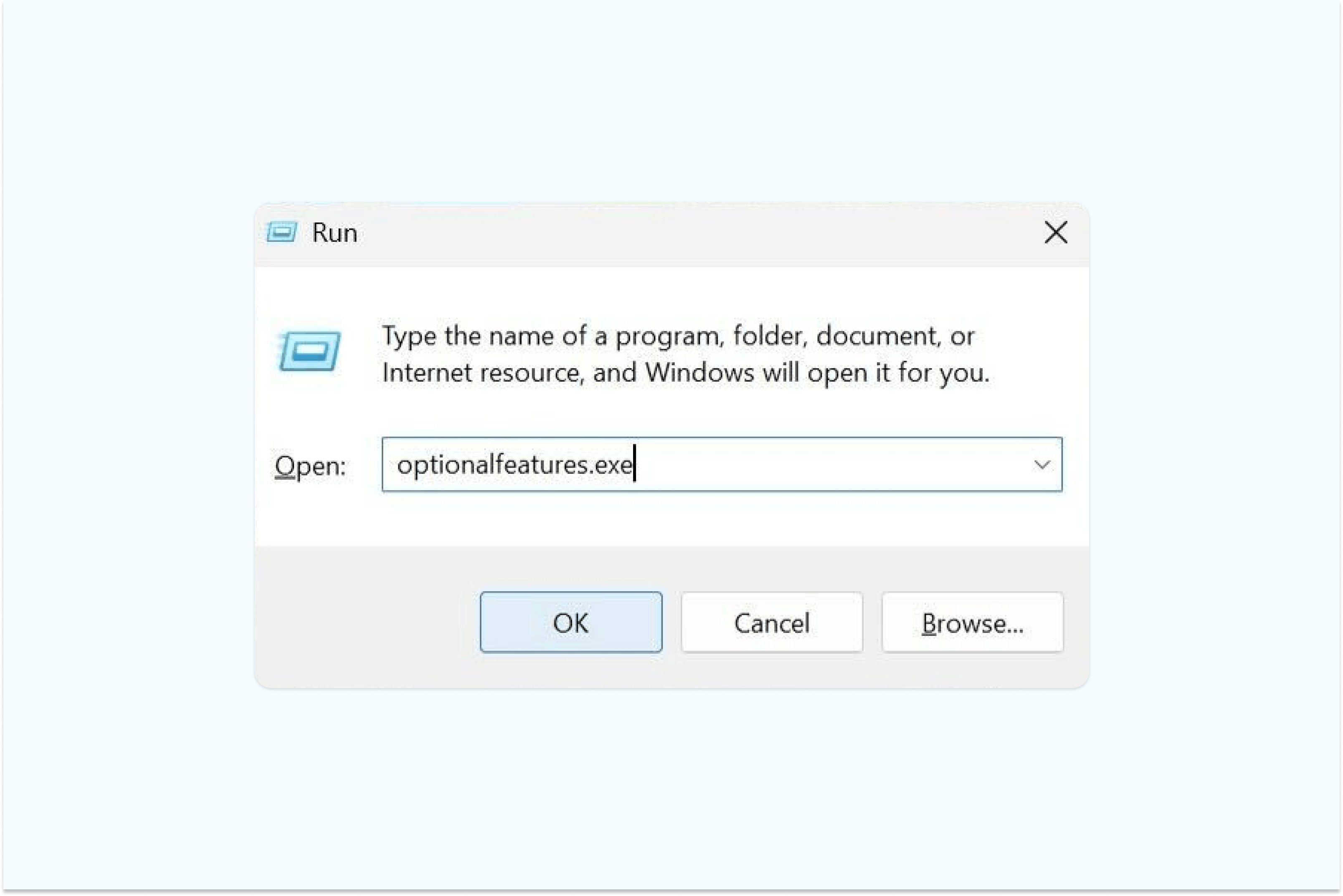
• Press “Windows + R”, type optionalfeatures.exe, and press OK.
• Scroll down and find Microsoft Print to PDF.
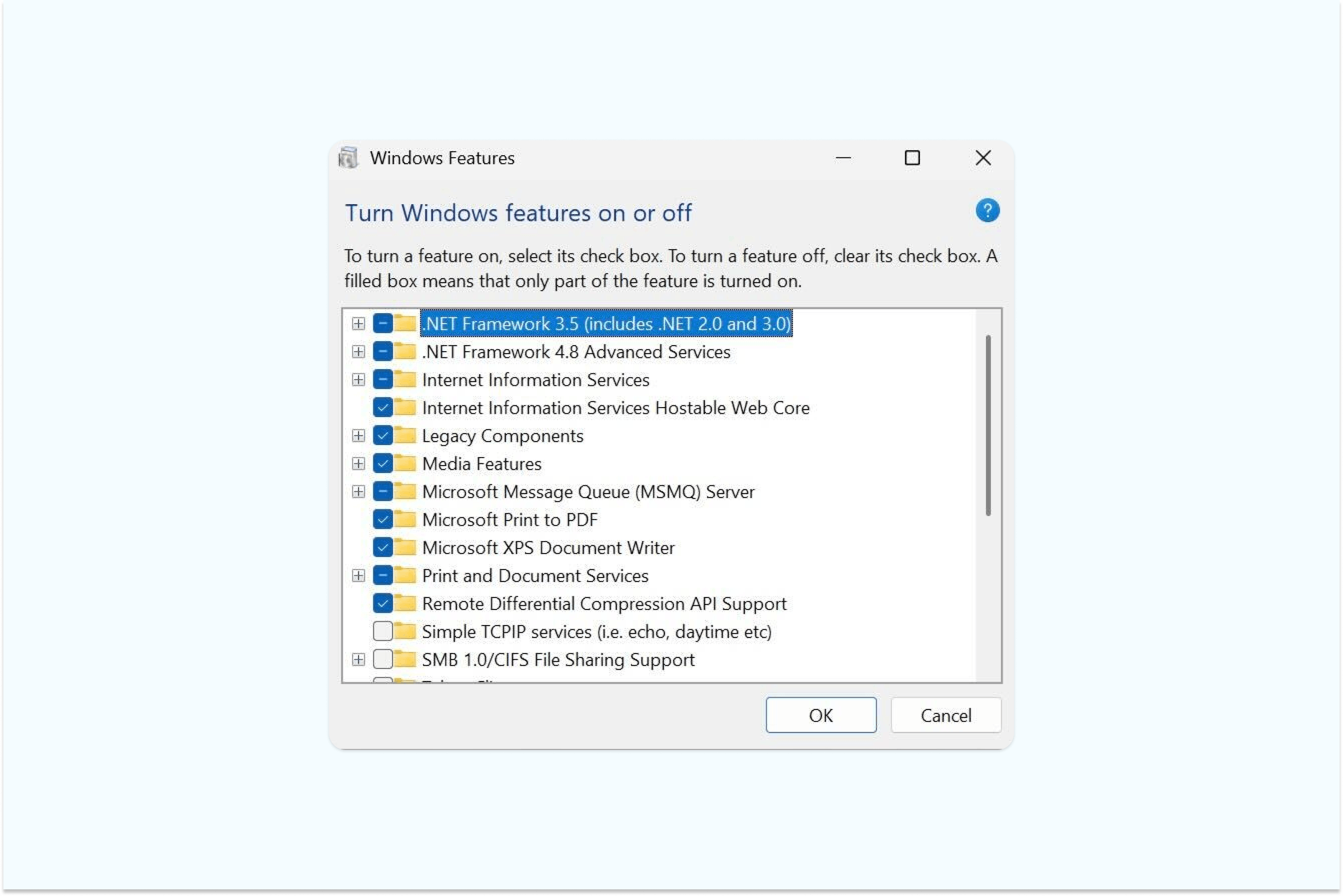
• If it’s unchecked, select it and click OK to install.
• If it’s already checked, uncheck it, click OK, restart your PC, then recheck it and click OK again.
• Restart your computer if prompted.
Common questions about merging JPGs to PDF
Can I merge JPGs into a PDF on my phone?
Yes, you can easily combine JPG files into a PDF from your mobile device. To get started, download and sign in to the Lumin app for iOS or Android. Once you're logged in, upload your JPG documents to your personal folder. Next, tap Tools, select the Merge option, and start combining your images.
Will merging JPGs reduce image quality?
That depends on the tool you use. High-quality converters like Lumin preserve your original image resolution. Some platforms may compress images to reduce file size. If maintaining clarity is important, look for compression settings or choose a tool that ensures image quality is preserved.
How many JPGs can I combine into one PDF?
Most converters, including Lumin, allow you to merge dozens or even hundreds of images into a single PDF. However, keep an eye on the file size because combining many high-resolution images can result in large PDFs that may be difficult to share via email or upload to certain platforms.
Is it secure to upload my images online?
Trusted converters use encrypted connections and automatically delete your files after processing. Lumin secures all uploads with HTTPS encryption and removes files from its servers shortly after conversion. For sensitive content, always review the security practices of any online tool before uploading.
Learn more about how Lumin protects your data.
Tips for better results when merging JPGs
Getting the best output when combining multiple JPGs into PDFs requires a bit of preparation. Here are some practical tips to ensure professional results.
First, organize your images before uploading. Rename files with numbers (01, 02, 03) to maintain order during batch uploads. This saves time rearranging later and prevents confusion with similar filenames.
Consider image resolution and file size. High-resolution photos create larger PDFs, which can be problematic for sharing. If your merged PDF is too large, resize images before merging or use Lumin's PDF compression tool afterward.
Finally, think about page layout. When merging photos for presentation, you might want multiple images per page. Some tools let you adjust this during conversion, while others require you to create image collages first.
Beyond merging: What else can you do?
Once you've combined your JPGs into a PDF, Lumin offers tools to help you refine your document. You can add page numbers, insert headers or footers, or include a cover page to make your PDF look more professional.
Need to make changes after merging? Use Lumin’s PDF editor to rearrange pages, delete unwanted images, or add new content. You can also annotate your PDF with comments, highlights, or drawings, making it ideal for collaboration or document review.
Start merging your JPGs now
Combining multiple JPG images into a single PDF doesn't have to be complicated. Whether you choose Lumin's online converter for its simplicity and features, or prefer using built-in tools on Windows or Mac, you now know how to merge your images efficiently.
Ready to get started? Upload your JPG files to Lumin's free converter and create your merged PDF in seconds. No software installation, no watermarks—just a simple tool that works.

Share this post