
Comment modifier des PDF avec l’IA : Travaillez plus intelligemment, pas plus durement
Auteur
Kevin McHugh
Publie le
Aug 15, 2025
Categories
PDF editing
Temps de lecture
5 min
L’IA a révolutionné l’édition des PDF, rendant les tâches complexes rapides et faciles. Découvrez comment utiliser l’IA pour mettre à jour du texte, annoter, résumer, caviarder et organiser vos documents en un temps record.
4 [{"lang":"pt-pt","url":"/pt/blog/editar-pdf-com-ia/"},{"lang":"vi","url":"/vi/blog/chinh-sua-pdfs-voi-ai/"},{"lang":"es-es","url":"/es/blog/editar-pdfs-con-ia/"},{"lang":"en-nz","url":"/blog/edit-pdfs-with-ai/"}]Vous pouvez également lire cet article en Português, Tiếng Việt, Español et English.
Table des matières
- 1. 1. Édition de texte IA : Mettez à jour vos textes rapidement dans tout le document.
- 2. 2. Annotation PDF IA : Marquez vos textes en un instant
- 3. 3. OCR PDF : Convertissez les documents scannés en texte
- 4. 4. Scinder et extraire : Organisez vos PDF avec l’IA
- 5. 5. Caviardage IA : Caviardez les informations personnelles ou sensibles
- 6. 6. Résumé PDF : Obtenez instantanément les points clés
- 7. 7. Discutez avec votre PDF : Posez vos questions et obtenez des réponses depuis votre document
- 8. Modifiez plus intelligemment grâce à l’IA
Partager cet article
L’IA a entièrement transformé notre façon de gérer les PDF. Ce qui nécessitait autrefois des après-midis entiers peut aujourd’hui être réalisé en quelques minutes avec un éditeur PDF IA.
Dans cet article, nous allons voir comment gagner du temps et simplifier les tâches complexes grâce à l’édition de vos PDF avec l’IA. Qu’il s’agisse de résumer des rapports denses, d’interagir avec des contrats, de caviarder des informations sensibles ou d’organiser des pages, découvrez comment les outils d’édition PDF basés sur l’IA vous permettent de travailler plus vite, plus précisément et sans effort.
1. Édition de texte IA : Mettez à jour vos textes rapidement dans tout le document.
Fonctionnalité :
Grâce à l’interface de chat IA de Lumin, vous pouvez appliquer des modifications à l’ensemble d’un document en quelques secondes. Cela vous permet de remplacer des noms ou expressions répétées, d’harmoniser l’orthographe ou de corriger des termes obsolètes.
Exemple :
Vous mettez à jour un document de politique interne faisant référence à votre entreprise comme « Anders Group », mais celle-ci vient de changer de nom pour « Anders & Co ».
Au lieu de chercher et modifier manuellement chaque occurrence, vous indiquez à Lumin IA :
« Remplace toutes les mentions de “Anders Group” par “Anders & Co”. »
L’IA trouve 84 occurrences de « Anders Group » sur 40 pages, y compris dans les pieds de page, les titres de sections et les paragraphes. Elle propose une liste à valider. Vous désélectionnez quatre citations juridiques à ne pas changer, puis validez la modification.
En moins de deux minutes, votre document est entièrement mis à jour — sans référence oubliée ni manipulation manuelle du type Ctrl+F.
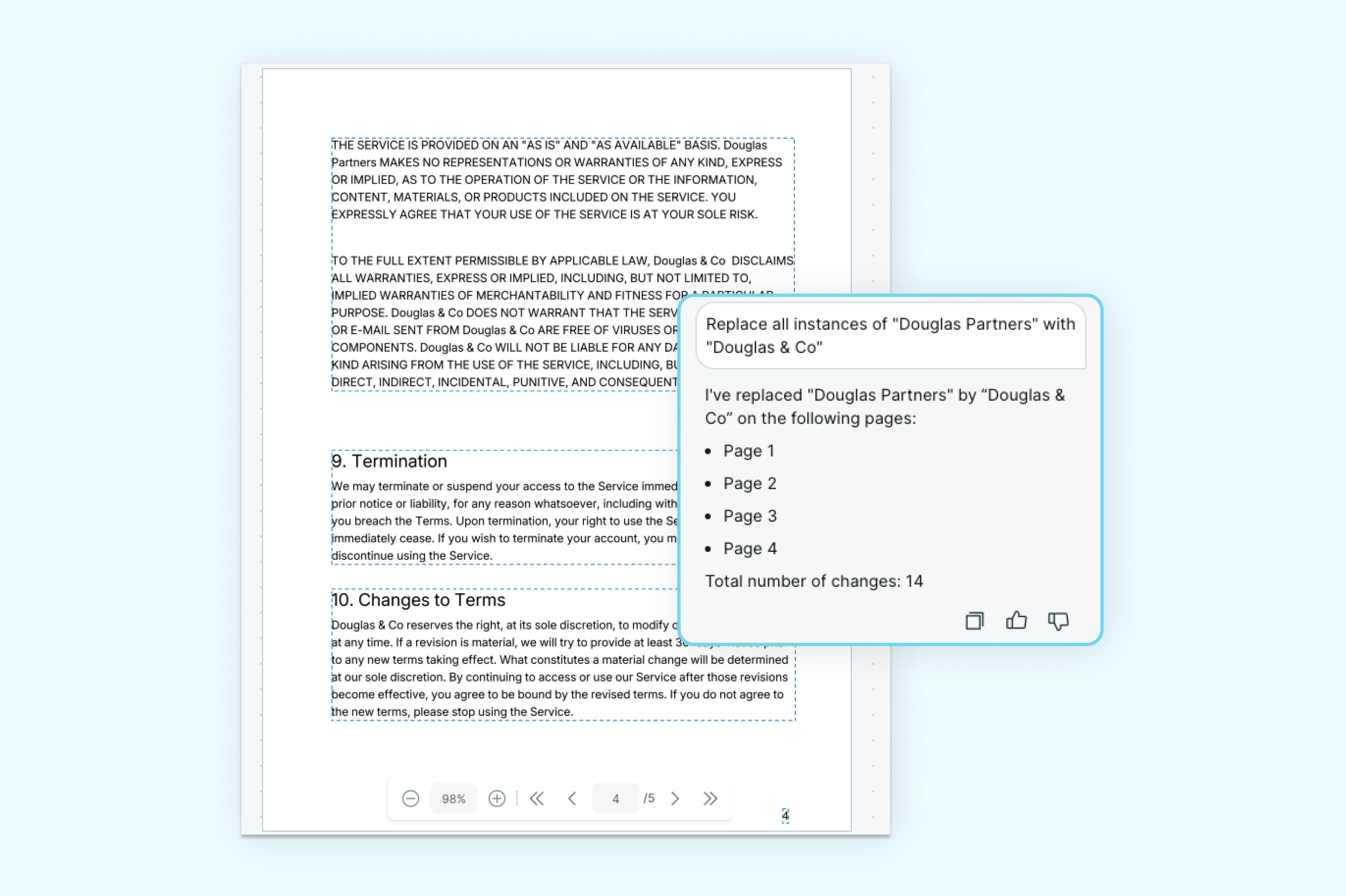
Modifiez le texte de votre PDF avec Lumin
2. Annotation PDF IA : Marquez vos textes en un instant
Fonctionnalité :
Les outils d’annotation de Lumin vous permettent de surligner, souligner ou barrer du texte dans vos PDF. Avec l’IA, vous n’avez plus à tout faire manuellement — il suffit de saisir vos consignes d’annotation, et l’outil les applique en quelques secondes.
Exemple :
Vous relisez une proposition de projet de 25 pages. Vous devez surligner toutes les dates de livraison, les tâches et les noms des responsables pour un suivi interne.
Plutôt que de parcourir tout le document à la main, vous demandez à Lumin IA :
« Surligne toutes les dates de livraison, les noms de tâches et les références des membres de l’équipe. »
Lumin passe le document en revue et propose des annotations. Vous vérifiez et validez les annotations, puis pouvez exporter la version annotée pour votre équipe lors de la prochaine réunion de planification.
Ce processus vous fait gagner 30 à 45 minutes d’annotation manuelle, tout en gardant le contrôle.
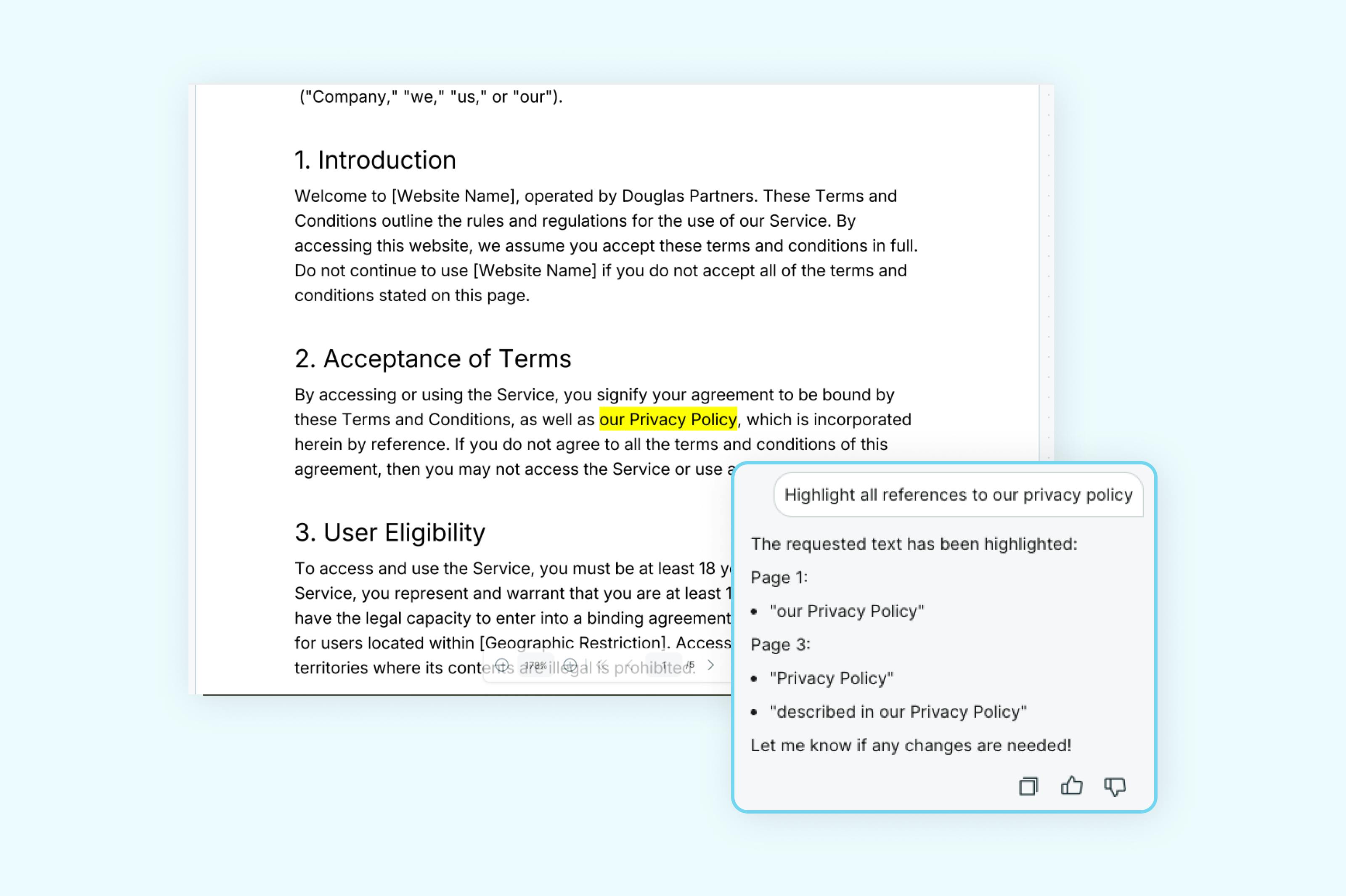
Lancez-vous avec notre outil d’annotation PDF.
3. OCR PDF : Convertissez les documents scannés en texte
Fonctionnalité :
L’OCR (reconnaissance optique de caractères) permet de transformer vos PDF scannés ou documents image en fichiers modifiables et consultables. C’est indispensable pour les anciens documents ou les documents imprimés sauvegardés sous forme d’images.
Exemple de workflow :
Un fournisseur vous envoie une facture scannée au format PDF, contenant des infos clés comme le numéro de facture, l’échéance et les services détaillés, mais le contenu est uniquement une image. Vous devez extraire le montant total et corriger la mise en page.
Vous importez le document dans l’outil OCR de Lumin PDF, qui reconnaît les caractères sur chaque page et convertit le scan en contenu sélectionnable.
Vous pouvez alors surligner des valeurs, rechercher des numéros de facture, corriger des erreurs de formatage, voire caviarder les tarifs avant d’envoyer la version actualisée à votre service comptable.
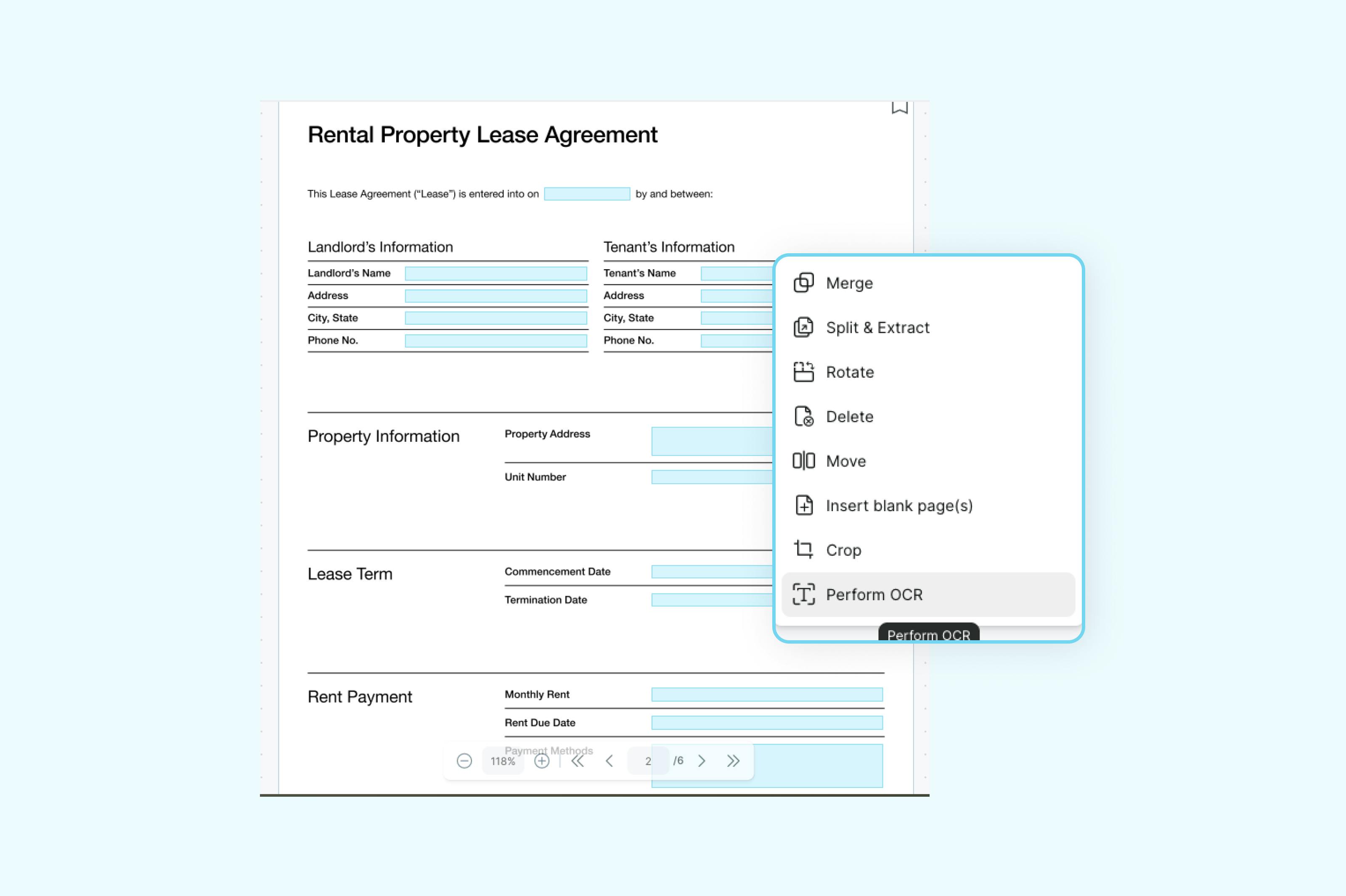
Testez l’OCR PDF et rendez vos fichiers PDF consultables.
4. Scinder et extraire : Organisez vos PDF avec l’IA
Fonctionnalité :
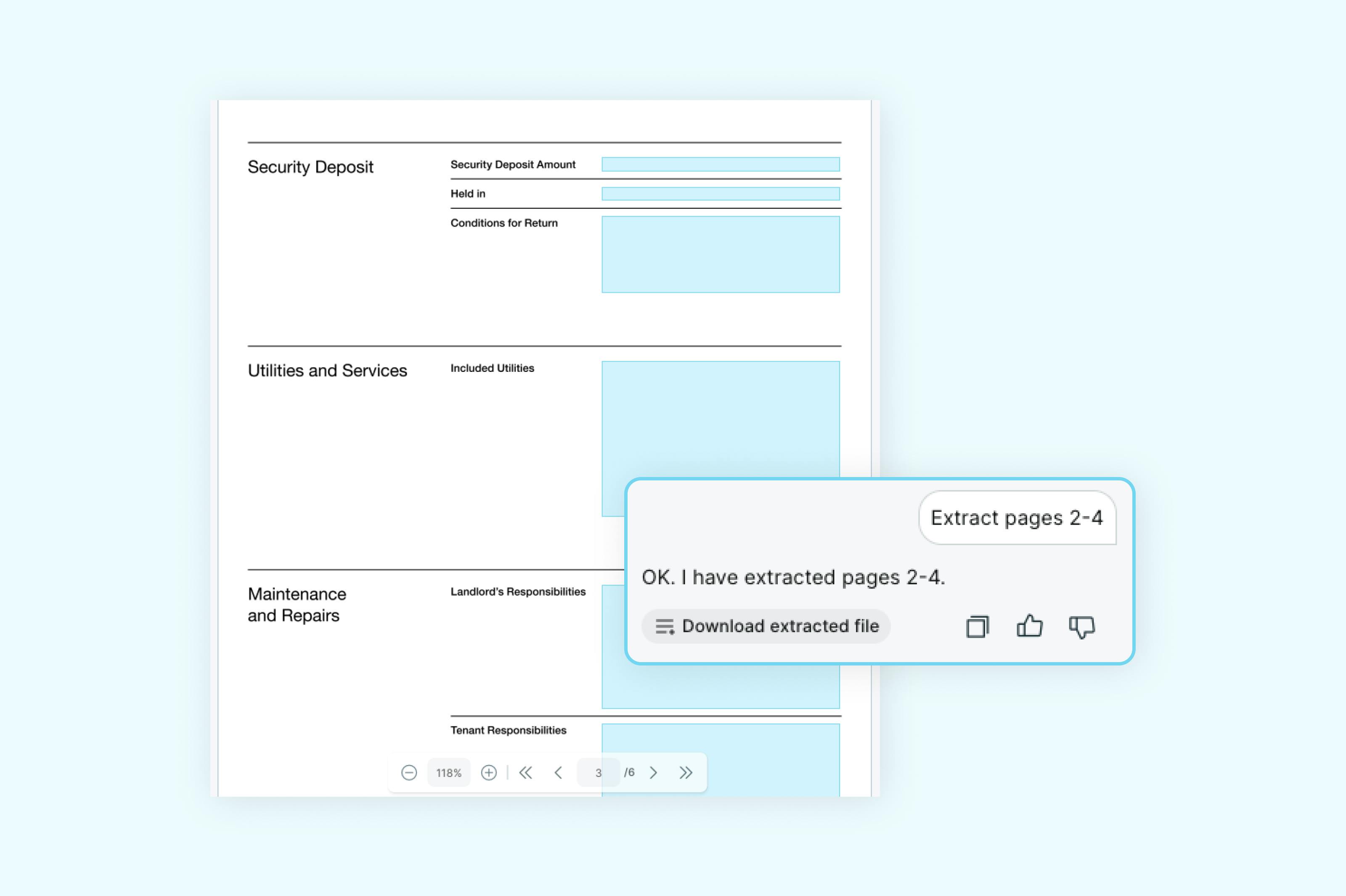
Divisez un PDF en sections, extrayez des pages spécifiques ou réorganisez-les. Décrivez simplement votre besoin à Lumin IA, et il réalise vos modifications en quelques instants — sans aucune intervention manuelle.
Exemple :
On vous remet un manuel d’exploitation de 160 pages et vous devez envoyer uniquement les procédures de sécurité et les plannings de maintenance à un prestataire. Ils sont dispersés dans les sections 3 et 5.
Au lieu de chercher les numéros de pages, vous dites à Lumin :
« Extrait toutes les pages de 88 à 104. »
L’IA exécute la requête et crée un nouveau PDF ne contenant que ces pages. Vous vérifiez puis téléchargez votre document, prêt à l’emploi.
Vous obtenez ainsi un PDF concis, exactement adapté à votre besoin.
Divisez votre PDF gratuitement dès maintenant.
5. Caviardage IA : Caviardez les informations personnelles ou sensibles
Fonctionnalité :
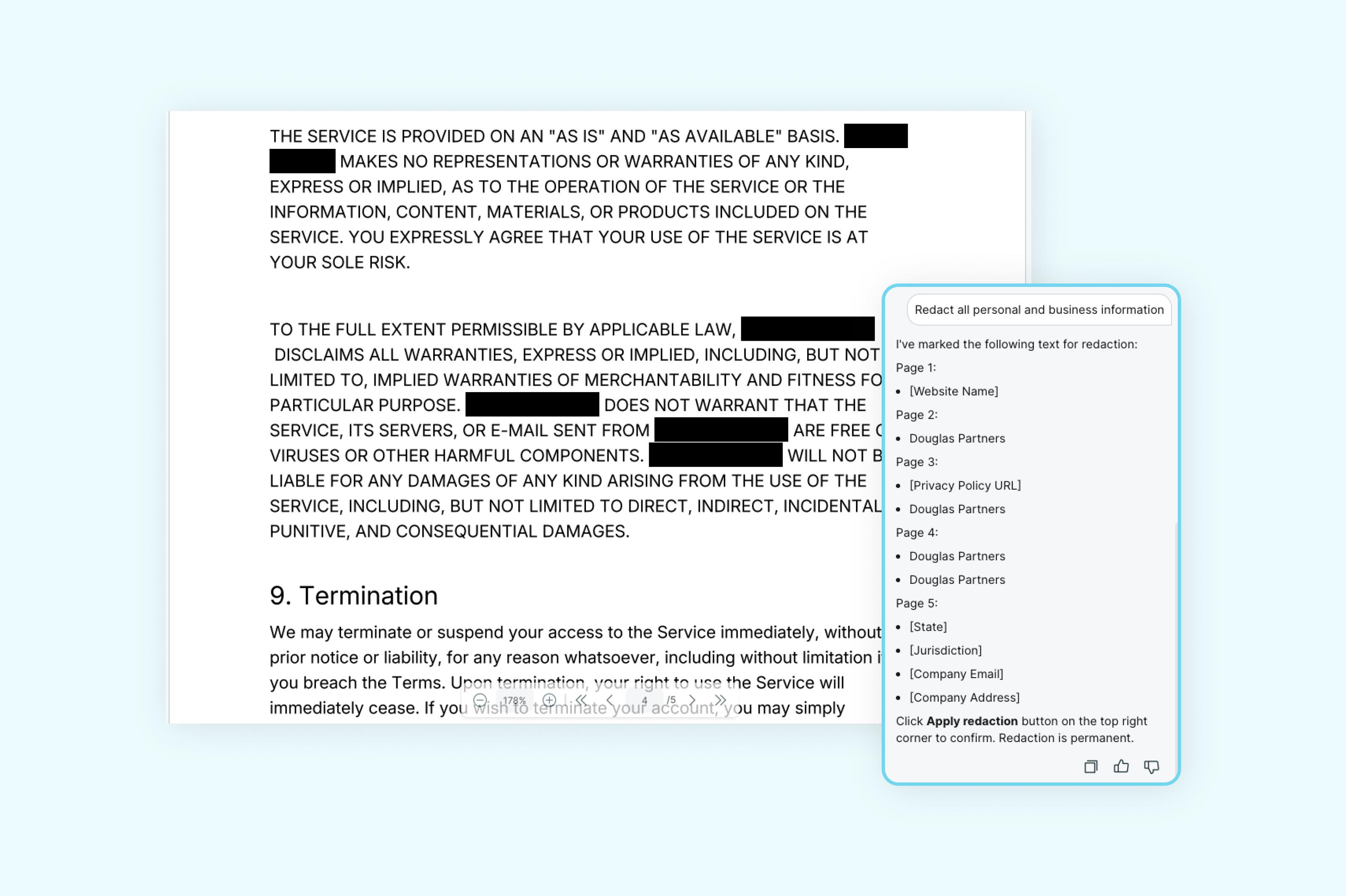
Avec Lumin IA, identifiez et caviardez facilement des données privées, comme des noms, adresses e-mail, numéros d’identification ou adresses postales dans tout le document. Vous obtenez un aperçu avant suppression définitive : vous gardez ainsi la main à chaque étape.
Exemple :
Vous souhaitez partager une étude de cas client en externe, mais devez occulter les noms et adresses e-mail pour respecter la confidentialité.
Vous importez le document et demandez à Lumin IA :
« Trouve et caviarde tous les noms et adresses e-mail. »
Lumin repère 18 noms propres et 12 adresses e-mail, les présente dans un aperçu latéral. Vous vérifiez la liste, désélectionnez trois noms internes à conserver, puis validez le caviardage.
En un clic, toutes les informations sélectionnées sont noircies et définitivement supprimées du PDF, sans laisser de trace ni nécessiter de recherche page par page.
Protégez vos données sensibles et caviardez votre PDF gratuitement.
6. Résumé PDF : Obtenez instantanément les points clés
Fonctionnalité :
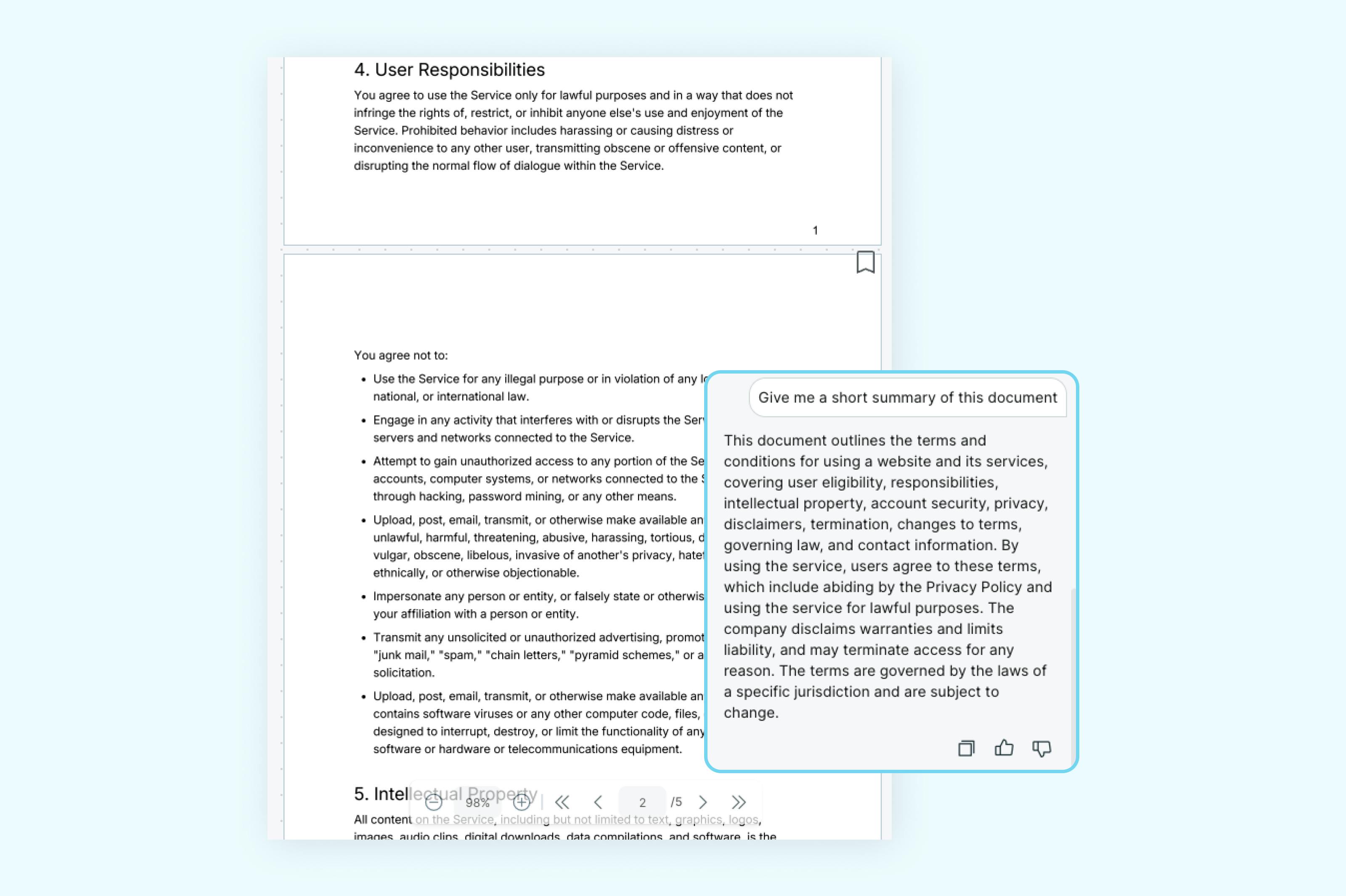
Le PDF AI Summarizer de Lumin analyse votre document et génère un résumé concis et fidèle, idéal pour obtenir une vue d’ensemble rapide sans devoir tout lire.
Exemple :
Vous venez de recevoir un rapport gouvernemental de 40 pages sur la conformité réglementaire. Pressé par le temps, vous souhaitez connaître les points majeurs avant la réunion de l’après-midi.
En cliquant sur Résumé, Lumin génère en moins de 10 secondes un condensé du rapport — avec les mises à jour clés, échéances et évolutions réglementaires.
Vous savez ainsi sur quoi vous concentrer, et si le document nécessite une relecture approfondie.
Résumez votre PDF grâce à l’IA dès maintenant.
7. Discutez avec votre PDF : Posez vos questions et obtenez des réponses depuis votre document
Fonctionnalité :
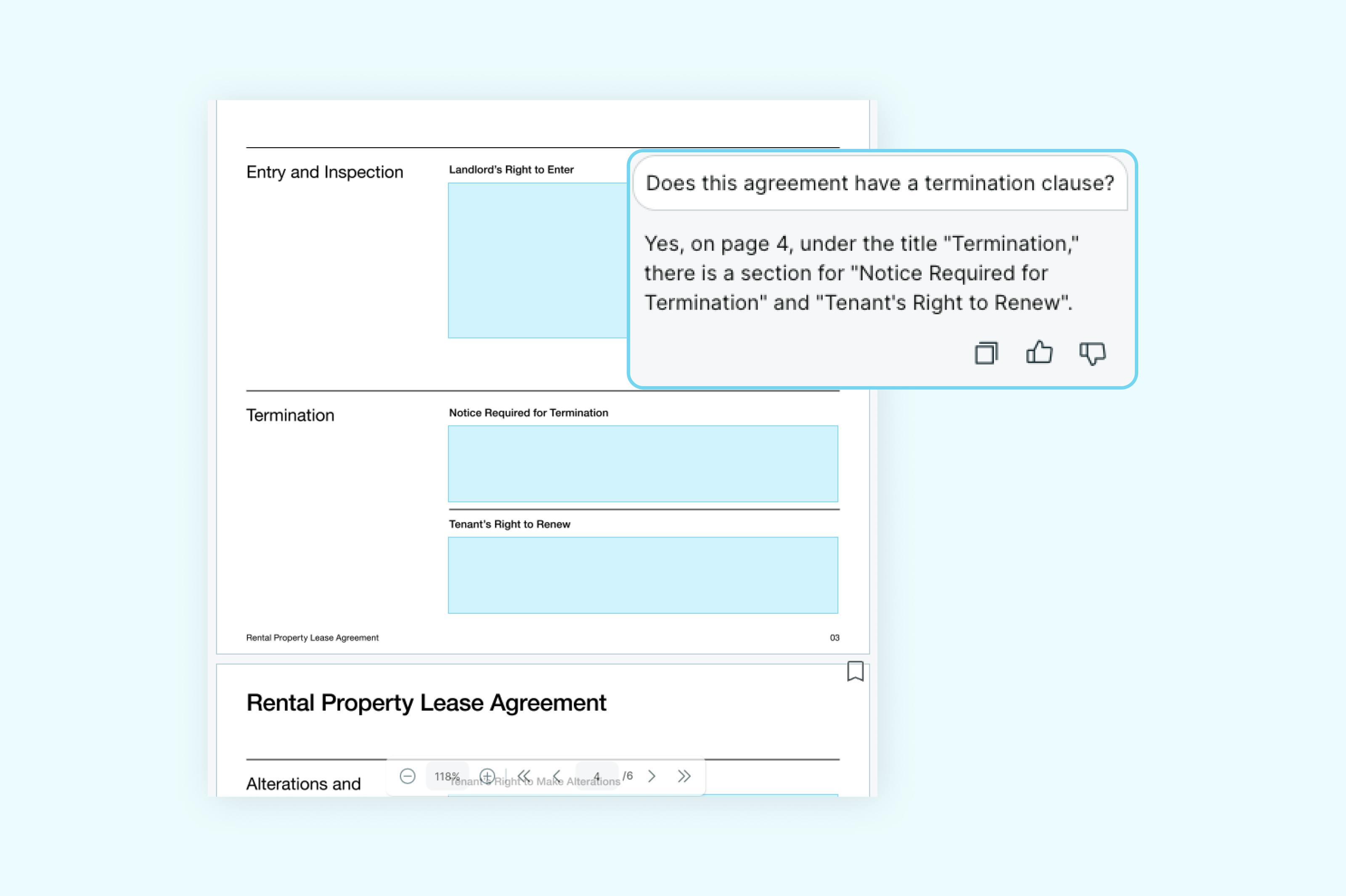
La fonction Discuter avec PDF de Lumin vous permet de poser des questions directement en langage naturel sur votre document. Plutôt que de chercher manuellement, interrogez simplement l’IA : elle lit et vous répond à partir du contenu du fichier.
Exemple :
Vous analysez un contrat de licence logicielle et souhaitez savoir quelles sont les conséquences d’une résiliation anticipée.
Plutôt que de lire chaque clause, vous ouvrez Discuter avec PDF et demandez :
« Quelles sont les pénalités pour une résiliation anticipée ? »
Lumin lit le document et vous restitue la clause concernée (section 14), accompagnée d’une explication simplifiée :
« Une résiliation avant 12 mois implique des frais équivalents à un mois de licence. »
Vous obtenez votre réponse instantanément, sans fouille manuelle ni risque de passer à côté d’une clause cruciale.
Discutez avec votre PDF dès aujourd’hui.
Modifiez plus intelligemment grâce à l’IA
Que vous deviez caviarder des données sensibles, résumer des rapports volumineux ou mettre à jour un contrat en quelques secondes, les outils IA de Lumin sont conçus pour vous faire gagner du temps et de l’énergie.
Avec un abonnement Lumin Pro, vous bénéficiez d’un accès complet à toutes les fonctions avancées d’édition PDF par IA : édition de texte, caviardage, résumé, organisation de pages, et bien d’autres.
Passez à la vitesse supérieure et traitez vos PDF plus intelligemment dès aujourd’hui.
Partager cet article