PDFs are designed to preserve formatting and prevent changes. That makes them ideal for sharing documents, but frustrating when you need to add information. Maybe you’ve received a form to complete, a contract that requires your signature, or a file that needs annotations.
The good news is that you don’t need expensive software or complicated workarounds. In this guide, we’ll walk you through free methods to add text, fill forms, and annotate PDFs, starting with the simplest option.
Write on PDFs with Lumin
For a complete solution that works right in your browser, Lumin’s free PDF editor provides all the tools you need to write on PDFs. No downloads or installations required. Just upload your file and start writing.
Here's how to write on a PDF with Lumin:
- Open the Lumin’s free PDF editor and upload the document where you want to add text.
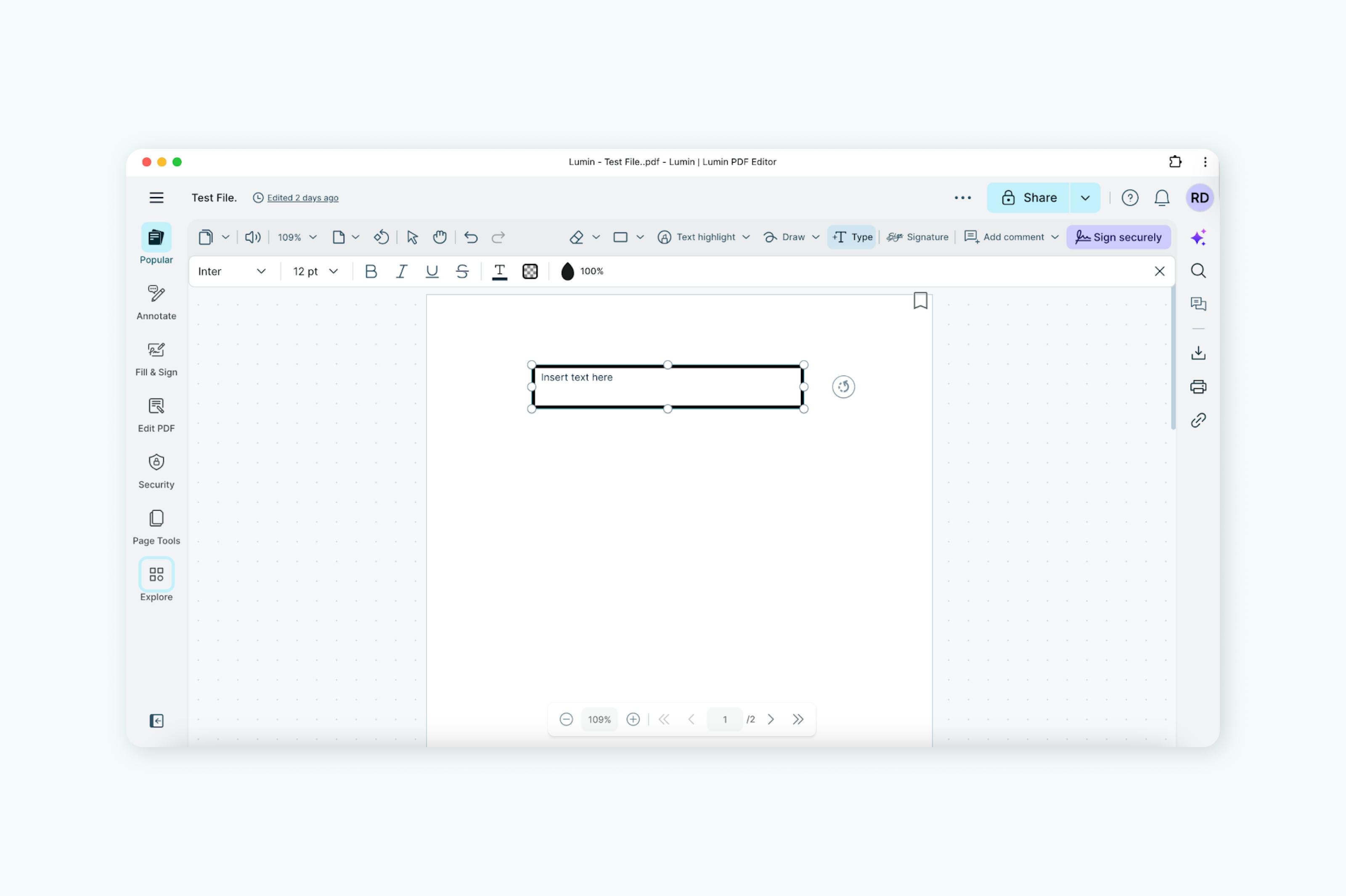
- Select the "Type" option on the top toolbar or from the “Popular” or “Annotate” tool group on the sidebar if on desktop, or “T” on the top toolbar for mobile.
- Click or tap where you'd like to insert text in the document and add your text as required in the text box.
- Modify your text using the “Toolbar” that appears with the text box.
- When finished, download your edited PDF or save it to Google Drive.
Lumin automatically saves your work as you go, so you won't lose any changes. The platform also supports collaborative editing if you need to work with others on the same document.
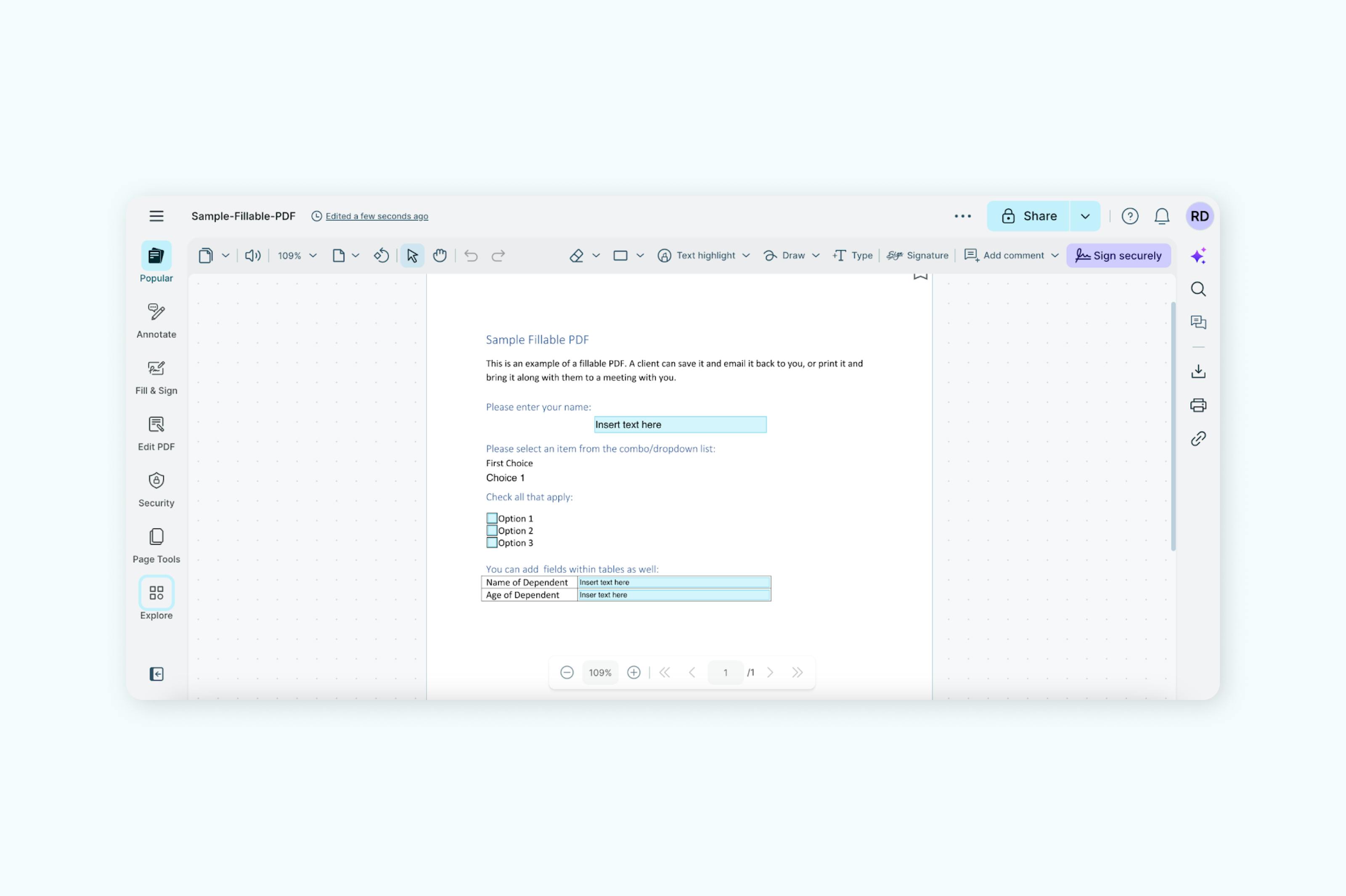
Many PDFs come with fillable form fields built in—text boxes, checkboxes, and dropdown menus designed for user input. These interactive forms are common in applications, contracts, and official documents.
Working with fillable forms
If your PDF has fillable fields, they'll typically appear as highlighted boxes or underlined spaces. Simply click on any field and start typing. Tab between fields to move quickly through the form.
- Open the Lumin PDF editor and upload the fillable document where you want to add text.
- Click the fields where you need to add text.
- Type your information. The text automatically adjusts to fit.
- Highlight, add checkmarks, or comments using the toolbar options.
- Save it to your computer, mobile, or Google Drive.
Add handwritten notes and annotations
Sometimes typing isn't enough, and you need to mark up a document with notes, corrections, or feedback. Lumin provides several PDF annotation tools that work like digital ink on your PDF.
Annotation options
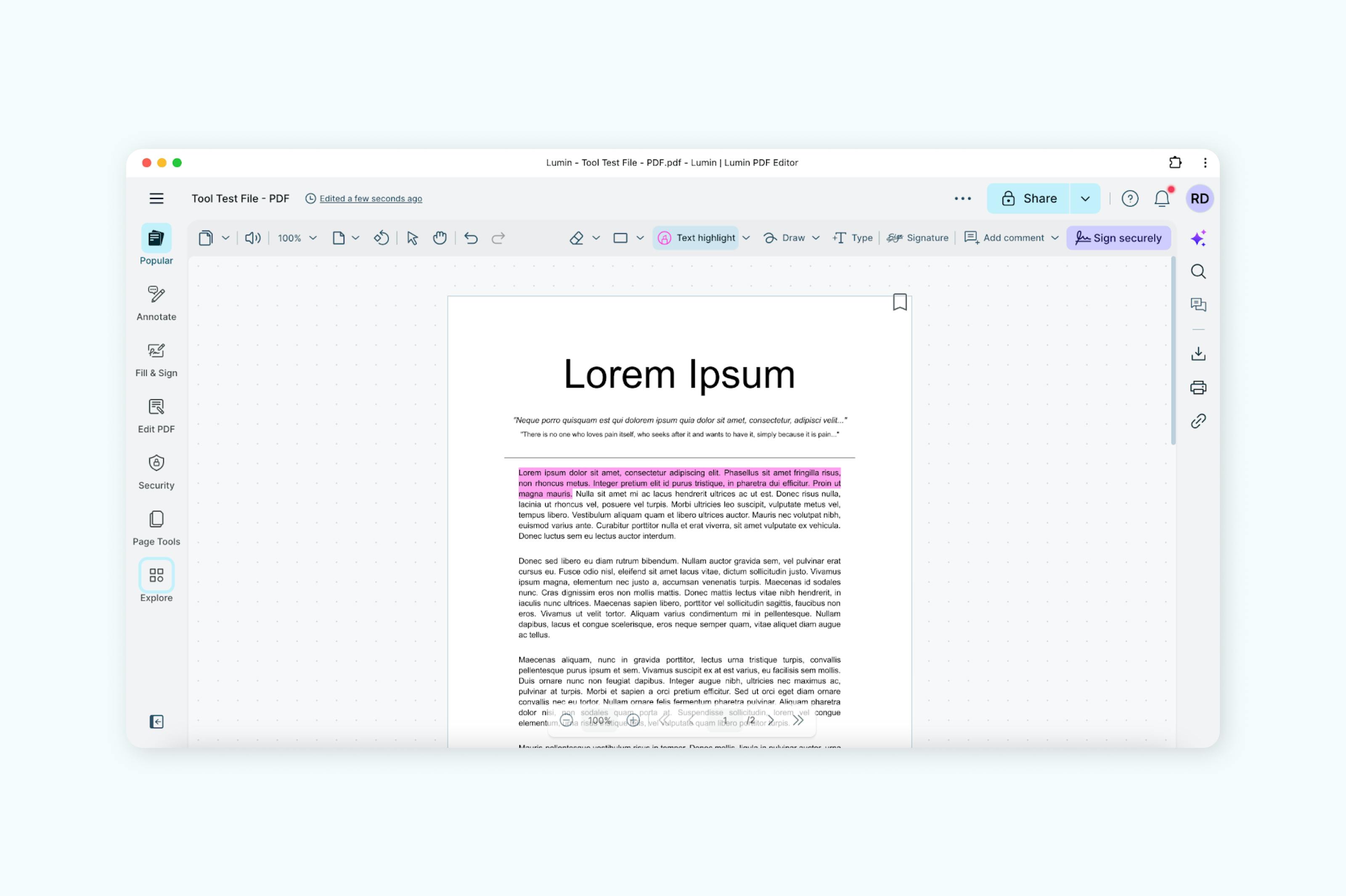
Highlight text: Select the highlighter tool and drag over text to emphasize important sections. Choose from multiple colors to organize your annotations.
Add comments: Click the comment icon to insert notes anywhere on the page. These appear as small bubbles that expand when clicked, keeping your document clean while preserving your feedback.
Draw freehand: Use the drawing tool to circle items, draw arrows, or write notes by hand. This works especially well with touchscreen devices or graphics tablets.
Sticky notes: Add virtual sticky notes for longer comments or reminders. These can be minimized or expanded as needed.
Write on scanned PDFs
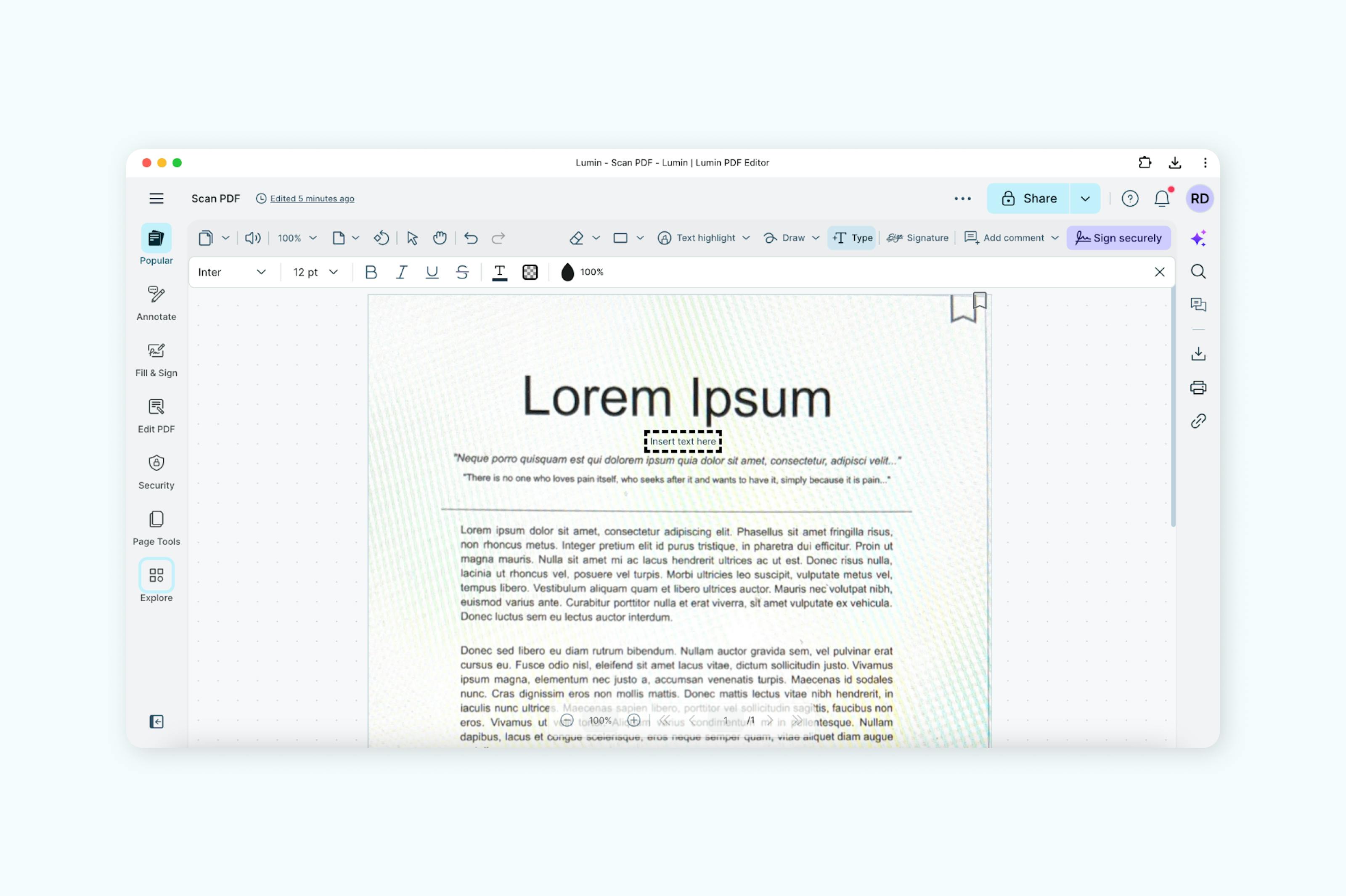
Scanned documents present a unique challenge. They're essentially images, not text files. This means you can't select or edit the existing text, but you can still write on top of it.
When working with scanned PDFs in Lumin:
- Open the Lumin PDF editor and upload the scanned document where you want to add text.
- Use the "Type” tool to add information over the existing content.
- Position new text carefully to align with the original formatting.
- Consider using a white rectangle as a background before adding new text, to ensure that it blends seamlessly with the rest of the document. To create a white rectangle, click “Text Frame” on the toolbar when positioning, then select the "No Fill" option (the circle with a red slash). Set the "Stroke" to white and adjust it to "0 pt."
- Save it to your computer, mobile, or Google Drive.
Common questions about writing on PDFs
Can I write on a PDF for free?
Absolutely — Lumin PDF offers free tools for writing on PDFs, including adding text, filling forms, annotating, and signing documents. These features are available at no cost, and creating a free account ensures a seamless process.
Advanced editing options, such as directly changing existing PDF text, are available with a paid plan or during a 7-day free trial.
Do I need to download software?
No downloads required. Lumin works entirely in your web browser, whether you're using Chrome, Safari, Firefox, or Edge. This means you can write on PDFs from any computer.
Can I write on a PDF on my phone?
Yes. You’ll need to download the Lumin mobile app for iOS or Android.
Can I edit existing text in a PDF?
Writing on a PDF typically means adding new text on top of the existing content. To edit or replace the original text, you’ll need to use Lumin’s text editing features. Simply upload the document to the PDF text editor, and it will direct you to the web tool where you can modify the text directly.
Start writing on PDFs today
Working with PDFs doesn’t have to feel overwhelming. Many people struggle when they need to make quick edits or share documents in different formats, but there are simple ways to manage these tasks.
If you want to learn how to edit PDFs with AI, our step-by-step guide shows you how. You can also check out how to convert a PDF to Google Docs, how to search a PDF, or even turn Google Docs into PDFs when needed. With these resources, you’ll be able to handle your PDFs more confidently and save time in your daily workflow.