
How to highlight text in a PDF

Want to highlight text in your PDF? From marking important sections to emphasizing key details, simple tools make it quick and easy to draw attention exactly where you need it.
4 [{"lang":"pt-pt","url":"/pt/blog/como-destacar-texto-em-um-pdf/"},{"lang":"es-es","url":"/es/blog/como-resaltar-texto-en-un-pdf/"},{"lang":"vi","url":"/vi/blog/cach-to-dam-van-ban-trong-pdf/"},{"lang":"fr-fr","url":"/fr/blog/comment-surligner-du-texte-dans-un-pdf/"}]You can also read this article in Português, Español, Tiếng Việt and Français.
Table of contents
- 1. Method 1: Using Lumin PDF for quick highlighting
- 2. Method 2: Desktop highlighting options
- 3. Troubleshooting highlighting problems
- 4. Advanced highlighting features
- 5. Best practices for effective highlighting
- 6. Managing and removing highlights
- 7. Making text selectable in PDFs
- 8. Conclusion
Share this post
Highlighting text in PDF documents is essential for studying, reviewing contracts, or marking important information. Whether you're working on research papers, legal documents, or educational materials, effective PDF highlighting significantly improves your productivity and document management workflow.
This guide walks you through multiple methods to highlight text in PDFs, addresses common issues, and provides solutions for different platforms and scenarios.
Method 1: Using Lumin PDF for quick highlighting
With Lumin PDF, highlighting text in your PDFs is quick and effortless. You can use it directly in your browser, and it works perfectly on any device without needing to download anything.
Here’s how to highlight text with Lumin PDF:
- Open the “Lumin’s free PDF editor” and upload the document where you want to highlight the text
- Once your PDF loads, find the annotation toolbar on the side of the viewer.
- Open the annotation toolbar and select the text highlighter icon (which looks like a pen tip or marker).
- Click and drag over the text you want to highlight and choose a highlight color from the palette
- Save your changes by clicking the save or download button.
The platform automatically saves your highlights, making them accessible whenever you reopen the document. You can easily collaborate on your PDF and modify or remove highlights by clicking on them and selecting the appropriate option.
Method 2: Desktop highlighting options
How to highlight text in a PDF on Mac
Mac users have built-in highlighting through Preview, Apple's default PDF viewer. Follow these steps to highlight PDFs on your Mac:
- Right-click on your PDF file and select "Open With" > "Preview".
- Once the PDF opens, click the “pen icon” to highlight text.
- To change the highlight color, click the “down arrow” and choose your preferred color from the menu.
- Click and drag over the text to highlight.
- Your highlights save automatically when you close the document.
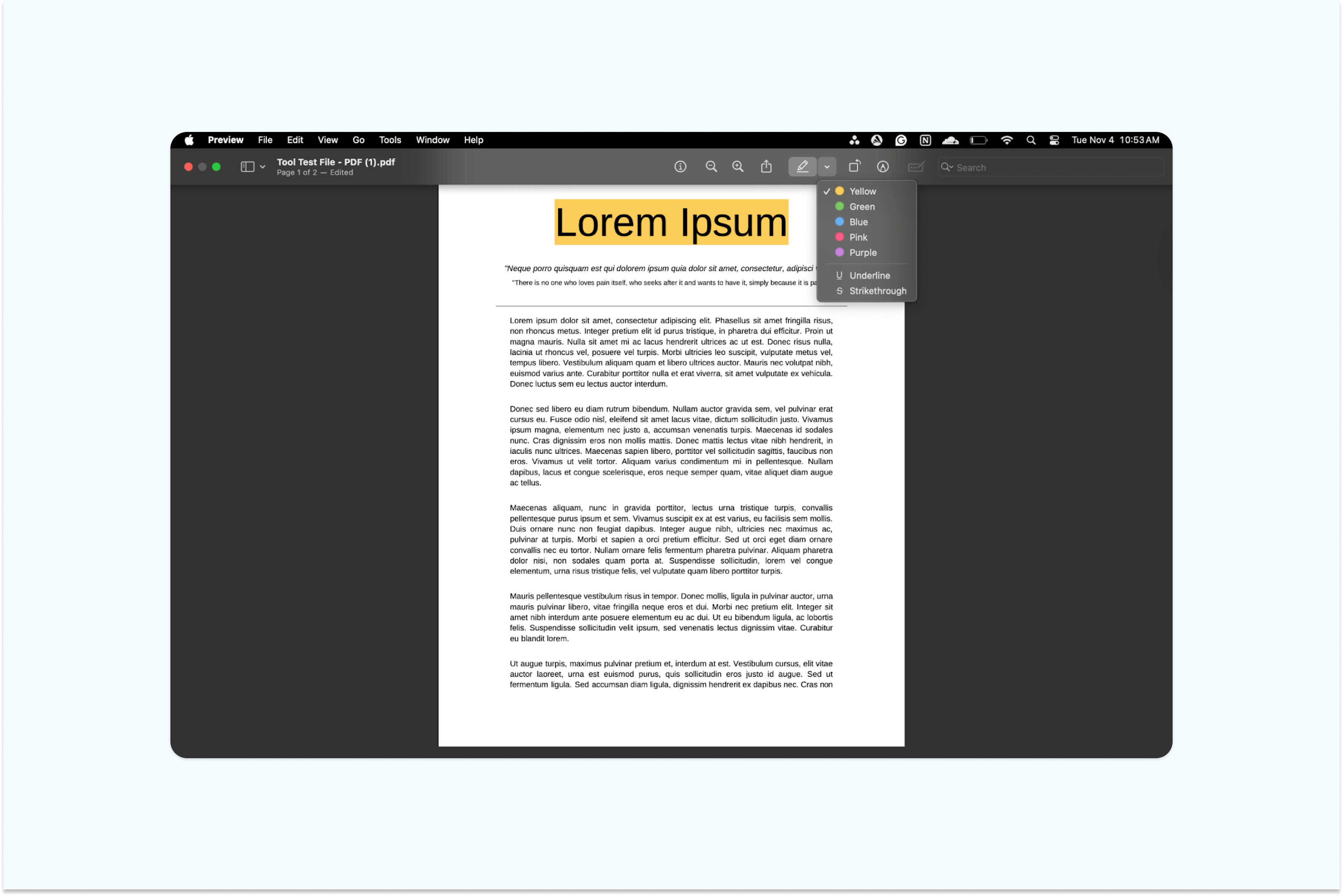
Mac Preview also lets you highlight text, and your highlights are saved automatically when you close the document. However, its annotation tools are quite limited.You can’t collaborate easily compared to using Lumin.
How to highlight text in a PDF on Windows
Windows users have several built-in options for PDF highlighting. Here's how to highlight PDFs using Microsoft Edge, the default PDF viewer in Windows:
- Right-click your PDF file and select “Open with” > “Microsoft Edge.”Once the PDF opens, select the “pen icon” from the annotation options.
- Click the “down arrow” to choose your preferred highlight color.
- Click and drag across the text you want to highlight, then release to apply it.
- Save your annotated PDF by pressing “Ctrl + S” or selecting “File > Save.”
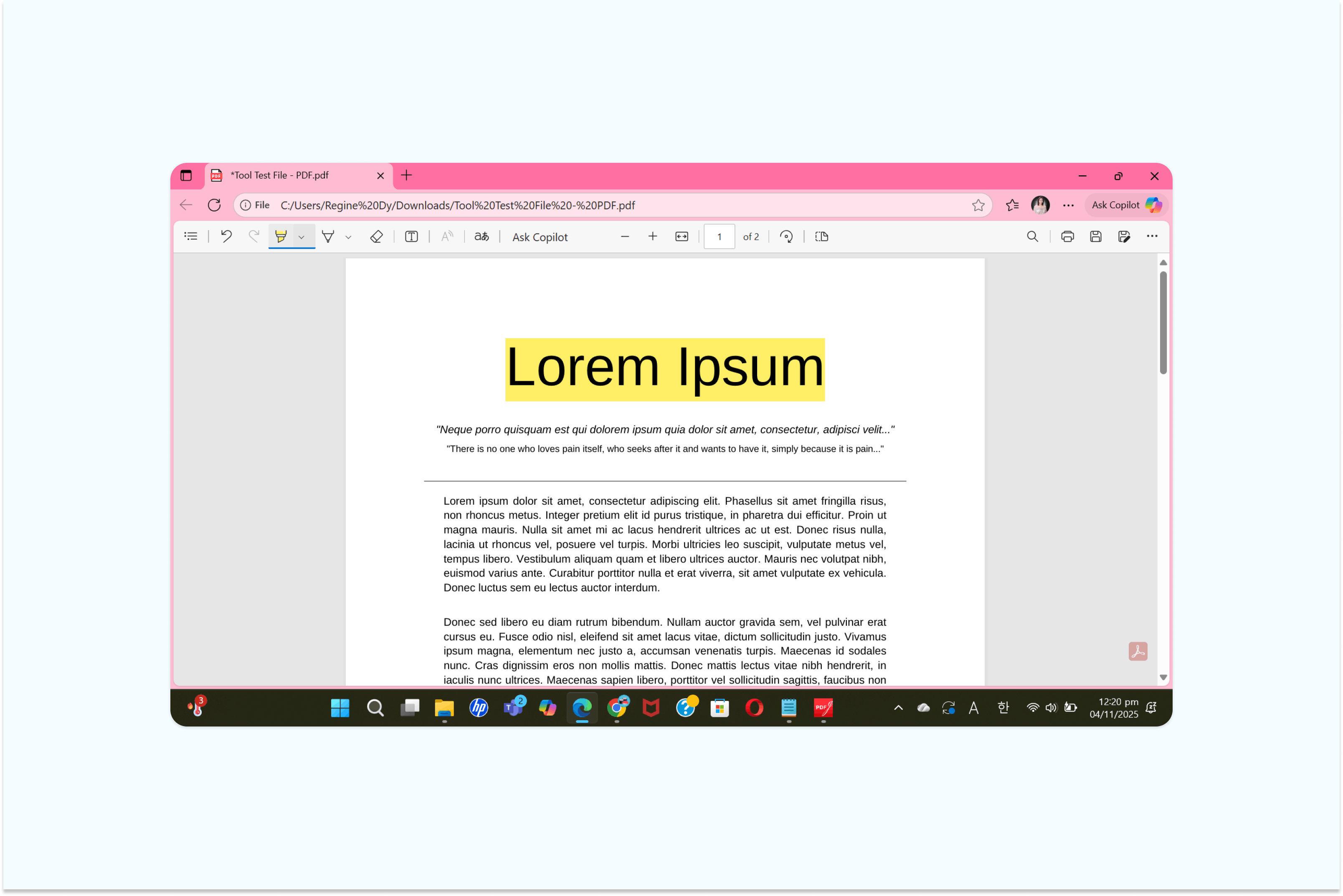
Microsoft Edge allows you to highlight text directly within a PDF, and your highlights are saved automatically. However, its annotation features are limited; you can’t manage detailed edits in PDFs as easily as you can with Lumin.
Troubleshooting highlighting problems
Why can't I highlight a PDF file?
If you can't highlight text, the document might be secured or contain image-based text. Secured PDFs have creator-set restrictions preventing modifications. Check security settings in document properties to verify.
For image-based PDFs or scanned documents, text isn't selectable because it's part of an image. You'll need OCR (Optical Character Recognition) to convert image text into selectable text before highlighting.
How to highlight text in a scanned PDF document
Scanned PDFs require OCR processing before highlighting. Lumin PDF includes OCR functionality that recognizes text in scanned documents, making it selectable and highlightable. Upload your scanned PDF to Lumin for automatic processing.
After OCR processing, highlight the converted text like any regular PDF. This feature helps digitize and annotate printed materials, historical documents, or handwritten notes.
Advanced highlighting features
How to highlight and copy text in a PDF
Highlighting and copying text simultaneously streamlines research and note-taking. After highlighting, copy content by right-clicking and selecting copy, or using keyboard shortcuts (Ctrl+C on Windows, Cmd+C on Mac).
How to highlight all text in a PDF
To highlight entire sections, use select all (Ctrl+A or Cmd+A) combined with the highlighting tool. This works best for shorter documents or specific pages rather than lengthy PDFs.
For selective bulk highlighting, use search and highlight features to mark all instances of specific words or phrases. This technique helps with legal documents, research papers, or marking recurring terms.
Best practices for effective highlighting
Develop a color-coding system to categorize information, such as using yellow for main ideas, blue for supporting details, and red for action items. This approach makes it easier to review documents and locate important information.
Use highlighting sparingly to keep it effective. Over-highlighting can make documents harder to read and reduce their impact. Focus on key concepts, critical data, and actionable insights rather than entire paragraphs.
Managing and removing highlights
To remove highlighted text in a PDF, most tools offer a simple solution. In Lumin PDF, select the highlighted text and choose “Remove Highlight” from the context menu. This helps clean up your document or fix mistakes without affecting the original text.
Effective highlight management also involves reviewing and updating your highlights as your understanding evolves. You can create highlight summaries or export highlighted sections to build quick reference guides that capture key information.
Making text selectable in PDFs
When a PDF doesn’t allow you to highlight text, it usually requires text recognition processing. This often happens with scanned documents, image-based PDFs, or files created from photos. Lumin PDF’s built-in text recognition feature converts these files into fully selectable and editable documents.
Understanding why your PDF isn’t highlighting properly helps you choose the right solution. Whether it’s due to security restrictions, image-based content, or platform-specific issues, identifying the cause allows for a faster and more effective fix.
Conclusion
Mastering PDF highlighting improves your workflow and helps you retain important information more effectively. Lumin PDF is a great go-to tool for highlighting, organizing, and managing content across any type of document. Whether you’re using its web-based tools, desktop app, or working with scanned PDFs, Lumin PDF provides reliable features for accurate and efficient highlighting. Apply these techniques to make reviewing, referencing, and extracting key information from your PDFs easier and more effective.

Share this post