
How to convert Word to PDF
Converting a Word document to PDF is one of the most common file tasks there is. PDFs lock in your formatting so the document looks the same on every device, making them ideal for sharing contracts, resumes, reports and other professional files.
0 []Índice
- 1. Method 1: Use Lumin's free Word to PDF converter
- 2. Method 2: Save as PDF in Microsoft Word
- 3. Method 3: Convert Word to PDF using Google Docs
- 4. Frequently asked questions
- 5. Convert documents with confidence
Compartilhar esta publicação
Luckily, it’s easy to do, and you don’t need expensive software. In this guide, we'll cover three free methods to convert your Word files to PDF, including options for any devices you have. It is up to you to choose the method that works best for your device and workflow.
Method 1: Use Lumin's free Word to PDF converter
The fastest way to convert a Word document to PDF is with Lumin's free Word to PDF converter. It's browser-based, works on any device and doesn't require you to install anything or create an account.
Here's how to do it:
- Open Lumin's Word to PDF converter and upload your DOCX file.
- The "PDF Document" option will already be selected from the format dropdown menu.
- Select "Save on your computer" or save the PDF directly to your Google Drive.
That's it. Your Word document is now a properly formatted PDF ready to share, print or archive. You can also use the same tool to convert your files to other formats like JPG, PNG and more.
Method 2: Save as PDF in Microsoft Word
If you already have Microsoft Word installed, you can convert your document to PDF without leaving the app. This method works on both Windows and Mac and is built right into the software.
On Windows:
- Open your Word document.
- Click "File" > "Save As."
- Choose your save location, then select "PDF" from the "Save as type" dropdown.
- Click "Save."
On Mac:
- Open your Word document.
- Click "File" > "Save As."
- In the "File Format" dropdown, select "PDF."
- Choose your save location and click "Save."
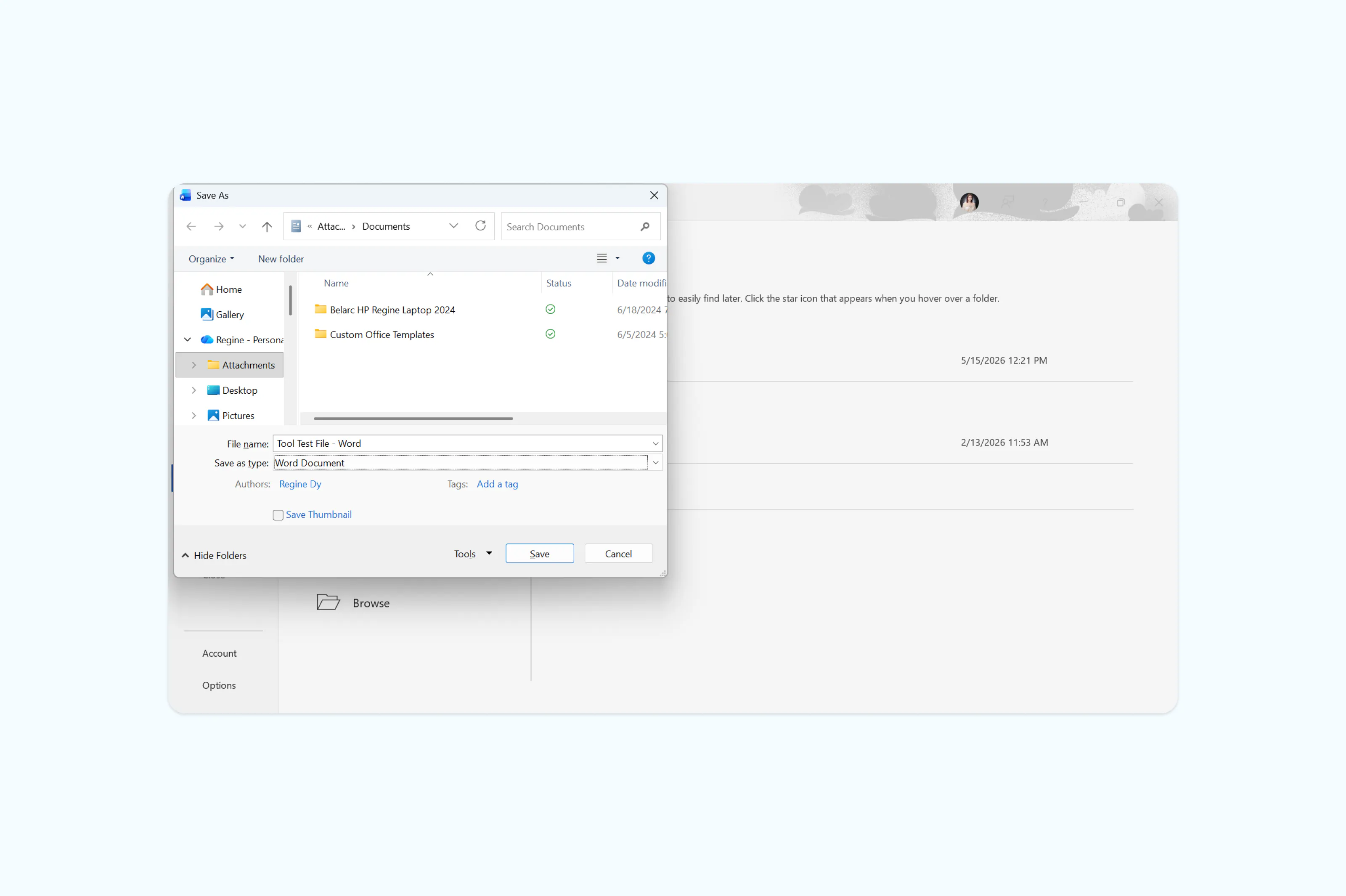
Note: Remember, you can also use the "Export" option under the File menu on both platforms, which gives you the same result. This method works well for most documents, though complex layouts with embedded fonts or unusual formatting may occasionally shift during the conversion.
Method 3: Convert Word to PDF using Google Docs
If you don't have Microsoft Word installed, Google Docs offers a free alternative. This method works entirely in the browser and is a good option if your document is already stored in Google Drive.
Here's how to do it:
- Go to drive.google.com and upload your Word file (or open it if it's already there).
- Right-click the file and select "Open with" > "Google Docs."
- Once the document opens, go to "File" > "Download" > "PDF Document (.pdf)."
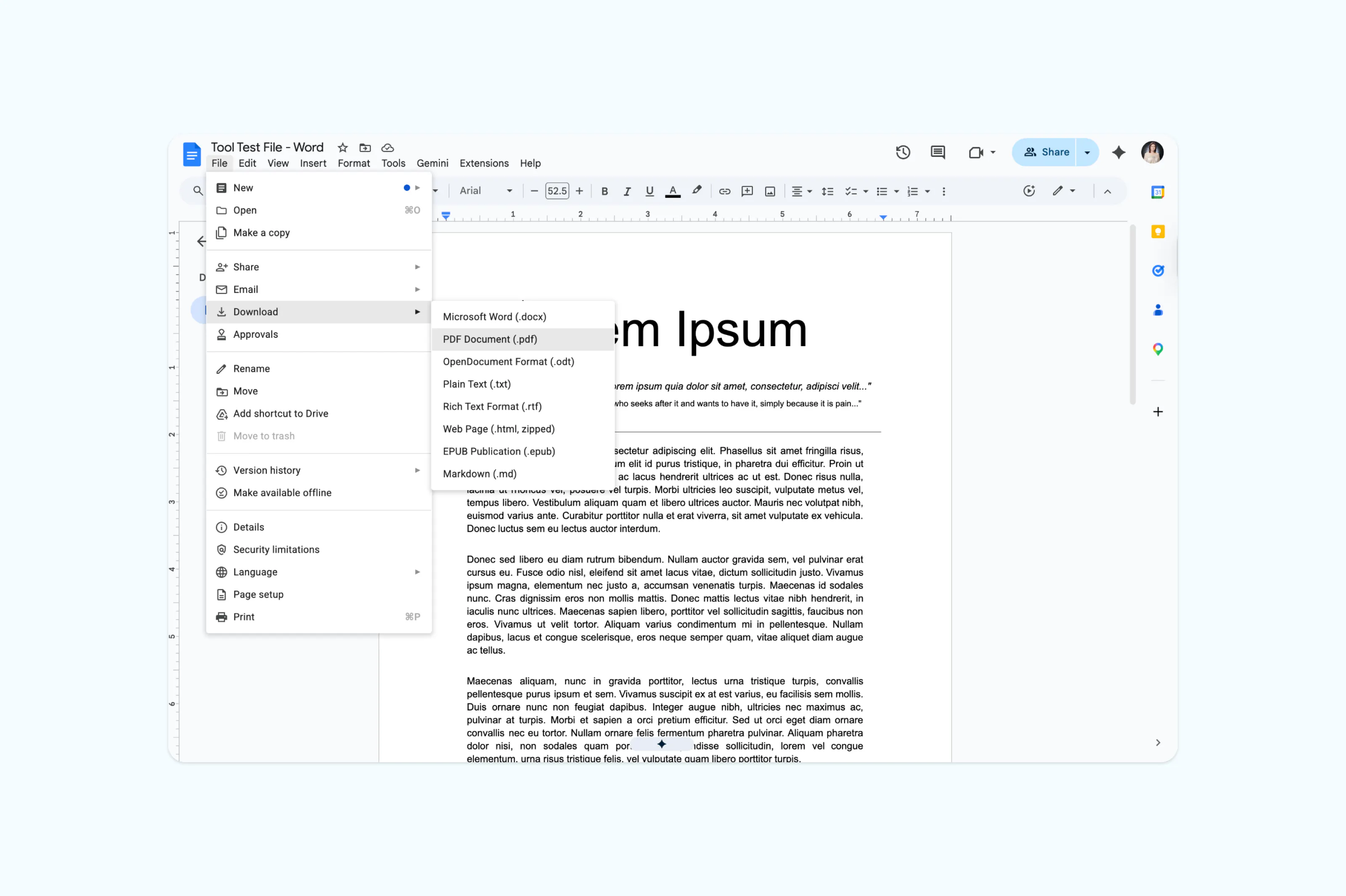
Note: The PDF will download to your computer. Keep in mind that Google Docs may slightly alter the formatting of your original Word file during the conversion, especially if your document contains custom fonts, complex tables or multi-column layouts. For documents where layout accuracy matters, an online converter or Microsoft Word's built-in export will give you a more reliable result.
Frequently asked questions
How do I convert Word to PDF for free?
All three methods in this guide are free. Lumin's online converter requires no account or software installation, Google Docs is free with a Google account, and Microsoft Word's Save As feature is included with any Word license. For a completely free option that works on any device, Lumin's Word to PDF converter is the simplest choice.
How do I convert Word to PDF on my phone?
The easiest way to convert a Word file to PDF on your phone is by using the Lumin mobile app. Just download the app, create an account then tap “Tools” from the toolbar below. Select “Convert to PDF” then choose your file.
Will my formatting be preserved when converting Word to PDF?
In most cases, yes. PDF is designed to preserve formatting across devices and platforms. Methods that handle the conversion locally (like Microsoft Word's Save As) or use a dedicated converter (like Lumin) tend to produce the most accurate results. Google Docs may adjust some elements like fonts or spacing during conversion, so it's best suited for simpler documents.
Convert documents with confidence
Your document workflows shouldn't be limited by file formats. Whether you're finalizing client proposals, submitting applications or archiving important records, the right conversion tools make the process seamless. Convert Word files to polished PDFs in seconds, or transform your documents between formats without losing your formatting.
Conheça o nosso autor

Compartilhar esta publicação