
How to convert Excel to Word

Need to get your Excel data into a Word document? Whether you're creating reports, inserting financial tables, or formatting data for presentations, converting Excel to Word doesn't have to be complicated. We'll show you the most effective ways to turn your spreadsheets into documents while keeping your formatting intact.
Table of contents
- 1. Method 1: Convert Excel to Word with Lumin PDF
- 2. Method 2: Copy and paste (quickest for simple data)
- 3. Method 3: Take a screenshot of your Excel sheet (best for preserving charts and formatting)
- 4. Method 4: Convert Excel to Word with free tools (best for full file conversion)
- 5. Quick tips for better Excel to Word conversions
- 6. Make your documents work harder for you
Share this post
Converting Excel content to Word is a common task, but the best approach depends on what you're trying to achieve. Some methods maintain live data connections, while others create static snapshots. Understanding these differences helps you select the most suitable technique for your specific needs.
Method 1: Convert Excel to Word with Lumin PDF
The fastest way to convert Excel to Word is by using a reliable file converter like Lumin PDF.
Quick convert steps
- Upload your Excel file into Lumin's converter tool.
- Choose “Word” instead of PDF to convert your Excel to Word.
- Download your Word file.
Method 2: Copy and paste (quickest for simple data)
The fastest way to get Excel data into Word is the classic copy and paste method. This works well for smaller tables and when you don't need to maintain a connection to the original Excel file.
How to copy Excel to Word:
- Open your Excel spreadsheet and select the cells you want to copy.
- Press "Ctrl+C" (or "Cmd+C" on Mac) to copy the selection.
- Open your Word document and place your cursor where you want the table.
- Right-click and choose the "Paste" option.
- Paste - Maintains Excel's formatting as a Word table
- Paste Text Only - Removes all formatting, pastes as plain text
- Merge Formatting - Blends Excel data with your Word document's style

Note: For more options, hover over the Insert button in the toolbar. From there, you’ll see options like adding a hyperlink, inserting images, or embedding charts. The toolbar also provides options to control how your data is displayed, such as adjusting font size, text alignment, borders, and shading, so your content appears exactly the way you want.
Method 3: Take a screenshot of your Excel sheet (best for preserving charts and formatting)
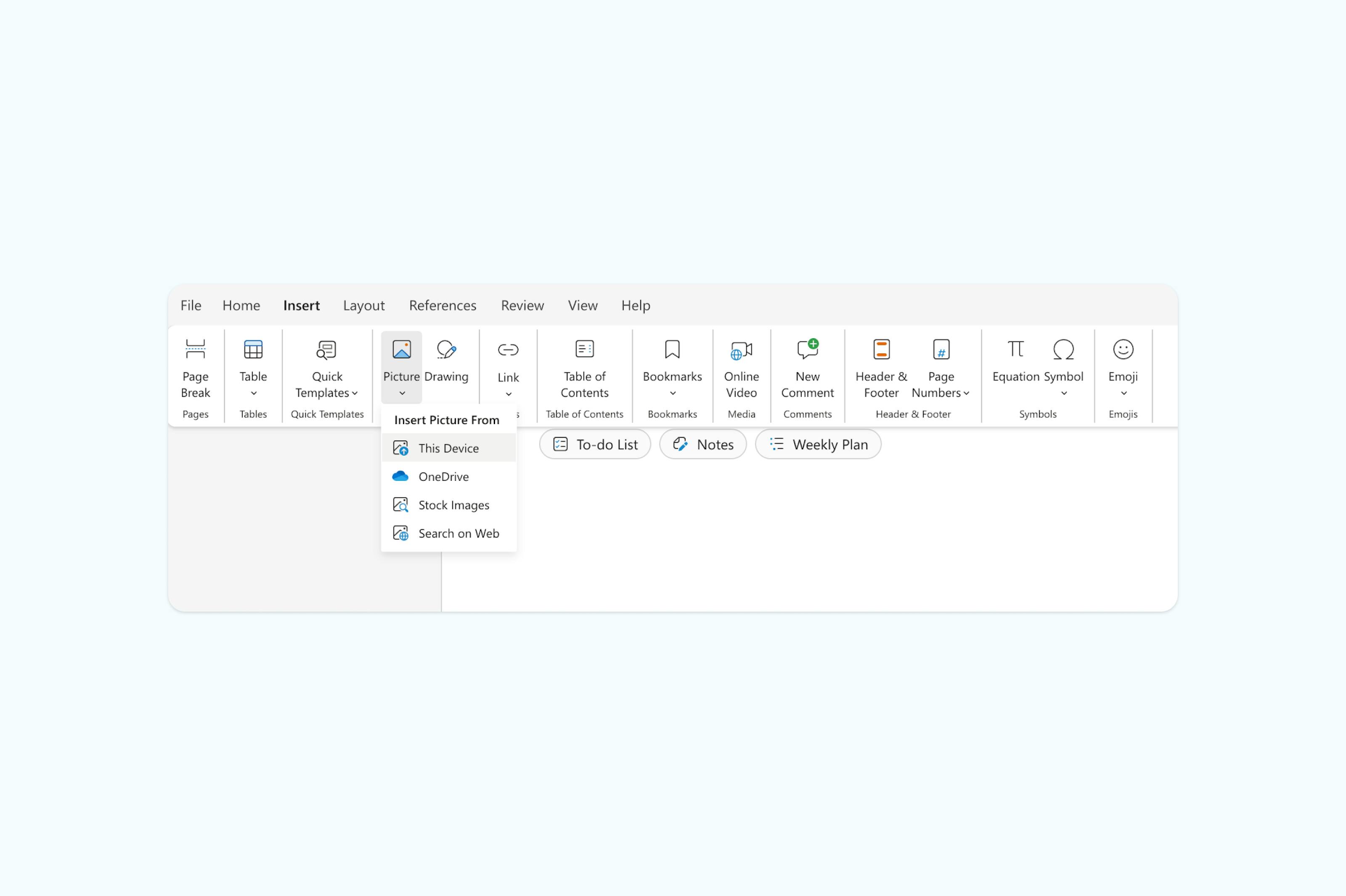
If you need the full look of your spreadsheet, including formulas, charts, or styles, the easiest way in Word Online is to insert it as an image.
Steps to insert Excel as an image:
- Open your Excel sheet.
- Zoom or adjust the view so that everything you want fits on the screen.
- Take a screenshot (on Windows: "Windows + Shift + S", on Mac: "Command + Shift + 4").
- Go to Word Online, click "Insert" > "Picture" > "Picture from this device", and upload your screenshot.
- This keeps the exact formatting, no risk of Word breaking your table.
Method 4: Convert Excel to Word with free tools (best for full file conversion)
If you need your entire Excel file in Word and don’t want to copy and paste, you can use free file conversion tools. These automatically turn your spreadsheet into a Word-compatible format.
Steps to convert Excel with free tools:
- Go to a free file converter site.
- Upload your Excel file.
- Choose "Convert to Word (DOCX)".
- Download the converted Word document.
- in Word Online or the desktop app to edit.

This method works well if your spreadsheet is large or has multiple tabs, though formatting may not always be perfect.
Quick tips for better Excel to Word conversions
These practical tips will save you time and improve your results when moving data between applications.
- Simplify before converting: Remove unnecessary formatting, hidden columns, or complex formulas that won't transfer well.
- Consider your audience: Choose static paste for final documents, linked objects for working drafts.
- Use consistent fonts: Stick to common fonts available in both programs.
- Test different methods: Try multiple approaches with a sample before converting your entire spreadsheet.
- Save original formatting: Keep your original Excel file unchanged as a backup.
Make your documents work harder for you
Whether you're preparing reports, creating documentation, or sharing data across teams, moving between Excel and Word doesn't have to disrupt your workflow. Choose the method that matches your needs: quick copy-paste for simple tables, object embedding for complex spreadsheets, or Paste Special for precise control over formatting.
Once your data is in Word, you might need to share it as a PDF or make further edits. Lumin's PDF editor makes it easy to work with your finished documents - edit text, add signatures, merge files, convert Word to Excel, and collaborate with your team, all from your browser.

Share this post