
Como anotar um PDF
Anotações transformam um PDF estático em um documento no qual você pode realmente trabalhar. Seja para fazer alterações em um contrato, dar feedback em um relatório ou destacar trechos importantes em um artigo acadêmico, você precisa de uma ferramenta rápida, fácil de usar e que não perca suas alterações ao salvar.
Índice
- 1. Método 1: Anotar um PDF online com o Lumin
- 2. Método 2: Anotar um PDF no Mac com o Pré-Visualização
- 3. Método 3: Anotar um PDF no Windows com o Microsoft Edge
- 4. Perguntas frequentes
Compartilhar esta publicação
Além disso, anotar um PDF não exige softwares caros nem processos complicados. Neste guia, você aprende a destacar, comentar, desenhar e marcar qualquer PDF, seja no navegador, Mac ou PC com Windows.
Método 1: Anotar um PDF online com o Lumin
A ferramenta Anotador de PDF do Lumin permite que você anote qualquer PDF direto no navegador, sem precisar baixar nada. É possível destacar texto, adicionar comentários, sublinhar, riscar conteúdos ou desenhar livremente em qualquer página.
Veja como anotar seu PDF com o Lumin:
- Abra a ferramenta gratuita Anotador de PDF do Lumin e importe seu PDF.
- A ferramenta "Desenhar" será selecionada automaticamente na barra de ferramentas.
- Se a ferramenta "Desenhar" não aparecer automaticamente, clique na ferramenta Anotar na barra de ferramentas.
- A partir daí, escolha opções de anotação como Destacar, Sublinhado, Riscar, Comentar ou Desenhar livremente.
- Adicione suas anotações diretamente no documento.
- Quando acabar, clique no ícone de download para salvar o PDF anotado no seu dispositivo.
Método 2: Anotar um PDF no Mac com o Pré-Visualização
Se você usa Mac, o app Pré-Visualização é uma opção gratuita e já vem instalado para anotações básicas em PDF. Ele permite destaque, caixas de texto, formas geométricas e desenho livre — cobrindo a maioria das necessidades do dia a dia.
Para anotar um PDF com o Pré-Visualização:
- Abra seu PDF no Pré-Visualização (clique com o botão direito no arquivo e selecione "Abrir com" > "Pré-Visualização").
- Clique no ícone de lápis ou vá em Visualizar > Mostrar barra de ferramentas de anotação.
- Use a barra de ferramentas para destacar texto, adicionar comentários, desenhar formas ou fazer desenhos livres.
- Salve o arquivo em Arquivo > Salvar, ou exporte como PDF.
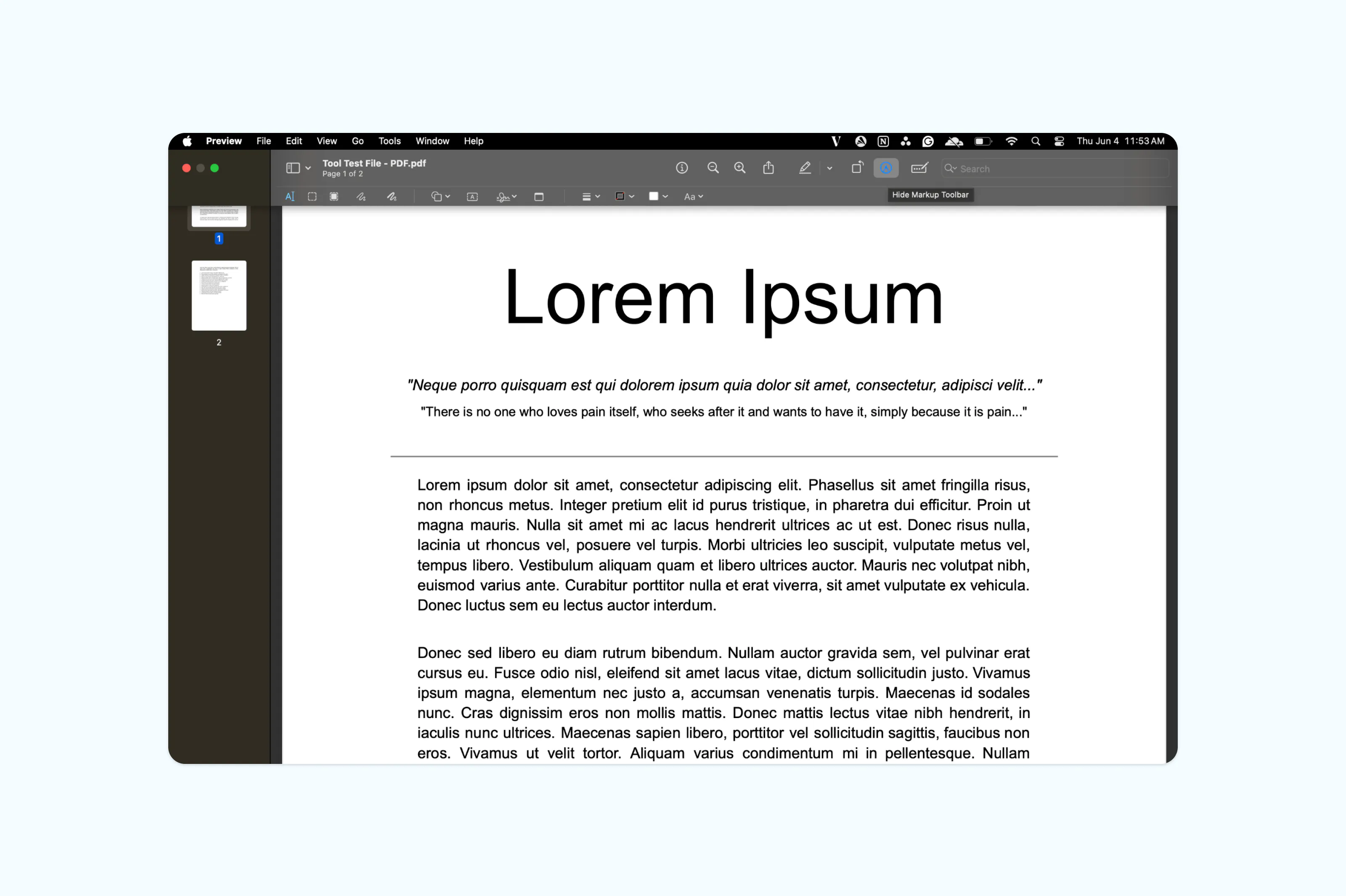
Atenção: o Pré-Visualização funciona bem para anotações simples, mas não permite editar o texto existente ou realizar tarefas mais avançadas como gerenciar campos de formulário ou comentários colaborativos. Para isso, um editor de PDF dedicado como o Lumin é mais indicado.
Método 3: Anotar um PDF no Windows com o Microsoft Edge
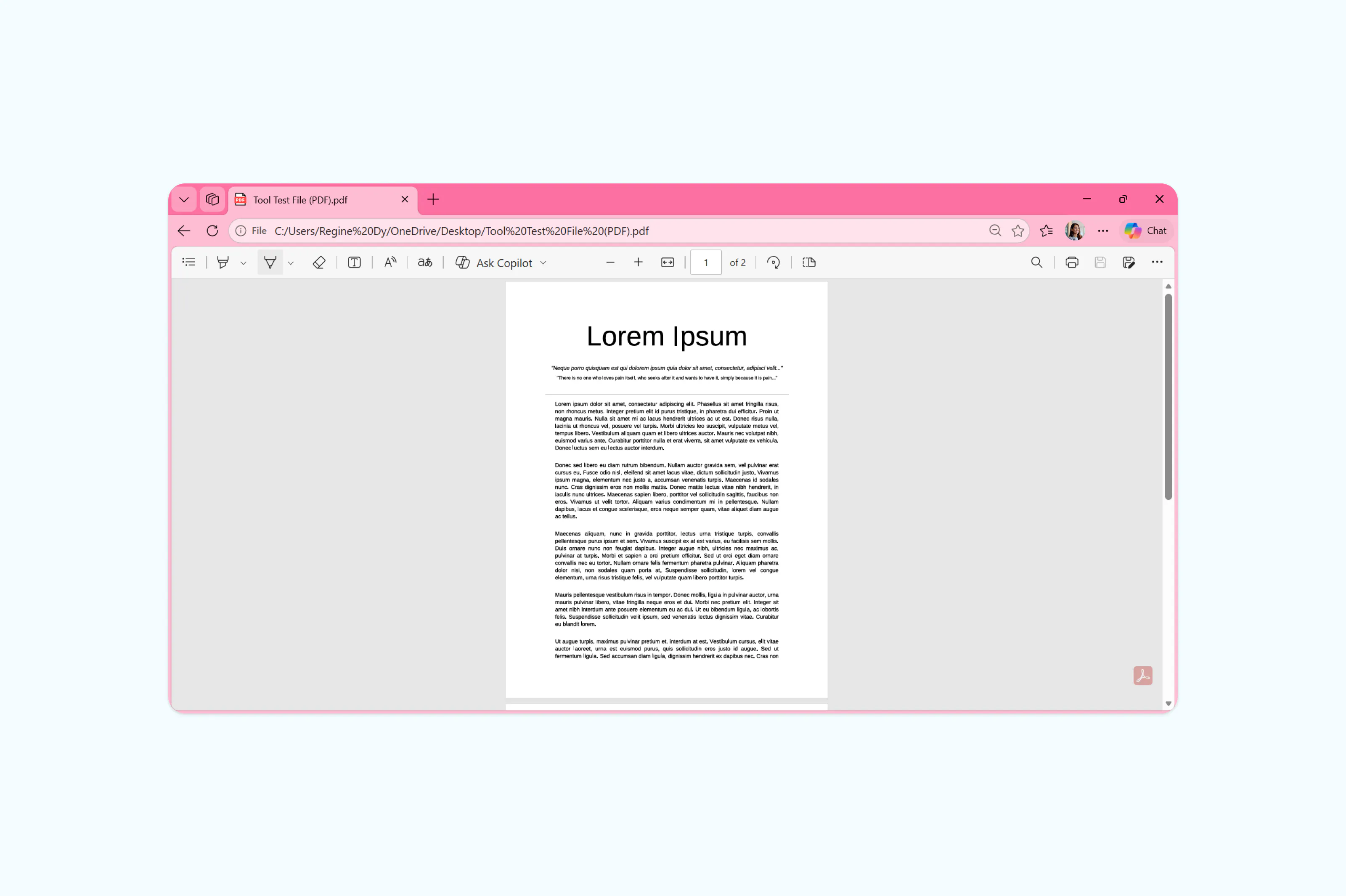
Usuários Windows não precisam instalar nada extra. O Microsoft Edge, navegador padrão do Windows, já traz um leitor de PDF integrado com ferramentas para desenhar, destacar e adicionar notas de texto diretamente no PDF.
Como anotar um PDF no Microsoft Edge:
- Abra o Explorador de Arquivos, clique com o botão direito no PDF e escolha "Abrir com" > "Microsoft Edge".
- Na barra de ferramentas do Edge, clique no ícone "Desenhar" ou "Destacar".
- Selecione uma cor e faça suas anotações no documento.
- Para adicionar uma nota digitada, use a ferramenta "Adicionar texto".
- Salve o arquivo anotado pressionando Ctrl+S ou clicando no ícone de salvar.
Perguntas frequentes
Posso anotar um PDF gratuitamente?
Sim. O editor de PDF da Lumin é gratuito e permite destacar, comentar, sublinhar, riscar texto e desenhar livremente. Você pode importar, anotar e baixar seu PDF sem criar conta, embora o cadastro libere recursos extras. Usuários Mac também podem usar o Pré-Visualização, e no Windows, o Microsoft Edge. Ambos são gratuitos e já vêm com o sistema operacional.
Como anotar um PDF no Chrome?
A maneira mais simples de anotar um PDF no Chrome é usar uma ferramenta online como o Lumin. Abra o Lumin no Chrome, importe o PDF e utilize a barra de ferramentas para destacar, comentar ou desenhar. O leitor de PDF integrado do Chrome só exibe anotações, mas não permite adicionar — por isso é necessário um editor dedicado.
Qual é a melhor ferramenta para anotar PDF?
A melhor opção depende das suas necessidades. Para funções completas, como destacar, comentar, desenho livre e revisão colaborativa, um editor online como o Lumin oferece flexibilidade em qualquer aparelho ou navegador. Para anotações rápidas offline no Mac, o Pré-Visualização é uma aposta confiável, e no Windows, o Microsoft Edge garante o básico.
Por que não consigo ver as anotações no meu PDF?
Se as anotações não aparecem, pode ser que o PDF tenha sido salvo sem suas marcas ou que o leitor usado não suporte exibi-las. Tente abrir o arquivo em um editor de PDF dedicado para conferir. Se você criou anotações em uma ferramenta e desapareceram, certifique-se de ter salvo a versão anotada, e não a original.

Compartilhar esta publicação