
Cách tốt nhất để chỉnh sửa PDF trong Google Drive
Tác giả
Lumin Staff
Ngày đăng
Jan 1, 2024
Thể loại
PDF editing
Thời gian đọc
3 phút
PDF là định dạng quen thuộc cho đơn đặt hàng, hợp đồng pháp lý, tạp chí điện tử và nhiều tài liệu khác. Nhưng bạn có biết bạn có thể chỉnh sửa những file PDF này – mà không cần rời khỏi Google Drive?
Mục lục
- 1. Cách chỉnh sửa PDF trong Google Drive
- 2. Tôi có thể chỉnh sửa PDF mà không mất định dạng trong Google Docs không?
- 3. Cách chỉnh sửa các file PDF phức tạp hơn
- 4. Một vài cách nhanh & dễ để chỉnh sửa PDF
- 5. Các câu hỏi thường gặp
Chia sẻ bài viết này
Vào những năm 90, khi đĩa mềm 3½-inch được coi là công nghệ tối tân, việc ký PDF kỹ thuật số – chứ chưa nói đến chỉnh sửa chúng – vẫn là chuyện viễn tưởng. Giờ đây, các nền tảng lưu trữ đám mây như Google Drive, Dropbox và OneDrive đã trở nên phổ biến.
Chúng ta có thể gửi và chỉnh sửa tài liệu chỉ trong vài giây nhờ công nghệ này: chỉnh sửa bài báo, lập kế hoạch tài chính và thiết kế cả website chỉ với đám mây. Docx, xlsx, jpeg – không tệp nào là ngoài tầm với. PDF cũng vậy, bạn hoàn toàn có thể chỉnh sửa.
Và bạn thậm chí không cần tải phần mềm mới. Bạn chỉ cần Google quen thuộc mà thôi.
Cách chỉnh sửa PDF trong Google Drive
Khi nhiều người trong chúng ta làm việc từ xa, bộ ứng dụng đám mây của Google giúp cộng tác với đồng nghiệp trở nên nhanh chóng, dễ dàng. Bất kỳ tài liệu nào cũng có thể được chia sẻ ngay lập tức giữa nhiều người, với tính năng đồng bộ hóa thời gian thực để mọi bình luận và chỉnh sửa đều có thể được xem và xử lý ngay khi xuất hiện.
Bộ ứng dụng đám mây của Google đã trở thành công cụ không thể thiếu. Quá trình chỉnh sửa tài liệu không chỉ giới hạn ở xử lý văn bản và bảng tính; nếu khám phá thêm, bạn sẽ thấy Google Drive còn cung cấp nhiều tiện ích mở rộng hữu ích, bao gồm cả các trình chỉnh sửa PDF đối tác của Google.
Nếu bạn muốn chỉnh sửa PDF trong Google Docs, hãy làm như sau:
• Truy cập Google Drive, dưới phần ‘Ổ của tôi’, bạn sẽ thấy nút ‘Tải tệp lên’. Nhấn vào đây để tải PDF của bạn lên Google Drive.
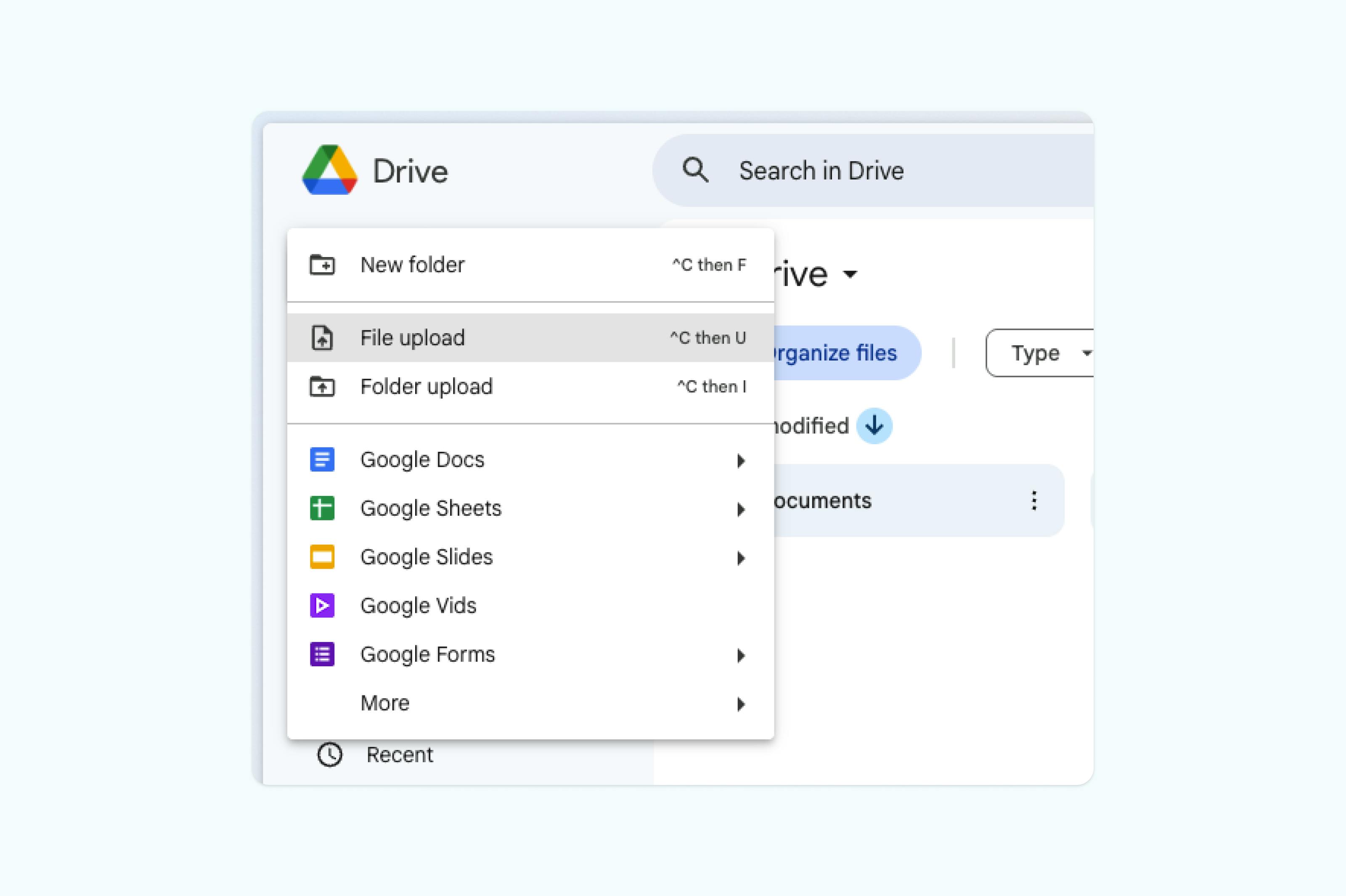
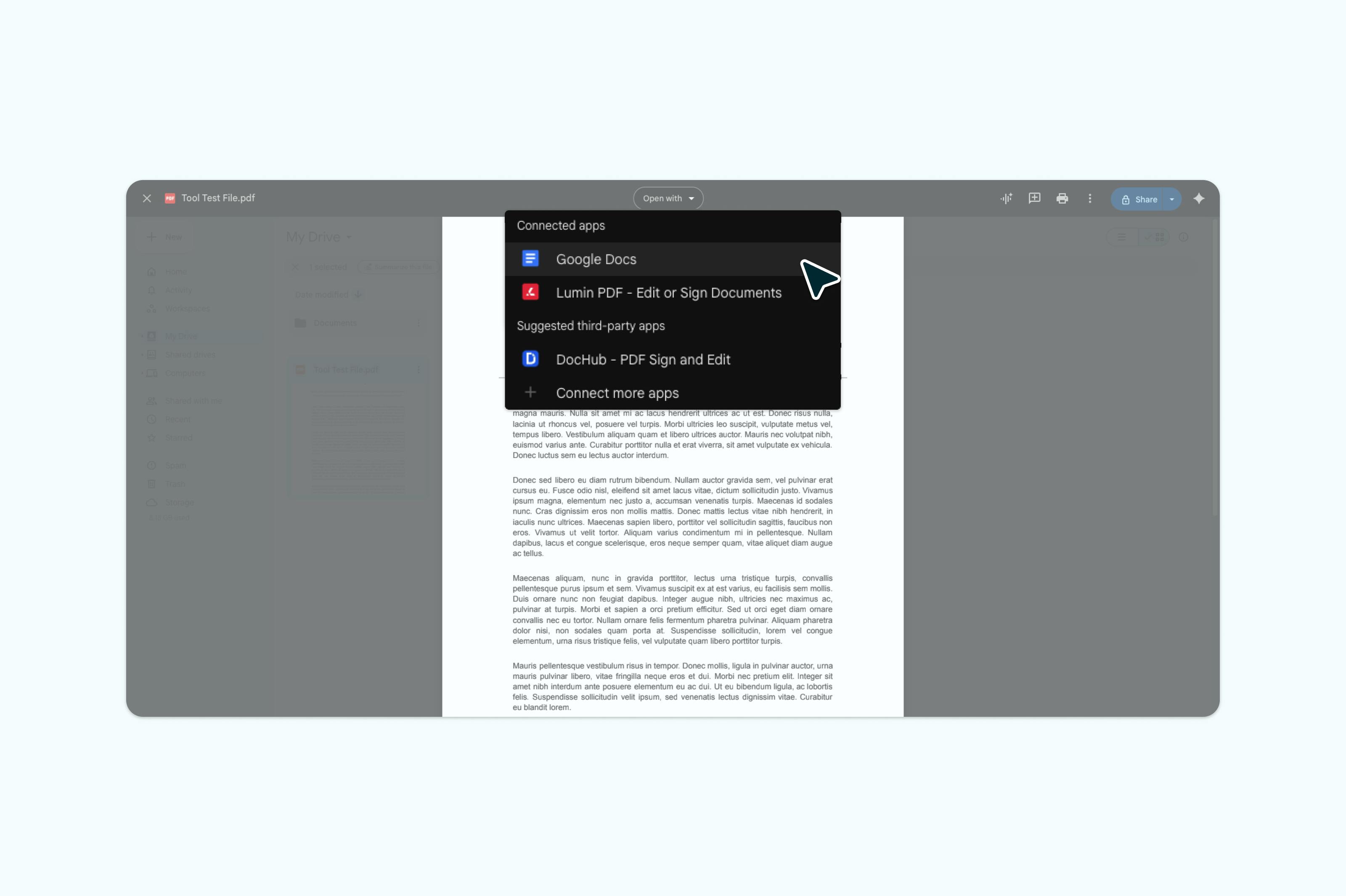
• Khi file đã được tải lên Google Drive, nhấn vào file đó và bạn sẽ thấy tùy chọn ‘Mở bằng’. Chọn ‘Google Docs’ để mở PDF dưới dạng file có thể chỉnh sửa.
• Sau khi chỉnh sửa xong, bạn có thể gửi file đó dưới dạng liên kết Google Doc hoặc lưu về máy tính của mình dưới định dạng PDF.
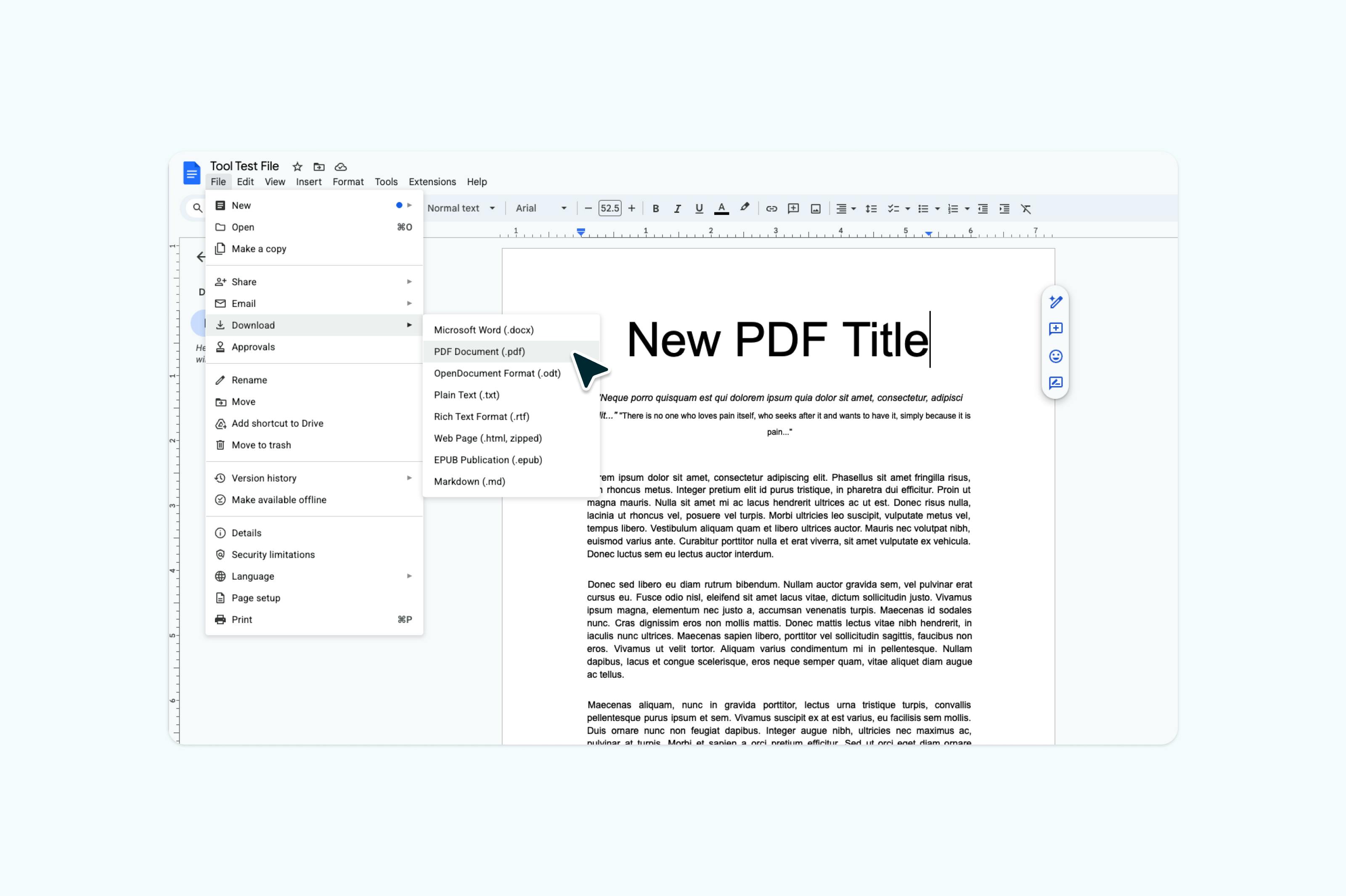
• Sau khi lưu tài liệu đã chỉnh sửa dưới dạng PDF, bạn có thể gửi qua email hoặc tải lại PDF mới lên Google Drive để truy cập từ bất kỳ thiết bị nào.
Dễ dàng phải không?
Tôi có thể chỉnh sửa PDF mà không mất định dạng trong Google Docs không?
Khi bạn chuyển đổi PDF sang file Google Docs, thứ tự văn bản, kiểu chữ và hình ảnh trong tài liệu có thể khác biệt do khác nhau giữa hai định dạng. Thêm vào đó, bố cục, thụt lề và định dạng đoạn cũng có thể thay đổi.
Vì định dạng PDF và Google Doc không giống nhau, file PDF của bạn sẽ bị mất định dạng khi chuyển sang Google Doc. Bất kỳ tệp nào bạn nhập hoặc chuyển đổi trong một chương trình khác với chương trình bạn tạo ban đầu đều chỉ có thể giữ lại những thành phần mà ứng dụng hỗ trợ.
Cách chỉnh sửa các file PDF phức tạp hơn
Chỉnh sửa PDF ngay bên trong Google Drive phù hợp nhất với các tài liệu đơn giản. Nếu file PDF của bạn phức tạp hơn – ví dụ có đồ họa và bảng biểu – bạn có thể nhận thấy định dạng bị thay đổi. Điều này thường là do Google Docs không hỗ trợ kiểu định dạng đó hoặc cách nó đọc các thành phần PDF khiến mọi thứ hiển thị khác biệt.
Nếu tài liệu PDF của bạn chỉ chứa văn bản cơ bản và rất ít định dạng hình ảnh, thì tải lên Google Docs, chỉnh sửa văn bản và chuyển lại thành PDF để gửi đi sẽ không gặp vấn đề gì.
Nhưng nếu PDF phức tạp hơn, bạn cần nâng cấp cách chỉnh sửa của mình. Google vẫn có giải pháp cho bạn. Trong khi các dịch vụ lưu trữ đám mây đều có trình xem PDF miễn phí, Google Drive còn tiến xa hơn bằng cách hợp tác với các ứng dụng bên thứ ba. Lumin là một trong số những trình chỉnh sửa PDF miễn phí như thế.
Chỉnh sửa tài liệu với Lumin thật đơn giản. Chỉ cần mở PDF trong Google Drive, chọn Lumin trong danh sách ‘Mở bằng’.
Bạn có thể cần kết nối ứng dụng với Google Drive trước. Đây là hướng dẫn cách chỉnh sửa PDF với Lumin qua Google Drive.
Một vài cách nhanh & dễ để chỉnh sửa PDF
Chú thích và hình ảnh
Thêm văn bản và hình ảnh, hoặc xóa nội dung/hình ảnh cũ. Khi bạn tải file PDF lên Lumin, bạn có thể bật đồng bộ tự động để mọi thay đổi được lưu lại trên Google Drive.
Highlight – Tô sáng
Làm nổi bật những phần quan trọng trong tài liệu bằng cách tô màu chúng.
Mẫu template
Không phải ai cũng giỏi định dạng. Hãy làm tài liệu PDF của bạn chuyên nghiệp hơn bằng cách chọn mẫu template PDF có sẵn và tùy chỉnh qua các công cụ cơ bản.
Chữ ký điện tử
Tạo chữ ký của riêng bạn hoặc chọn chữ ký có sẵn để ký văn bản nhanh chóng, không cần in ấn. Tìm hiểu thêm về khác biệt giữa chữ ký điện tử và chữ ký số.
Vẽ tự do
Những ai thiên về trực quan có thể dễ dàng bày tỏ ý tưởng bằng cách vẽ hoặc đánh dấu trực tiếp.
Nhận dạng ký tự quang học (OCR)
OCR là công nghệ giúp chuyển đổi nội dung chữ in và chữ viết tay thành dạng số hóa. Một khi đã số hóa, bạn hoàn toàn có thể chỉnh sửa chúng!
Nếu bạn thích lưu trữ file trên Dropbox, đừng lo, bạn vẫn có thể chỉnh sửa PDF!
Bạn có thể sử dụng Lumin với Google Drive và Dropbox để chỉnh sửa PDF miễn phí. Nếu muốn bộ công cụ nâng cao chuyên nghiệp cho file PDF phức tạp, hãy thử dùng thử miễn phí gói Pro của chúng tôi.
Các câu hỏi thường gặp
Có cách nào chỉnh sửa PDF trong Google Drive không?
Có, có nhiều cách để chỉnh sửa PDF trong Google Drive. Dù Google Drive không tích hợp trình chỉnh sửa PDF gốc, bạn có thể dùng các công cụ bên thứ ba tích hợp như Lumin PDF, đồng bộ liền mạch với Google Drive. Một cách khác là chuyển PDF sang Google Docs để chỉnh sửa văn bản cơ bản (dù có thể bị thay đổi định dạng).
Có trình chỉnh sửa PDF miễn phí cho Google không?
Google không có trình chỉnh sửa PDF miễn phí riêng, nhưng có lựa chọn miễn phí. Bạn có thể chuyển PDF sang Google Docs để chỉnh sửa văn bản cơ bản, nhưng sẽ có giới hạn. Để chỉnh sửa nâng cao và giữ nguyên định dạng PDF, Lumin PDF cung cấp bản dùng thử miễn phí và tích hợp trực tiếp với Google Drive.
Cách tốt nhất để chỉnh sửa PDF là gì?
Cách tốt nhất tùy vào nhu cầu của bạn:
- Chỉnh sửa văn bản đơn giản: Bạn có thể chuyển PDF sang Google Docs để chỉnh sửa, nhưng định dạng có thể thay đổi. Lumin cho phép bạn chỉnh sửa trực tiếp trên PDF và giữ nguyên bố cục, giúp bạn yên tâm hơn.
- Giữ định dạng và tính năng nâng cao: Sử dụng các trình chỉnh sửa PDF chuyên dụng như Lumin PDF.
- Điền form: Phần lớn trình xem như Lumin PDF hỗ trợ điền các biểu mẫu cơ bản.
- Chỉnh sửa chuyên sâu: Phần mềm PDF chuyên nghiệp mang đến các công cụ toàn diện nhất.
Làm thế nào để biến PDF thành tài liệu có thể chỉnh sửa?
Có vài cách để chỉnh sửa PDF:
- Mở bằng Google Docs để chỉnh sửa văn bản cơ bản.
- Dùng OCR (Nhận dạng ký tự quang học) cho file scan.
- Nhập vào trình chỉnh sửa PDF có khả năng giữ định dạng.
- Chuyển PDF sang Word hoặc các định dạng có thể chỉnh sửa khác.
- Dùng công cụ chuyển đổi online để xử lý nhanh chóng.
Trình chỉnh sửa PDF nào đồng bộ với Google Drive?
Có nhiều trình chỉnh sửa PDF đồng bộ tốt với Google Drive:
- Lumin PDF tích hợp trực tiếp và đồng bộ tự động.
- Nhiều ứng dụng trên Google Workspace Marketplace.
- Các trình chỉnh sửa PDF nền tảng đám mây hỗ trợ Google Drive.
- Các công cụ hỗ trợ tích hợp OAuth với Google.
- Những phần mềm cho phép lưu trực tiếp về Google Drive.
Xem thêm:
Chia sẻ bài viết này