Free PDF annotator
Annotate your PDF file online in seconds. Draw, comment, highlight text, and more with our free markup tool. Drop your PDF file below and start annotating.One moment...

or drop your first file here
You’re in good company







How to annotate a PDF online
Follow these simple steps to annotate your PDF.
- 1
Upload
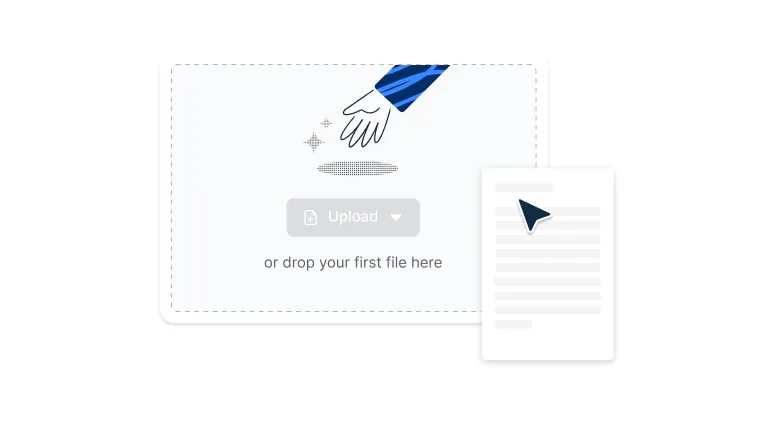
Drop a PDF file into the dropzone above or click the select a file button.
- 2
Select annotate
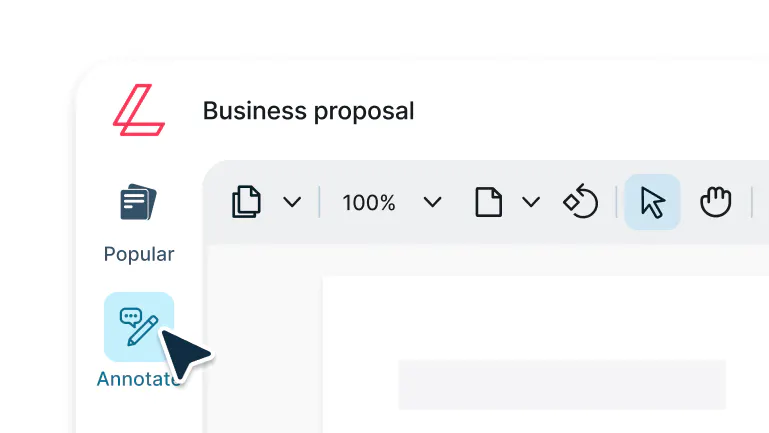
Sign-in and select ‘annotate’ in the left navigation bar of the editor.
- 3
Annotate your PDF
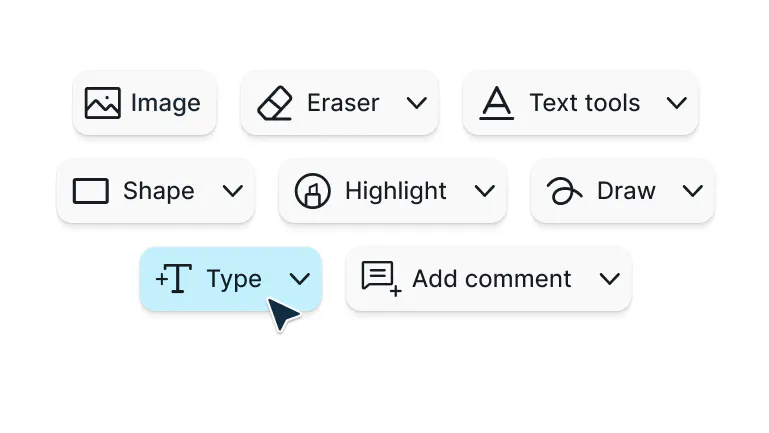
Here, you can add text, highlight, draw, insert images and add comments.
PDF annotation made simple
Annotate PDFs easily with Lumin’s free tool. Highlight text, add comments, and draw directly on your document.

All-in-one annotation toolkit
Highlight text, add sticky notes, draw shapes, insert text boxes, or sketch freehand. From reviewing contracts to grading papers to giving feedback, you’ll have every annotation tool you need in one place.

Collaborate in real time
Work on PDFs with your team simultaneously. See comments, highlights, and annotations appear instantly as colleagues contribute. No more endless email chains or version mix-ups. Everyone stays aligned on the same document.

Seamless cross-device annotation
Annotate PDFs on Mac, Windows, iPad, iPhone, or Android. Start on your desktop, pick up on your tablet during your commute, and polish from your phone. Every change syncs automatically across devices.

Smart, contextual commenting
Attach comments to specific text or areas for clarity. Reply to teammates, resolve threads, and track discussions like having a live conversation directly on your document.

Effortless Google Drive sync
Open PDFs from Google Drive, annotate, and save changes instantly. Updates appear across Google Workspace without manual uploads, so your team is always up to date.

Professional markup features
Apply approval stamps, strikethrough text, underline key points, or design with custom shapes. Export annotated PDFs with all markups embedded, perfect for client presentations or official records.
Frequently asked questions
Lots of our tools are free. You can read PDFs, draw on them, comment on them, add text, signatures and images; all the basics are covered.
Our paid plans expand your toolkit: you can edit PDF text, redact information, create fillable fields and much more. Discover our plans to learn which one is the right fit for you.Google Drive doesn’t include built-in PDF annotation tools, but Lumin integrates directly with your Drive. Select any PDF, select Open with > Lumin PDF, and you’ll have the full annotation toolbar at your fingertips. Your changes save automatically back to Drive with all markups preserved.
On iPhone, iPad, or Android, open your PDF in the Lumin mobile app and tap the annotation icon. The touch-friendly interface lets you highlight, draw, or add comments using your finger or stylus. Pinch to zoom for precision, and all changes sync across your devices.
Yes! While Lumin is designed for the cloud, we know sometimes work happens from the ground. Just switch on “offline mode” and continue editing your document. When you next connect to the internet, your edits will be saved. Learn more here.
Yes. Use the comment tool to attach notes to text, images, or entire sections. Click where you want to place a comment, type your note, and it appears as a speech bubble icon. You can reply, resolve, or build threaded discussions directly on the document.
Select the text you want to highlight and choose from multiple color options in the Annotate toolbar. Use yellow for key points, pink for questions, or green for approvals. You can even set up your own color-coding system.
All highlights are searchable and exported with your document.Absolutely. Share your PDF with teammates, and everyone can annotate at the same time. Annotations are color-coded and tagged by the user, so you always know who added what.
It’s ideal for document reviews, collaborative editing, or collecting feedback from different stakeholders.Use the freehand drawing tool to sketch diagrams, circle important details, or add arrows. You can adjust pen thickness and color to match your needs. It’s perfect for architectural markups, quick visual notes, or even signing documents.
Yes. When you save, all annotations remain embedded in the PDF. You can download the full annotated version or export a summary of just the annotations. Recipients can view your markups in any PDF reader, ensuring your feedback always stays with the document.
Yes. Annotations are fully editable. Click or tap any markup to modify text, change colors, adjust positioning, or delete it altogether. The annotation history also tracks changes, which is especially useful for revision-heavy workflows.
Yes. Lumin offers free PDF annotation tools that work right in your browser. Create a free account to access the full suite, including collaboration features, custom stamps, and reusable templates. No downloads required. Just upload your file and start annotating.
Trusted by more than 100 million customers



Featured articles
Discover Lumin’s products
Collaborate with existing colleagues and onboard new ones with Lumin and Lumin Sign. Our innovative solutions work great on their own, but they’re even better together.


Lumin Sign