
Comment scanner un PDF
Numériser un document au format PDF est l’une des tâches les plus courantes lorsque l’on gère des papiers. Vous pouvez en avoir besoin pour dématérialiser un contrat, archiver des reçus ou envoyer un formulaire signé par e-mail. La bonne nouvelle, c’est qu’il n’est plus nécessaire d’avoir un scanner encombrant pour le faire.
Table des matières
- 1. Méthode 1 : Modifier ou convertir un PDF numérisé avec Lumin
- 2. Méthode 2 : Scanner un document en PDF avec un iPhone
- 3. Méthode 3 : Scanner un document en PDF sur Android
- 4. Questions fréquemment posées
- 5. Allez plus loin avec vos PDF scannés
Partager cet article
Ci-dessous, nous allons passer en revue différentes méthodes pour travailler avec des PDF numérisés et créer de nouveaux scans à partir de documents papier. Ces approches vous aideront à gérer, modifier et stocker vos fichiers plus efficacement.
Méthode 1 : Modifier ou convertir un PDF numérisé avec Lumin
Si vous possédez un document papier et souhaitez le transformer en fichier numérique, Lumin vous permet de le scanner et de l’enregistrer facilement au format PDF. C’est idéal pour les reçus, contrats, formulaires ou documents imprimés que vous devez sauvegarder, partager ou modifier en ligne.
Voici comment faire :
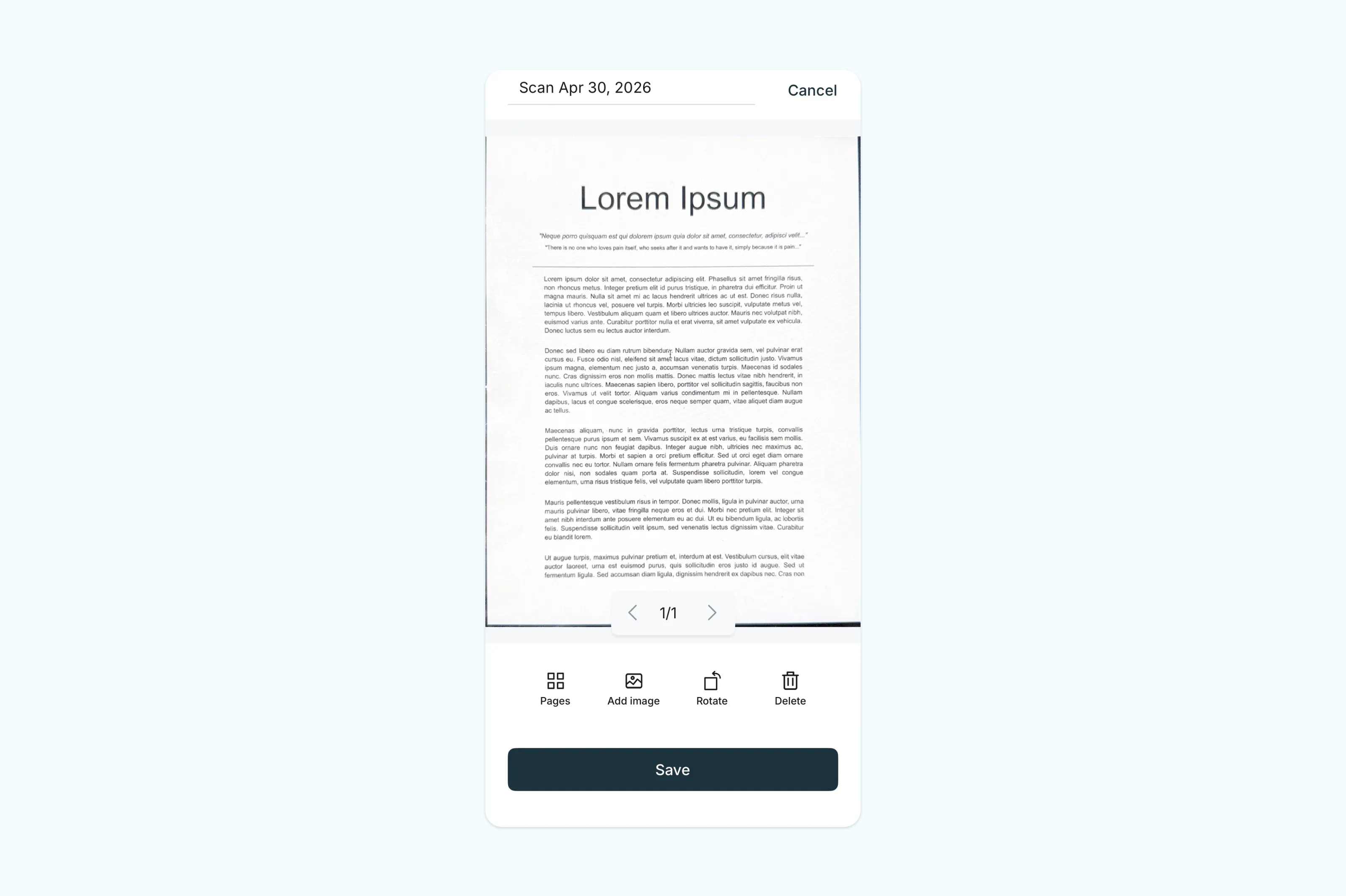
- Ouvrez l’outil gratuit Scan to PDF de Lumin et scannez le QR code pour télécharger l’application mobile.
- Créez un compte, puis depuis l’écran d’accueil, sélectionnez « Scanner un document ».
- Numérisez votre document papier.
- Appuyez sur « Enregistrer » à gauche de l’interface de l’appareil photo.
- Une fois enregistré, ouvrez-le dans Lumin pour le surligner, l’annoter, le signer ou le partager.
Remarque : Après la numérisation, vous pouvez aussi ajouter d’autres pages en cliquant sur « ajouter une image » et utiliser l’outil OCR de Lumin pour rendre le texte sélectionnable et accessible à la recherche. C’est très pratique si vous souhaitez copier du texte issu du PDF scanné ou retrouver des mots précis dans le document.
Méthode 2 : Scanner un document en PDF avec un iPhone
Votre iPhone dispose d’un scanner intégré dans l’app Notes, qui permet de créer facilement des PDF nets et de grande qualité, sans application supplémentaire. Il détecte automatiquement les bords, redresse l’image et améliore le contraste, offrant un résultat professionnel.
Voici comment scanner un document au format PDF avec un iPhone :
- Ouvrez l’app Notes et créez une nouvelle note.
- Touchez l’icône trombone, puis sélectionnez « Scanner des documents ».
- Tenez l’iPhone au-dessus du document. L’application détectera et capturera automatiquement la page. Vous pouvez aussi appuyer sur le déclencheur pour prendre la photo manuellement.
- Ajustez les coins si besoin, puis touchez « Conserver le scan ». Répétez l’opération pour chaque page supplémentaire.
- Une fois terminé, appuyez sur « Enregistrer »
- Pour enregistrer le scan en PDF, touchez le document scanné dans la note, puis touchez le bouton de partage et choisissez « Enregistrer dans Fichiers ».
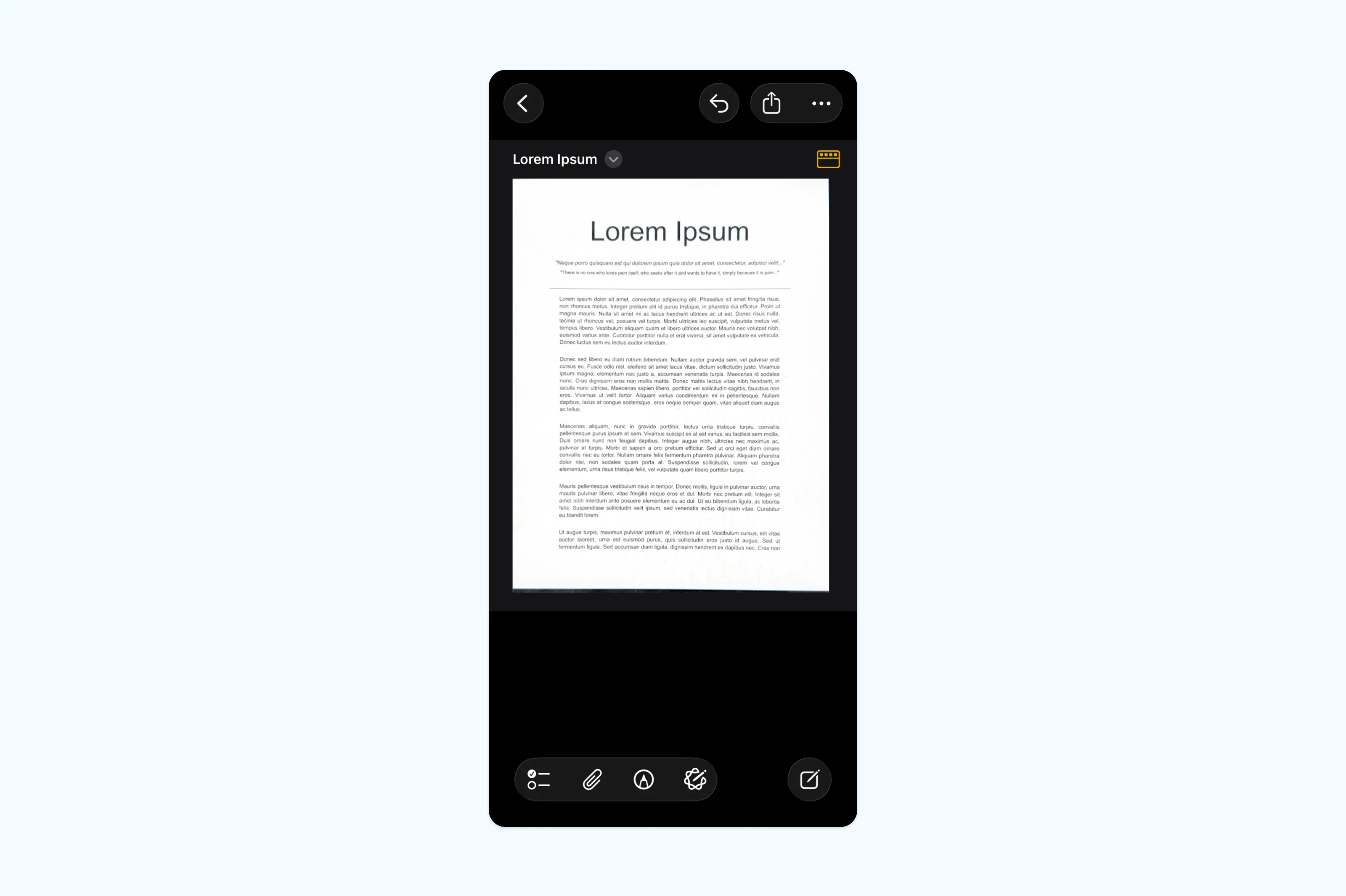
Remarque : L’app Notes enregistre les numérisations multi-pages comme un seul et même fichier PDF, ce qui est très pratique pour les contrats, formulaires ou reçus de plusieurs pages. Pour modifier le PDF scanné après l’enregistrement, téléversez-le dans l’outil OCR de Lumin afin de rendre le texte sélectionnable et modifiable.
Méthode 3 : Scanner un document en PDF sur Android
La plupart des appareils Android intègrent un scanner via l’application Google Drive, ce qui permet de créer facilement des PDF nets et de qualité sans installer d’autres outils. Le scanner détecte automatiquement les bords, recadre le document et optimise l’image pour une meilleure lisibilité.
Voici comment scanner un document en PDF sur Android :
- Ouvrez l’application Google Drive sur votre appareil.
- Appuyez sur le bouton « + » (plus), puis sélectionnez « Numériser ».
- Maintenez votre téléphone au-dessus du document. L’application capturera la page automatiquement, ou vous pouvez déclencher la prise de vue manuellement.
- Ajustez la zone de recadrage si besoin, puis touchez « Terminé » ou la coche. Répétez l’opération pour chaque page supplémentaire.
- Appuyez sur « Enregistrer », puis choisissez un nom de fichier et un dossier.
Questions fréquemment posées
Puis-je scanner un document en PDF depuis mon téléphone ?
Oui, aussi bien les iPhone que les téléphones Android disposent d’outils intégrés pour la numérisation en PDF. Sur iPhone, utilisez la fonction scan de l’app Notes (voir Méthode 2). Sur Android, Google Drive comprend également un scanner accessible depuis le bouton « + », en choisissant « Numériser ». Les deux solutions produisent des fichiers PDF nets que vous pouvez ensuite partager ou envoyer par e-mail.
Comment scanner et envoyer un document en PDF par e-mail ?
Commencez par numériser le document grâce à l’une des méthodes ci-dessus. Une fois le PDF enregistré sur votre appareil, ouvrez votre application e-mail et joignez simplement le fichier. Sur iPhone, vous pouvez partager directement le PDF scanné depuis Notes, en appuyant sur le bouton de partage et en choisissant votre application de messagerie.
Comment modifier un PDF scanné ?
La plupart des PDF scannés sont basés sur des images : le texte n’est donc pas sélectionnable ou modifiable directement. Pour rendre un PDF scanné éditable, il faut d’abord y appliquer l’OCR. L’outil OCR gratuit de Lumin convertit le texte scanné en contenu sélectionnable, et le convertisseur PDF vers Word vous permet d’effectuer des modifications approfondies dans un document Word.
Puis-je scanner plusieurs pages en un seul PDF ?
Oui. Sur iPhone, l’app Notes permet de scanner plusieurs pages lors d’une même session et de les enregistrer toutes dans un seul fichier PDF. Si vous avez obtenu un PDF distinct pour chaque page, vous pouvez les regrouper à l’aide de l’outil d’assemblage de PDF de Lumin.
Allez plus loin avec vos PDF scannés
La numérisation n’est que la première étape. Avec un compte gratuit Lumin, vous pouvez modifier, annoter, convertir et signer vos PDF directement depuis votre navigateur. C’est rapide à mettre en place et 100 % gratuit pour commencer.
Outils et guides associés :

Partager cet article