
How to fill out a W-9 online
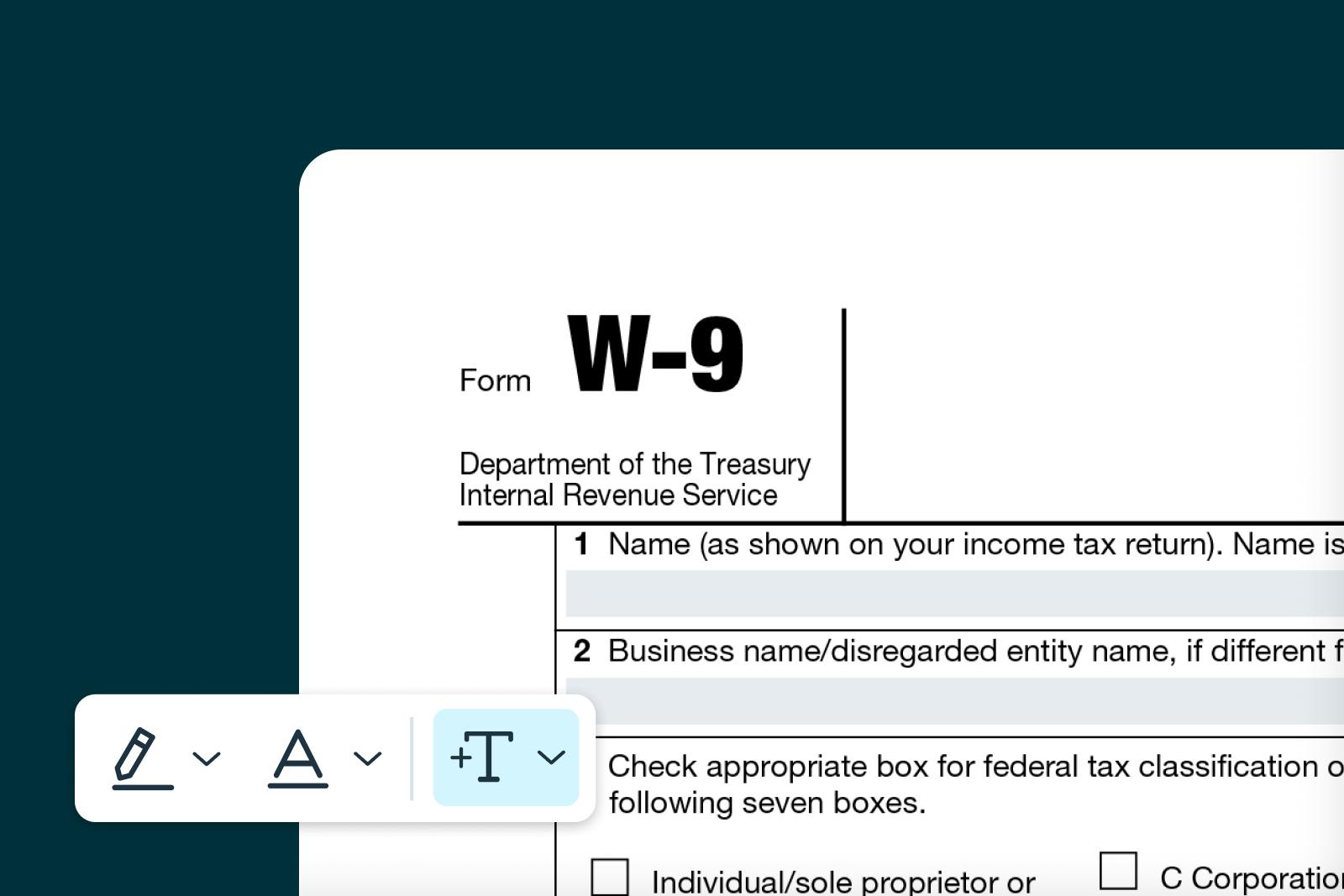
Form W-9 is a frequently requested tax document that independent contractors, freelancers and business owners encounter regularly. This guide explains each step of completing the form to ensure proper tax reporting and avoid payment delays.
Table of contents
- 1. What is a W-9 form?
- 2. Who should fill out a W-9 form?
- 3. Step-by-step instructions for filling out Form W-9
- 4. Where to download Form W-9
- 5. Filling out Form W-9 online
- 6. How to submit Form W-9
- 7. Common mistakes to avoid
- 8. Tips for a successful submission
Share this post
What is a W-9 form?
Form W-9, officially titled "Request for Taxpayer Identification Number and Certification," is used to provide your taxpayer information to businesses and organizations that pay you. The form collects your name, address and taxpayer identification number (TIN) so they can report payments to the IRS.
Unlike other tax forms, W-9 is never filed with the IRS. Instead, you provide it to the requesting party, who uses the information to prepare year-end forms like 1099-NEC or 1099-MISC. These forms report the income you received to both you and the IRS, ensuring proper tax compliance.
Who should fill out a W-9 form?
You should complete Form W-9 if you:
- Work as an independent contractor or freelancer earning $600 or more from a client.
- Operate a sole proprietorship or single-member LLC.
- Provide services as a vendor or consultant to businesses.
- Rent commercial property to business tenants.
- Receive investment income such as dividends or interest.
Note: Employees do not fill out Form W-9. Instead, they complete Form W-4 for tax withholding purposes.
Step-by-step instructions for filling out Form W-9
Follow the steps below to fill out Form W-9 accurately. Ensure all information matches your official records to prevent processing delays or backup withholding.
Step 1: Enter your name
Enter your full legal name on Line 1 exactly as it appears on your tax return. Individuals should use the name on their Social Security card. Sole proprietors and single-member LLCs that haven’t elected corporate taxation should enter the owner’s personal name, not the business name. A mismatch can trigger backup withholding.
Step 2: Enter your business name (if applicable)
If you use a business name or DBA, enter it on Line 2. Leave this line blank if you don’t have one.
Step 3: Select your federal tax classification
On Line 3a, check the box that matches your tax status (Individual/sole proprietor, C Corporation, S Corporation, Partnership, Trust/estate or LLC with C, S or P). This determines how your income is reported. Single-member LLCs usually select “Individual/sole proprietor” unless they’ve elected corporate taxation.
Step 4: Complete Line 3b (if applicable)
Check Line 3b only if you’re a partnership, trust or estate with foreign partners or beneficiaries. Most filers leave this blank. This line was added in the March 2024 revision to support reporting for flow-through entities.
Step 5: Enter exemption codes (if applicable)
Line 4 is used to report any backup withholding and to claim FATCA exemptions, if applicable. Most individuals and small businesses leave these blank. Only corporations, government entities or tax-exempt organizations typically enter codes.
Step 6: Provide your address
Enter your current mailing address on Lines 5 and 6. This is where the requester will send your Form 1099, so make sure it matches your IRS records.
Step 7: Enter your taxpayer identification number
In Part I, enter your SSN or EIN. Individuals and sole proprietors usually use an SSN, while businesses use an EIN. Double-check for accuracy, as errors can result in 24% backup withholding. Sole proprietors may use an EIN to avoid sharing their SSN.
Step 8: Sign and date the certification
Sign and date Part II to confirm the information is correct, you’re not subject to backup withholding (unless indicated) and you’re a U.S. person for tax purposes. Unsigned forms are invalid. Keep a copy for your records.
Where to download Form W-9
You can easily access and fill out Form W-9 using Lumin's intuitive platform. Complete the form digitally, download it and provide it to the requesting party.
Filling out Form W-9 online
Follow these steps to accurately fill out your W-9 on Lumin:
- See "Form W-9" in Lumin's Template Discovery and click "Use Template."
- Sign in or create a free Lumin account.
- Enter all required personal and business information.
- Add your taxpayer identification number accurately.
- Finally, download and save the form, then submit it to the requesting party.
Note: Do not send Form W-9 to the IRS. Provide it only to the business or organization that requested it.
How to submit Form W-9
Form W-9 is submitted directly to the business, client or organization that requested it. You have several submission options:
Option 1: Electronically
Use secure online portals or document management systems to submit your W-9 to the business or requesting party. Electronic submission is fast and reduces the risk of lost paperwork. Many systems include error checks to prevent common mistakes. Always use encrypted platforms, not standard email.
Option 2: Paper submission
Print, sign, and mail or hand-deliver the W-9. Keep a copy for your records. For mail, certified delivery is recommended for proof of receipt. Ensure all entries are clear and legible to avoid delays.
Option 3: Through contractor platforms
Many businesses use contractor management systems where you can complete W-9 forms directly within their platform. These systems often validate information automatically to catch errors.
Common mistakes to avoid
- Incorrect name: Use your exact legal name as on your Social Security card or IRS records. Nicknames or variations can cause issues.
- Wrong TIN: Double-check your SSN or EIN. Mistakes can trigger 24% backup withholding.
- Missing classification: Select the correct federal tax classification. LLCs often get this wrong.
- Unsigned form: Always sign and date; unsigned forms are invalid.
- Outdated version: Use the latest IRS revision, shown at the bottom of the form.
Tips for a successful submission
- Keep copies and records of all W-9 submissions.
- Update your W-9 if your name, address, TIN, or business structure changes.
- Confirm the requester is legitimate before sharing sensitive information.
- Submit promptly to avoid payment delays or backup withholding.
- Store completed forms securely, whether digitally or physically.
- Maintain a list of all businesses with your W-9 on file for easier updates.
By following this guide, you'll be prepared to complete Form W-9 accurately and provide your taxpayer information with confidence. Lumin provides ready-to-use fillable forms to support a smooth tax documentation process.

Share this post