
Collaborate on PDFs
Share and edit files with your team in real-time.
You’re in good company







How to use Workspaces
Sign up
Create a free account, if you haven't already. Once in Lumin, you can request to join an existing Workspace or create your own.
Create your Workspace
If you’ve created one, name your Workspace and give it a picture. Then add the emails of those you want to join and hit ‘Create’.
Collaborate
Upload files into your Workspace’s shared Space for your team to collaborate on, or store private files under ‘My Documents’.
Collaborate on a PDF
Collaborate on PDFs in real time with Lumin’s free tool. Share documents, add comments, and work together seamlessly.

Build your own workspace
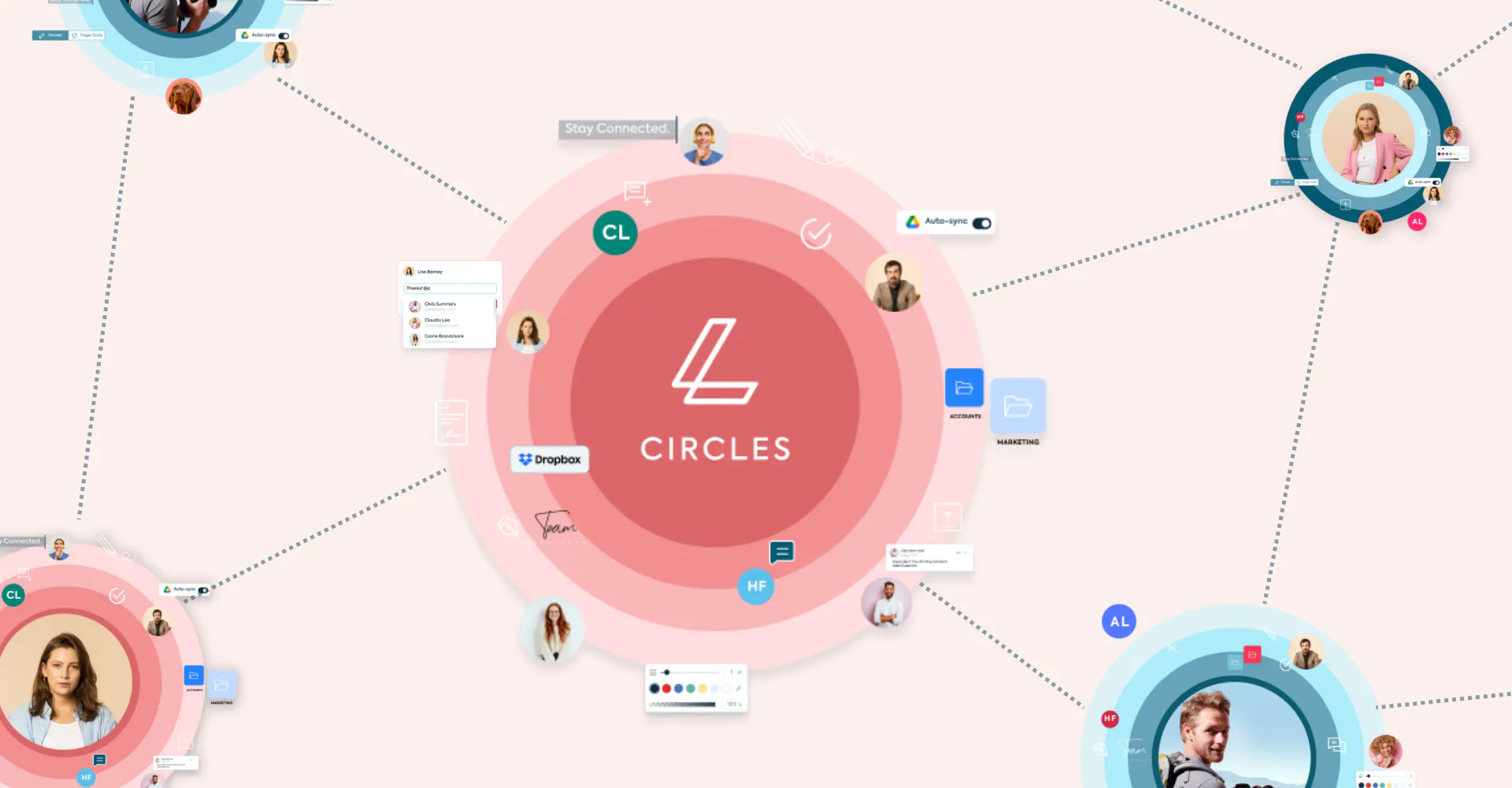
Set up a dedicated workspace and invite as many collaborators as you need. Keep all your documents in one place for easy access and teamwork. Organize projects efficiently with customizable folders and instant file sharing across your entire team.

Work together in real time
Collaborate on the same PDF instantly. Share comments, edits, and updates live so everyone stays on the same page. See changes as they happen with automatic sync, eliminating version control issues and duplicate work.

Share ideas with notes and highlights
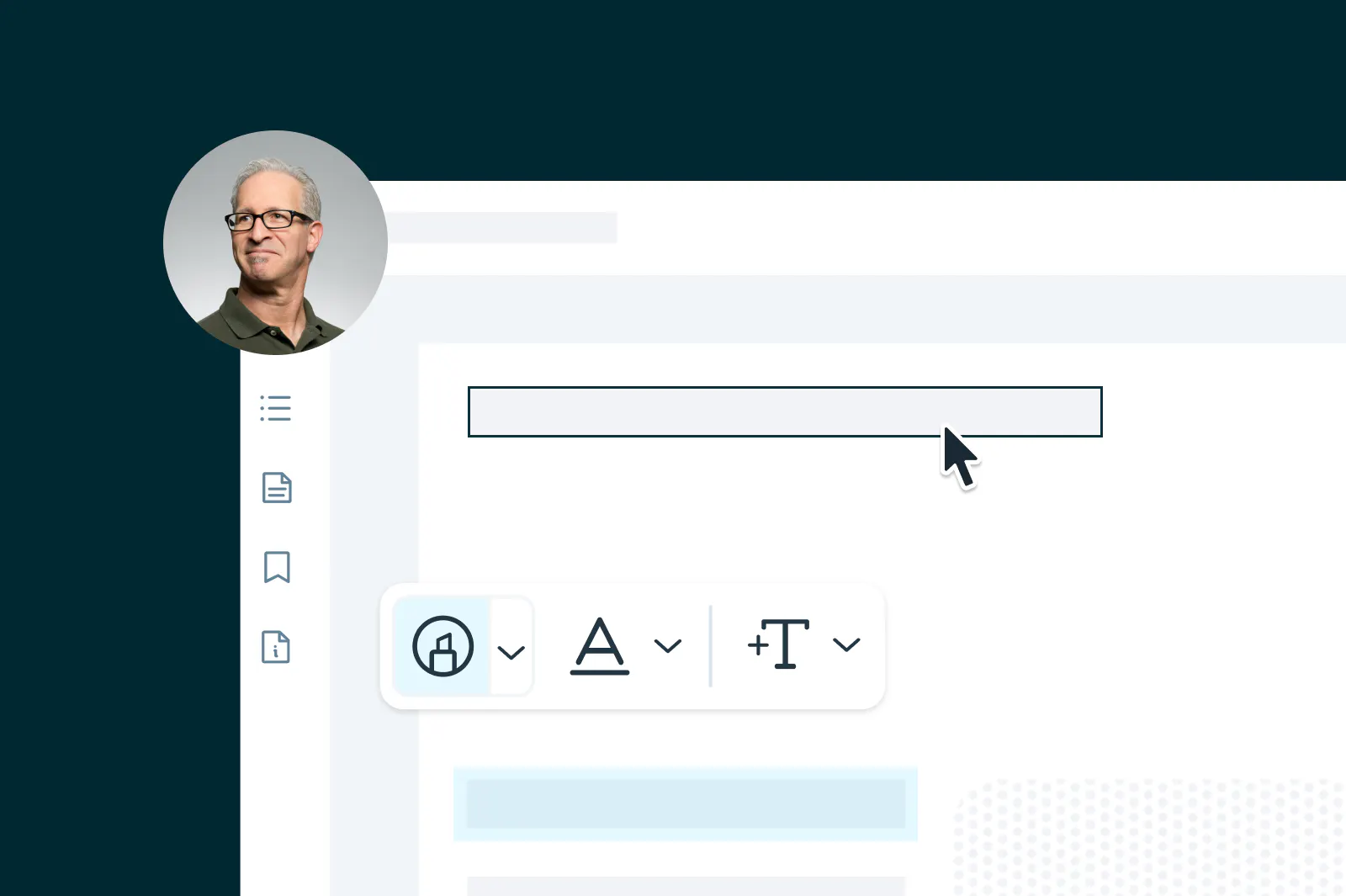
Make collaboration seamless by adding notes, annotations, and highlights directly to your PDF. Keep feedback organized and easy to follow. Use drawing tools, sticky notes, and custom stamps to communicate ideas clearly with your team.

Connect with Google Drive
Import and share files straight from Google Drive. Collaborate without switching between tools and save changes back instantly. Your PDFs sync automatically with Google Workspace, maintaining a smooth workflow across all your productivity apps.

Protect your documents
Your files are protected with enterprise-grade encryption. Every document is secure and automatically deleted after processing. Control access permissions, track document activity, and ensure confidential information stays protected throughout the collaboration process.

Save your go-to templates
Stop recreating the same forms. Turn frequently used PDFs into templates so you can reuse them anytime with just a few clicks. Build a library of standard documents your team can access and customize for faster, more consistent collaboration.
Frequently asked questions
Sure is! Lots of our tools are free. You can draw on PDFs, comment on them, add text, signatures and images; all the basics are covered.
Our paid plans expand your toolkit: you can edit PDF text, redact information, create fillable fields and much more. Discover our plans to learn which one is the right fit for you.Lumin works on your browser, or you can download our desktop app and keep Lumin handy on your computer. We’ve also got a mobile and tablet app which includes our most popular features.
Workspaces are shared spaces in Lumin for you to store and edit documents your whole team uses. This makes it easy for you to work in real-time with your colleagues, classroom or clients. You can add as many people as you like to your Workspace, and create Spaces inside it to separate your work into silos. Learn more about Workspaces.
Yes. You can create Workspaces for your family, your work, your fantasy football league; whatever you like. And you can join as many as you want, too. But you might not need to: inside your Workspace you can have Spaces, where more niche work gets done.
Share your PDF through Lumin's collaboration workspace and grant editing permissions to specific team members.
Recipients can add text, insert images, annotate, and make changes without needing the original source file. Set custom permissions to control who can view, comment, or fully edit your documents.Absolutely. Multiple team members can simultaneously add comments, highlights, drawings, and sticky notes to the same PDF.
Each annotation is tagged with the contributor's name and timestamp, creating a clear conversation thread. Real-time sync ensures everyone sees updates instantly, making feedback collection efficient and organized.Lumin offers a free trial that includes collaboration features. You can invite multiple people to view, comment, and edit PDFs in real time. This allows your team to experience how collaboration works before deciding on a paid plan.
You can easily share PDFs between platforms. Export your collaborated PDFs from Lumin and upload them to Teams or SharePoint for broader distribution. For seamless workflow integration, use Lumin's Google Drive connectivity to bridge your collaboration tools.
Trusted by more than 100 million customers



Featured articles

Discover Lumin’s products
Collaborate with existing colleagues and onboard new ones with Lumin and Lumin Sign. Our innovative solutions work great on their own, but they’re even better together.


Lumin Sign