Free PDF to JPG Converter
Convert PDFs to editable JPG documents in seconds. Just upload your file and open it in Lumin to edit, share, or download — free and easy.One moment...

or drop your file here
You’re in good company







How to convert PDF to JPG
Follow these simple steps to convert your PDF to a JPG image.
- 1
Step 1
Drop your PDF file into the dropzone above or click the 'Upload' button.

- 2
Step 2
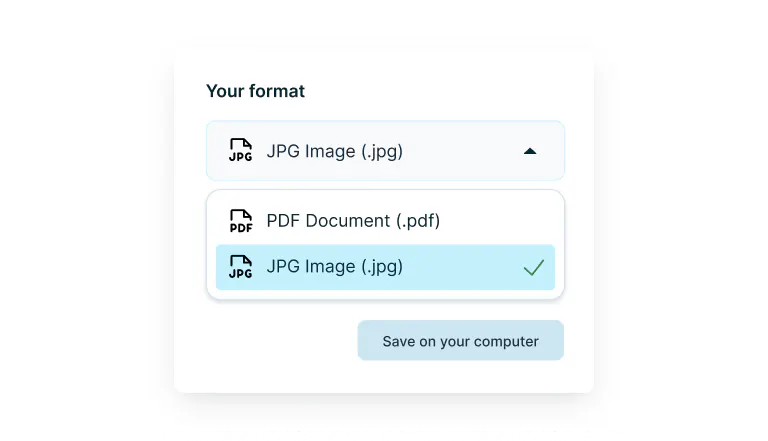
Select ‘JPG Image’ from the drop-down selector.
- 3
Step 3
Download your JPEG file.
PDF to JPG made simple
Quickly turn PDFs into high-quality JPGs — secure, offline-ready, and integrated with your everyday workflow.

Transform PDFs into JPGs in seconds
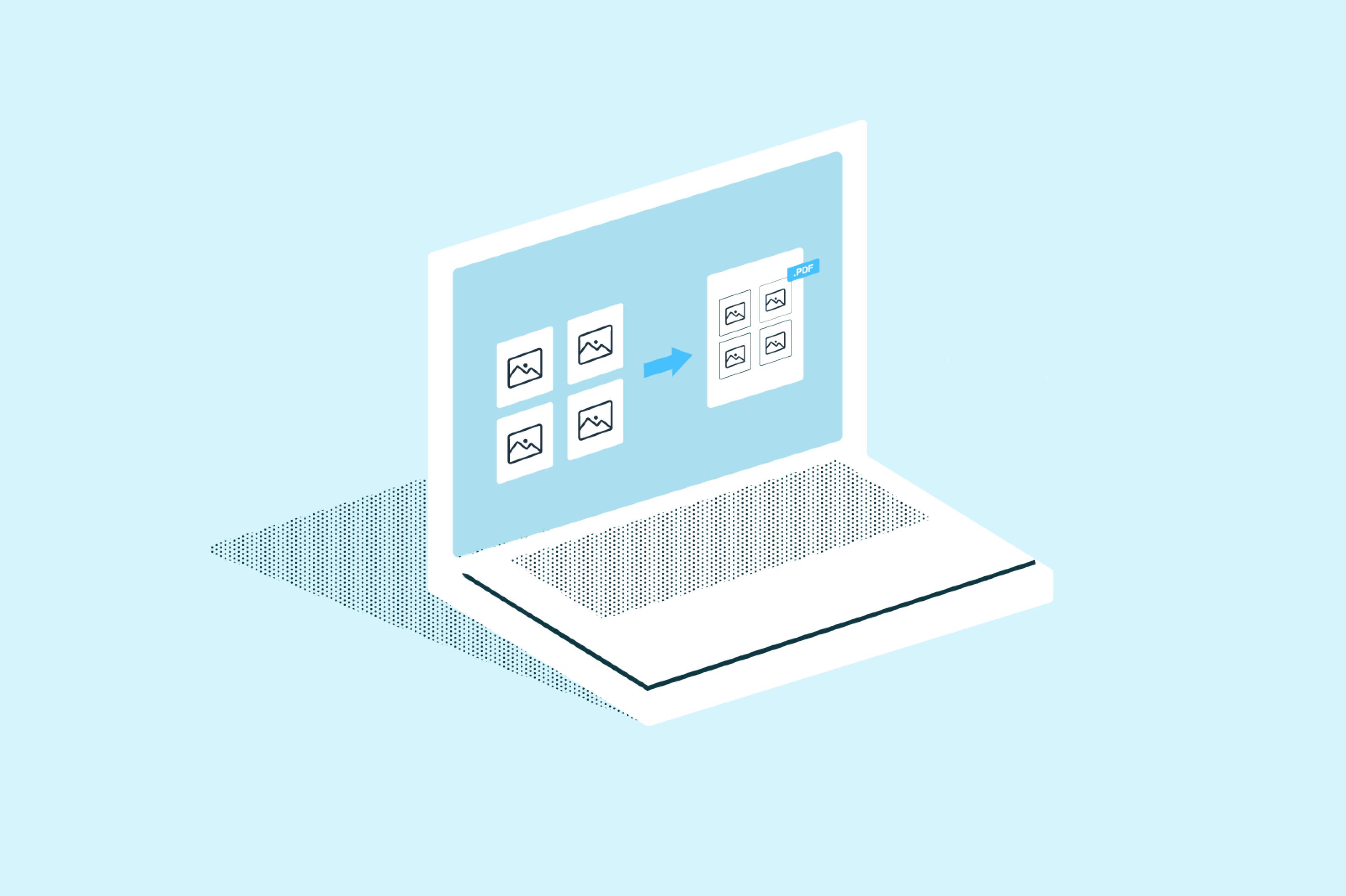
Drop your PDF into Lumin and watch it become sharp, share-ready JPGs. No fuss, no complicated settings – just professional-quality images that work anywhere you need them.

Keep working, even offline
Lost your connection? No worries - with the Lumin app you can convert, view, and manage your files without Wi-Fi. Everything syncs automatically when you're back online, so you never miss a beat.

Preview before you save it
Preview every converted page to ensure it looks exactly right. Because your documents deserve to look their best, every single time.

Work directly from Google Drive
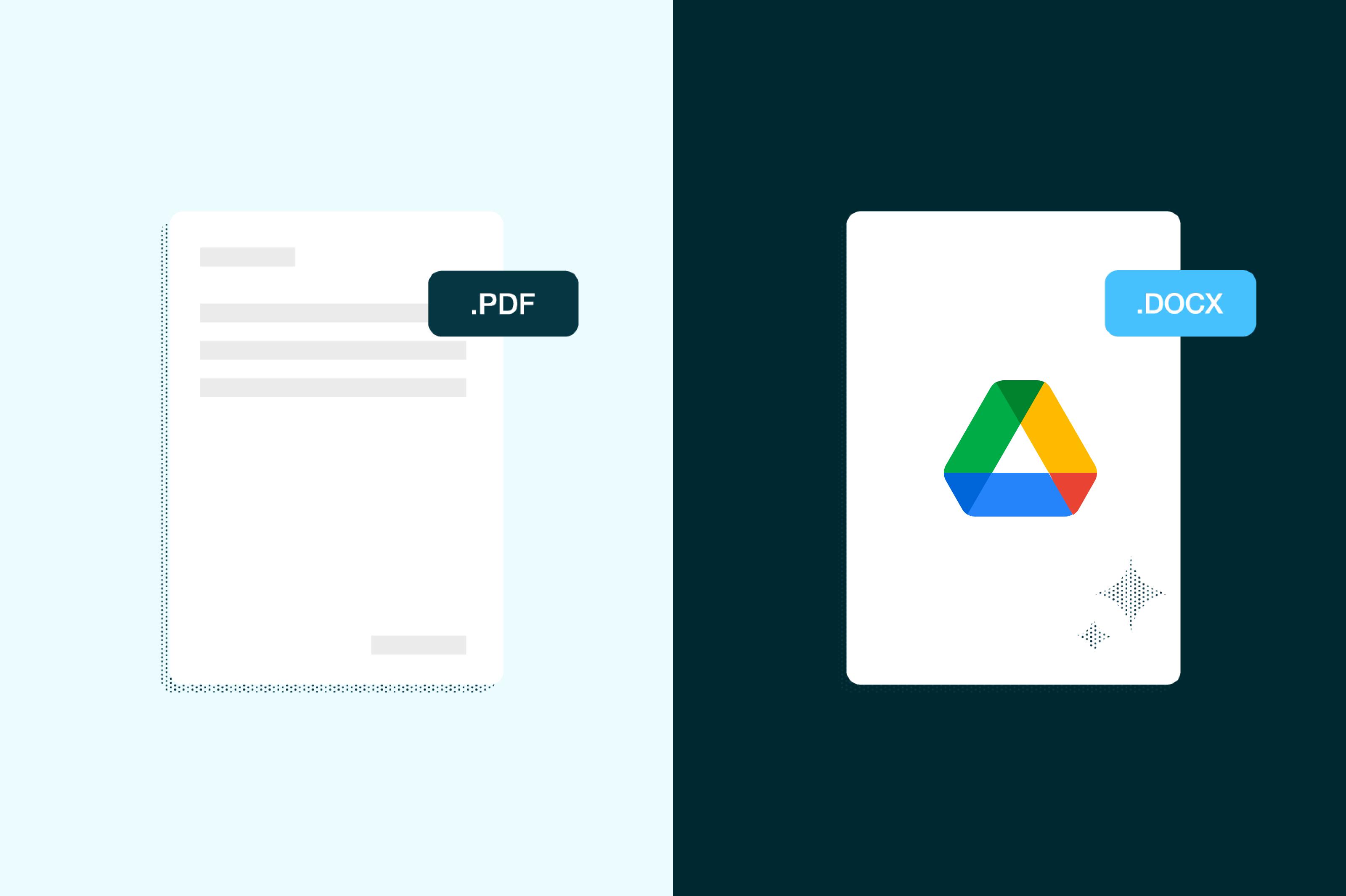
Open and save files straight to Google Drive from the Lumin app, keeping your workflow smooth and connected. Your converted JPGs can be saved directly back to your Google Drive for seamless collaboration.

Convert on a desktop or laptop
Whether you're on Mac, Windows or Linux, at home or in the office, Lumin works seamlessly on your computer. Professional document management that fits your workspace.

Keep your files completely secure
Your files are encrypted and stored using trusted cloud services, with full control over access and privacy. Enterprise-grade security ensures your documents remain protected throughout the conversion process.
Frequently asked questions
JPG (also known as JPEG) is a widely used image format that compresses photos and graphics while maintaining good visual quality. It's ideal for sharing images online, embedding in presentations, or displaying documents where you need broad compatibility across different platforms and devices.
Yes, JPG and JPEG refer to the same image format. The terms are used interchangeably—JPG is simply a shortened version of JPEG (Joint Photographic Experts Group). Both extensions (.jpg and .jpeg) create identical image files with the same compression and quality characteristics.
Yes, Lumin PDF works seamlessly on both Mac and Windows systems. Download the Lumin desktop app for your operating system and enjoy the same conversion features regardless of your platform. The interface and functionality remain consistent across all devices.
Converting a PDF to JPG can result in a slight reduction in image quality. Because JPG is a compressed image format, fine details, especially in text or complex graphics, may not appear as sharp as in the original PDF.
However, for most standard documents and images, the difference is minimal and suitable for everyday use.Google Drive doesn't have built-in PDF to JPG conversion, but Lumin PDF integrates directly with Drive. Right-click your PDF file in Google Drive, select "Open with" > "Lumin PDF," then use the conversion tool. Your converted JPG files are saved directly back to your Drive folder.
Your files are protected with enterprise-grade encryption during upload, conversion, and storage. Lumin uses a secure cloud infrastructure with strict privacy controls, ensuring your documents remain confidential throughout the conversion process. You maintain full control over file access and sharing permissions.
Learn more about how we keep users’ data safe.It’s totally free to convert PDFs to JPGs using our converter tool.
Looking for even more functionality? Consider creating a free Lumin account to unlock more features and higher limits. For advanced tools like OCR, e-signature capabilities, and group project collaboration, upgraded plans provide enhanced functionality for professional use.
Trusted by more than 100 million customers



Featured articles

Discover Lumin’s products
Collaborate with existing colleagues and onboard new ones with Lumin and Lumin Sign. Our innovative solutions work great on their own, but they’re even better together.


Lumin Sign