
Password protect PDFs
Protect your sensitive PDF documents with our free online password protection tool. Simply upload your PDF, set a strong password, and download your encrypted file in seconds.Almost there, finishing the upload.

Drag and drop or click here to upload
You're in good company







How to password-protect a PDF
Protect your sensitive PDF documents with our free online password protection tool.
- 1
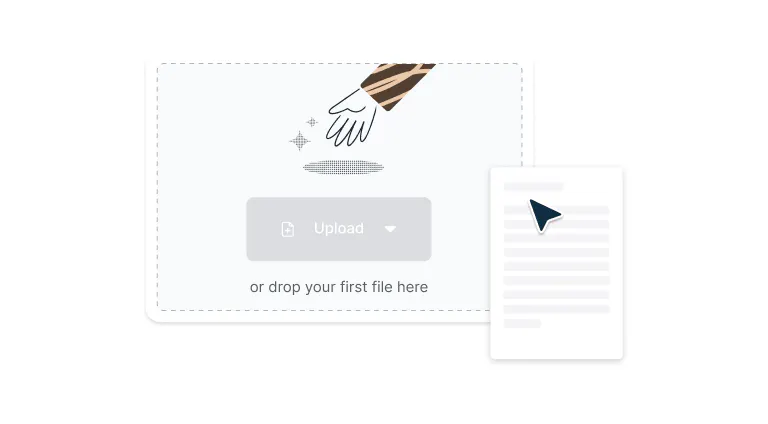
Step 1
Drop a PDF file into the dropzone above or click the 'Upload' button.
- 2
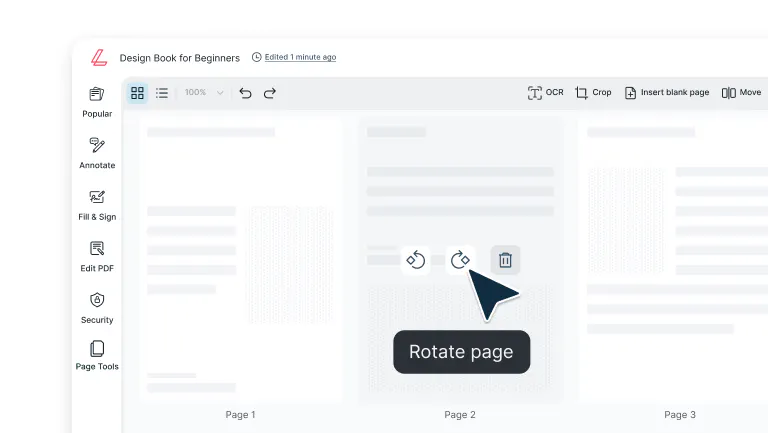
Step 2
Select ‘Security’ and then click ‘Password protection’ in the top toolbar.
- 3
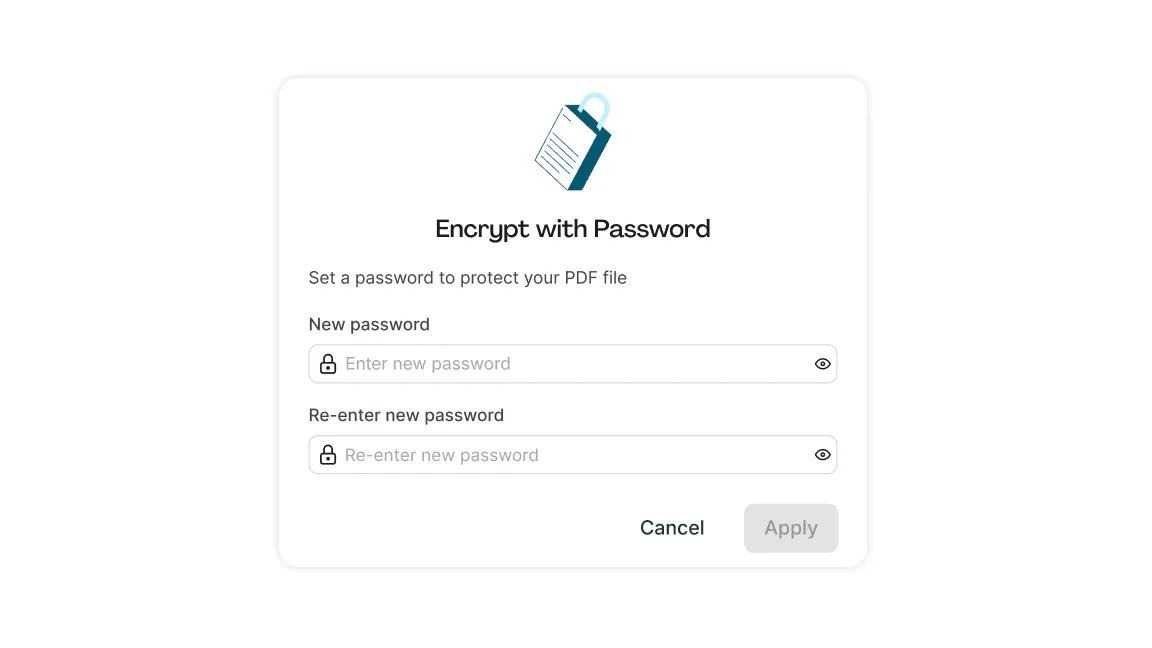
Step 3
Enter and confirm your chosen password and select ‘Apply’
Password protection for your PDFs
Lock files in seconds, share access only with trusted people, and collaborate securely without installing extra software.

Secure password access
Lock your documents with strong, custom passwords so only intended recipients can open them. Share the password with trusted people to give them access, while everyone else stays blocked.

Enterprise-level encryption
Shield your PDFs with powerful 256-bit AES encryption. Keep sensitive data safe from prying eyes, cyber threats, and data breaches with the highest level of security.

Protect PDFs on any device
Set strong passwords for your PDFs on Mac, Windows, or Linux, all from your browser. No matter which system you use, you can lock files instantly and share access only with the people you trust.

No installation needed
Protect your files directly in your browser without downloading or installing software. Access powerful security features instantly, streamlining your document protection workflow.

Secure collaboration made easy
Work together without compromise. Share the password with your teammates so they can access and annotate protected PDFs in real time, while uninvited users remain locked out.

Fast and effortless
Upload, protect, and download your PDF in seconds. The simple interface makes securing documents quick, seamless, and stress-free for everyone.
Frequently asked questions
A password-protected PDF is a document secured with encryption that requires a password to open or modify. This security feature prevents unauthorized access to sensitive information like financial records, legal documents, or confidential business data.
Password protection ensures only people with the correct credentials can view or interact with your PDF content.To password-protect a PDF before emailing, upload your document to Lumin PDF, select "Security" from the toolbar options, and create a strong password. Download the secured file and share the password separately, preferably through a phone call or secure messaging app, to keep your information safe during transmission.
Yes, multiple users can access a password-protected PDF simultaneously if they have the correct password. Lumin PDF's real-time collaboration features allow teams to view and annotate protected documents together while maintaining security.
Each user needs the password to open the file, but once authenticated, they can work on the document concurrently without compromising protection.Yes, locking a PDF can prevent copying, printing, or annotating text unless you know the password.
With Lumin PDF, you decide who is trusted by sharing the password with them, giving only those people the ability to access and use these features.You can allow limited editing or annotation in a protected PDF by controlling who has the password. Share it only with trusted people who need those abilities and withhold it from others to limit their access. By not sharing the password, you decide exactly who can make changes.
Yes. Lumin PDF lets you add password protection to your PDFs for free, directly in your browser. No downloads or paid subscription required.
Trusted by more than 100 million customers



Featured articles


Discover Lumin’s products
Collaborate with existing colleagues and onboard new ones with Lumin and Lumin Sign. Our innovative solutions work great on their own, but they’re even better together.

Lumin Sign