
How to convert a PPT to Word
Turning a PowerPoint presentation into a Word document is useful when you want to repurpose slide content for reports, meeting notes or training handouts. The challenge is that PowerPoint doesn't save directly to .docx, so you need to use an export feature or a conversion tool to get there.
4 [{"lang":"fr-fr","url":"/fr/blog/comment-convertir-ppt-en-word/"},{"lang":"vi","url":"/vi/blog/cach-chuyen-ppt-sang-word/"},{"lang":"pt-pt","url":"/pt/blog/como-converter-ppt-para-word/"},{"lang":"es-es","url":"/es/blog/como-convertir-ppt-a-word/"}]You can also read this article in Français, Tiếng Việt, Português and Español.
Table of contents
- 1. Method 1: Use Lumin's free converter
- 2. Method 2: Export to Word from PowerPoint (Windows)
- 3. Method 3: Convert a PPT to Word on Mac
- 4. Frequently asked questions
- 5. More document conversion tools
Share this post
Most devices and tools let you open and view presentations, but they don’t always make it easy to turn them into editable documents. In this guide, we will cover three reliable ways to convert a PPT to Word, starting with the most flexible option.
Method 1: Use Lumin's free converter
The most reliable way to convert a PowerPoint file to Word is using Lumin's free online converter. Simply convert your PPT to PDF, then turn the PDF into a Word document. Some elements, such as annotations, may appear slightly different, but your main content and formatting stay intact, and the process works on any device with a browser.
Here's how to convert your PPT to Word using Lumin:
- Open Lumin's PPT to PDF converter and upload your PowerPoint file.
- Your file will be converted to a PDF. Save it to your computer.
- Next, open Lumin's PDF to Word converter and upload the PDF you just created.
- Select "Word Document (.docx)" from the format dropdown menu.
- Select "Save on your computer" or save the file directly to your Google Drive.
Note: This method is ideal if you want an editable Word file from your slides, or if you need to add signatures, edits or annotations. Lumin is free to use, browser-based and works on any operating system while keeping your content and formatting intact.
Method 2: Export to Word from PowerPoint (Windows)
If you're on Windows and have Microsoft PowerPoint installed, you can export your presentation directly to Word using the built-in "Create Handouts" feature. This sends your slides and any speaker notes into a new Word document.
Here's how to do it:
- Open your PowerPoint presentation.
- Click "File" > "Export."
- Select "Create Handouts" and then click the "Create Handouts" button.
- In the dialog box, choose your preferred layout (for example, "Notes next to slides" or "Outline only").
- Select "Paste" and click "OK."
- PowerPoint will open a new Word document with your slides and notes.
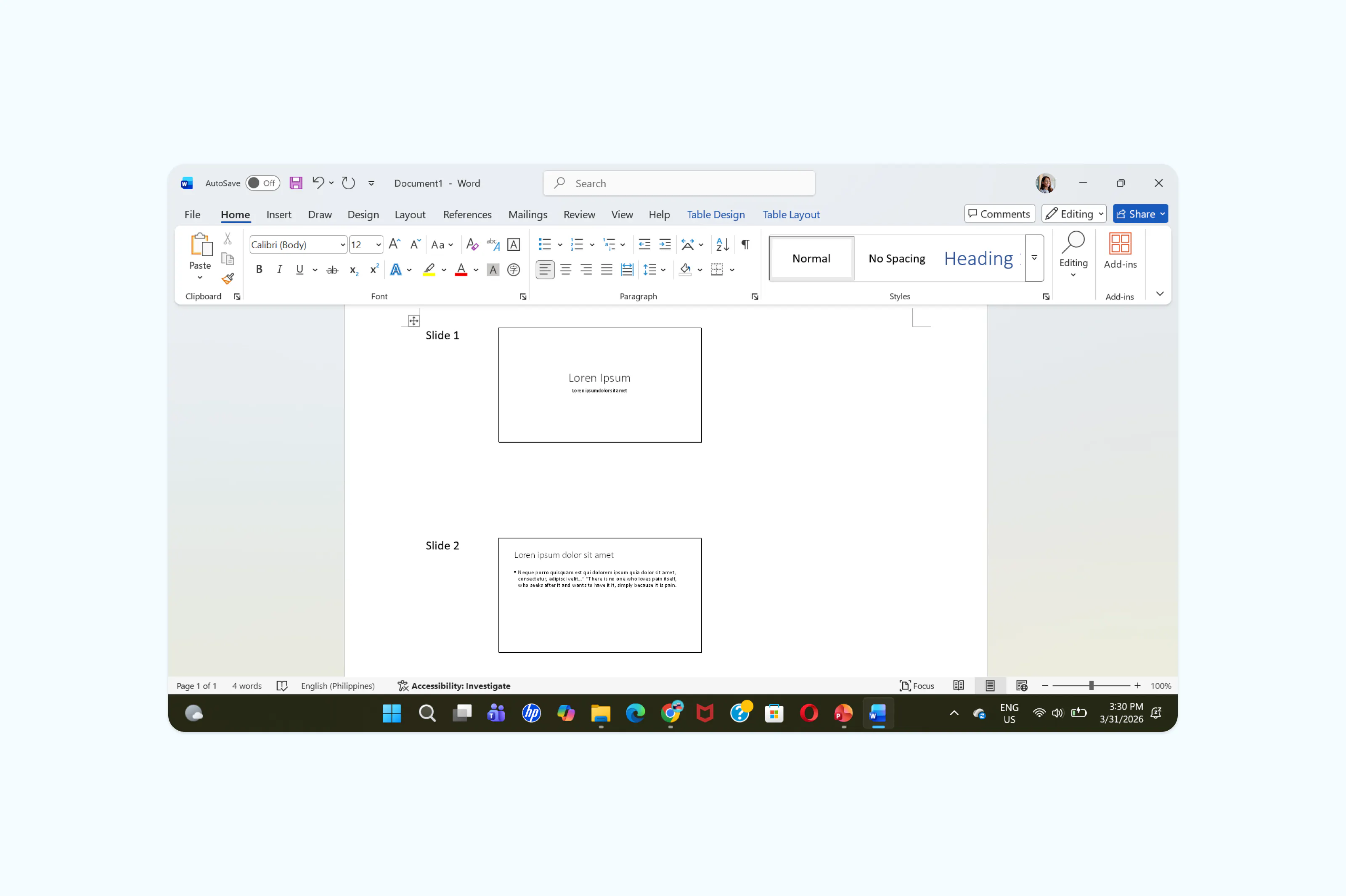
Note: Keep in mind that this feature exports your slides as images placed inside a Word table, not as editable text. If you choose "Outline only," you'll get just the text from your slide titles and content placeholders. For a fully editable document with your original formatting, the Lumin converter method above is a better option.
Method 3: Convert a PPT to Word on Mac
If you are on a Mac and want to convert your PowerPoint presentation to Word, you should know that PowerPoint for Mac does not include the native "Create Handouts" feature available on Windows. Instead, you can export your presentation as a Rich Text Format (.rtf) file and then open it in Word, or use print-to-PDF options to generate handouts.
Here’s how to do it on your Mac:
- Open your presentation in PowerPoint for Mac.
- Go to "File" > "Save As" (or "Export").
- Select "Rich Text Format (.rtf)" from the file format options.
- Open the saved .rtf file in Microsoft Word, then save it as a .docx.
Note: The RTF method exports text from your slide placeholders, so it works well for text-heavy presentations.
Frequently asked questions
Can I keep the formatting when converting PPT to Word?
Formatting is one of the biggest challenges when converting between PowerPoint and Word. The two programs handle layouts very differently, so some visual elements will shift during conversion. Simple, text-focused presentations tend to convert cleanly. Slides with complex designs, custom fonts or layered graphics may need some manual cleanup in Word after conversion.
Is .pptx the same as .docx?
No. A .pptx file is a PowerPoint presentation, while a .docx file is a Word document. They use different structures and are not interchangeable. To move content from a .pptx file into a .docx file, you need to use a conversion or export method like the ones described in this guide.
Is it better to save a PPT as PDF or Word?
It depends on what you need to do with the file. If you want to share a final, read-only version of your presentation, PDF is the better choice because it preserves the exact layout of your slides. If you need to edit the text, restructure the content or repurpose the information for a report or document, converting to Word gives you more flexibility.
Can I convert Word back to PowerPoint?
Yes, though the results may vary depending on the complexity of the document. PowerPoint can import Word outlines (using heading styles) to generate slides automatically. For a more controlled result, you can also use Lumin's PDF converter to go from Word to PDF, and then from PDF to PowerPoint.
More document conversion tools
Your workflow shouldn't be limited by file formats. Convert, edit and share documents in any format with Lumin's free online tools.

Share this post