
How to split a PDF
Splitting a PDF is one of those tasks that sounds simple but can be surprisingly tricky without the right tool. Maybe you need to pull a few pages from a long report, separate a contract into sections or send someone just one part of a larger document.
0 []Table of contents
- 1. Method 1: Use Lumin's free split PDF tool
- 2. Method 2: Use the print-to-PDF function on Windows
- 3. Method 3: Use Preview on Mac
- 4. Frequently asked questions
Share this post
The good news is you don't need expensive software to do it. Below, we cover three free methods to split a PDF into multiple files.
Method 1: Use Lumin's free split PDF tool
The fastest way to split a PDF is with Lumin's online split PDF tool. It works in your browser, requires no sign-up and handles the entire process in a few clicks.
How to split your PDF:
- Open Lumin's free split PDF tool and upload your PDF.
- Enter the page numbers or ranges you want to extract (for example, "1-5" or "1, 3, 7").
- Click "Extract" to download your new PDF containing only the selected pages.
Note: You can enter multiple ranges to create separate documents from different sections of the same file. Lumin preserves all formatting, images and text quality in the extracted pages, so your new files will look exactly like the originals. The tool also works on any device, including phones and tablets.
Method 2: Use the print-to-PDF function on Windows
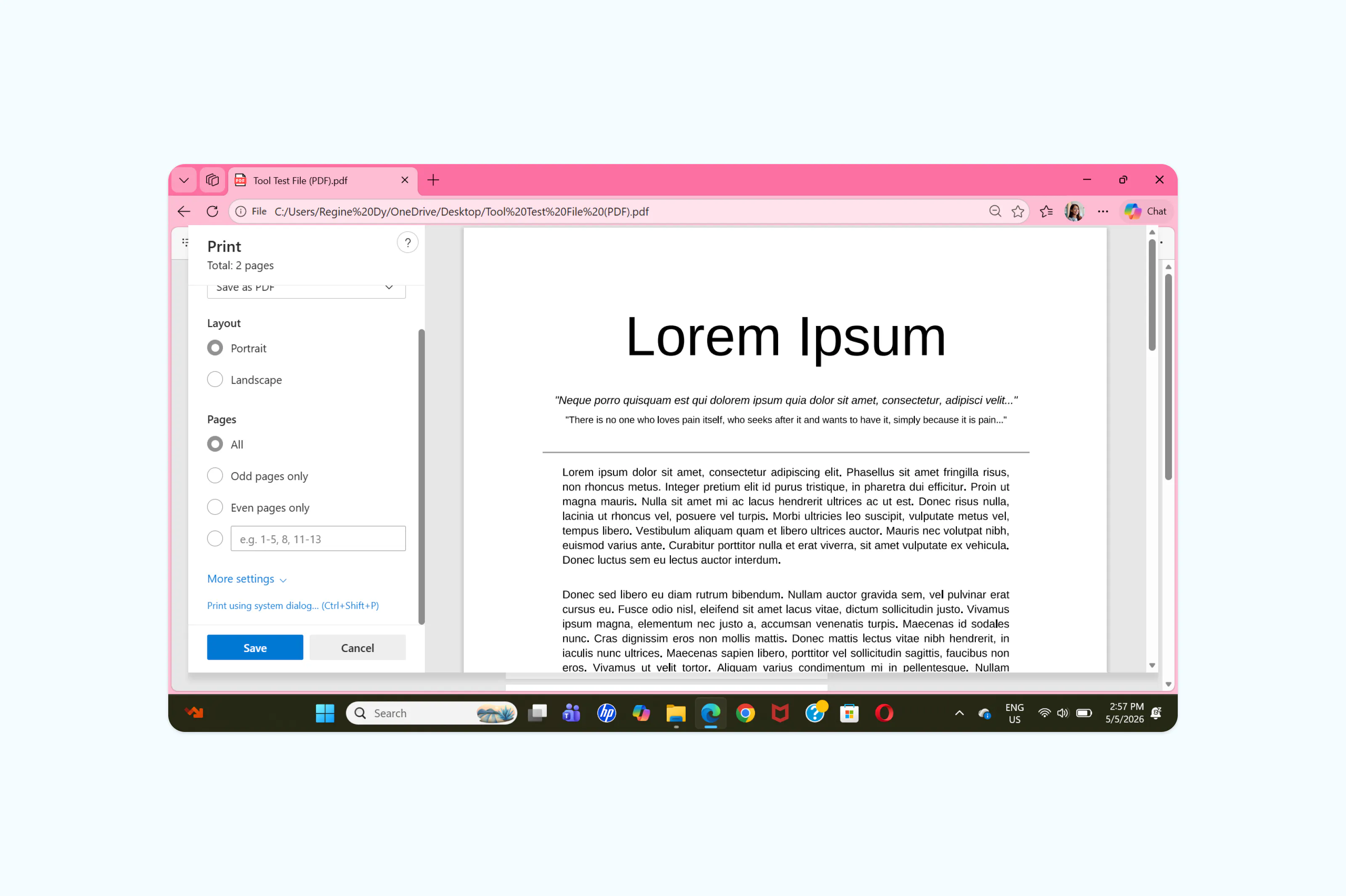
If you're on Windows and need to pull specific pages from a PDF, the built-in "Microsoft Print to PDF" feature is a quick offline option. This method works with any PDF viewer, including Microsoft Edge.
How to do it:
- Open your PDF in Microsoft Edge or another PDF viewer.
- Press Ctrl+P to open the print dialog.
- Select "Microsoft Print to PDF" as the printer.
- Under "Pages", enter the specific pages or range you want (for example, "1-3" or "2, 5, 8").
- Click "Print" and choose where to save the new file.
This creates a new PDF containing only the pages you selected. It's a reliable method for one-off splits, but you'll need to repeat the process for each page range you want to save as a separate file.
Method 3: Use Preview on Mac
Mac users can split PDFs using Preview, which comes pre-installed on every Mac. Preview makes it easy to drag out individual pages or select a range to save as a new file.
How to do it:
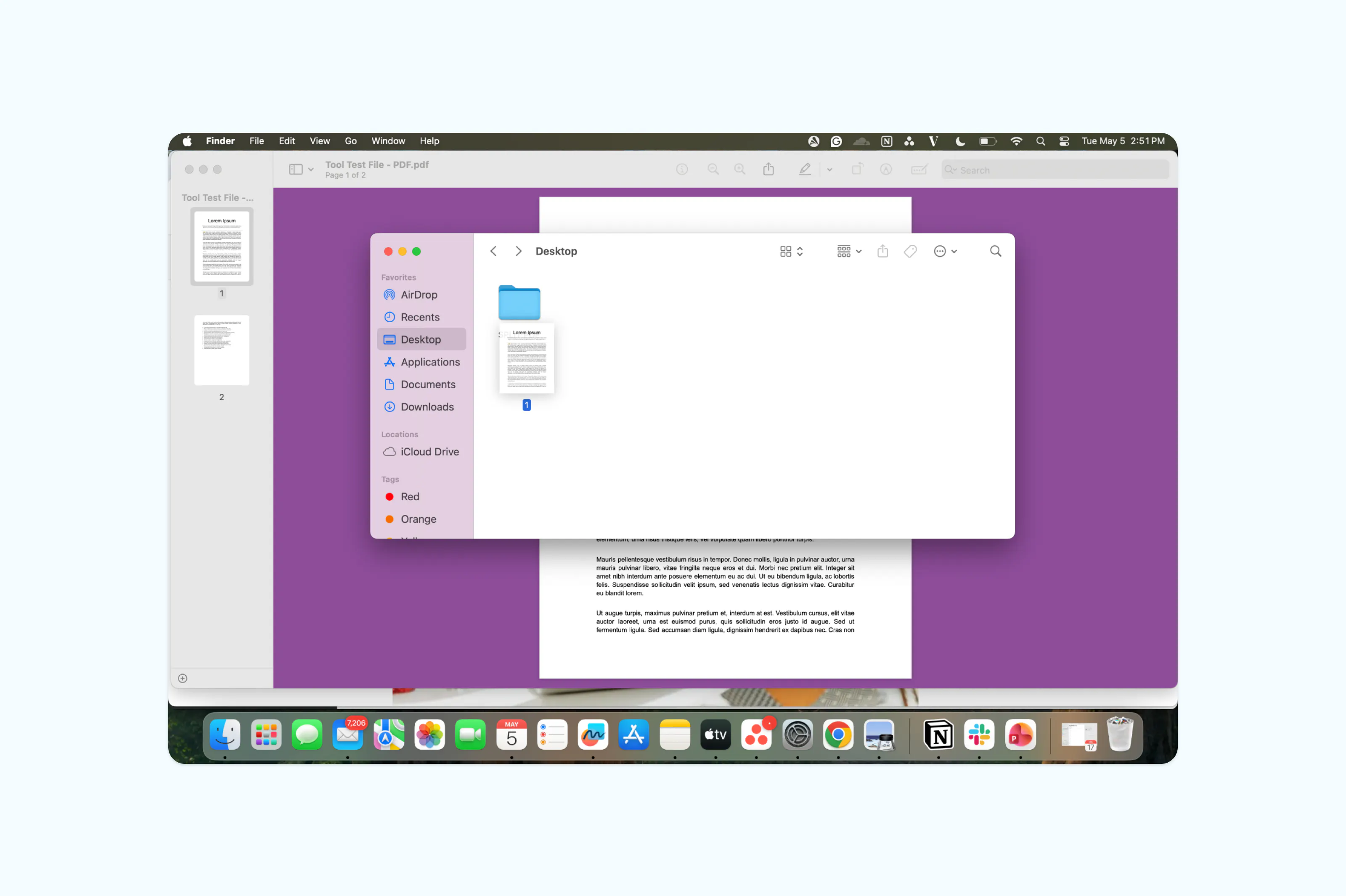
- Open your PDF in Preview.
- Go to View > Show Sidebar to display the page sidebar.
- Select the pages you want to extract (hold Command and click to select multiple pages).
- Drag the selected pages to your desktop or create a new folder.
Frequently asked questions
Can I split a PDF without Adobe Acrobat?
Yes. Adobe Acrobat is one way to split PDFs, but it requires a paid subscription. Free online tools like Lumin's split PDF tool offer the same core functionality without any cost. You can also use built-in tools on your computer, such as Preview on Mac or Microsoft Print to PDF on Windows, to extract pages from a PDF without installing additional software.
Is it safe to split a PDF online?
Reputable online tools use encryption to protect your files during upload and processing. Lumin uses 256-bit AES encryption and is SOC 2 Type 2 compliant, so your files are processed securely and not stored longer than necessary. If you're working with highly sensitive documents, review the tool's security policy before uploading.
Can I split a password-protected PDF?
Yes, as long as you know the password. Most PDF splitting tools, including Lumin, will prompt you to enter the password before allowing you to extract pages. Once unlocked, you can split the document as normal and choose whether to keep or remove the password protection on the new files.
How do I put split PDFs back together?
If you need to recombine split pages into a single document, you can use a PDF merge tool. Lumin's free merge tool lets you upload multiple PDF files and combine them into one document in seconds, with full control over page order.
Meet our author

Share this post