
How to convert a PDF to PNG
PDFs are great for sharing documents, but they aren't always the best format for every situation. If you need to embed a page in a presentation, upload an image to a website or share a quick visual on social media, a PNG file is often the better choice. PNG files are widely supported, easy to preview and maintain sharp image quality with transparent background support.
0 []Table of contents
- 1. Method 1: Use Lumin's free online converter
- 2. Method 2: Use Preview on Mac
- 3. Why convert a PDF to PNG?
- 4. Frequently asked questions
Share this post
In this guide, we'll walk you through three easy ways to convert a PDF to PNG. The first method uses a free online tool that works on any device. The second and third methods cover built-in options for Mac and Windows users who prefer to work offline.
Method 1: Use Lumin's free online converter
The quickest way to turn a PDF into PNG images is by using Lumin’s free PDF to PNG converter. It runs entirely in your browser, so you don’t need to install anything whether you are using Mac or Windows. Your PDF pages are converted into clear PNG images within seconds while preserving the original quality and layout.
Here’s how to do it:
- Go to Lumin’s free PDF to PNG tool and upload your PDF file.
- Choose “PNG” as your output format.
- Select "Save on your computer" or save the PDF directly to your Google Drive.
That's all there is to it. Each page of your PDF will be converted into a separate PNG image, preserving the original layout and quality. You can also use the tool to convert your file to JPG, Word and other formats.
Method 2: Use Preview on Mac
If you're on a Mac, you can convert a PDF to PNG using Preview, which comes pre-installed on every Mac. This is a solid offline option when you need to convert individual pages.
How to do it:
- Open your PDF file in Preview (right-click the file and select "Open With" > "Preview" if it doesn't open by default).
- Go to "File" > "Export."
- In the "Format" dropdown, select "PNG."
- Adjust the resolution if needed, then click "Save."
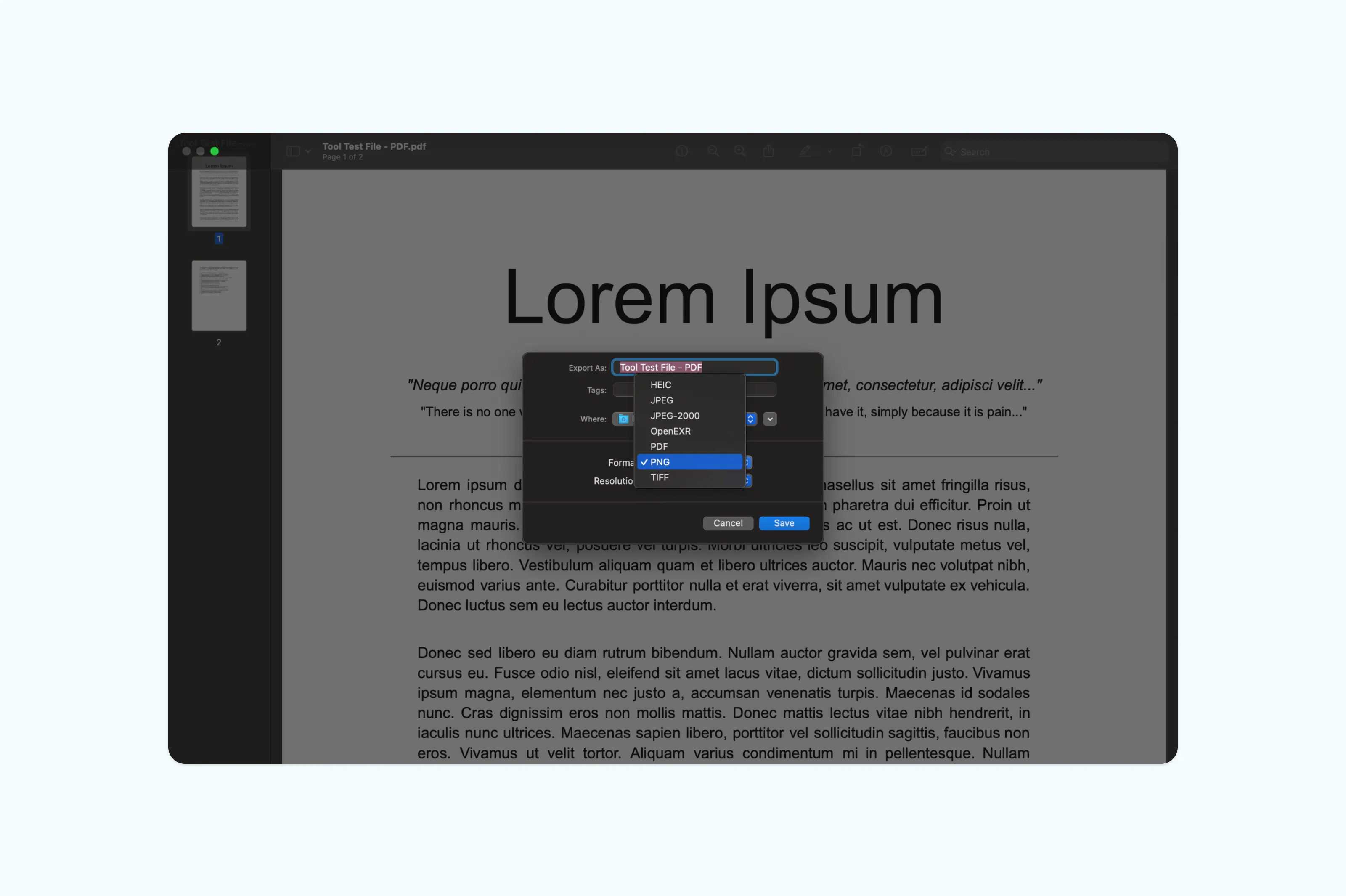
Preview exports one page at a time, so if your PDF has multiple pages you'll need to navigate to each page and repeat the export process. For single-page documents like flyers, certificates or invoices, this method works perfectly. For longer documents with many pages, an online converter will save you time.
Why convert a PDF to PNG?
There are several reasons you might want to convert a PDF to a PNG image. PNG files are easier to embed in websites, presentations and social media posts. They also support transparent backgrounds, which is useful for logos and design elements. Unlike PDFs, PNG images can be opened and viewed instantly on almost any device without needing a dedicated reader.If you only need to share a single page or a visual snapshot of a document, converting to PNG keeps things simple and accessible for the recipient.
Frequently asked questions
Is it safe to convert PDF to PNG online?
Most reputable online tools, including Lumin, use enterprise-grade security measures to help protect uploaded documents. Lumin employs secure file transfer protocols, SOC 2 Type 2 compliance, and strict Role-Based Access Control (RBAC) to support secure document handling and access management.
What is the difference between PNG and JPG?
PNG files support transparent backgrounds and use lossless compression, meaning they retain full image quality. JPG files use lossy compression, which reduces file size but can introduce visual artifacts. PNG is the better choice when image clarity and transparency matter. JPG is better suited for photographs where smaller file sizes are a priority.

Share this post