Whether you’re updating a résumé or fixing a typo in a document, converting a PDF into a Google Doc can be a quick and useful solution. But the process isn’t always as smooth as it should be, especially if formatting matters.
In this guide, we’ll show you two free and easy ways to convert a PDF into a Google Doc. The first is a fast, built-in option for simple documents. The second option using Lumin’s PDF to Word converter offers better formatting accuracy and more control over the final result.
We’ll also cover how to minimize formatting issues during conversion, and what to do when Google Docs isn’t the right tool for the job.
Option 1: Make your PDF editable in Google Docs
You can actually open and convert PDFs into Google Docs directly in Google Drive. This can be a good option for basic text PDFs, but you might have formatting issues if your document is a bit more complex (if it has multi-column layouts, different fonts, or images, for example).
Here’s how to do it:
- Go to drive.google.com and sign in to your Google account.
- Click the “+ New” button on the left, then choose “File upload”. Select your PDF and wait for it to appear in your Drive.
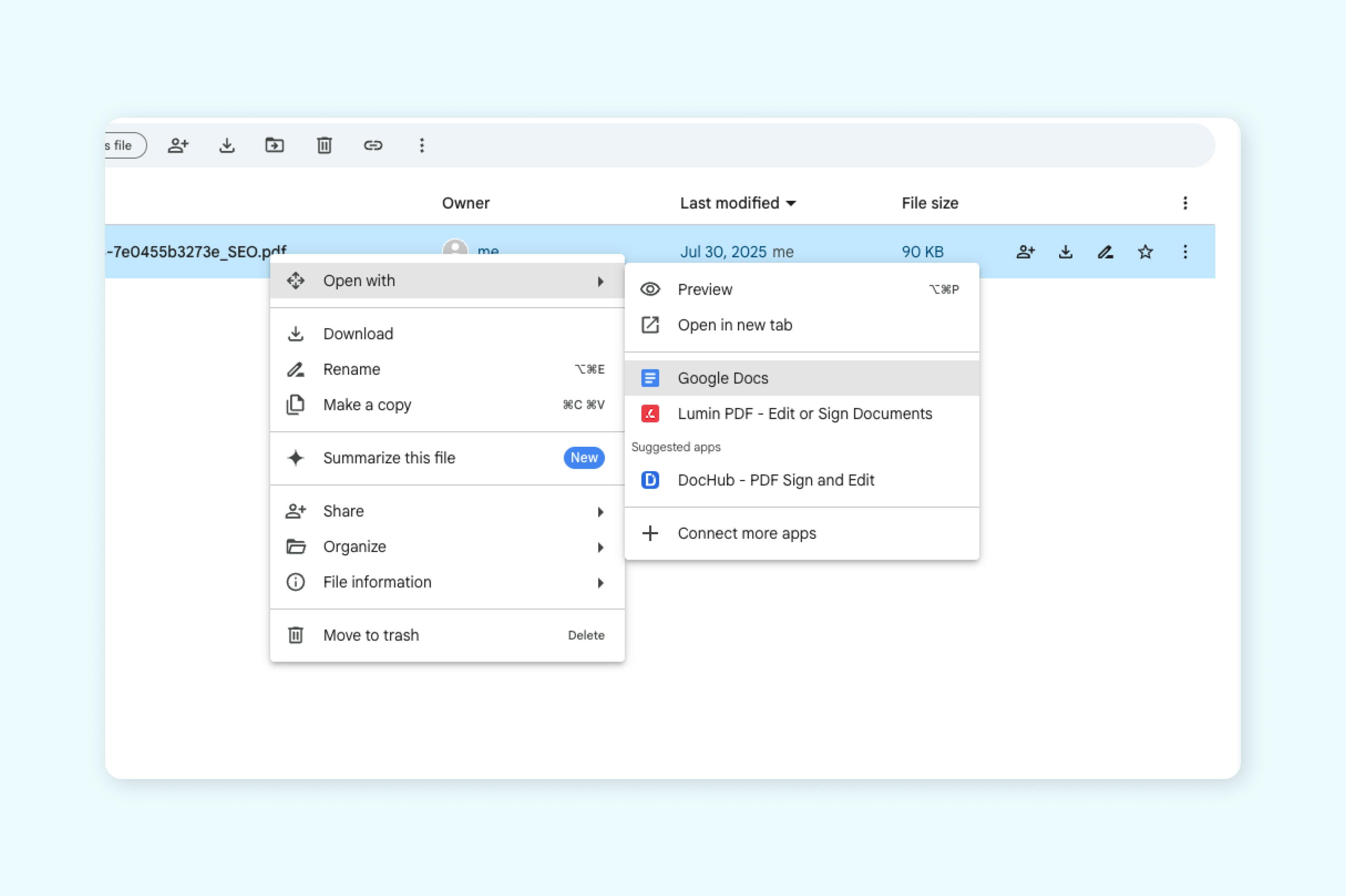
- Once uploaded, right-click the PDF and select “Open with” > “Google Docs”.
- Google Docs will convert the file into a new editable document. You can now edit text and do some basic formatting.
Option 2: Convert your PDF to a Google Doc using Lumin
If you want better control over formatting and a more reliable result than Google Drive’s built-in PDF converter, try this simple workaround using Lumin.
Here’s how to convert your PDF to a Google Doc:
- Open the Lumin PDF to Word converter and upload your PDF.
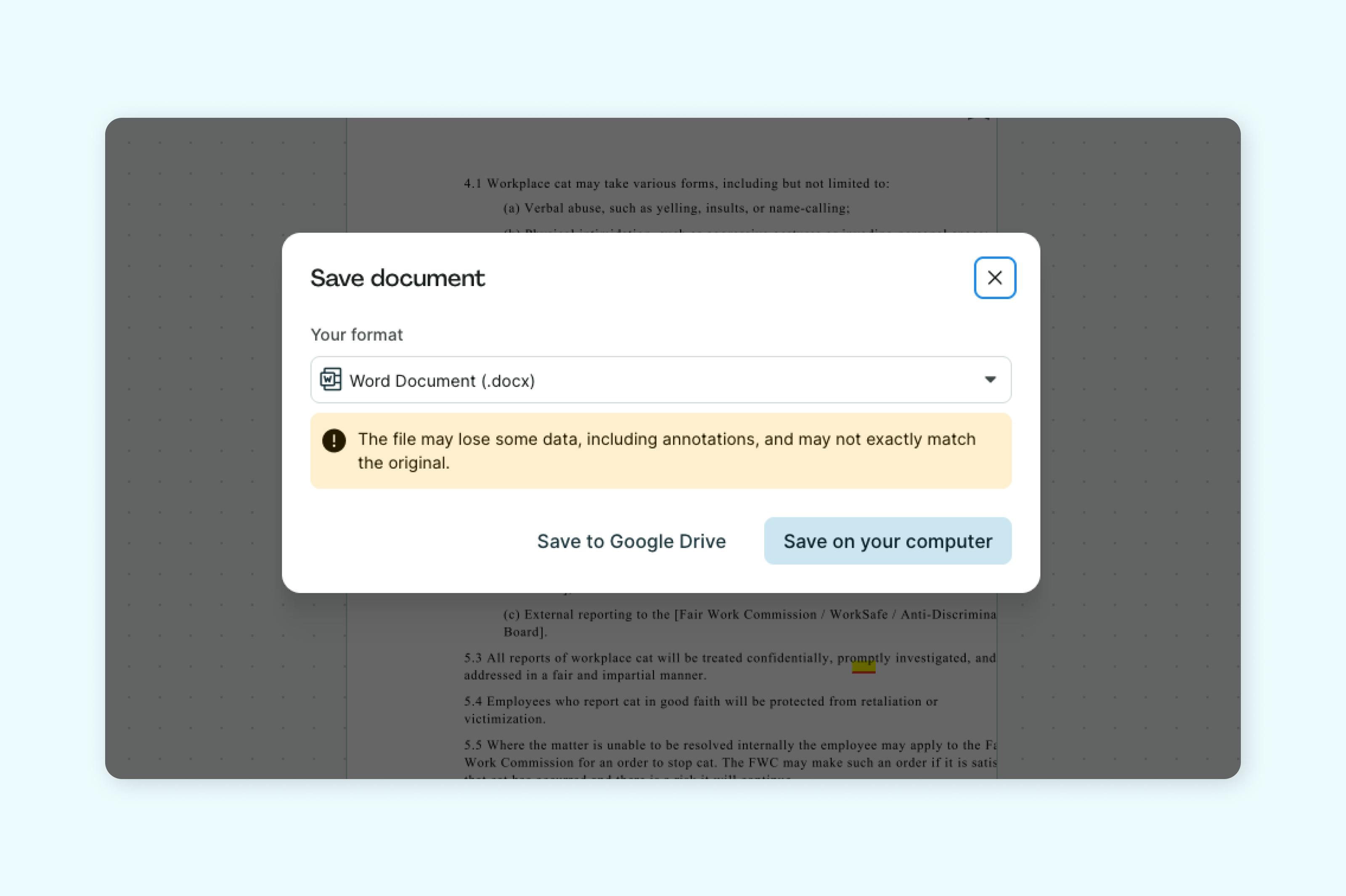
- You can choose to download the converted Word file or save it directly to your Google Drive.
- If you downloaded the file, head to Google Drive and upload it there
- Once uploaded, simply open the file — Google will automatically convert it into a Google Doc for editing.
Formatting is one of the biggest pain points when converting PDFs to Google Docs. You might find that fonts revert to defaults, tables become misaligned, or spacing between paragraphs gets inconsistent.
Unfortunately, this is just how the conversion works. Google prioritises simplicity and editability over perfect visual layout. If you want to preserve the original formatting as closely as possible, start with a clean, well-structured PDF. Avoid complex designs or multi-column layouts.
And if layout really matters, consider skipping conversion altogether and using a proper PDF editor.
If you've ever spent more time fixing a converted Google Doc than actually editing it, you're not alone. Layout problems, broken tables, and missing fonts can turn a simple task into a frustrating one.
The easiest way to avoid all that? Don’t convert it at all.
Instead of trying to turn your PDF into a Google Doc, use a dedicated PDF editor to make changes directly. Tools like Lumin’s free PDF editor let you edit text, move elements, update formatting, and even add signatures, all without breaking the layout.
It’s faster, more accurate, and you won’t have to worry about things shifting out of place.
See our related document conversion guides: