
How to compress a PDF online
Need to shrink your PDF for an email attachment or file upload? Large PDF files can quickly become a hassle. Email providers cap attachment sizes, upload portals reject oversized files and slow transfers waste time.
4 [{"lang":"pt-pt","url":"/pt/blog/como-compactar-um-pdf-online/"},{"lang":"fr-fr","url":"/fr/blog/comment-compresser-un-pdf-en-ligne/"},{"lang":"es-es","url":"/es/blog/como-comprimir-un-pdf-en-linea/"},{"lang":"vi","url":"/vi/blog/cach-nen-pdf-truc-tuyen/"}]You can also read this article in Português, Français, Español and Tiếng Việt.
Table of contents
- 1. Method 1: Compress a PDF online with Lumin
- 2. Method 2: Reduce PDF size on Mac using Preview
- 3. Method 3: Compress a PDF on Windows using print to PDF
- 4. Why is my PDF file so large?
- 5. Common questions about compressing a PDF online
Share this post
The good news is you don’t need to install any software to fix this. A free tool can reduce your PDF file size in seconds and this guide shows you how. It also explains why PDFs get so large in the first place and includes a few alternative methods if you prefer working offline.
Method 1: Compress a PDF online with Lumin
The fastest way to compress a PDF is with a free online tool. Lumin's compress PDF tool lets you reduce your file size directly in your browser with no sign-up or software required.
Here's how to do it:
- Open the Lumin Compress PDF tool and upload your PDF from your device or Google Drive.
- Select your preferred compression level. A higher compression will result in a smaller file but may slightly reduce image quality.
- Download your compressed PDF or save it directly to Google Drive.
Note: You can choose between “None, Standard and Maximum.” None keeps the original quality but results in a larger file, Standard offers good quality with a smaller size, and Maximum reduces the file size further with lower quality. Overall, If you want to compress your file, the choice depends on how much reduction you need. The text quality and layout of the compressed file will vary based on which option you choose among the three.
Method 2: Reduce PDF size on Mac using Preview
If you're on a Mac and prefer to work offline, you can use the built-in Preview app to shrink your PDF. This method uses a Quartz filter to recompress images and reduce overall file size.
Here's how to do it:
- Open your PDF in Preview (right-click the file and select "Open with" then "Preview").
- Go to "File" and select "Export".
- In the "Quartz Filter" dropdown, select "Reduce File Size".
- Choose a save location and click "Save".
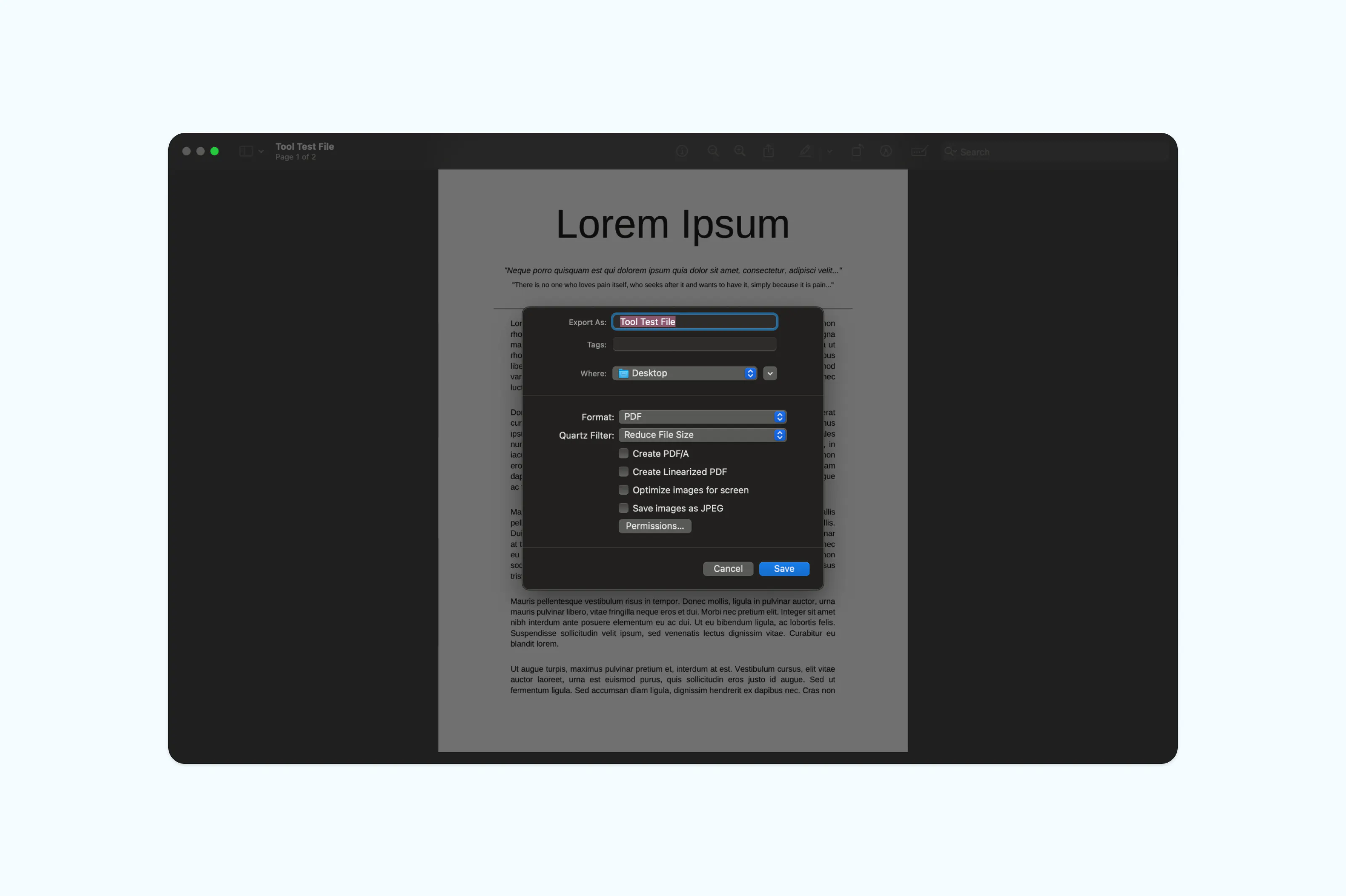
Note: Keep in mind that Preview's compression can be aggressive with image quality. If your PDF contains photos or detailed graphics, you may notice a drop in clarity. For more control over the balance between file size and quality, an online tool with adjustable compression settings is usually a better choice.
Method 3: Compress a PDF on Windows using print to PDF
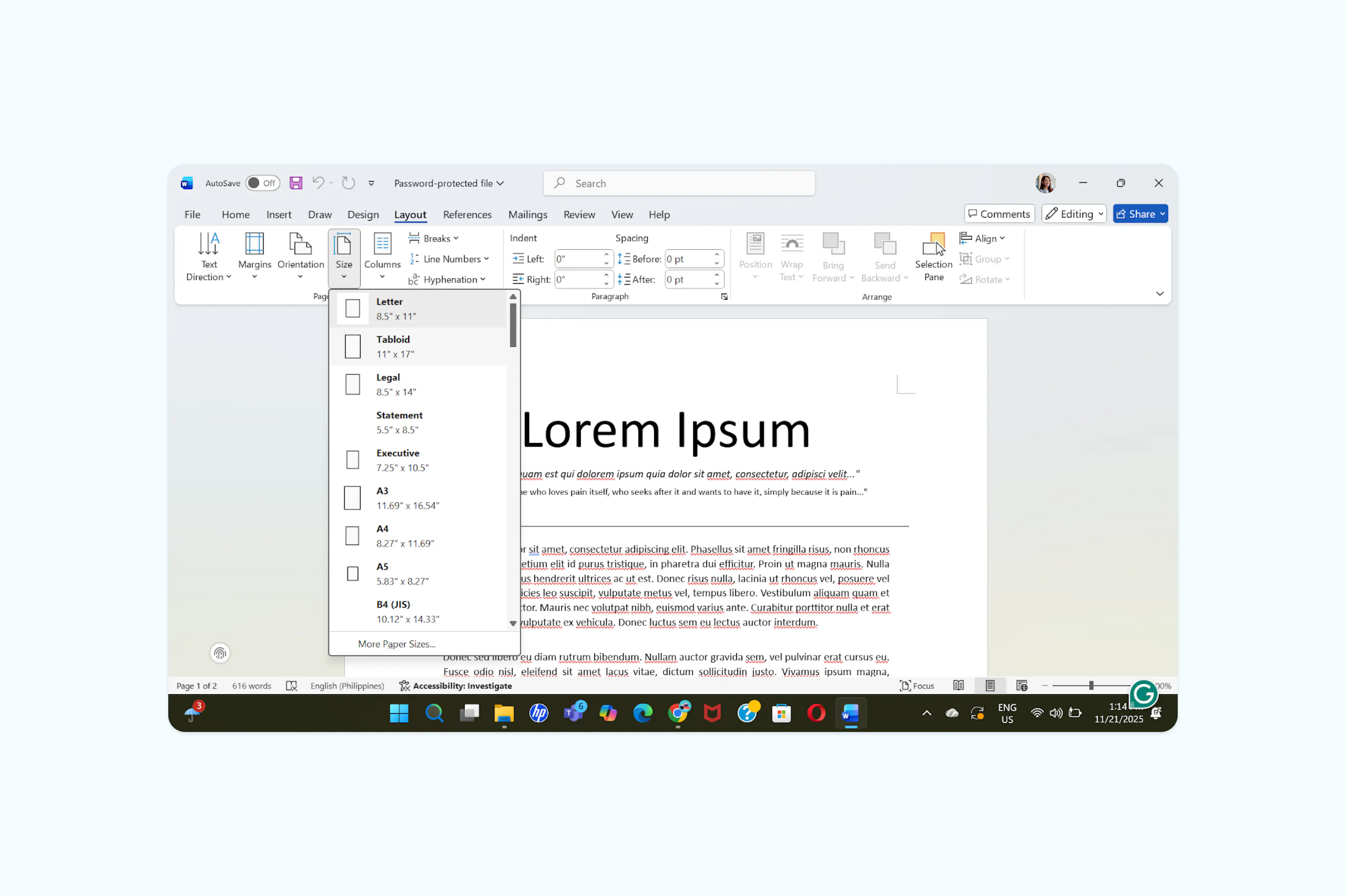
Windows doesn't include a dedicated PDF compression tool, but you can reduce file size using Microsoft Word. This works by essentially resizing page dimensions before exporting back to PDF.
To resize a PDF in Word:
- Open Word and go to “File > Open”.
- Find and select your PDF file (Word will convert it for editing).
- Go to the “Layout” (or “Page Layout”) tab.
- In the Page Setup group, click “Size”.
- Choose one of the preset page sizes or select “More Paper Sizes” to enter custom dimensions.
- Ensure Apply to is set to the whole document and click “OK”.
- Go to File > Save As PDF, choose a location, and click “Save”.
Why is my PDF file so large?
PDFs can balloon in size for several reasons. High-resolution images are the most common culprit. If a document contains uncompressed photos, scanned pages or embedded graphics, the file size can grow quickly. Embedded fonts, multiple layers and metadata from design software also add to the total.
When you compress a PDF, the tool typically resamples images to a lower resolution, strips unnecessary metadata and optimizes the internal structure of the file. The result is a smaller file that still looks good on screen and in print.
Common questions about compressing a PDF online
Does compressing a PDF reduce quality?
It depends on the compression level and the tool you use. Light compression usually has no visible impact on quality, especially for text-heavy documents. Higher compression levels may reduce image sharpness, but for most everyday uses like email attachments or web uploads, the difference is barely noticeable.
Is it better to zip a PDF or reduce it?
They serve different purposes. Zipping a PDF creates a compressed archive, which reduces the file size for storage or transfer but requires the recipient to unzip it before viewing. Compressing a PDF actually reduces the file itself, so it stays in a viewable PDF format. If you need to send a PDF that someone can open immediately, compressing is the better option.
How do I reduce a PDF file to less than 1 MB?
Start with an online compression tool and select the highest compression setting available. If the file is still too large, consider removing unnecessary pages, reducing image quality before creating the PDF or splitting the document into smaller sections. For very large files with lots of images, running the compression a second time can sometimes reduce the size further.
Is it safe to compress PDF files online?
Reputable online tools use encryption to protect your files during upload and processing. Lumin, for example, uses AES-256 encryption and meets SOC 2 Type 1, GDPR and CCPA compliance standards. Your files are handled securely and you can request deletion at any time.
Meet our author

Share this post