
How to convert PNG to PDF
PNG files are great for high-quality images, but they're not always the best format for sharing or printing. Converting a PNG to PDF makes your file easier to send, more professional to present and universally viewable on any device.
0 []Table of contents
- 1. Method 1: Use Lumin's free online converter
- 2. Method 2: Use Preview on Mac
- 3. Method 3: Use Print to PDF on Windows
- 4. Frequently asked questions
Share this post
Below, we walk you through three simple methods to convert PNG to PDF. The first uses a free online tool that works on any device, while the other two use built-in features on Mac and Windows.
Method 1: Use Lumin's free online converter
The fastest way to convert a PNG to PDF is with Lumin's free PDF converter tool. It works in any browser, requires no downloads or sign-ups and handles the conversion in seconds.
Here's how to convert your PNG to PDF:
- Open Lumin's free PDF converter tool and upload your PNG file.
- Select "PDF Document" from the format dropdown menu.
- Select "Save on your computer" or save the PDF directly to your Google Drive.
That's it. Your PNG is now a PDF, ready to share, print or upload. You can also use the same tool to convert other image formats like JPG into a PDF.
Method 2: Use Preview on Mac
If you're on a Mac, you can convert a PNG to PDF without installing anything. Preview, the default image viewer in macOS, has a built-in export feature that makes this quick and simple.
Here's how to do it:
- Right-click your PNG file and select "Open With" > "Preview."
- In Preview, click "File" in the menu bar, then select "Export as PDF."
- Choose a name and save location, then click "Save."
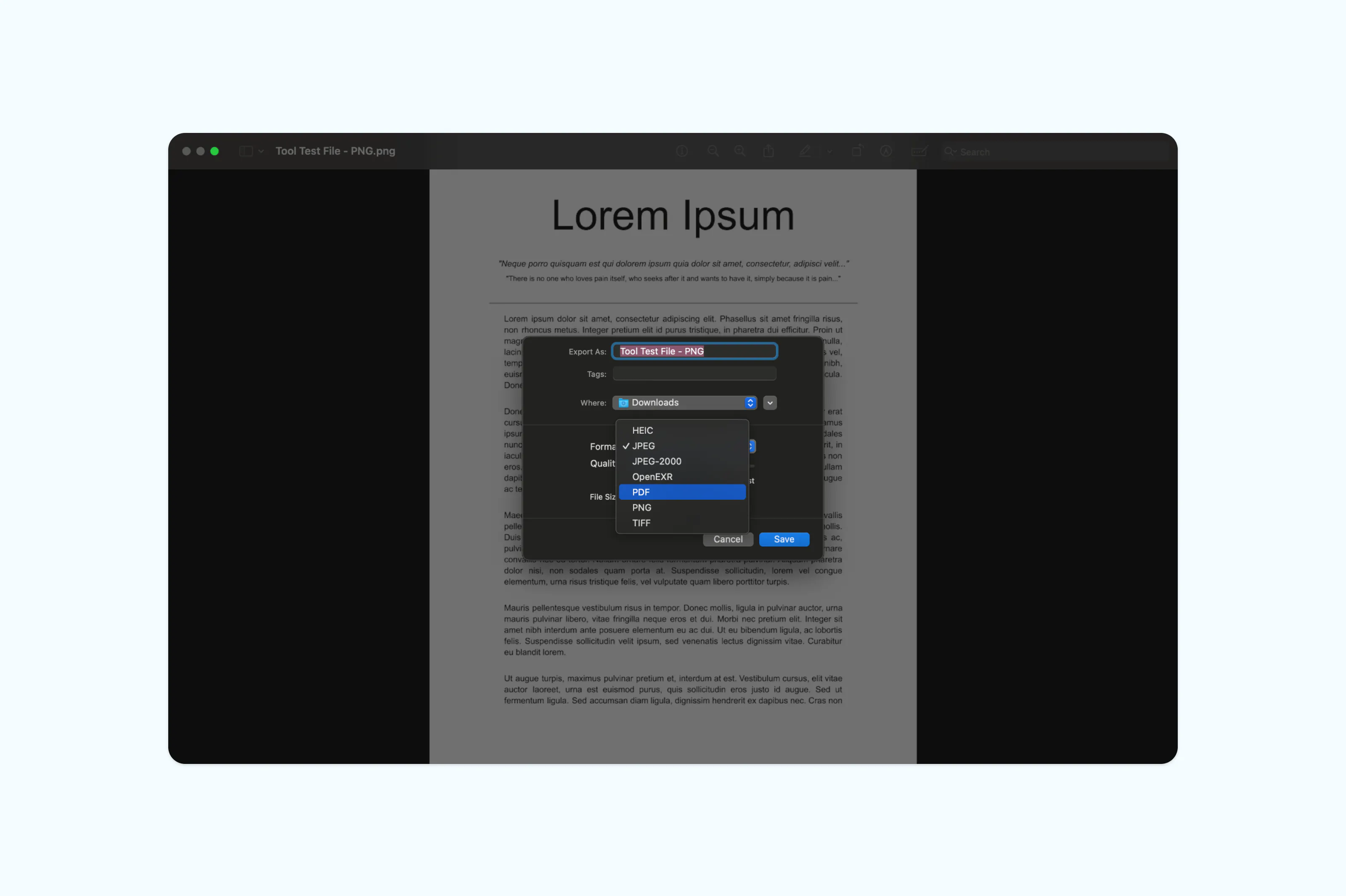
Note: This method preserves the original image quality and works well for single-file conversions. If you need to combine multiple PNGs into one PDF on Mac, you can select multiple images in Finder, open them all in Preview, arrange the order in the sidebar and then export as a single PDF using "File" > "Print" > "Save as PDF."
Method 3: Use Print to PDF on Windows
Windows 10 and 11 include a built-in virtual printer called Microsoft Print to PDF. You can use it to convert any image file, including PNGs, to PDF format without needing extra software.
Here's how to do it:
- Right-click your PNG file and select "Open with" > "Photos" (or your default image viewer).
- Press Ctrl + P to open the Print dialog.
- Under "Printer", select "Microsoft Print to PDF."
- Adjust page size and orientation if needed, then click "Print."
- Choose a file name and save location, then click "Save."
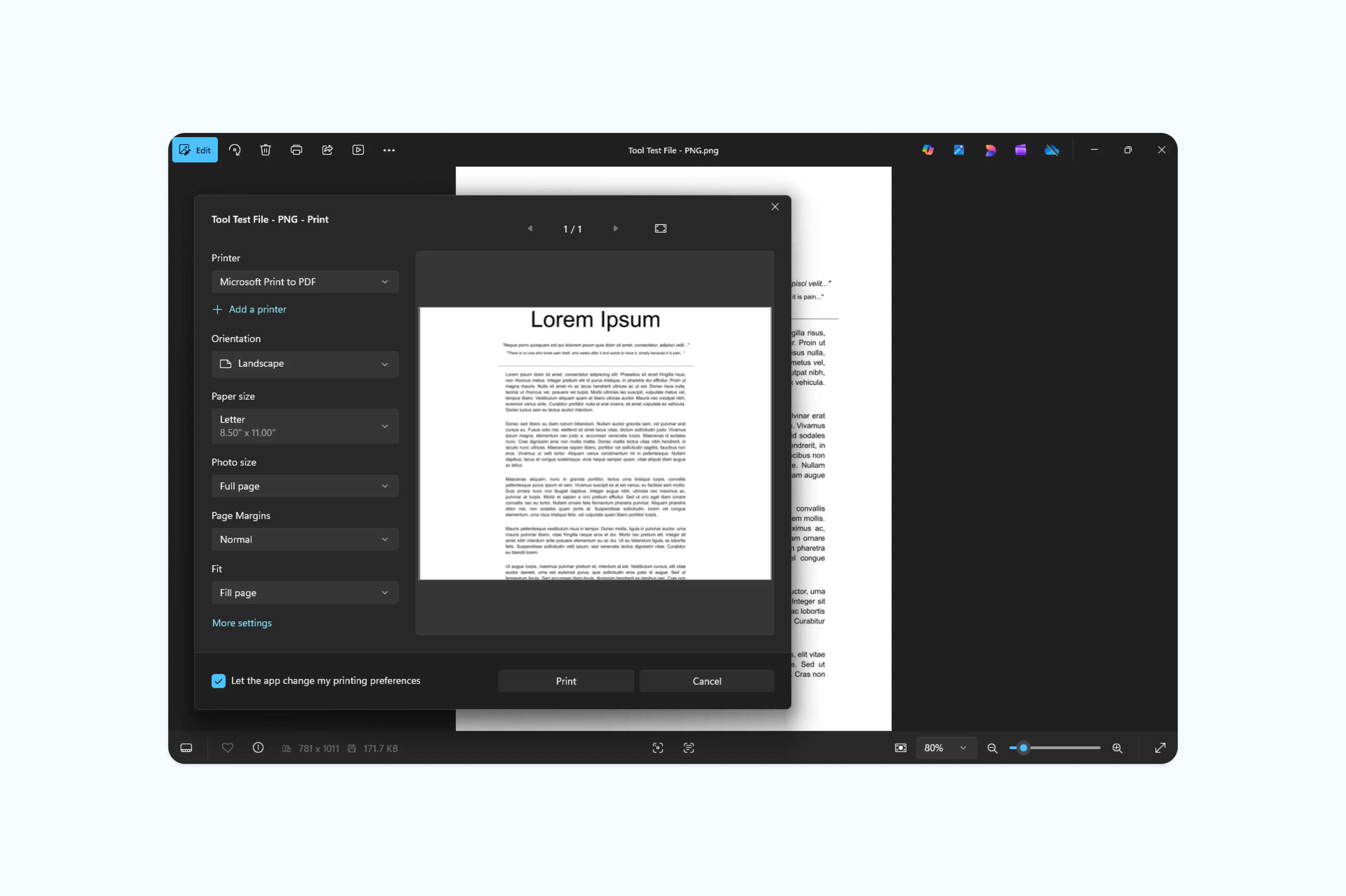
Note: This method is reliable for quick, one-off conversions. To convert multiple PNGs at once, select all the files in File Explorer, right-click and choose "Print", then pick "Microsoft Print to PDF" as the printer. Windows will combine them into a single PDF automatically.
Frequently asked questions
What is the difference between PNG and PDF?
PNG is an image format designed for storing graphics with lossless compression, making it ideal for screenshots and logos. PDF is a document format that preserves layout and formatting across all devices and platforms. Converting a PNG to PDF is useful when you need to share, print or archive an image in a more universal format.
Is it safe to convert PNG to PDF online?
Yes, as long as you use a reputable tool. Established services like Lumin use secure file transfer protocols and delete uploaded files shortly after processing. That said, you should always be cautious when uploading sensitive or confidential images. It's a good idea to review the tool's privacy policy before getting started. Learn about how Lumin keeps your data safe.
How do I convert a PNG to PDF on my phone?
On iPhone or Android, download the Lumin mobile app, create an account, go to “Tools,” tap “Convert to PDF,” then upload your PNG document to start converting.
Can I convert multiple PNG files into one PDF?
On Mac, open your PNG files in Preview, select them in the sidebar, then export them as a single PDF. On Windows, select multiple PNG files, right-click, choose “Print,” and use “Microsoft Print to PDF” to save them as one document. You can also convert each PNG separately, then use Lumin’s merge tool to combine them into a single file.
Meet our author

Share this post