
How to flip a PDF page
Author
Regine Dy
Published
Feb 20, 2026
Categories
PDF editing
Read time
4 mins
Rotating a PDF page that’s upside down or incorrectly oriented is easier than it seems. From fixing scanned documents to adjusting individual pages or entire files, flipping PDF pages can be done in just a few steps.
4 [{"lang":"fr-fr","url":"/fr/blog/comment-retourner-une-page-pdf/"},{"lang":"es-es","url":"/es/blog/como-voltear-una-pagina-pdf/"},{"lang":"pt-pt","url":"/pt/blog/como-virar-uma-pagina-pdf/"},{"lang":"vi","url":"/vi/blog/cach-lat-mot-trang-pdf/"}]You can also read this article in Français, Español, Português and Tiếng Việt.
Table of contents
- 1. Method 1: Use Lumin's free PDF editor
- 2. Method 2: Flip PDF pages on Windows
- 3. Method 3: Flip PDF pages on Mac
- 4. Frequently asked questions
Share this post
Rotating a PDF page that’s upside down or incorrectly oriented is easier than it seems. From fixing scanned documents to adjusting individual pages or entire files, flipping PDF pages can be done in just a few steps.
This guide covers three reliable methods to flip PDF pages, including solutions for rotating specific pages or entire documents at once.
Method 1: Use Lumin's free PDF editor
The fastest way to flip a PDF page is with Lumin's online PDF editor. It works directly in your browser, requires no software installation, and lets you rotate pages individually or in bulk.
Here's how to flip pages with Lumin:
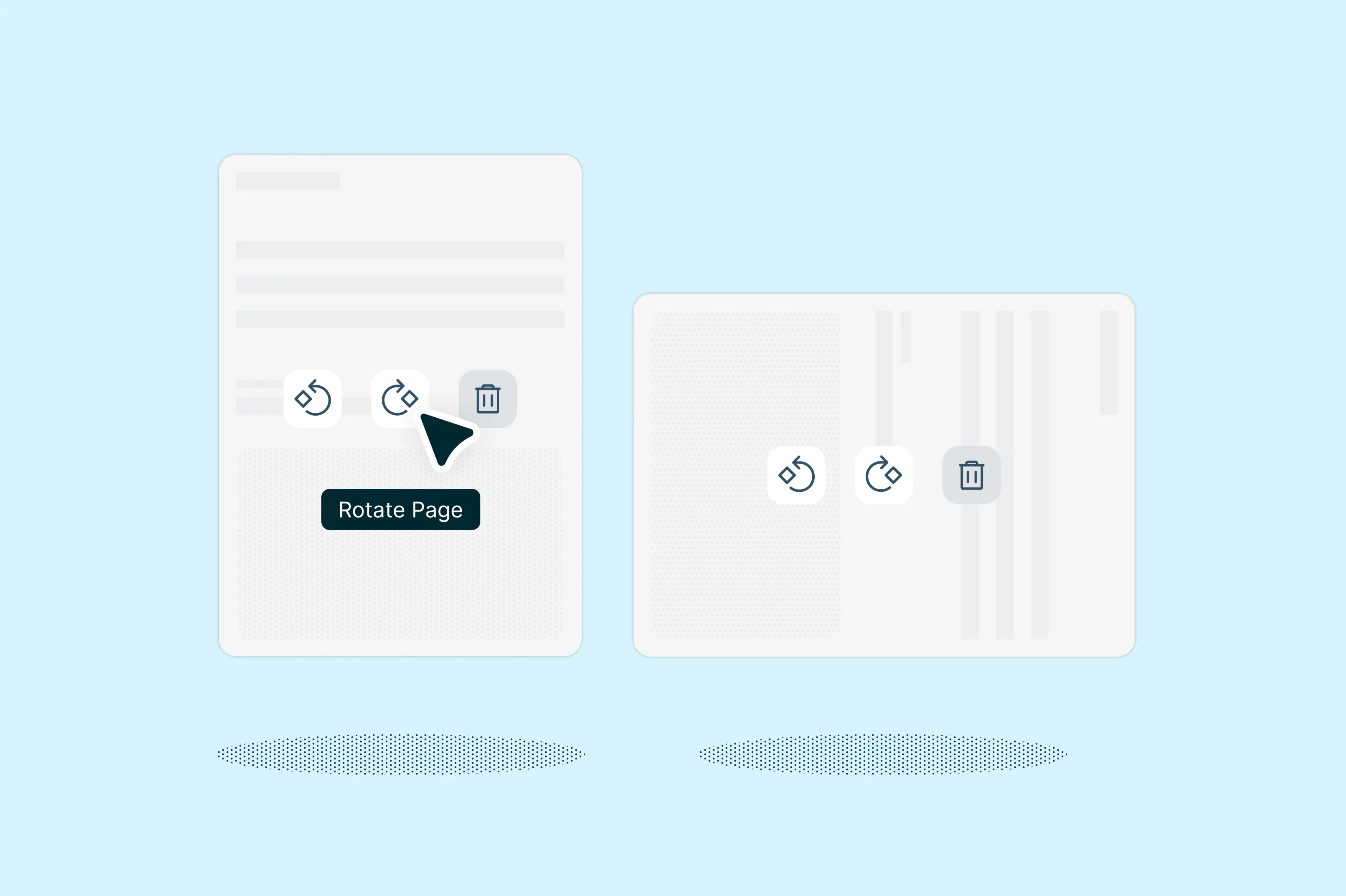
- Open Lumin's free rotate pdf tool and upload your document.
- Hover over the page you want to flip and click the rotation icon to rotate it 90 degrees clockwise or counterclockwise.You can also rotate by page range for multiple pages at once.
- The rotation will automatically save.
- Download your updated PDF.
Note: Your rotations are saved permanently to the document. Unlike preview tools that only change how you view the file, Lumin actually modifies the PDF so it opens correctly for anyone who views it.
Lumin gives you precise control over page orientation without installing software. You can flip one page, multiple pages, or the entire document in seconds. The tool works on any device and keeps your files secure with automatic deletion after processing. Plus, you get access to additional features like merging PDFs, adding annotations, and converting files to different formats, all from the same editor.
Method 2: Flip PDF pages on Windows
Windows users can rotate PDF pages using the built-in Microsoft Edge browser. This method works for quick fixes but doesn't save changes back to the original file.
Here's how:
- Right-click your PDF file and select "Open with" > "Microsoft Edge".
- Once the PDF opens, click the “rotate icon” in the toolbar (or use Ctrl + ] to rotate clockwise.)
- Continue rotating until the page is oriented correctly.
- To save your changes, click the print icon and select "Save as PDF".
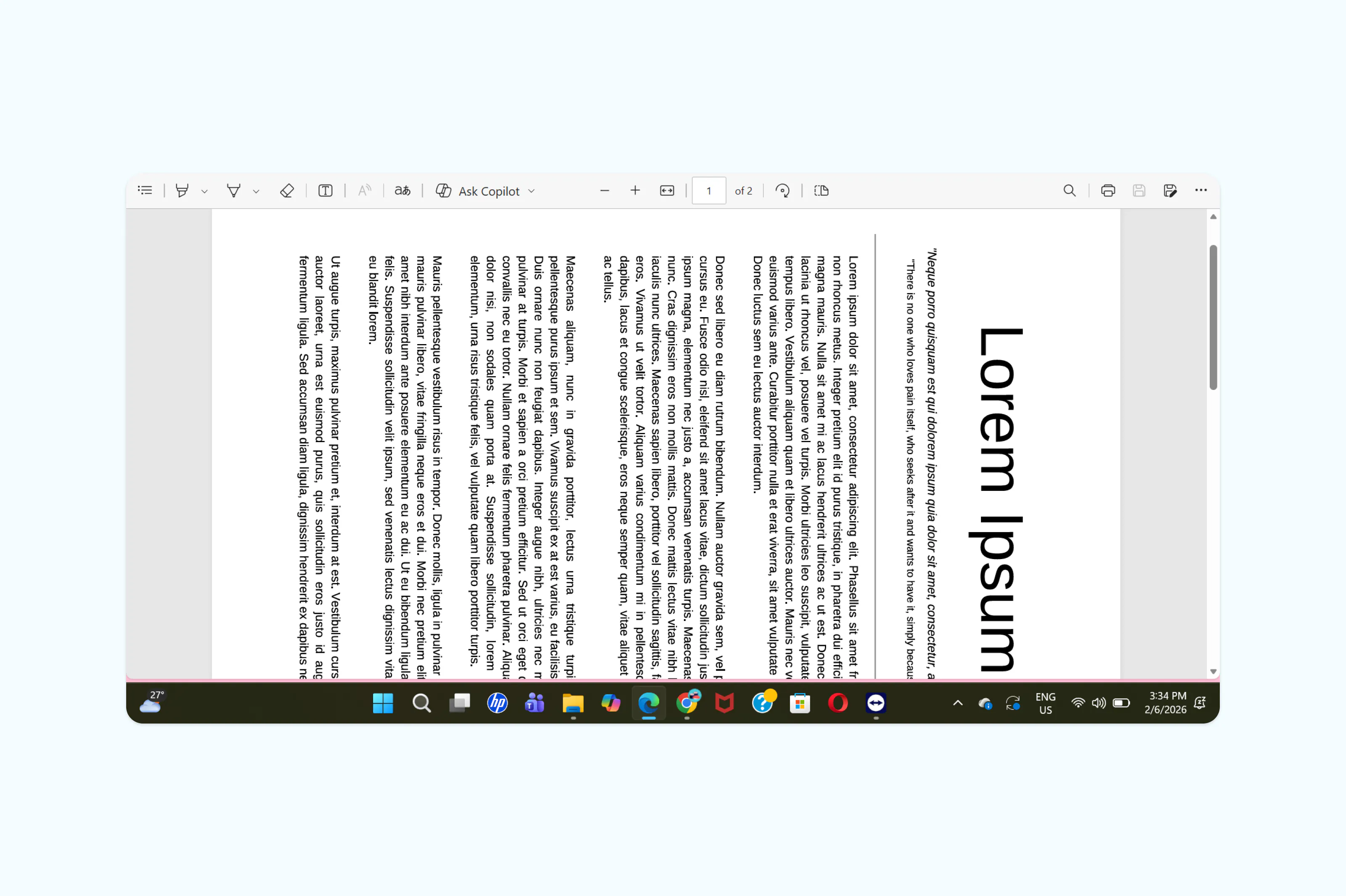
Keep in mind that this method rotates all pages in the document at once. If you only need to flip specific pages, Lumin's editor gives you more flexibility.
Method 3: Flip PDF pages on Mac
Mac users can rotate PDF pages using the Preview app that comes with macOS. While Preview is convenient, it has limited batch editing capabilities compared to online tools.
Here's the process:
- Open your PDF file in Preview (double-click the file or right-click and select "Open With" > "Preview".)
- Select the page thumbnail you want to flip from the sidebar.
- Click the “rotate icon” in the toolbar, or press “Command + L” or “Command + R.”
- Repeat for any additional pages that need rotation.
- Save your changes with “Command + S.”
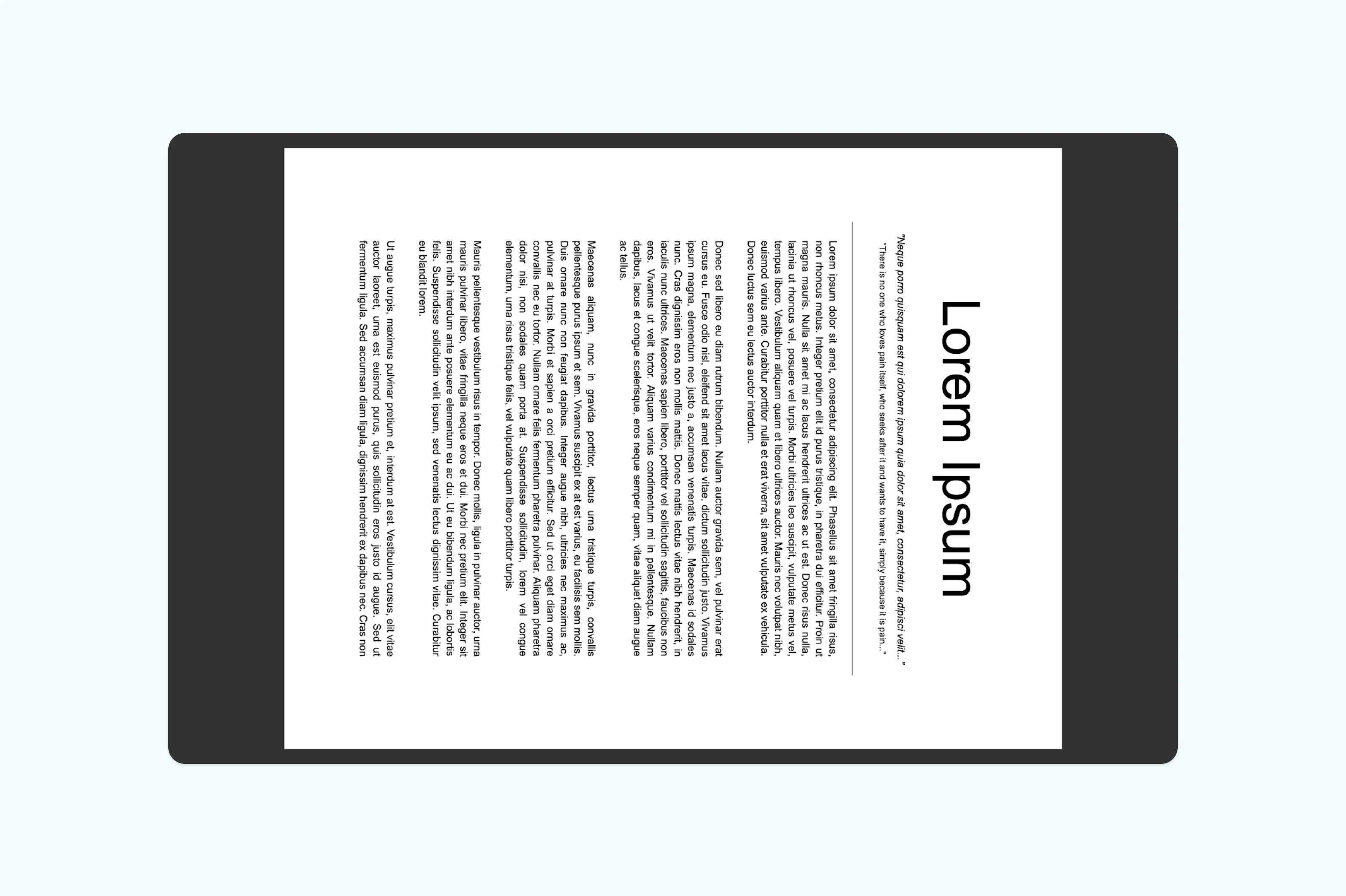
Note: Preview works well for individual pages but becomes tedious when you need to rotate multiple non-consecutive pages. For documents with several pages needing different orientations, an online editor saves time.
Frequently asked questions
How do I rotate only specific pages in a PDF?
Use a PDF editor that supports page-level rotation like Lumin. Upload your document, access the page organization tool, select the specific pages you want to rotate, and apply the rotation. This lets you flip page 3 without affecting pages 1, 2, or 4.
How do I flip a PDF page permanently?
Any changes made through a proper PDF editor like Lumin are saved permanently to the file structure. When you rotate a page and save the document, the rotation becomes part of the PDF itself. This is different from just viewing the page rotated, which only changes your temporary view without modifying the actual file.
Can I rotate a PDF without installing any application?
Absolutely. Free online tools like Lumin provide full page rotation capabilities without requiring Adobe software or subscriptions. You can also use built-in tools like Preview on Mac or Microsoft Edge on Windows for basic rotation needs.
How do I flip all pages in a PDF at once?
Most PDF editors let you select all pages before rotating. In Lumin, access the page organization tool, select all thumbnails (or use Ctrl+A / Command+A), then apply the rotation. This flips every page in the document simultaneously.
Why is my PDF inverted?
PDFs often appear inverted when documents are scanned upside down or when pages are accidentally rotated during creation. This commonly happens with multi-page scans where the scanner feeds pages in the wrong orientation. Simply rotating the affected pages 180 degrees will correct the issue.
Share this post