
How to convert a scanned PDF to Word
Author
Regine Dy
Published
Dec 16, 2025
Categories
PDF editing
Read time
5 mins
Looking to convert a scanned PDF to Word? Modern OCR technology makes it easy to update contracts, extract text from receipts, and fix formatting in photocopied documents, giving you a fully editable Word file in minutes.
4 [{"lang":"fr-fr","url":"/fr/blog/comment-convertir-un-pdf-scane-en-word/"},{"lang":"vi","url":"/vi/blog/cach-chuyen-pdf-quet-sang-word/"},{"lang":"pt-pt","url":"/pt/blog/como-converter-pdf-escaneado-para-word/"},{"lang":"es-es","url":"/es/blog/como-convertir-un-pdf-escaneado-a-word/"}]You can also read this article in Français, Tiếng Việt, Português and Español.
Table of contents
- 1. Why scanned PDFs need special treatment
- 2. Method 1: Use Lumin's free OCR converter
- 3. Method 2: The Google Docs method
- 4. What affects OCR accuracy
- 5. Frequently asked questions
- 6. Make your scanned PDFs editable today
Share this post
Converting a scanned PDF into Word is a task many people run into, whether for work, school, or personal documents. To help you get the best results, we'll cover the most reliable ways to convert your files, break down the factors that influence OCR accuracy, and answer common FAQs. This ensures you can avoid problems such as unreadable text, incorrect characters, or formatting errors during the process.
Why scanned PDFs need special treatment
A scanned PDF is very different from a regular PDF. When you scan a paper document, the scanner creates an image of each page. Although it’s saved as a PDF, your computer sees it as a picture rather than text. That’s why you can’t select, copy, or edit the words, as they’re simply pixels on a page.
To turn a scanned PDF into an editable Word document, you need OCR (Optical Character Recognition) technology. OCR analyzes the shapes in the image, identifies letters and words, and converts them into real text you can edit. It’s essentially teaching your computer to “read” the document.
Method 1: Use Lumin's free OCR converter
The most efficient way to convert a scanned PDF to Word is by using Lumin's converter. It handles the entire process automatically, delivering an editable Word document in seconds. It also uses modern OCR technology, so you are assured that your converted documents are accurate and readable.
Here's how to convert your scanned PDF:
• Open Lumin's free PDF converter and upload your scanned PDF.
• The tool automatically detects scanned PDFs and lets you click “Perform OCR” to extract the text.
• Select "Word Document (.docx)" from the format dropdown.
• Click "Save on your computer" or save directly to Google Drive.
Note: Within moments, you'll have a Word document with editable text. Lumin keeps as much of your original content and formatting as possible, including paragraphs, lists, and basic layouts. Some annotations or elements might not carry over perfectly, but your document remains clear, accurate, and easy to work with.
Method 2: The Google Docs method
Google Docs can automatically convert scanned PDFs to editable text using its OCR feature. This method works online and is free with a Google account.
Steps:
- Upload your scanned PDF to Google Drive.
- Right-click the file and select “Open with > Google Docs”.
- Google Docs will open the PDF as an editable document.
- You can then copy the text into another Google Docs file using the common keyboard shortcut, Ctrl + C to copy and Ctrl + V to paste (Cmd + C / Cmd + V on Mac).
- Save and download the document as a Word file (.docx).
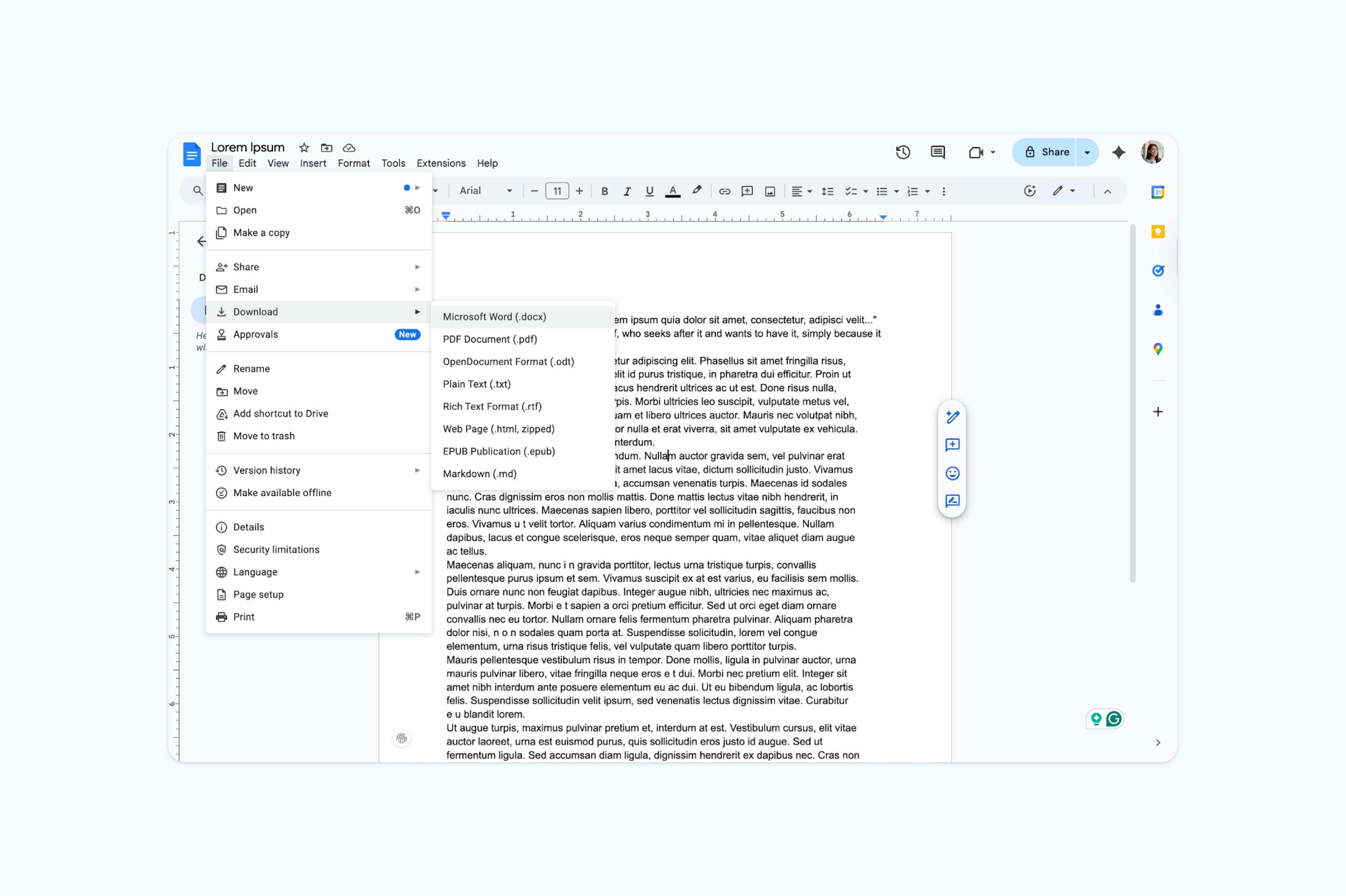
Note: This method works well for moderate formatting and standard fonts. Complex layouts may still require manual adjustments.
What affects OCR accuracy
Not all scanned PDFs convert equally well. Several factors influence how accurately OCR can extract text from a document.
Scan quality is key. Clear, high-resolution scans (300 DPI or higher) produce the best results. Blurry or low-quality scans make it harder for OCR to distinguish between similar characters, such as "o" and "e" or "l" and "I."
Document condition matters. Originals with clean backgrounds, good contrast, and standard fonts convert more accurately than faded, handwritten, or heavily stylized text.
Language and special characters can impact accuracy. Most OCR tools handle English well, but results may vary with other languages or documents containing mathematical symbols, special characters, or unusual fonts.
Frequently asked questions
Even with advanced OCR technology, you may encounter some challenges when converting scanned PDFs to Word. Here are answers to the most common questions:
Why is my converted text full of errors?
This usually happens with low-quality scans. OCR requires clear images to accurately recognize text. Try scanning the original document again at a higher resolution (at least 300 DPI). If rescanning isn’t possible, some PDF editors allow you to enhance image quality before conversion.
Why is the formatting completely wrong after conversion?
OCR focuses primarily on extracting text, not preserving layout. Complex designs with multiple columns, text boxes, or intricate formatting often need manual adjustment after conversion. For documents where layout is critical, consider using the converted Word file as a starting point and rebuilding the formatting.
Why do some pages convert while others don’t?
This can happen when a PDF contains both regular text pages and scanned images. Ensure you’re using a tool that supports mixed content, or convert scanned pages individually. Some tools may also have page limits for free conversions.
Make your scanned PDFs editable today
Converting scanned PDFs to Word doesn’t have to be complicated. Modern OCR technology lets you turn image-based documents into editable files in just a few clicks. Whether you use Lumin’s dedicated converter for precision or Google Docs for convenience, you have the tools to unlock the text in any scanned document.
Ready to convert your scanned PDFs? Try Lumin’s free PDF to Word converter. No sign-up required, no watermarks, and fast, accurate OCR conversion.
Share this post