
How to password-protect a PDF
Need to secure confidential contracts, financial documents, or personal information? Password-protecting your PDFs is essential and easier than you might think. You don’t need expensive software or technical skills to safeguard your files.
4 [{"lang":"vi","url":"/vi/blog/cach-bao-ve-pdf-bang-mat-khau/"},{"lang":"es-es","url":"/es/blog/como-proteger-un-pdf-con-contrasena/"},{"lang":"pt-pt","url":"/pt/blog/como-proteger-um-pdf-com-senha/"},{"lang":"fr-fr","url":"/fr/blog/comment-proteger-un-pdf-par-mot-de-passe/"}]You can also read this article in Tiếng Việt, Español, Português and Français.
Table of contents
- 1. Method 1: Secure your document with Lumin’s password-protect tool
- 2. Method 2: Use Mac’s built-in protection
- 3. Method 3: Password-protect your file on Windows with Microsoft Word
- 4. Frequently asked questions
- 5. Protect your PDFs today
Share this post
This guide covers various ways to password-protect PDFs, from free online tools to built-in computer features. We’ll show you how to secure your documents in minutes and answer common questions along the way.
Method 1: Secure your document with Lumin’s password-protect tool
The easiest way to password-protect your PDF is to use Lumin’s password-protect tool. This works on any device with a browser and doesn’t require installation. Lumin lets you add a password and encrypt your file in one simple workflow, helping keep your document secure without extra steps.
Follow these simple steps to add a password and secure your file:
- Open Lumin’s Password Protect tool and upload your PDF.
- If the password option appears automatically, set your desired password to encrypt the file.
- If not, click “Security,” select “Set Password,” and create a password manually.
- Download your password-protected PDF.
This method offers clear advantages for PDF users. PDFs preserve formatting, prevent unauthorized editing, allow secure password-based sharing, and still let you annotate or comment without affecting the layout.
Method 2: Use Mac’s built-in protection
MacOS doesn’t provide a simple way to password-protect individual files or folders. A convenient alternative is to combine your PDFs into a single encrypted file using Disk Utility, which acts like a password-protected folder for your sensitive documents. This method works on any Mac and does not require installing additional software, just a web browser.
Here’s a step-by-step guide to password-protecting your files:
• Press “Command (⌘) + Spacebar” on your keyboard, then type and open 'Disk Utility'.
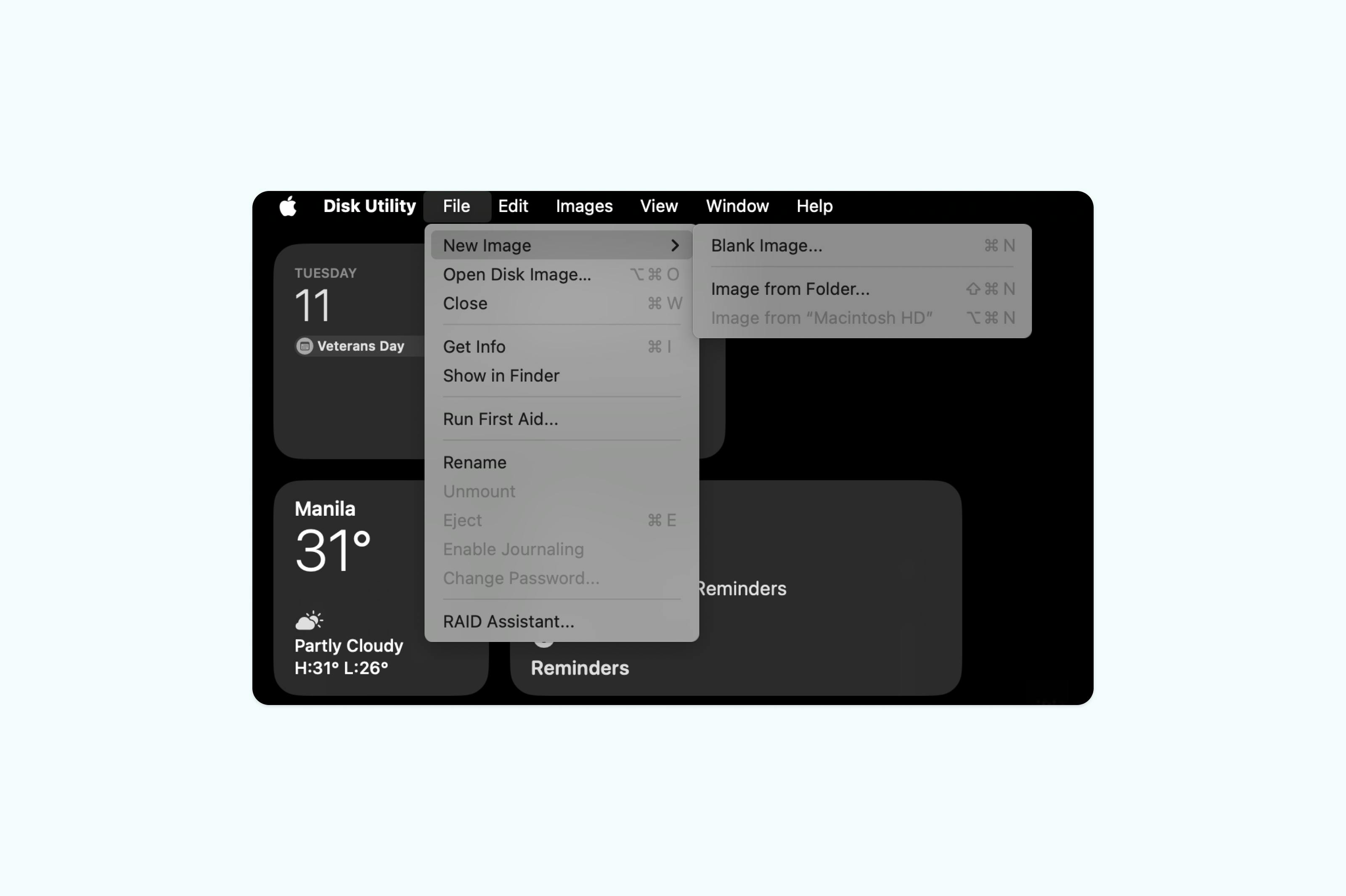
• Click File > New Image > Blank Image.
• Name the disk image and choose a location, such as Documents, Desktop, or Downloads.
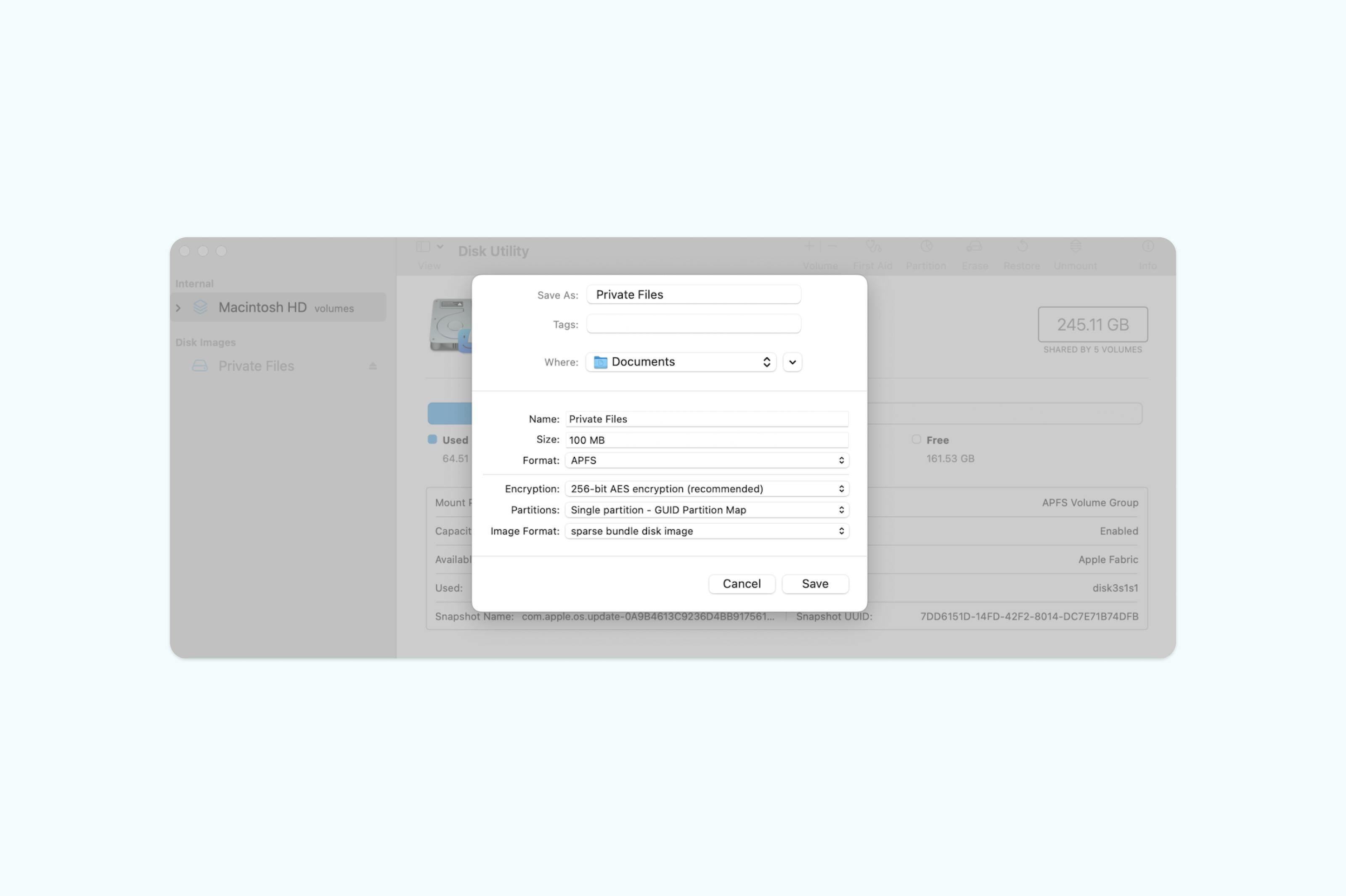
• Choose a size based on your needs, such as 100 MB, 300 MB, or 500 MB.
• Click “Encryption” (256-bit AES recommended) and enter a strong password.
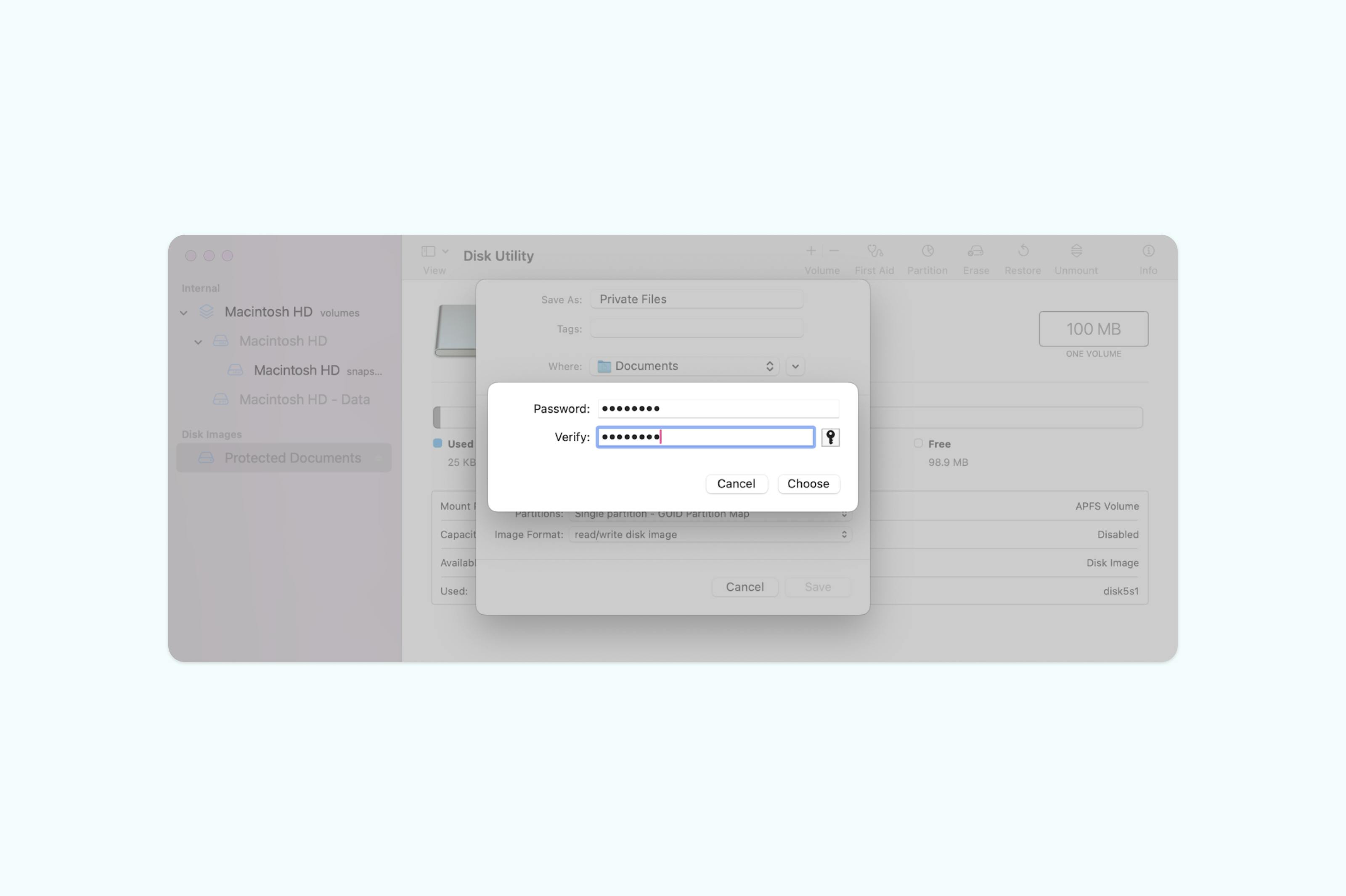
• Click “Save” to create your disk image and wait for the process to complete.
• Go to where you saved your disk image (Documents, Desktop, or Downloads).
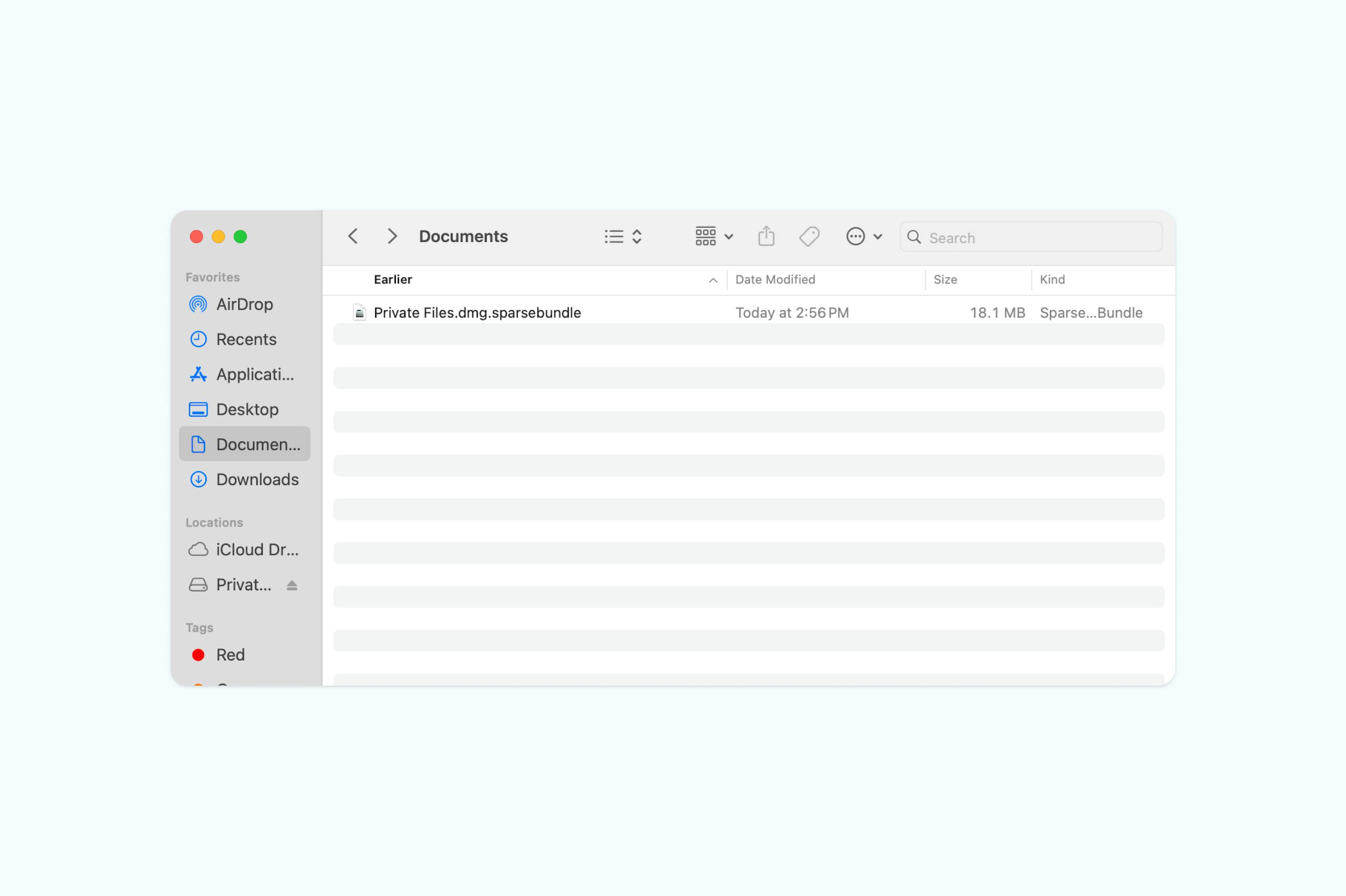
• Drag your sensitive PDF files into the disk image, then delete the originals and empty the Trash.
• Close the disk image to keep your files password-protected.
• To access them later, double-click it and enter your password.
Mac doesn’t provide a direct way to password-protect individual files. Using Disk Utility, you can create an encrypted disk image, a secure virtual folder where you can store one or multiple PDFs. While the process is slightly complex, it effectively protects your files.
Method 3: Password-protect your file on Windows with Microsoft Word
Windows allows you to secure individual Word documents by setting a password directly within Microsoft Word. This method protects your sensitive content from unauthorized access and ensures only people with the password can open or modify it.
Here’s how to password-protect your Word file:
- Open your document in Microsoft Word.
- Click “File” in the top-left corner, then select “Info”.
- Choose “Protect Document” and select “Encrypt with Password”.
- Enter your desired password, then click “OK”.
- Re-enter the password to confirm and save your document.
- Save the document to your PC as a PDF file.
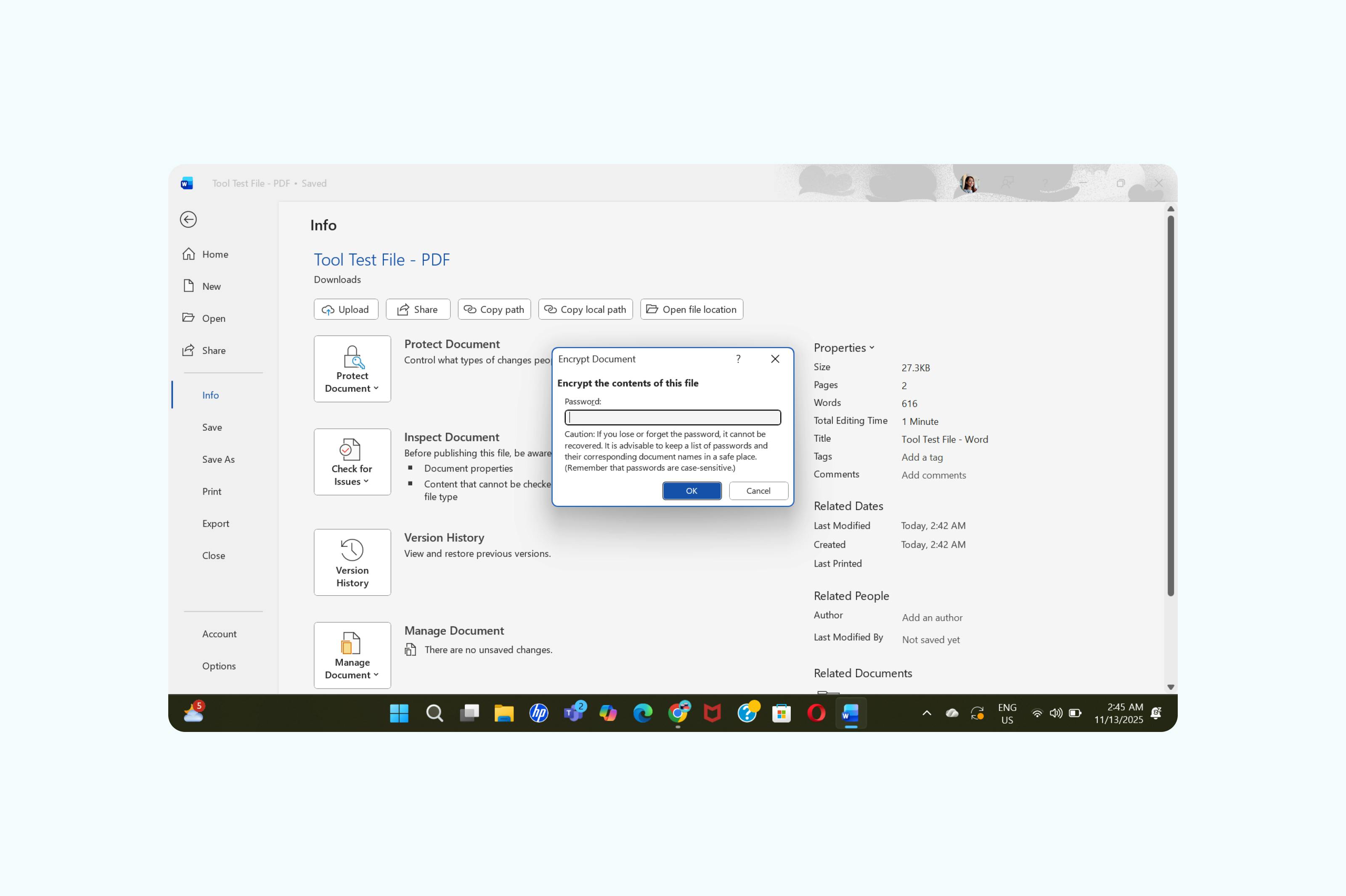
Microsoft cannot recover your password if you forget it, so make sure to store it safely.
Frequently asked questions
Can I password-protect an existing PDF?
Yes, you can add password protection to any existing PDF using online tools like Lumin. The original file stays intact, while a new protected version is created.
How secure is PDF password protection?
PDF password protection uses strong encryption (up to 256-bit), making it highly secure when paired with a strong password. Security depends on the strength of your password and the encryption level chosen.
Can I remove password protection from a PDF?
Yes, but you need the original password. Open the protected PDF in Lumin, enter the password, and then save a new unprotected copy.
What makes a strong PDF password?
Use at least 12 characters combining uppercase, lowercase, numbers, and symbols. Avoid personal information or dictionary words. Each document should have a unique password stored securely.
Is it possible to password-protect PDFs for free?
Absolutely. Lumin lets you add password protection to PDFs completely free, with no need for paid software.
Protect your PDFs today
Keep your sensitive documents safe. Protect client contracts, financial reports, and personal files with a password to ensure your information stays secure.
With Lumin’s free tools, you can secure any PDF in seconds without downloading software or creating an account. Protect your documents instantly with professional-grade encryption.
Meet our author

Share this post