
How to print a PDF
Printing a PDF should be an easy task, yet it often comes with hurdles like formatting issues, missing content or printer connectivity errors. Knowing how to send your file to the printer correctly ensures your hard copy looks exactly like the digital version, whether you are handling a contract, a school assignment or a digital receipt.
4 [{"lang":"fr-fr","url":"/fr/blog/comment-imprimer-un-pdf/"},{"lang":"pt-pt","url":"/pt/blog/como-imprimir-um-pdf/"},{"lang":"vi","url":"/vi/blog/cach-in-pdf/"},{"lang":"es-es","url":"/es/blog/como-imprimir-un-pdf/"}]You can also read this article in Français, Português, Tiếng Việt and Español.
Table of contents
- 1. Method 1: Print a PDF with Lumin
- 2. Method 2: Print a PDF on Mac using Preview
- 3. Method 3: Print a PDF on Windows
- 4. Understanding your print settings
Share this post
Most devices have built-in printing capabilities, but they don't always offer the advanced settings you need for professional results. In this guide, we will cover three reliable ways to print a PDF, starting with the most flexible online option.
Method 1: Print a PDF with Lumin
If you need to make last-minute edits, sign a document or organize pages before hitting print, Lumin is the most efficient tool. Since it works directly in your browser, you don't need to download heavy software to get your document ready for the paper tray.
How to print using Lumin:
- Open the Lumin PDF editor and upload the document you wish to print.
- Use the editing tools to make any necessary changes, such as adding text, dates or signatures.
- Click the “Print” icon located in the right toolbar.
- A print preview window will appear. Select your destination printer from the dropdown menu.
- Adjust your settings, including layout (portrait or landscape), color (Black & White or Color) and the specific pages you want to print.
- Click “Print” to send the file to your device.
Note: Printing through Lumin is ideal when you are working on the go or using a device that doesn't have a dedicated PDF viewer. It ensures that any annotations or digital signatures you’ve added are flattened and printed clearly.
Method 2: Print a PDF on Mac using Preview
Mac users have a built-in tool called Preview. It is the default application for viewing images and PDFs and it handles basic printing tasks very well without requiring additional downloads.
Here’s how to do it:
- Open your PDF in Preview.
- Go to the File menu at the top of the screen and select “Print,” or press Cmd+P.
- A print preview window will appear. Select your destination printer from the dropdown menu.
- Choose your preferred settings for copies, pages, paper size and scale. You can also select “Scale to Fit” if the PDF content is larger than your physical paper.
- Click “Print.”
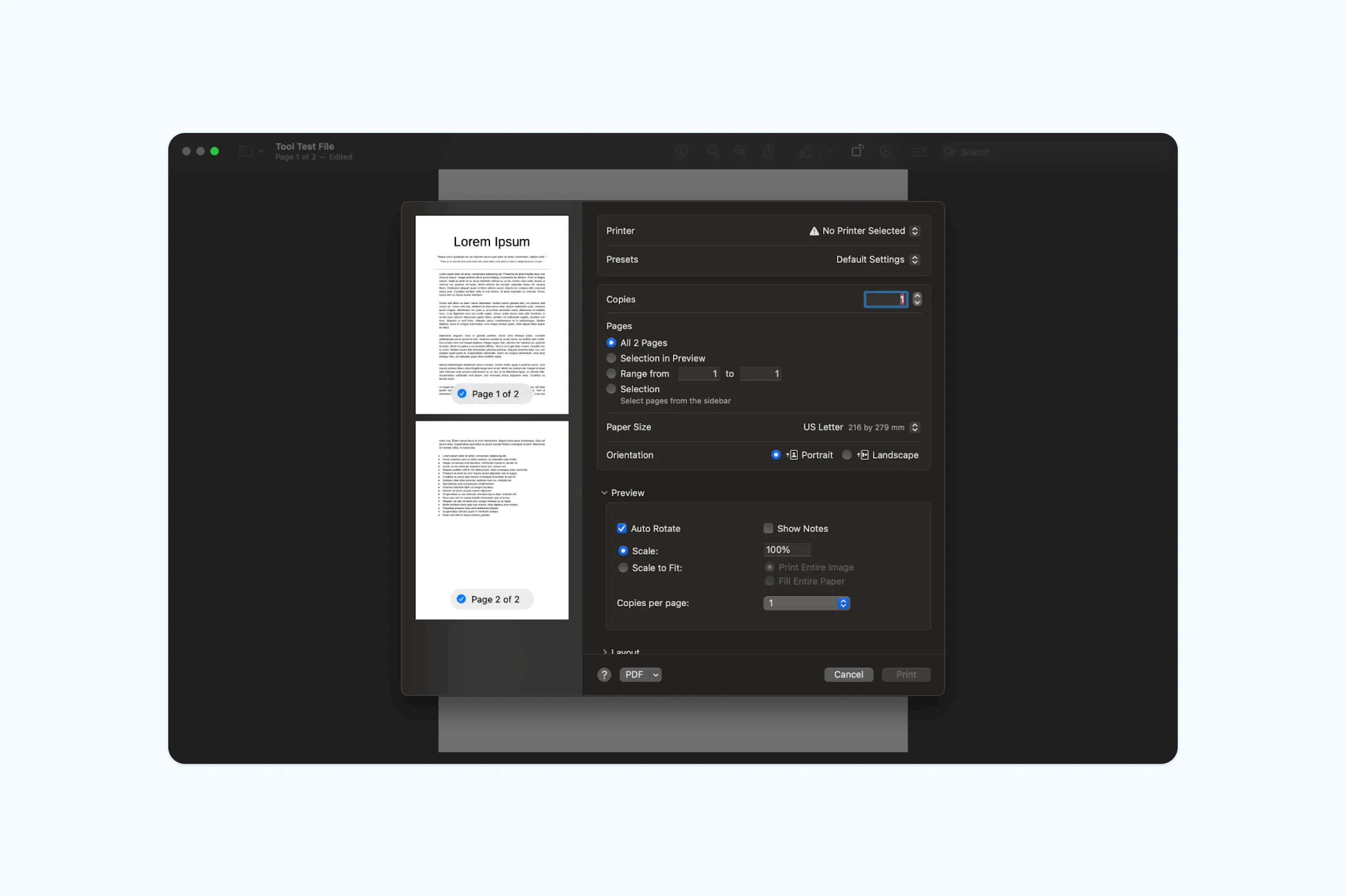
Note: Preview is excellent for standard documents. However, if you have a complex PDF with multiple layers or high-resolution images, some formatting might shift. Using a dedicated editor like Lumin provides more consistency for complex layouts.
Method 3: Print a PDF on Windows
Windows has a built-in "Print to PDF" feature, but when it comes to physical printing, most users rely on the browser or the default "Photos" and "Edge" apps. The process is standardized across most Windows applications.
Here’s how to do it:
- Locate your PDF file and right-click it. Select “Open with > Microsoft Edge” (or your preferred browser).
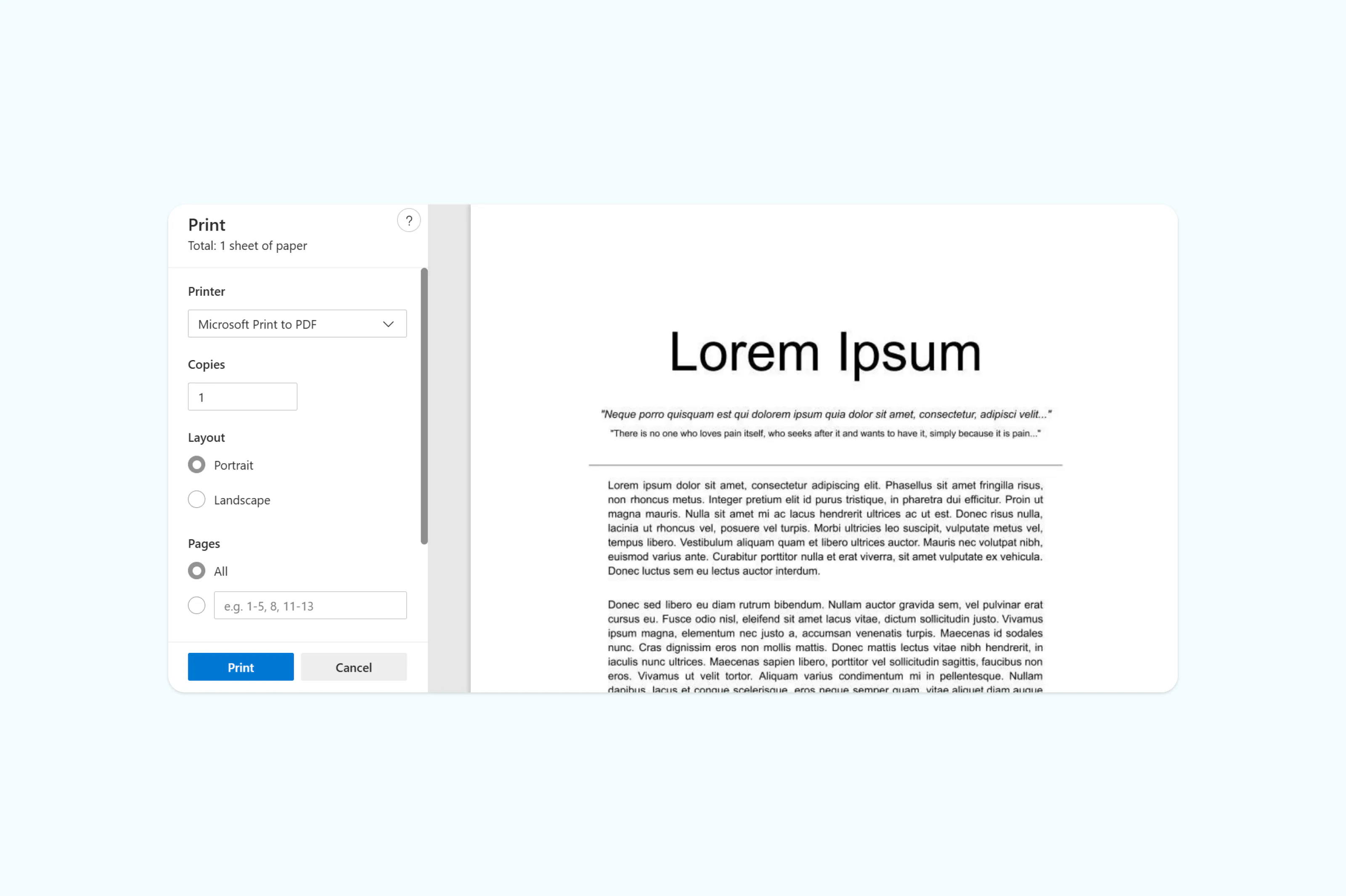
- Once the file opens, click the Printer icon in the top right corner or press Ctrl+P.
- Select your printer from the list of available devices.
- Under "More settings," you can choose to print on both sides of the paper (duplex printing) or change the orientation.
- Click “Print.”
Understanding your print settings
To get the best results, it helps to understand a few key settings that can save you ink and paper:
- Grayscale vs. Color: If you are printing a text-heavy document, switching to grayscale (black and white) saves expensive color ink.
- Fit to Page: This is vital if your PDF was designed in a size other than standard A4 or Letter. It prevents the edges of your text from being cut off.
- Pages per sheet: If you want to save paper for a rough draft, you can print two or four pages of your PDF on a single physical sheet of paper.
Frequently asked questions
Why can’t I print my PDF?
Common hurdles include password protection, outdated printer drivers or a corrupted file. If a password is required to view the document, it is likely also required to print it. Tools like Lumin can help you identify if a file has restricted permissions.
How do I unlock a PDF for printing?
You will need the owner’s password to remove printing restrictions. Once you have the password, open the document in Lumin, enter the credentials and adjust the security settings to enable printing.
How do I print a PDF from an email?
You don't always need to download the file. Most email services allow you to open a preview and click the printer icon directly. Alternatively, you can save the attachment to your Lumin account to edit and print from any device.
Are all PDFs printable?
Not necessarily. Some creators set files to "read-only" to prevent physical copies. Check the document properties in your viewer; if "Printing" is listed as "Not Allowed," you must contact the author for an unrestricted version.
How do I print from my phone?
On an iPhone, tap the Share button (square with an arrow) and select “Print.” On Android, tap the three-dot menu and choose “Print.” Ensure your phone and printer are on the same Wi-Fi network.
Ready to get your documents on paper? Sign in to Lumin and print your PDFs quickly and easily.
Meet our author

Share this post