PDFs are everywhere, but editing them isn’t always simple. You've got a document that needs updating — maybe some text changes, form fields to fill, or layout tweaks — but that PDF format just won't budge.
The good news: making PDFs editable doesn't require expensive software or complicated workarounds. You've got two solid options that actually work.
This guide covers the practical approaches: use a browser-based PDF editor for quick edits, or convert your file to Word for more extensive changes. We'll also answer the common questions that come up when you're trying to modify PDF files.
Why your PDF might not be editable
Not all PDFs are created equal. Some are generated from text-based documents, while others are scanned images. Many are locked or flattened to prevent editing. Common reasons a PDF may not be editable include:
- You’re using the wrong PDF tool.
- The file was scanned as an image, not as text. The content has been flattened or saved in a way that disables editing.
- The PDF is password-protected or has restricted permissions.
Understanding what kind of PDF you’re working with helps you choose the right method to make it editable.
Option 1: Use an online PDF editor
Only some PDF tools can actually edit PDFs. You may be using a PDF reader, for example, in which case you will be able to view and possibly annotate the document, but not edit it.
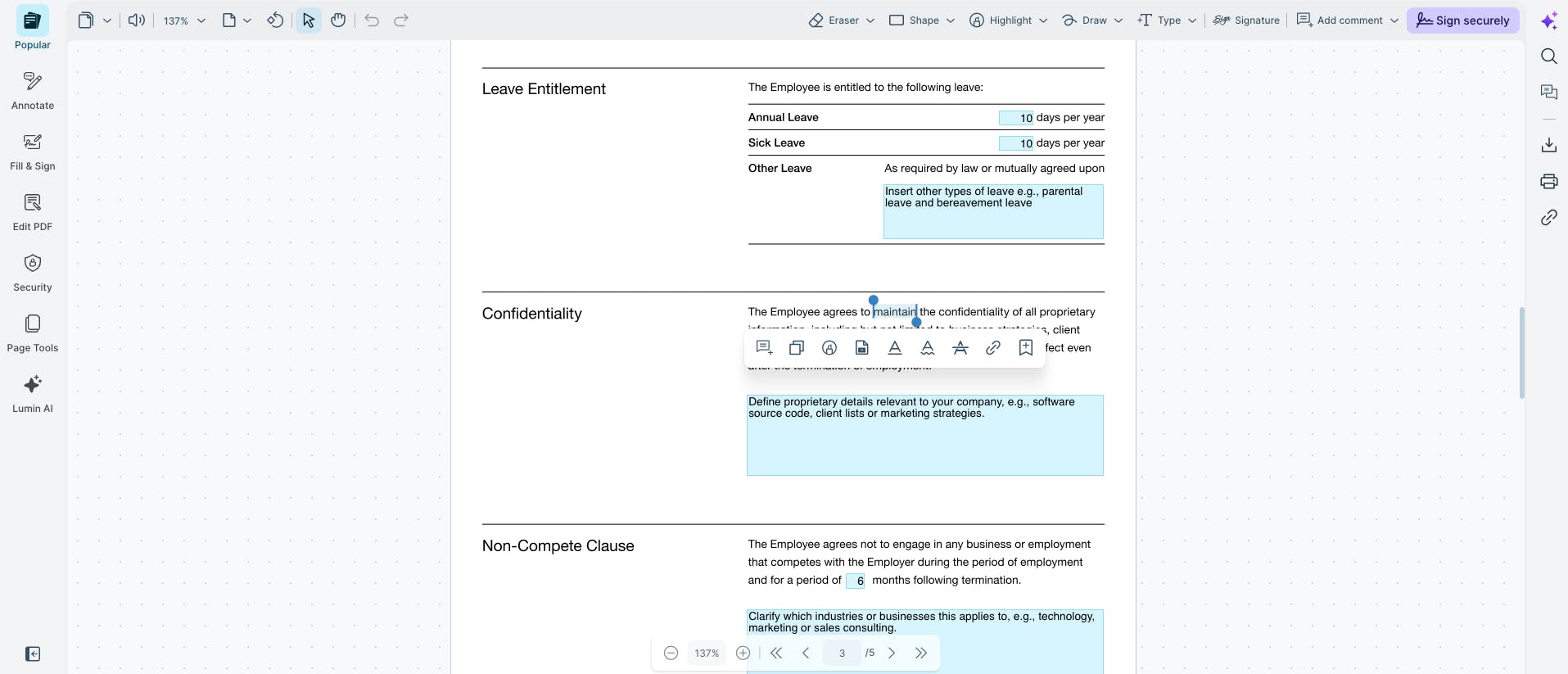
The Lumin PDF editor allows you to actually make changes to a PDF and save it — all online and for free.
Here’s how you edit your PDF:
- Open the Lumin PDF editor and upload your document.
- Make any changes you need — add or remove text, crop pages, merge files, and more.
- Download your edited PDF, ready to share or send.
If you need to make significant text changes, especially to scanned or complex PDFs, converting the file into an editable Word document format can be more efficient.
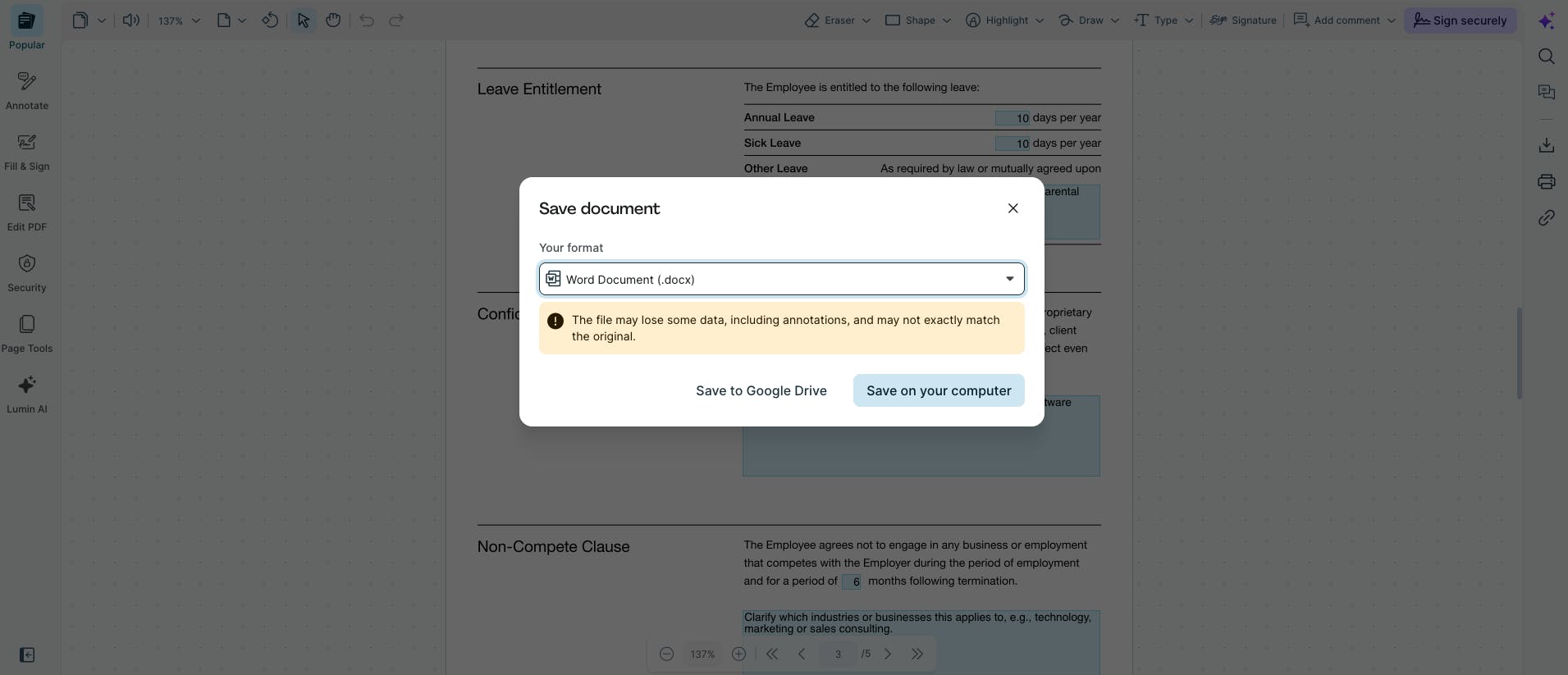
Here’s how:
- Open Lumin’s free PDF to Word tool and upload your PDF.
- Select “Word Document (.docx)” from the format dropdown menu.
- Select “Save on your computer”.
Now that your document has been converted, you can make the text edits you need in Microsoft Word or Google Docs, and then convert it back to PDF when you’re happy with it.
Frequently asked questions
Is it free to make a PDF editable?
Yep, Lumin’s PDF editor is totally free to use. You can open a PDF and start editing right away — no credit card or payment required.
Some features require you to create a free Lumin account. Signing up is quick and easy, and once you're in, you'll unlock the full set of tools to edit, annotate, and manage your PDFs online.
How do I make a scanned PDF editable?
You’ll need to use a tool with OCR (optical character recognition) capabilities to convert the scanned image into editable text. Lumin's converter supports OCR when turning scanned PDFs into editable Word documents.
Why is my PDF not editable?
It may be locked or created from an image scan. It could also be flattened or created without editable layers. Try converting it to Word or using a PDF editor that supports scanned files.
How do I unlock a non-editable PDF?
If the PDF is password-protected, you’ll need the correct password to remove restrictions. If it’s simply non-editable due to formatting, converting it to Word or uploading it to an editor will often help.
Try our unlock PDF tool to open password-protected files.
Can I turn a PDF into a fillable form?
Yes, you can turn a PDF into a fillable form. To do this, you’ll need a PDF editor that allows you to add interactive form fields like text boxes, checkboxes, dropdowns, and signature fields.
With the free PDF form builder in Lumin, you can easily upload your document, insert the fields you need, and turn a static PDF into a fully fillable form—no software download required. Once you're done, you can save, share, or send the completed form directly from the platform.
Is it safe to upload my PDF to an online editor?
Most reputable tools use encryption and privacy controls to protect your documents. If you're working with sensitive or confidential content, look for platforms that offer secure document handling and compliance with data protection standards.
Find out how Lumin protects your data.
Will converting a PDF to Word change the formatting?
Yes, it’s possible. Simple layouts convert well, but complex PDFs with columns, tables, or custom fonts might need manual adjustment after conversion.
For more PDF tips, check out our guides on how to make a PDF and how to write on a PDF.