
How to make a PDF non-editable
Need to protect your PDF from unwanted changes? Here are four reliable methods to make your documents read-only, ranging from simple password protection to advanced flattening techniques.
Table of contents
- 1. Method 1: Password-protect and restrict editing
- 2. Method 2: Flatten your PDF
- 3. Method 3: Convert the PDF into an image
- 4. Method 4: Apply digital restrictions
- 5. Common questions
- 6. Protect your PDFs today
Share this post
When sharing important files such as contracts, certificates, invoices, or completed forms, you want them to stay exactly as you sent them. While PDFs are more secure than Word documents, determined users with the right tools can still edit them.
No method is completely foolproof, since someone could screenshot or use specialized software. However, these approaches will block casual editing and safeguard your content against most unauthorized changes.
Method 1: Password-protect and restrict editing
Password protection is the most common way to prevent PDF editing. This method lets you control who can view, edit, print, or copy content from your document.
How to password-protect your PDF:
- Open the Lumin Protect PDF tool and upload the document you want to password-protect.
- Encrypt your document by entering a password.
- Re-enter your password to confirm it is correct.
- Click "Apply" to secure your document.

Pros: Quick to implement, works across all PDF readers, allows you to control specific permissions.
Cons: Passwords can be removed with specialized tools, which doesn't prevent screenshots.
When to use this method:
- Documents that need to be viewed but not edited
- Contracts and agreements requiring signatures
- Internal documents with controlled access
Method 2: Flatten your PDF
Flattening converts all editable elements like form fields, annotations, and layers into a single, static layer. This makes the PDF much harder to modify since there are no individual elements to select and edit.
How to flatten a PDF:
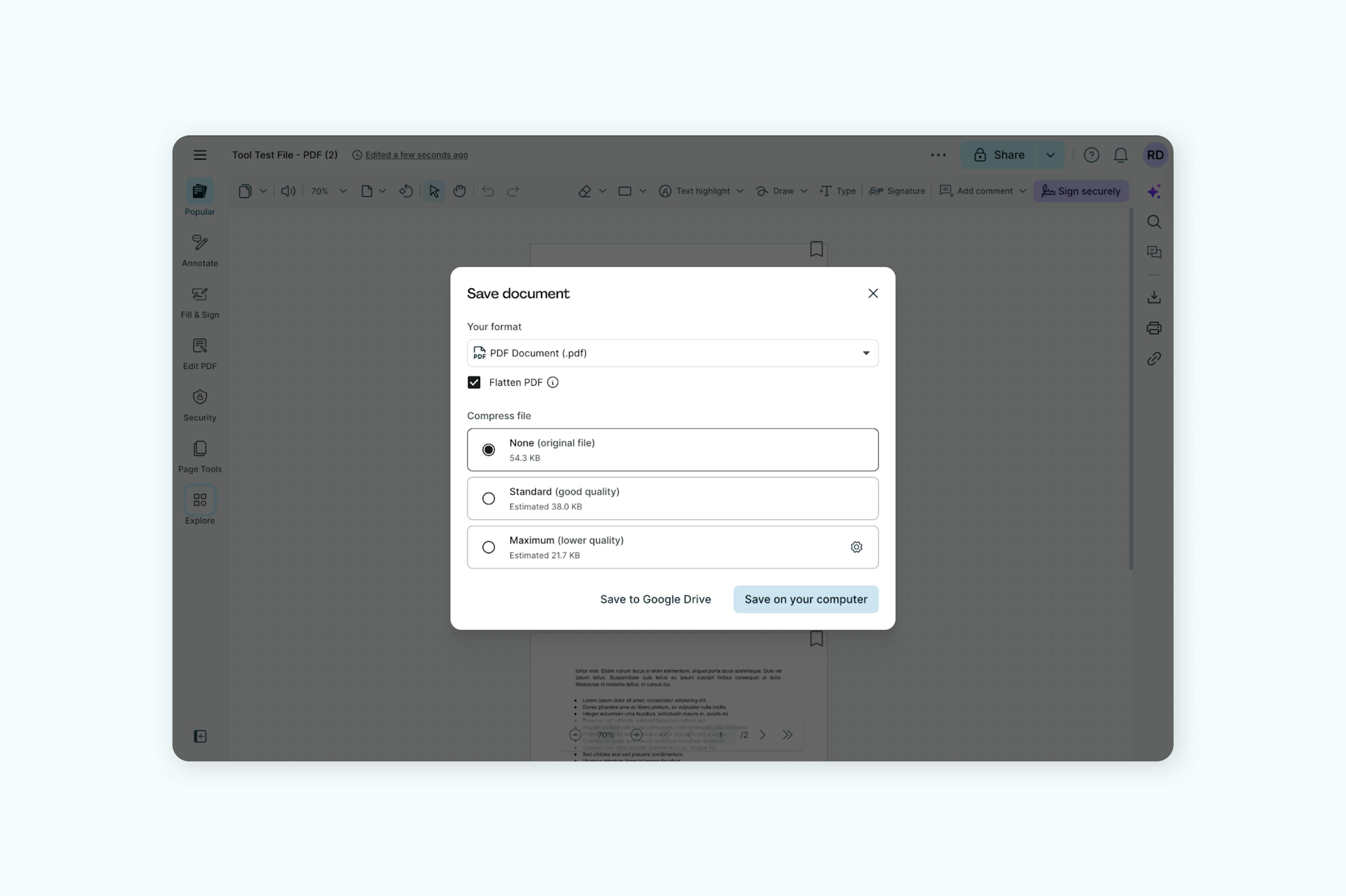
- Open the "Flatten PDF tool" in Lumin and upload the document you want to flatten.
- Select "Flatten" as the document format.
- Choose your compression level. "None (Original)" – keeps the file unchanged; "Standard (Good Quality)" – balances size and quality; "Maximum (Low Quality)" – reduces file size the most
- Save the flattened version as your final document.
This method is particularly effective for forms that have been completed or documents with multiple layers and annotations.
Pros: Makes editing significantly more difficult, preserves visual appearance perfectly
Cons: Removes all interactivity, can't be undone once flattened.
When to use this method:
- Completed forms that shouldn't be changed
- Documents with annotations that need to be permanent
- Files with complex formatting you want to preserve
Method 3: Convert the PDF into an image
Converting your PDF pages to images before saving them back as a PDF creates a document that's essentially a collection of pictures. While text might look normal, it can't be selected or edited without OCR technology.
How to turn a PDF into an image:
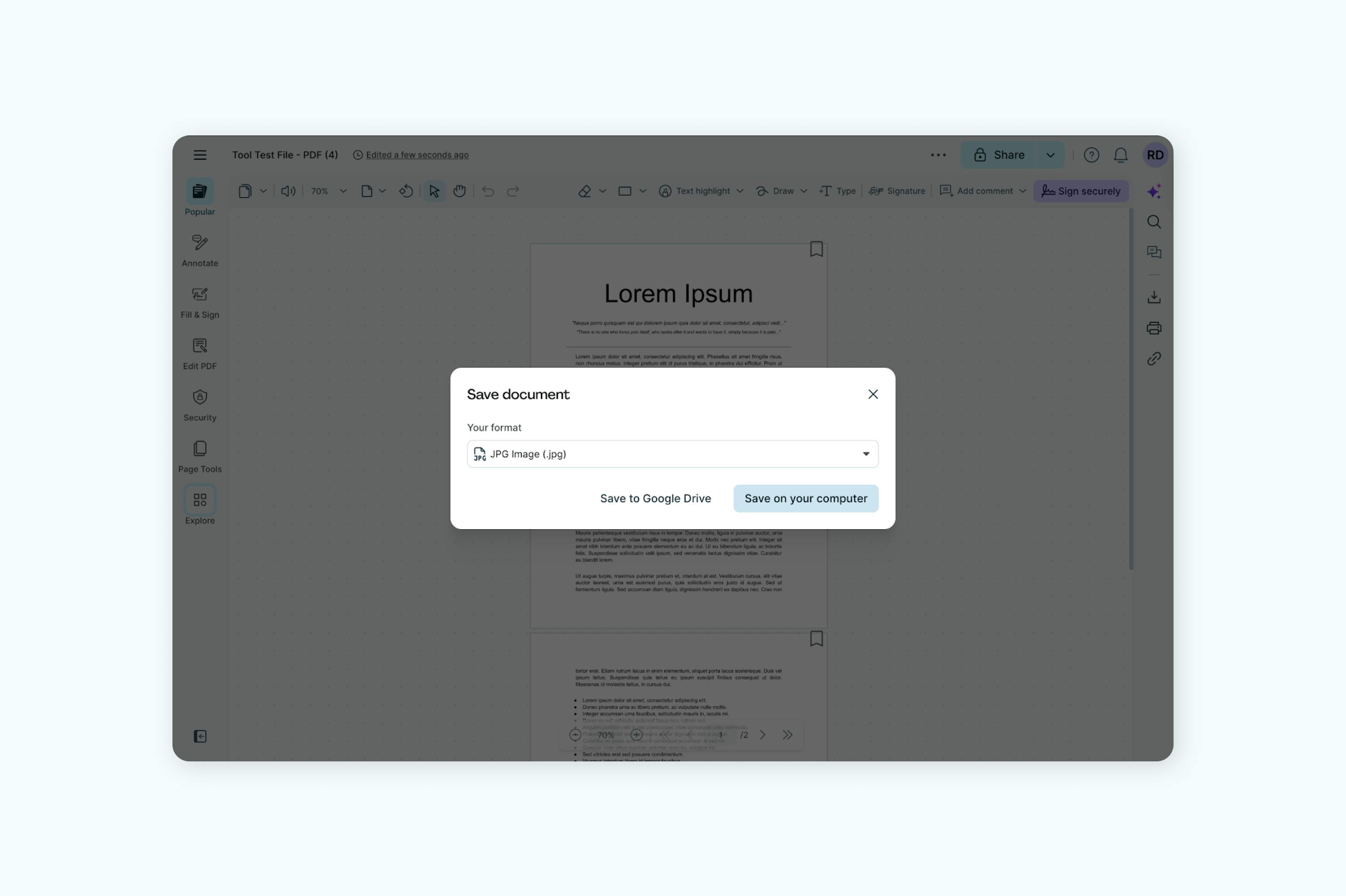
- Open the "PDF to JPG tool" in Lumin and upload the document you want to convert.
- Select "JPG" as the document format.
- Save your file as an image.
Note: You can also convert your PDF to a PNG image.
Pros: Text cannot be edited or selected, and formatting is preserved exactly.
Cons: File size increases significantly, text can't be searched or copied, and quality may decrease slightly.
When to use this method:
- Certificates and official documents
- Documents where copying text must be prevented
- Files where absolute protection is more important than file size
Method 4: Apply digital restrictions
For maximum security, combine multiple protection methods. This layered approach makes unauthorized editing extremely difficult for average users.
Best practices for comprehensive protection:
- Set both viewing and editing passwords
- Flatten all form fields and annotations before protecting
- Disable copying, printing, and commenting permissions
- Consider converting critical pages to images while keeping others searchable
Common questions
Can someone still edit a protected PDF?
While these methods prevent casual editing, determined users with specialized software can potentially bypass protections. Password protection can be cracked, and image-based PDFs can be converted back to text using OCR.
However, these methods stop most unauthorized changes and make editing difficult enough to deter the average user.
Will password protection work on all devices?
Yes, PDF password protection is part of the PDF standard and works across all platforms and PDF readers. Recipients don't need special software to open password-protected files, just the password you provide.
Does flattening change how my PDF looks?
No, flattening preserves the exact appearance of your document. It simply converts interactive elements into static content. The visual result is identical, but the underlying structure becomes non-editable.
What's the most secure method?
For maximum security, combine methods: flatten your PDF first, then convert it into an image, and finally, add password protection with restricted permissions. This multi-layer approach provides the strongest protection against unauthorized editing.
Protect your PDFs today
Making your PDFs non-editable doesn't have to be complicated. Whether you need basic password protection or advanced security measures, Lumin's free tools make it simple to protect your documents from unwanted changes.
Start with our password-protect tool for quick protection, or explore our full suite of PDF security features to find the right level of protection for your needs. You can also convert your PDFs into different formats like Word, Excel, or JPG when you need more flexibility in how your files are used.
Remember: while no method is 100% foolproof, these techniques will prevent the vast majority of users from editing your PDFs, giving you peace of mind when sharing important documents.

Share this post