
How to compress a JPG

Having trouble sending or uploading a large JPG file? Oversized images can slow down emails, take up too much storage, or fail to meet upload limits on websites. This guide explains how to compress JPG images on your computer while keeping their quality intact. It also answers the most common questions about image compression, file quality, and the ideal file size of a JPG.
4 [{"lang":"fr-fr","url":"/fr/blog/comment-compresser-un-jpg/"},{"lang":"es-es","url":"/es/blog/como-comprimir-un-jpg/"},{"lang":"pt-pt","url":"/pt/blog/como-compactar-um-jpg/"},{"lang":"vi","url":"/vi/blog/cach-nen-jpg/"}]You can also read this article in Français, Español, Português and Tiếng Việt.
Table of contents
- 1. Why compress JPG files?
- 2. Method 1: Use Lumin's free online JPG compressor
- 3. Method 3: Compress JPG on Mac
- 4. Frequently asked questions
- 5. Make compression part of your workflow
Share this post
Why compress JPG files?
JPG compression helps you overcome common digital limitations when sharing or uploading files. Most email providers restrict attachments to around 25MB, while many websites cap uploads at just 5–10MB. Social media platforms also apply automatic compression, which can reduce image quality in unpredictable ways. Learning how to compress JPG files on your computer lets you maintain control over the final quality and ensures your images meet size requirements. This is especially important for professional documents, portfolio images, or any photos where visual clarity matters.
Method 1: Use Lumin's free online JPG compressor
The fastest way to compress a JPG is to use Lumin's browser-based compression tool. It works on any device without software installation and maintains excellent image quality while significantly reducing file size.
Here's how to compress your JPG with Lumin:
- First, convert your JPG to PDF using Lumin’s free PDF converter.
- Next, open Lumin’s free compression tool in your browser.
- Upload your converted PDF by dragging it into the upload area or clicking to browse for it on your computer.
- Choose your preferred compression level depending on how much you want to reduce the file size.
- Once the process is complete, download your newly compressed document.
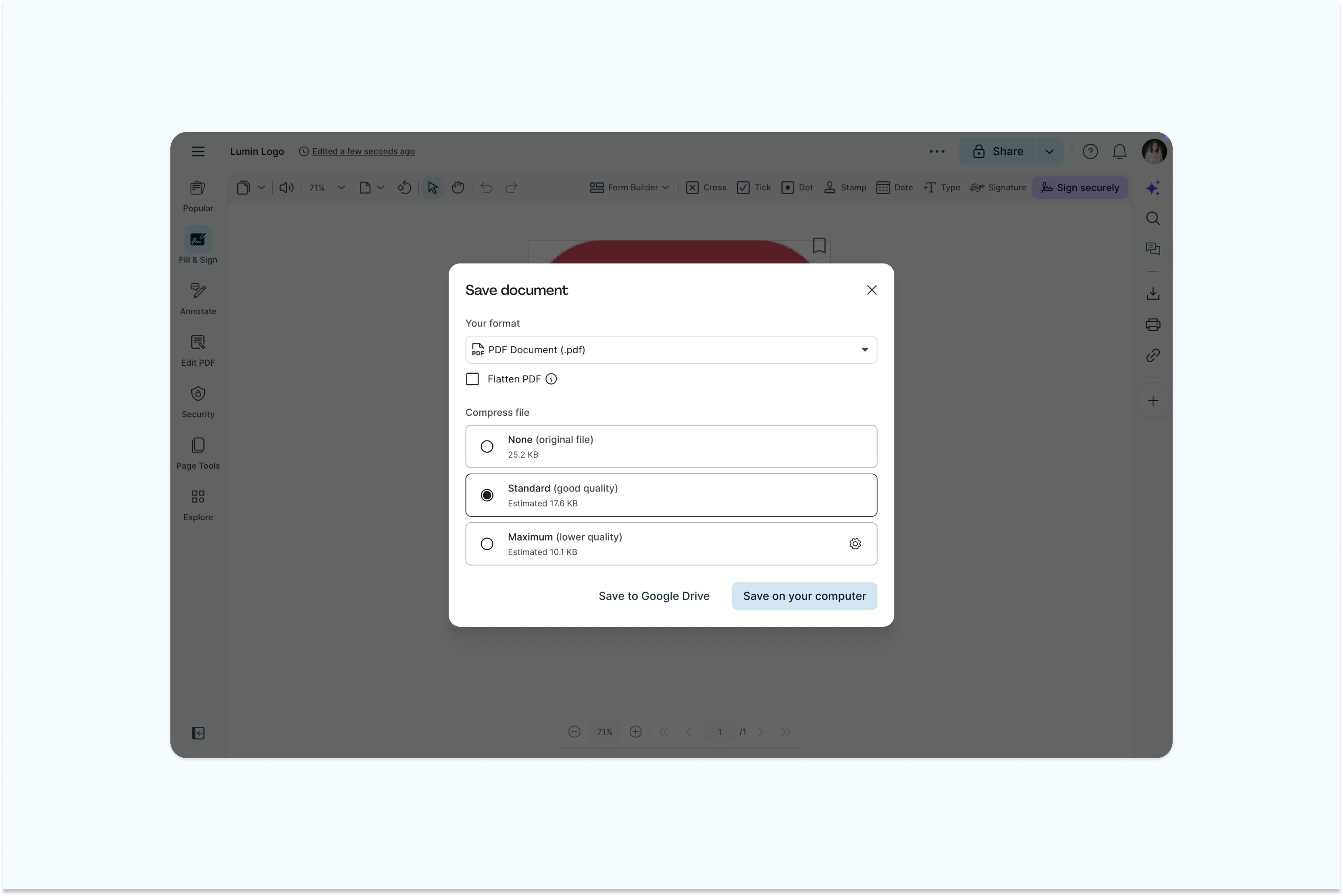
Lumin’s compression tool uses advanced OCR technology to optimize your image, remove unnecessary data, and preserve visual quality. As one of the best file editors for compressing JPG files, Lumin also lets you edit, annotate, and refine your document after compression for a fully polished result.
Method 2: Compress JPG files on Windows
Windows users have built-in options for basic JPG compression, though they offer less control than dedicated tools.
Using the Photos app
Windows 10 and 11 include a Photos app with basic compression features:
- Right-click your JPG file and select "Open with > Photos".
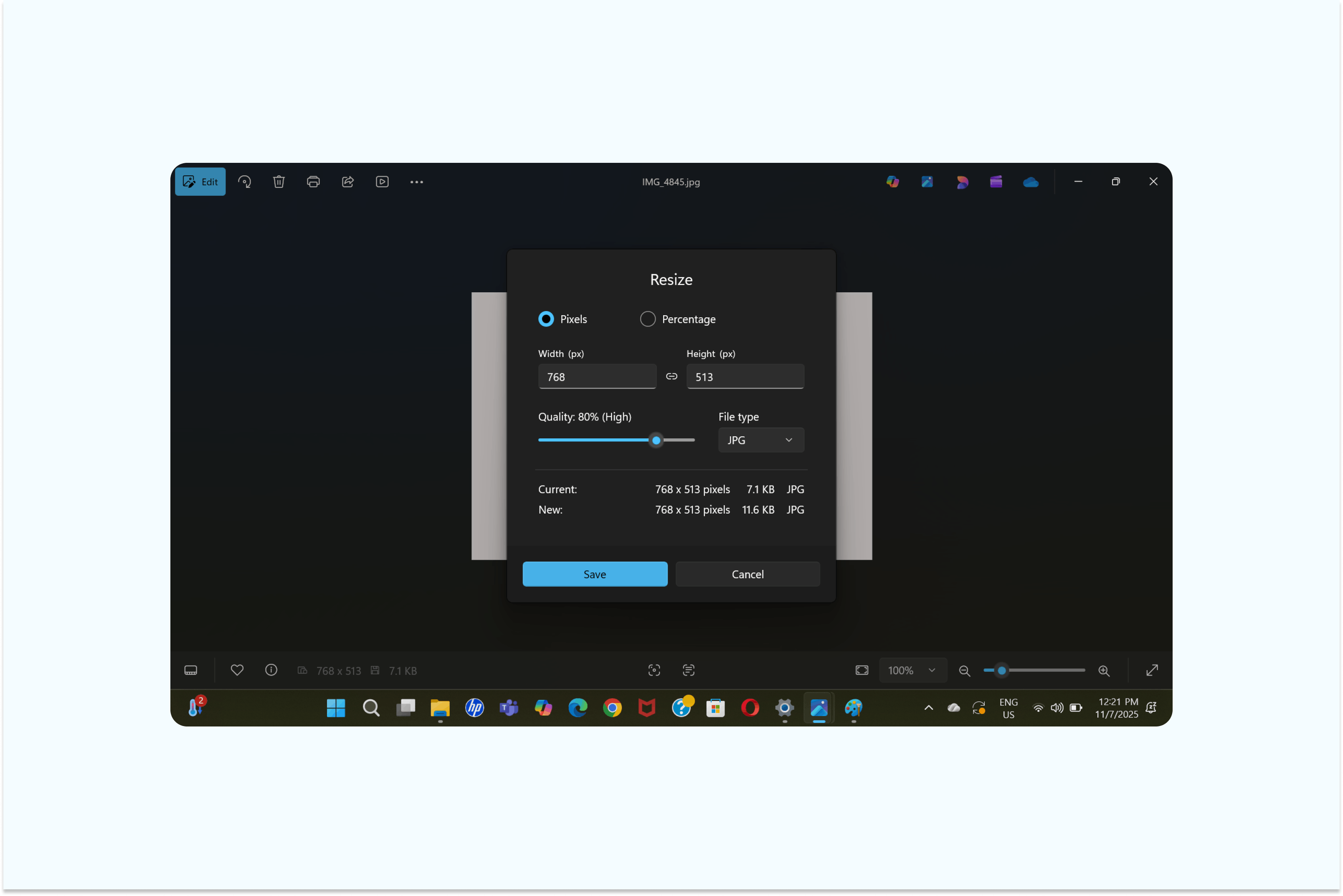
- Click the three-dot menu and choose "Resize image".
- Select a smaller size percentage or custom dimensions.
- Save the resized image with a new filename.
Using Paint
You can easily compress your JPG with Paint by doing the following:
- Open your JPG file in Paint.
- Click “File”, then select “Image Properties”.
- Adjust the image by choosing a smaller size percentage or entering custom dimensions.
- Lower the image quality setting to achieve your desired file size.
- Then, save the new JPG to your preferred location on your computer.
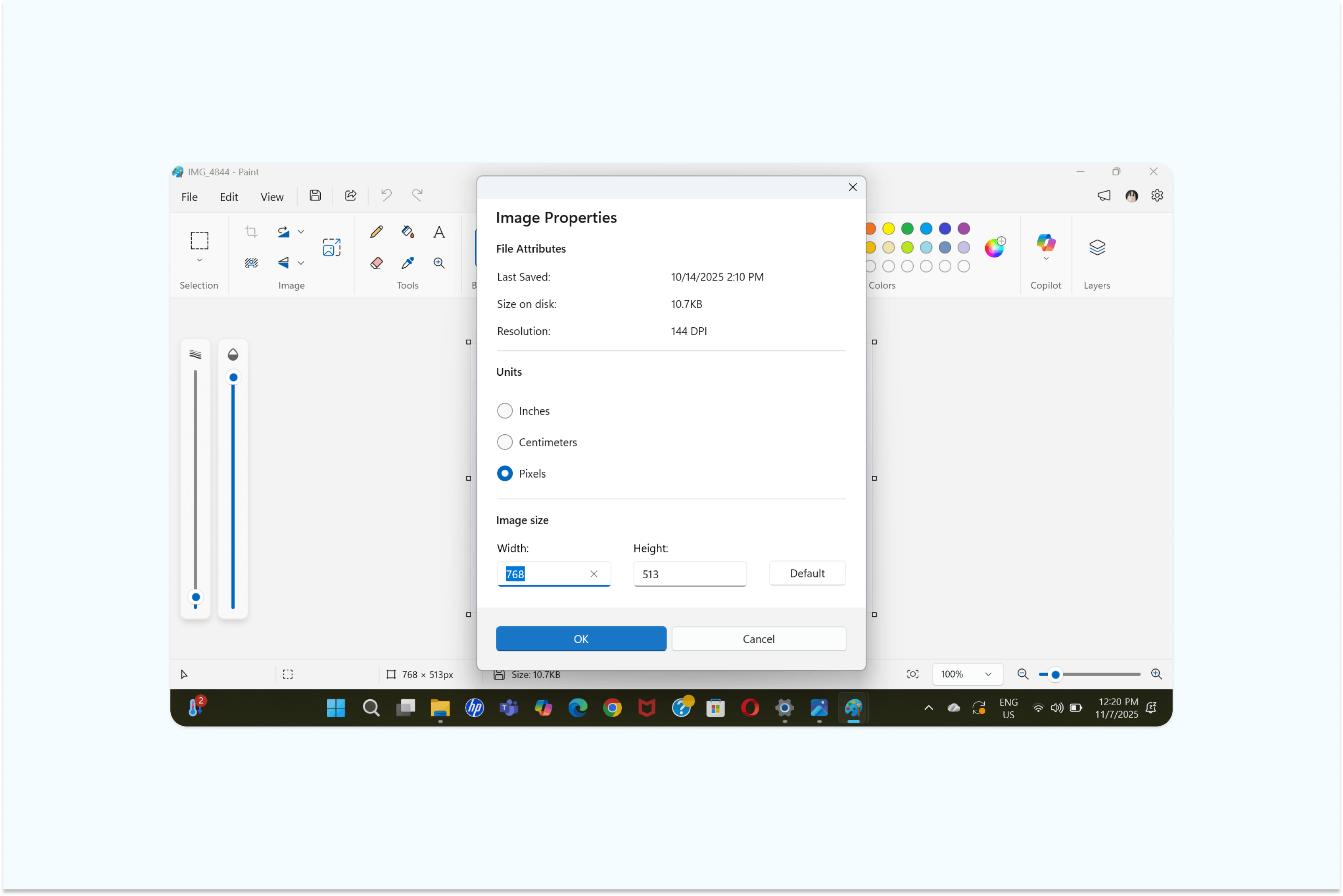
Note: Keep in mind that Windows’ built-in tools mainly reduce file size by resizing images instead of truly optimizing compression. For better results without altering dimensions, a dedicated tool like Lumin uses advanced compression technology to maintain image quality while efficiently reducing file size.
Method 3: Compress JPG on Mac
Mac users can quickly compress JPGs using built-in tools for a hassle-free experience.
Step-by-step guide to compress a JPG on Mac:
- Right-click the JPG file and select “Quick Actions.”
- Click “Convert Image.”
- Under Image Size, choose between “Small, Medium, or Large”.
- Click “Save” when you’re done.
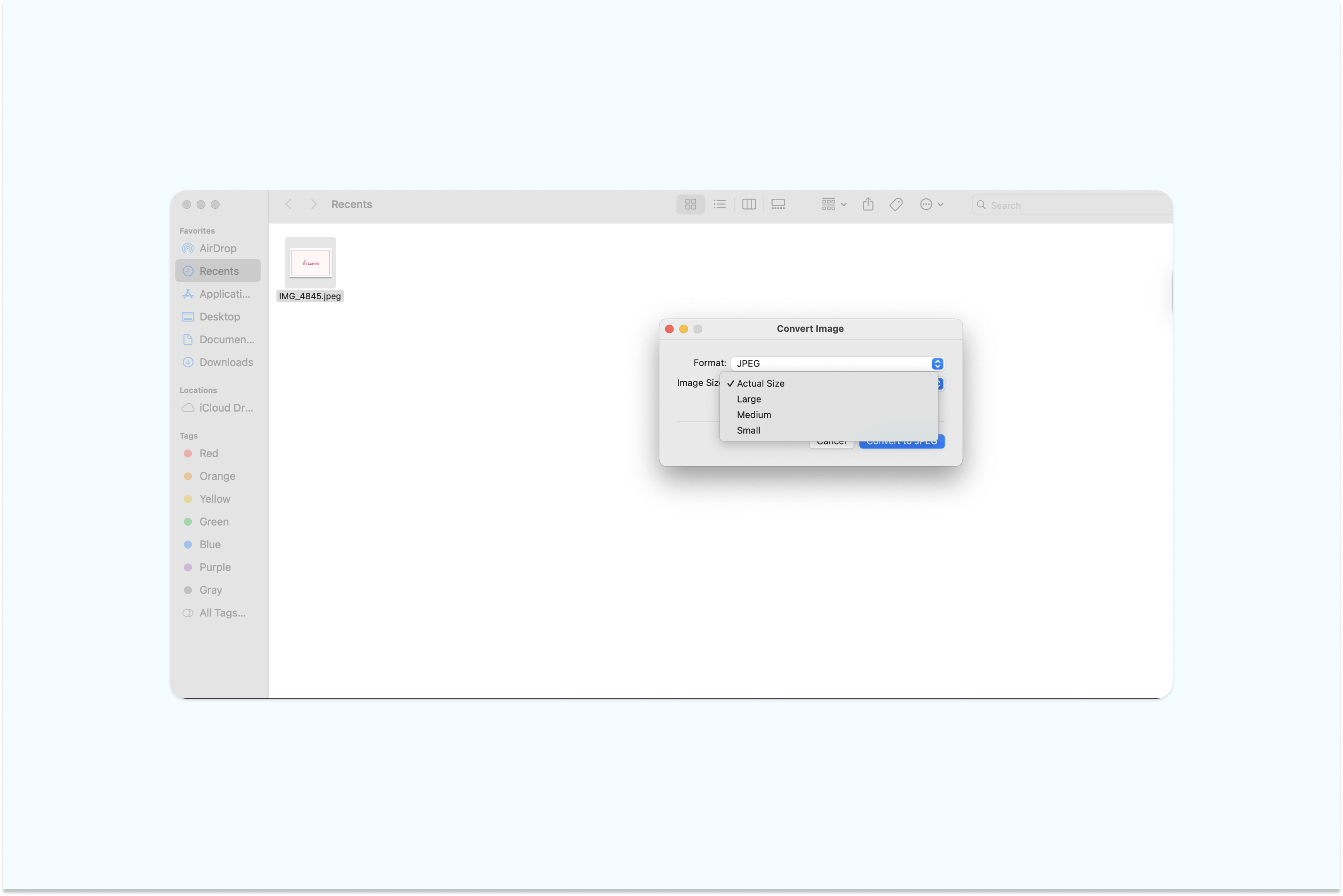
Note: Mac users can compress JPGs using built-in tools, but the options are limited. You can only adjust image size or export quality, which may not provide precise control over file compression.
Frequently asked questions
Can you compress a JPG without losing quality?
JPG is a "lossy" format, meaning some data is always removed during compression. However, modern compression algorithms can reduce file size by 50-80% with minimal visible quality loss. The key is choosing appropriate compression levels for your intended use.
What’s the ideal file size for a compressed JPG?
The ideal size depends on your use case. For web uploads, under 200 KB is often preferred. For printing or high-resolution displays, aim for minimal compression to preserve quality.
Can a compressed JPG be restored to its original quality?
No, once a JPG is compressed and saved, the lost data cannot be restored. It’s best to keep a backup of the original image before compressing.
Is compressing a JPG safe?
Yes, compressing a JPG is safe when done with a trusted tool like Lumin. We prioritize your data security through SOC 2 Type 2 attestation, GDPR and CCPA compliance, PCI-DSS certification, and AWS-backed cloud hosting. Lumin uses advanced encryption and industry-leading standards to keep your files protected at every step.
Make compression part of your workflow
Consistent image compression helps maintain fast-loading websites, reduces storage expenses, and keeps file sharing effortless. For designers, marketers, or everyday users, having a dependable compression tool means less hassle and more productivity.
Try Lumin to compress your JPGs for free, with no installation required, no watermarks, only clear, optimized images.

Share this post