
How to convert XSLX to PDF
Want to change your Word document into a usable Excel file? You can do it easily with a few simple techniques.
4 [{"lang":"es-es","url":"/es/blog/how-to-convert-xslx-to-pdf/"},{"lang":"pt-pt","url":"/pt/blog/how-to-convert-xslx-to-pdf/"},{"lang":"vi","url":"/vi/blog/how-to-convert-xslx-to-pdf/"},{"lang":"fr-fr","url":"/fr/blog/how-to-convert-xslx-to-pdf/"}]You can also read this article in Español, Português, Tiếng Việt and Français.
Table of contents
- 1. Method 1: Use Lumin's free Excel to PDF converter
- 2. Method 2: Use Microsoft Excel's built-in export
- 3. Troubleshooting common issues
- 4. Frequently asked questions
- 5. Need more than just a converter?
- 6. Related guides and tools:
Share this post
PDFs preserve your formatting, columns, and formulas-turned-values so nothing shifts when someone else opens the file. Converting XSLX to PDF is quick and free, and you have two reliable options depending on your setup.
Method 1: Use Lumin's free Excel to PDF converter
The fastest way to convert an XSLX file to PDF is with Lumin's free Excel to PDF converter. It works entirely in your browser, so there's no software to install and no account required.
How to convert your file:
- Open Lumin's free Excel to PDF tool and upload your .xlsx or .xls file.
- The "PDF Document" option will already be selected from the format dropdown menu.
- Select "Save on your computer" or save the PDF directly to your Google Drive.
That's all there is to it. Lumin preserves your spreadsheet's layout, including column widths, cell formatting, and any charts or images. It's a great option when you need a quick conversion without opening Excel or when you're working from a device without Microsoft Office.
Method 2: Use Microsoft Excel's built-in export
If you already have Excel open, you can save your spreadsheet as a PDF without leaving the application. This method gives you the most control over how the final PDF looks.
How to convert your file:
- Open your spreadsheet in Microsoft Excel.
- Click File, then choose “Save As” or “Export and select PDF” as the file format.
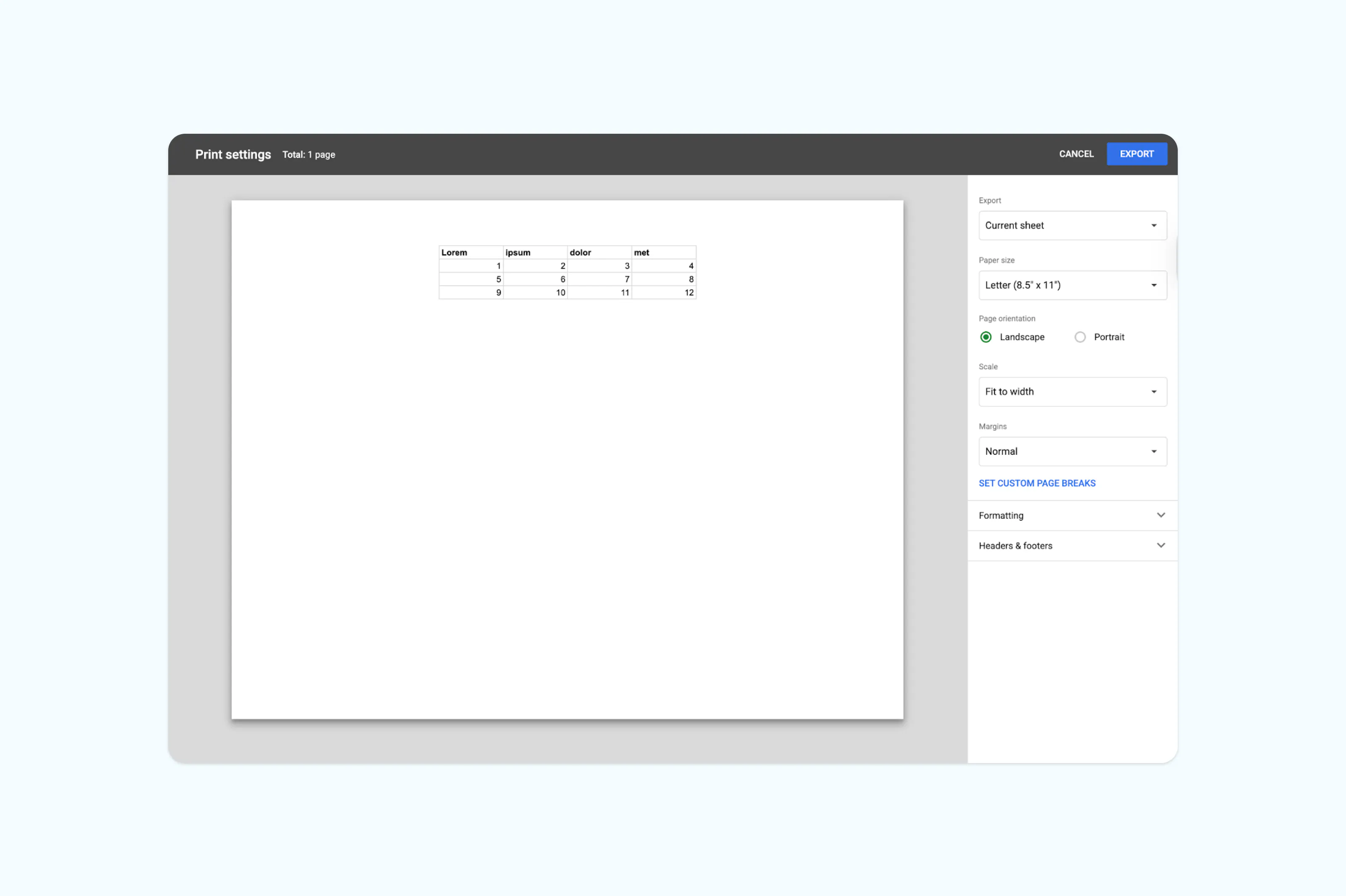
- In the export settings window, configure your page size, orientation, and scaling.
- Click “Export” to download your PDF.
Troubleshooting common issues
Even with straightforward methods, a few things can trip you up when converting XSLX files to PDF.
Columns are getting cut off. Switch to landscape orientation, reduce the scaling percentage, or use "Fit Sheet on One Page" before exporting. Adjusting column widths or hiding unnecessary columns can also help.
Only one sheet is showing up. Make sure you select "Entire Workbook" in the export options. By default, Excel only exports the active sheet.
The PDF file is too large. Spreadsheets with embedded images or charts can produce large PDFs. Try reducing image quality or splitting the workbook into smaller files before converting.
Frequently asked questions
Does Excel have a built-in PDF converter?
Yes. You can save any Excel file as a PDF using File > Save As or File > Export. This works in both the desktop and web versions of Excel, though the desktop version offers more control over export settings.
What is the shortcut key to convert Excel to PDF?
There's no single keyboard shortcut that converts directly to PDF. However, you can use Ctrl + Shift + S (Windows) to open the Save As dialog quickly, then select PDF as the format. On Mac, use Command + Shift + S.
Is it free to convert XSLX to PDF?
Yes. All two methods outlined in this guide are free. Lumin's online converter requires no sign-up or payment, Excel's built-in export is included with the software, and Google Sheets is free with a Google account.
Can I convert XSLX to PDF without losing formatting?
In most cases, yes. Check your page layout settings before exporting and make sure your scaling, margins, and orientation are set correctly. Using a dedicated converter or Excel's native export will generally produce the most accurate results.
Need more than just a converter?
Lumin's free tools go beyond file conversion. Create a free account to annotate, merge, sign, and edit your PDFs directly in the browser.
Share this post