
How to copy text from a PDF (even if it's locked or scanned)
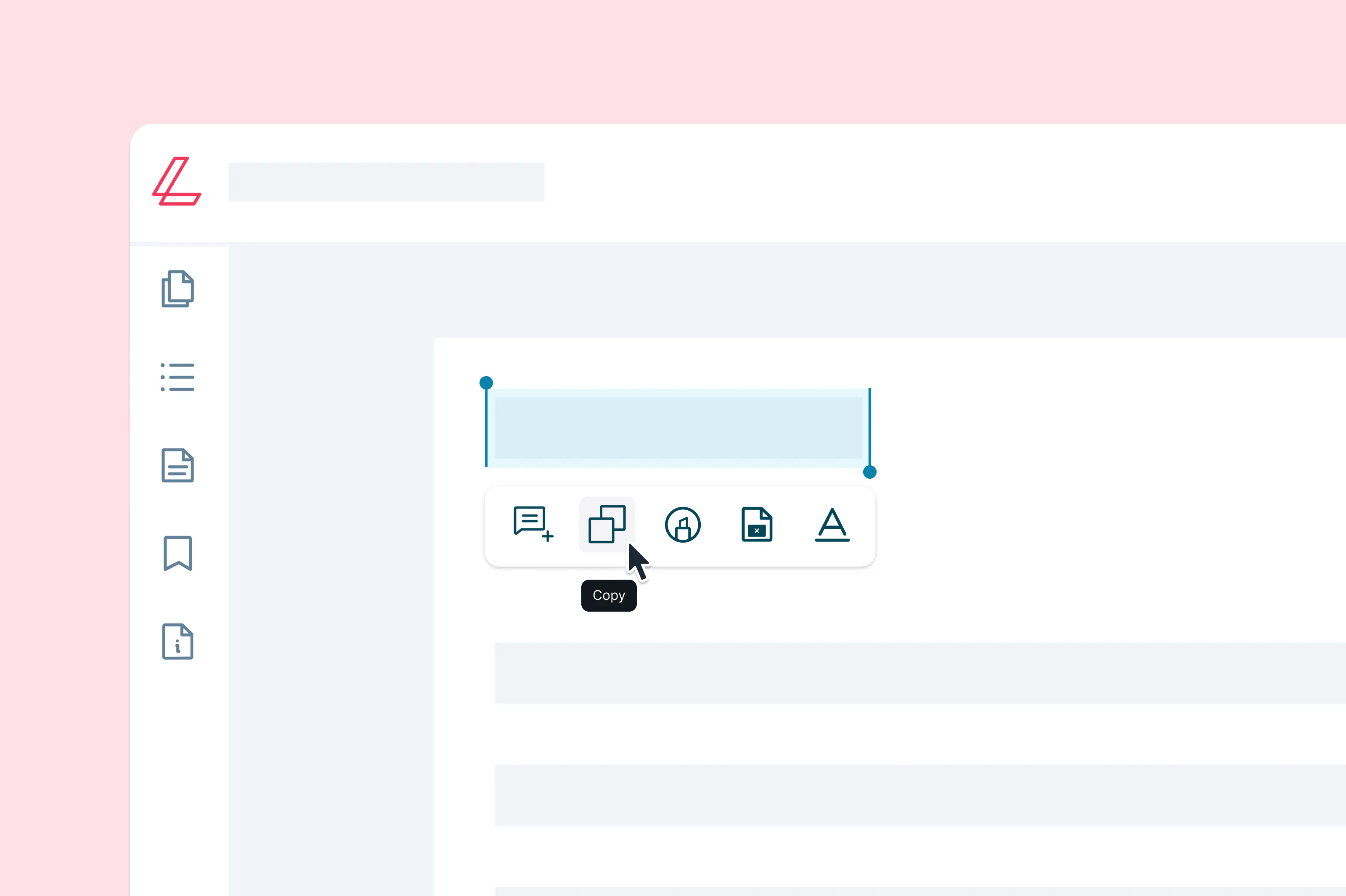
Learn how to quickly copy text from any PDF using Lumin—no downloads, no hassle.
Table of contents
- 1. The easy way: Use Lumin to copy text from any PDF
- 2. Another option: Use Google Docs
- 3. Why can’t I copy text from some PDFs?
- 4. Get more from your PDFs with Lumin
Share this post
Trying to copy text from a PDF but nothing happens? Or maybe you paste it into another document and nothing shows up at all? That usually means one of two things: the PDF was created by scanning an image, or the creator has protected the file.
This guide walks you through how to copy text from a PDF properly, why it doesn’t always work, and the best tools to use — starting with the fastest method.
The easy way: Use Lumin to copy text from any PDF
Before diving into workarounds, here’s the most reliable option: Lumin makes it simple and free to open any PDF and extract or copy text, even if it's scanned or locked.
The most likely reason you can’t copy from your PDF is because it was created or converted from an image. Lumin helps you get around this problem by using something called optical character recognition (OCR).
Here’s how to do it:
- Open the Lumin free PDF OCR tool and upload your PDF from your device, Google Drive, or Dropbox.
- Lumin will automatically run OCR (optical character recognition) to detect and unlock any text in the document.
- Once finished, you will be able to highlight and copy the text just like you would in any editable file.
You can also annotate, highlight, or edit the PDF however you need, all without downloading an app.
Another option: Use Google Docs
If you’re PDF isn’t locked or a scanned image, you can also open it and copy text from it in Google Docs. Here’s how to do it:
- Go to Google Drive and upload your PDF
- Once uploaded, right-click the file and choose Open with > Google Docs
- Google Docs will convert the PDF to a Google Doc format. From there, you can highlight and copy the text.
Keep in mind: This method works best on clean, text-based PDFs. Scanned documents won’t convert unless OCR is applied first, and formatting can sometimes break during conversion.
Why can’t I copy text from some PDFs?
You’ve opened the PDF, tried to select the text, but nothing happens. Or you copy and paste it, and the output is unreadable. Here’s what could be going on:
The PDF is a scanned image
Many PDFs, especially contracts, signed forms, or receipts, are actually images of text, not text files. That means your computer sees them as pictures, not words. To extract the text, you’ll need a tool with OCR (optical character recognition), like Lumin.
Copying is disabled by the document author
PDF creators can add security settings that prevent copying, editing, or even printing. These are often used for intellectual property protection or compliance. If this is the case, the copy function will be grayed out unless the document is unlocked or converted with permission.
Check out our unlock PDF tool for help accessing secured documents
The formatting or fonts are embedded
In some PDFs, especially those made in design software, text is rendered as paths or shapes rather than characters. Even if you can highlight the content, what you paste may appear as scrambled characters or blank space. A proper OCR conversion tool is needed to extract readable text.
What if I don’t want others to copy text from my PDF?
If you’re sharing sensitive documents or proprietary content, you might want to protect your PDF from being copied. Here are a couple of ways on how to make a PDF non-editable.
- Password-protect your PDF: Limit access entirely with a password. Only those with the password can view or edit the document. Protect your PDF with a password now.
- Flatten the document: If you want to make text unselectable, consider flattening the PDF into an image-based format. Just note that this will make your file less accessible for screen readers or text search.
Get more from your PDFs with Lumin
Copying text is just the beginning. With a free Lumin account, you can edit PDFs, add comments, convert files, highlight text, collaborate and more. It’s fast to set up, easy to use, and completely free to get started.

Share this post