
How to draw on a PDF
There are times when you need to mark up a PDF with notes, highlight important sections, or add diagrams. Drawing on PDFs is essential for reviewing contracts, providing feedback on designs, or adding your signature to documents. Whether you're using a Mac, a Windows PC, or working in your browser, we'll show you exactly how to draw on PDF files using the tools you already have.
Table of contents
- 1. Why draw on PDFs?
- 2. Method 1: Draw on PDFs online with Lumin (works everywhere)
- 3. Method 2: Draw on a PDF on a Mac using Preview
- 4. Method 3: Draw on PDFs in Windows with Microsoft Edge
- 5. Advanced drawing features
- 6. Common challenges and solutions
- 7. Best practices for PDF annotation
- 8. Start drawing on PDFs today
Share this post
Why draw on PDFs?
PDFs are designed to preserve formatting and ensure documents look the same on any device, but this often means they're locked for editing. Drawing tools let you add annotations without altering the underlying document structure. This makes them perfect for marking up documents during review processes, adding visual explanations to complex information, or collecting signatures on forms and contracts.
Method 1: Draw on PDFs online with Lumin (works everywhere)
The fastest way to draw on any PDF is using Lumin's online PDF editor. This browser-based tool works on any device and includes professional drawing features, eliminating the need for software installation.
How to draw on a PDF with Lumin:
- Open Lumin’s free PDF drawing tool and upload the PDF you want to draw on.
- Once the file loads, click the Annotate toolbar on the side of the viewer.
- Click the “Draw” button (with an icon shaped like a curved line) to activate the drawing tool.
- Choose your preferred color and line thickness.
- If you want to draw shapes, click the rectangle shape at the top of the toolbar.
- Click and drag your cursor to draw directly on the PDF.
- When you’re done, save your PDF to keep all your drawings intact.
Lumin's drawing tools encompass a range from simple pen marks to professional shapes, including arrows and rectangles. The platform automatically saves your work, so you never lose your annotations, and you can return to edit them later.
Method 2: Draw on a PDF on a Mac using Preview
Mac users have a built-in solution with Preview, Apple's default PDF viewer. While not as feature-rich as dedicated PDF editors like Lumin, it handles basic drawing tasks well.
Steps for drawing in Preview:
- Right-click your PDF and select “Open With > Preview”.
- Click “Markup” on the toolbar (the icon looks like a pen tip).
- Select the “Sketch tool” with the curved-line icon to draw freehand.
- To add lines, arrows, or rectangles on the right side of the Sketch tool, click the “Draw” button with the curved-line icon.
- Once selected, draw directly on your document using your mouse or trackpad.
- Press “Command + S” to save your changes.
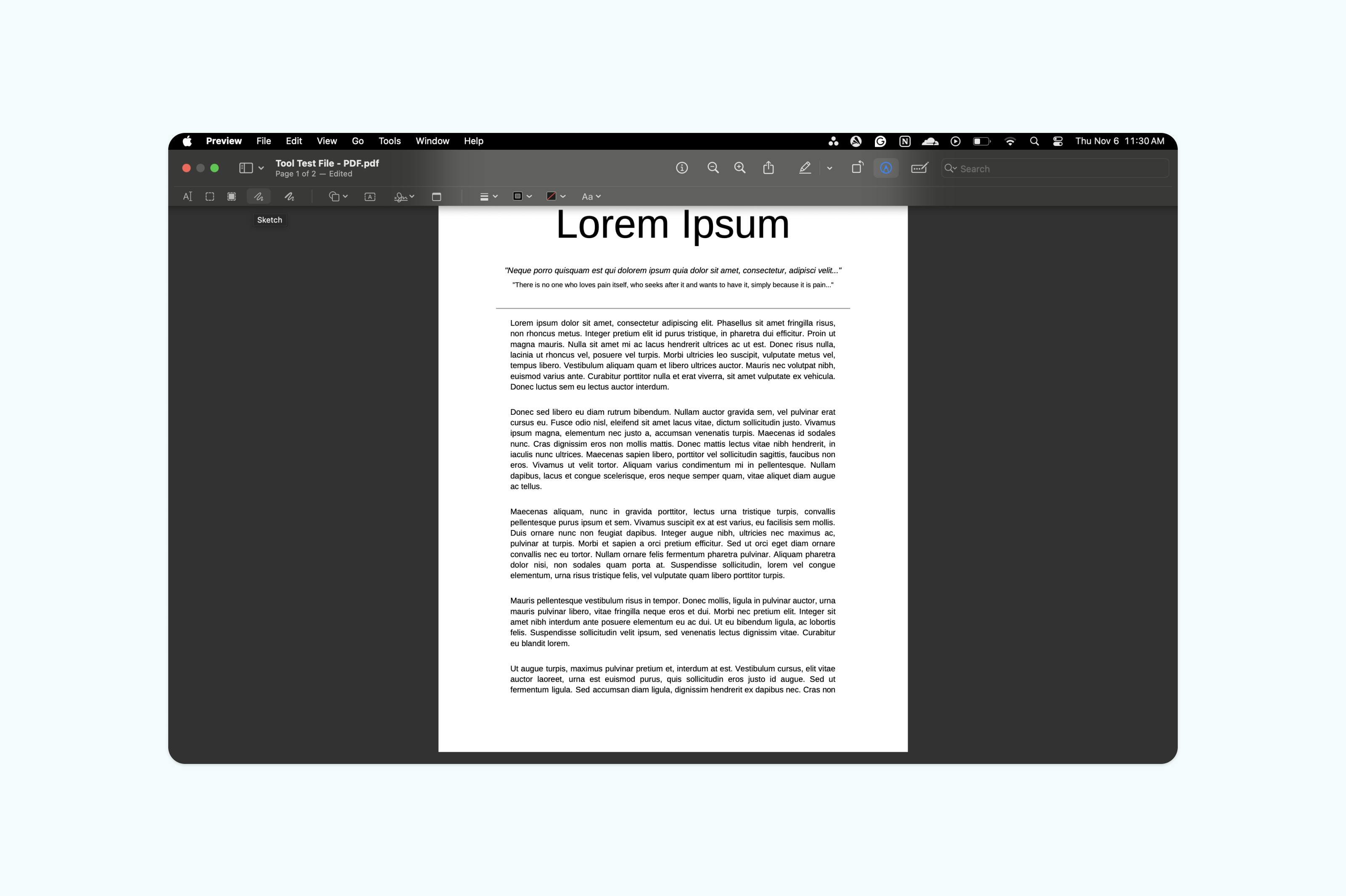
Preview works well for simple annotations, but lacks advanced features like layered drawings or collaborative markup that you'll find in Lumin PDF.
Method 3: Draw on PDFs in Windows with Microsoft Edge
While Windows doesn't have a direct equivalent to Mac's Preview, Microsoft Edge includes built-in PDF annotation tools that work surprisingly well for basic drawing needs. This native Windows browser doubles as a capable PDF editor for quick markups.
How to draw on PDFs in Microsoft Edge:
- Right-click your PDF file and select "Open with > Microsoft Edge".
- Click the “Draw” tool for freehand annotations.
- Pick your ink color from the color palette.
- Draw directly on the PDF with your mouse or stylus.
- Save your annotated PDF using “Control + S”
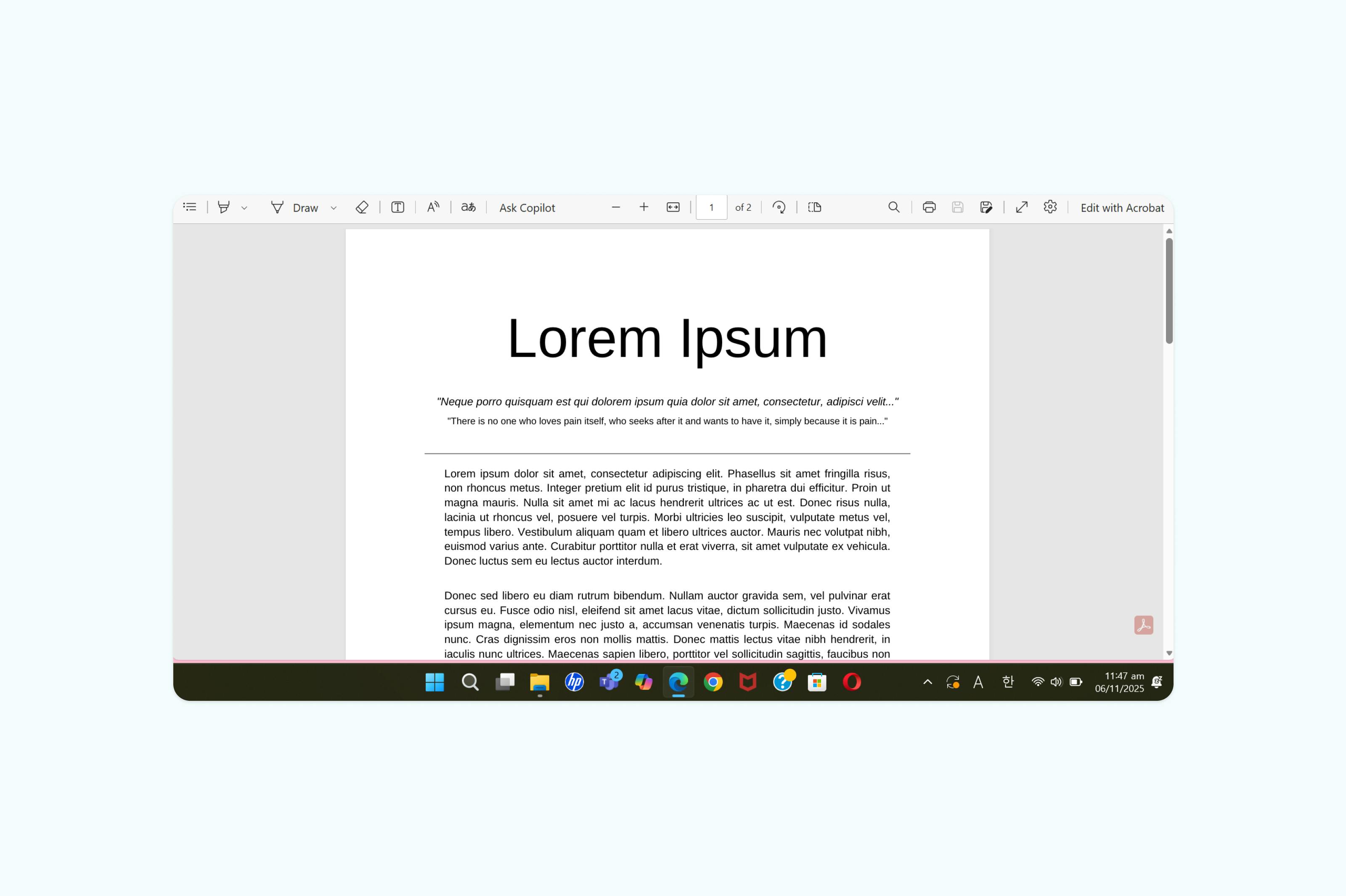
Edge's drawing tools are basic but functional for everyday needs. For more advanced features like shapes, arrows, or collaborative annotation, you'll want to use a dedicated PDF editor like Lumin, which works seamlessly in any Windows browser.
Advanced drawing features
Professional PDF annotation goes beyond simple lines and shapes. Modern PDF editors include features that enhance your drawing capabilities and streamline your workflow.
Layers and transparency
Advanced editors let you create drawing layers, keeping your annotations separate from the document content. This allows you to show or hide markup as needed, perfect for documents requiring multiple review rounds.
Collaboration tools
When multiple people need to review a document, collaborative drawing features become essential. Lumin's editor lets team members add their own colored annotations, making it easy to distinguish different reviewers' comments.
Common challenges and solutions
Why aren’t my drawings being saved to the PDF?
Make sure you’re using a PDF editor, not just a viewer. Some viewers may show drawing tools, but they won’t actually save your edits. Web-based editors often save your work automatically to prevent data loss.
How can I draw more accurately on a PDF?
If you’re having trouble with precision, especially on a touchscreen, try zooming in before you start drawing. Some PDF editors also include alignment tools that help you create cleaner lines and shapes.
Why did my PDF file get bigger after drawing on it?
Adding annotations or drawings can increase your PDF’s file size. To keep your document lightweight, use a compression tool after editing. It reduces the file size while maintaining the visual quality of your drawings.
Best practices for PDF annotation
Professional PDF markup involves more than just knowing which buttons to click. Following best practices ensures your annotations enhance the document rather than clutter it. Keep your drawings clean and intentional by using consistent colors for similar types of feedback, and avoid overlapping annotations that make the text hard to read. When adding multiple comments, use numbered callouts with a separate comment list instead of crowding everything onto the page.
Start drawing on PDFs today
Drawing on PDFs doesn’t require expensive software or advanced technical skills. Whether you use browser-based tools, built-in system features, or dedicated applications, the key is finding a solution that fits your workflow.
You can also learn how to add text boxes, insert an image into a PDF, highlight key points, or edit your PDF to make your files more dynamic. These tips will help you work efficiently and bring your ideas to life on any PDF.

Share this post