
How to convert PNG to Word
Need to convert a PNG image into a Word document? Whether you’re working with screenshots, scanned pages, or image-based files, modern OCR (Optical Character Recognition) technology makes it possible to turn PNG images into fully editable Word documents in minutes.
4 [{"lang":"pt-pt","url":"/pt/blog/como-converter-png-para-word/"},{"lang":"fr-fr","url":"/fr/blog/comment-convertir-png-en-word/"},{"lang":"vi","url":"/vi/blog/cach-chuyen-png-sang-word/"},{"lang":"es-es","url":"/es/blog/como-convertir-png-a-word/"}]You can also read this article in Português, Français, Tiếng Việt and Español.
Table of contents
- 1. Why PNG files need OCR
- 2. Method 1: Use Lumin’s free PNG to Word converter
- 3. Method 2: Convert PNG to Word using Google Docs
- 4. Frequently asked questions
- 5. Start converting your PNG files today
Share this post
Converting PNG files to Word is a common task for work, school, and personal use. This guide walks through the most reliable conversion methods, explains why OCR is required, and answers common questions so you can avoid text errors, missing content, or formatting issues during the process.
Why PNG files need OCR
A PNG file is an image format, not a text-based document. Even if the image contains readable words, your computer treats them as pixels rather than editable text. This is why you can’t highlight, copy, or edit the content directly.
To convert a PNG image into an editable Word document, you need OCR. OCR analyzes the image, recognizes letters and words, and converts them into real text that you can edit in Word. Without OCR, the file remains a static image.
Method 1: Use Lumin’s free PNG to Word converter
The easiest way to convert a PNG to Word is by using Lumin’s free OCR converter. It automatically detects text within images and converts it into an editable Word document while preserving readability and structure.
Steps to convert a PNG to Word using Lumin:
- Open Lumin’s free PNG to PDF converter and upload your PNG file.
- The tool automatically applies OCR to extract the text from the image.
- Select “Word Document (.docx)” as the output format.
- Download the file to your computer or save it directly to Google Drive.
Note: Lumin does not have a direct tool for PNG to Word. However, you can open the PNG to PDF and download it as Word instead of PDF. Your Word document will contain editable text with preserved paragraphs and spacing where possible. While complex layouts or decorative fonts may need minor adjustments, the converted file remains clear and usable. You can also fill and sign for free with Lumin once the document is converted.
Method 2: Convert PNG to Word using Google Docs
Google Docs offers a free OCR option that works well for basic PNG images containing text. This method requires a Google account and works directly in your browser.
Steps:
- Upload your PNG image to Google Drive.
- Right-click the file and select “Open with > Google Docs”.
- Google Docs automatically extracts the text from the image.
- Copy the text and paste it into a new document if needed.
- Download the file as a “Word document (.docx).”
Note: When converting a PNG to Word using Google Docs, the original formatting may not be preserved. You may need to adjust spacing, fonts, or layout after conversion.
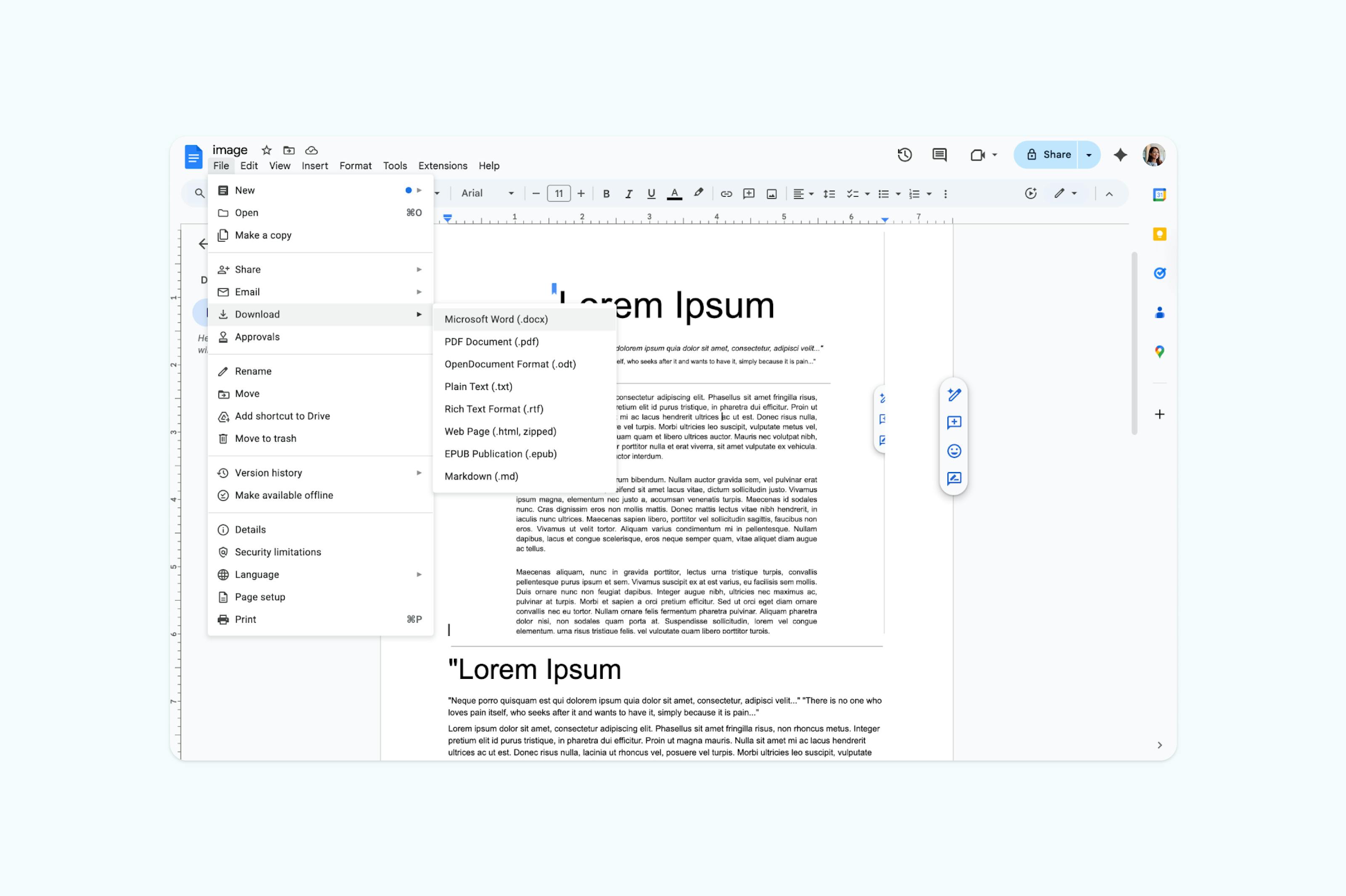
Note: This approach works best for simple layouts and standard fonts. Images with columns or layered elements may need manual cleanup.
Frequently asked questions
Can I convert PNG to Word for free?
Yes, Lumin's converter is completely free to use. You don't need to create an account or provide payment information to convert PNG files to Word documents.
How do I make a PNG image editable in Word?
To make text in a PNG editable, you need to use a tool with OCR capability. Lumin's converter automatically extracts text from PNG images and converts it into editable Word text. Simply upload your PNG, perform OCR, select Word format, and download the result.
Can I convert screenshots to Word documents?
Yes, you can convert screenshots saved as PNG files to Word documents. If the screenshot contains text, OCR will extract it and make it editable. If it's just an image, it will be embedded in the Word file as a picture.
What's the difference between converting PNG to Word and inserting it?
Converting a PNG to Word with OCR extracts the text and makes it editable, creating a new document. Inserting a PNG simply adds the image to an existing Word document as a picture. Choose conversion when you need to edit text from the image, and choose insertion when you want to use the image as-is.
Will the formatting be preserved when I convert PNG to Word?
Basic text and layout structures are usually preserved, but complex formatting may need manual adjustment. The accuracy depends on the image quality and complexity of the original document. Simple documents with clear text convert more accurately than complex layouts with multiple columns or special fonts.
Can I convert multiple PNG files at once?
While Lumin's converter processes one file at a time, you can upload and convert multiple PNG files sequentially. Each file converts in seconds, making it quick to process several images back-to-back.
Start converting your PNG files today
Transform your PNG images into editable Word documents in seconds. Lumin's converter handles everything from simple screenshots to complex scanned documents with text extraction. No software installation, no registration required, just fast and accurate conversions every time.

Share this post