
How to Insert Signature in Word

From contracts to business proposals, Word documents often require a signature. Fortunately, there are several free and simple ways to add one, making it easy to sign your document whenever needed.
4 [{"lang":"pt-pt","url":"/pt/blog/how-to-insert-signature-in-word/"},{"lang":"fr-fr","url":"/fr/blog/how-to-insert-signature-in-word/"},{"lang":"es-es","url":"/es/blog/how-to-insert-signature-in-word/"},{"lang":"vi","url":"/vi/blog/how-to-insert-signature-in-word/"}]You can also read this article in Português, Français, Español and Tiếng Việt.
Table of contents
- 1. Method 1: The quick option: Sign your document as a PDF
- 2. Method 2: Inserting a signature line in Word
- 3. Method 3: Inserting a handwritten signature in Word
- 4. Method 4: Inserting an electronic signature in Word
- 5. Frequently asked questions
Share this post
In this guide, we'll walk you through the most common methods for adding a signature in Word, along with a faster alternative for when your document needs to be signed as a PDF.
Method 1: The quick option: Sign your document as a PDF
If your Word document requires a professional signature or needs to be sent to others for signing, converting it to PDF first is often the easiest option. PDF signatures are widely accepted, more secure and the standard format for contracts and formal agreements.
With Lumin's free online signing tool, you can sign a document in a few clicks:
- Convert your Word document using Lumin's free Word to PDF converter.
- Save the PDF document on your computer.
- Open the PDF in the free editor and click "Fill & Sign," then select "Signature" from the toolbar.
- Click "Add Signature" and choose to draw it freehand, upload an image or type it.
- Place your signature anywhere in the document, then download or share the signed file.
Note: This works on any device, directly in your browser, with no software to install.
Method 2: Inserting a signature line in Word
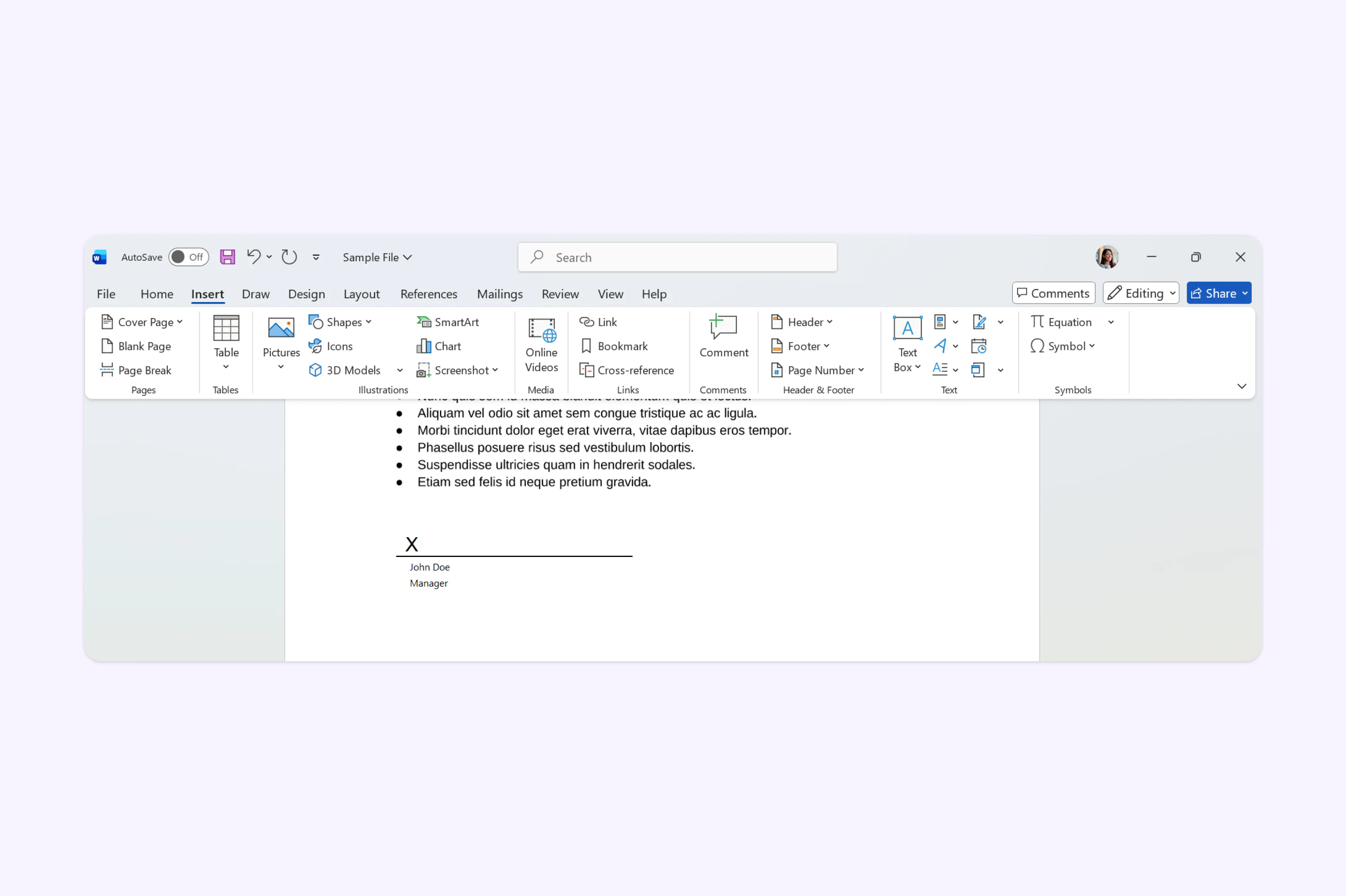
Word has a built-in signature line feature that creates a placeholder for a signature. This is handy if you're preparing a document for someone else to sign, either digitally or after printing.
- Place your cursor where you want the signature to appear.
- Go to the "Insert" tab on the ribbon.
- Click "Add a Signature Line" in the Text group.
- Next select "Microsoft Office Signature Line" depending on your version
- Enter the signer's name, title and email address in the dialog box, then click "OK."
- A signature placeholder will appear in your document and you can sign your Word.
Note: The signature line feature is primarily available in Word for Windows. However, on Mac, functionality is more limited, so using an online signing tool is often the better option.
Method 3: Inserting a handwritten signature in Word
If you want your actual handwritten signature in a Word document, you can insert it as an image. This is a popular method for adding a personal touch to letters or forms.
- Sign your name on blank white paper.
- Take a clear photo or scan it and save as a PNG or JPG file. Crop tightly around the signature for a cleaner result.
- In Word, go to "Insert" > "Pictures" and select your signature image.
- Resize and position it. Right-click the image and select "Wrap Text" > "In Front of Text" if you need to place it over a signature line.
Note: This method works on both Windows and Mac. Keep in mind that an inserted image doesn't carry any verification or authentication. It’s a visual representation, not a legally verified signature.

Method 4: Inserting an electronic signature in Word
An electronic signature in Word typically means typing your name in a cursive-style font. While this doesn't provide the same legal weight as a verified digital signature, it can work for internal documents and informal agreements.
- Place your cursor where you want your signature.
- Type your name and change the font to a script style, such as "Segoe Script" or "Lucida Handwriting."
- Adjust the size until it looks natural.

For documents that require a legally binding electronic signature, such as contracts, NDAs or onboarding paperwork, you'll want a dedicated signature tool. Lumin Sign lets you send documents for signing, track progress, and capture legally compliant signatures that meet international e-signature regulations.
Frequently asked questions
Can I insert a signature on every page in Word?
Word doesn't have a feature to repeat a signature on every page automatically. You can add a signature image to the header or footer, but for multi-page contracts it's more practical to convert to PDF and use a signing tool that supports page-by-page placement.
Can I just type my name as an electronic signature?
Yes, a typed name can serve as an electronic signature in many informal contexts. For legal documents, you'll want a tool that provides verification and an audit trail such as Lumin Sign.
Why can't I insert a signature line in Word on Mac?
The signature line feature is more limited on Mac than on Windows. Try inserting a handwritten signature as an image instead, or convert your document to PDF and sign it using an online tool like Lumin.
Is a scanned signature legally binding?
A scanned signature inserted as an image can be accepted in some contexts, but it doesn't include verification or tamper-proofing. For legally binding signatures, use a dedicated signature platform that complies with regulations like the ESIGN Act and UETA.
Meet our author

Share this post