
Flatten PDF
Remove interactive elements and make your PDF uneditable. Flatten forms, annotations, and layers into a single, static document that looks the same on any device. Upload and flatten for free.Almost there, finishing the upload.

Drag and drop or click here to upload
You're in good company







How to flatten a PDF
- 1
Step 1
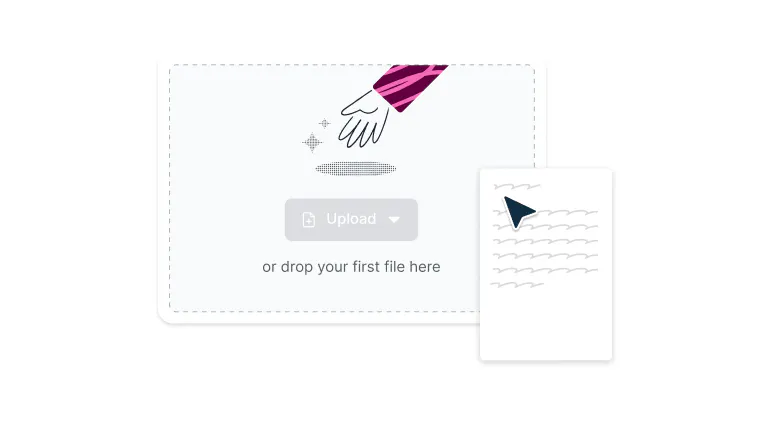
Drop a PDF file into the dropzone above or click the 'Upload' button.
- 2
Step 2
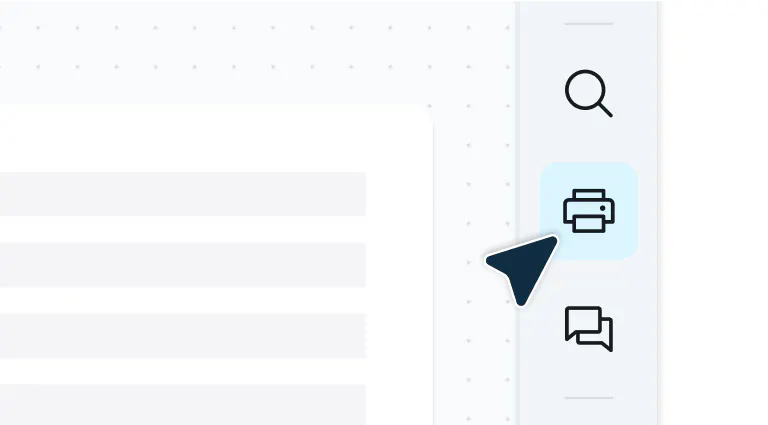
Click the ‘Print’ button in the toolbar and select ‘Save as PDF’.
- 3
Step 3
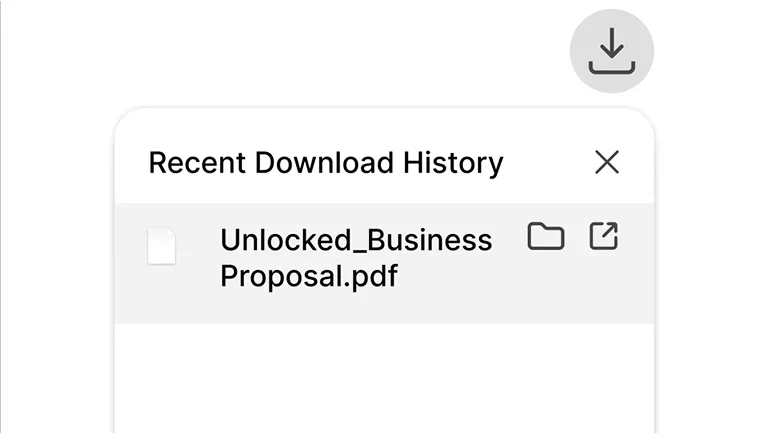
Click ‘Save’. Your flattened PDF will be saved in your chosen location.
Easy PDF flattening
Keep formatting consistent no matter where your document goes.

Complete document control
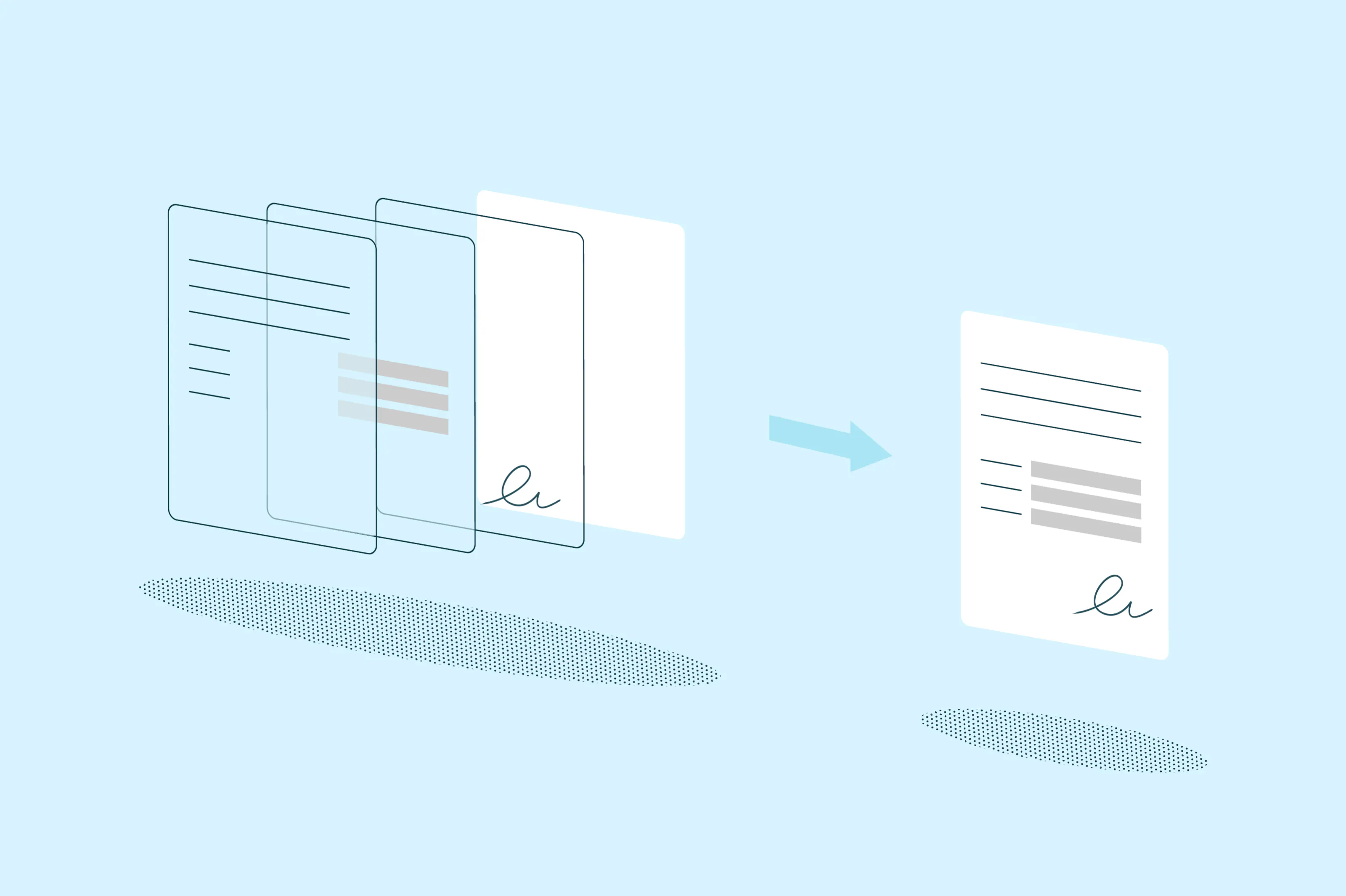
Lumin's flattening feature permanently locks in all your text, annotations, form fields, and images into one clean, professional document. What you see is exactly what everyone else gets, with no formatting surprises.

Edit first, convert later
Use Lumin's full editing toolkit to highlight important sections, add notes, fill out forms, or insert text, then flatten the PDF to lock everything into place permanently.

Works on any device
Whether you're finishing up a proposal on your Mac or Windows laptop, reviewing contracts on your iPad, or making quick edits on your iPhone or Android device, Lumin's flatten PDF functionality works seamlessly across every device.

Enterprise-level security
Your sensitive documents deserve serious protection. We process your PDFs with enterprise-level security that keeps your content safe from upload to final download.

Connects to your existing workflow
Improve your workflow without disrupting it. Pull files directly from Google Drive, make your edits, flatten the PDF, and save everything back where it belongs.

Intelligent file optimization
Transform complex, layered documents into clean, efficient PDFs that load faster, print better, and display consistently everywhere.
Frequently asked questions
Flattening a PDF means converting all interactive and layered elements – including form fields, annotations, and digital signatures – into a single, static layer. This process makes the document uneditable and ensures that all content appears exactly as intended, regardless of the viewing software or device.
With Lumin, you can achieve this by using our print-to-PDF feature, which effectively "locks in" all the visual elements permanently.Flattening your PDF keeps everything looking exactly as it should. The process merges interactive elements — like form fields, annotations, and layers — into one clean document without messing with the visual quality.
Your text stays crisp and images remain clear. While some ultra-high-resolution graphics might see minor adjustments during flattening, the quality that matters most is preserved.
You'll end up with a consistent document that's secure and ready to share or print — without the complexity of layered structures.Using our flattening process doesn't remove form fields and annotations, but it does convert them into permanent, non-interactive content.
Filled form fields become regular text, checkboxes and radio buttons become static marks, and annotations become part of the document's visual layer. The content remains visible and intact, but users can no longer modify, clear, or interact with these elements.Flattening your PDF before printing is a smart move. It locks everything in place so what you see on screen is exactly what comes out of the printer.
Without flattening, these elements can get messy or disappear entirely, especially when you're printing from different devices or printer setups. Flattening creates a clean, simplified version that prints consistently every time.
Got fillable fields, signatures, or markups in your PDF? Flatten it first to avoid those annoying formatting surprises and missing content that can ruin an otherwise perfect document.Flattening a PDF doesn’t necessarily reduce its file size. The result depends on how the PDF was originally created and how complex its interactive elements (like form fields, annotations, or layers) are.
In some cases, flattening can simplify the document and make it smaller. But in others (especially if flattening converts vector graphics or interactive elements into high-resolution images), the file size might actually increase.
If you need to reduce the size of your PDF once flattened, try our PDF compression tool.Yes! One of the key advantages of using Lumin is the ability to make edits before flattening.
Add highlights, insert text, create annotations, fill out forms, or make any other modifications using our comprehensive PDF editor. Once you're satisfied with all changes, use the print-to-PDF feature to flatten the PDF and lock everything in permanently.
Trusted by more than 100 million customers



Your go-to PDF editing guides

Discover Lumin’s products
Collaborate with existing colleagues and onboard new ones with Lumin and Lumin Sign. Our innovative solutions work great on their own, but they’re even better together.

Lumin Sign