
How to save a PDF as a JPG
Sharing visuals or uploading files to platforms that only accept images? Convert your PDF to JPG so your pages display clearly and open easily anywhere.
Table of contents
- 1. Method 1: Use Lumin's free PDF to JPG converter
- 2. Method 2: Convert PDF to JPG on Mac
- 3. Method 3: Convert PDF to JPG on Windows
- 4. Why PDFs need to be converted to JPG
- 5. Tips for high-quality conversions
- 6. Frequently asked questions
Share this post
Whether you're creating presentations, uploading to websites that only accept images, or sharing documents with someone who can't open PDFs, converting your PDF files to JPG format is a common task that should be simple. In this guide, we’ll show you three reliable ways to save any PDF as a JPG image, from fast online converters to built-in options on your device. Each method preserves your document’s layout and quality while giving you the flexibility of working with image files instead of PDFs.
Method 1: Use Lumin's free PDF to JPG converter
The fastest way to convert a PDF to JPG is using Lumin's online converter. This browser-based tool works on any device, eliminating the need for software installation or sign-ups, making it ideal for quick conversions.
Here's how to convert your PDF to JPG with Lumin:
- Open Lumin’s free PDF to JPG converter and upload your PDF.
- Sign in to your account and select “JPG” as the output format.
- Click “Save on your computer” or choose “Save to Google Drive” to store your new JPG file.
In Lumin PDF, you can perform OCR on your JPGs after converting them from a PDF, allowing you to search, copy, and edit the text directly. You can also make further edits to the images, annotate them, or combine them with other files, giving you full control over your converted documents.
Method 2: Convert PDF to JPG on Mac
Mac users have a built-in option for converting PDFs to JPG using Preview, the default PDF viewer. This method works offline and doesn't require any additional software installation.
Here's how to save a PDF as a JPG on a Mac:
- Open your PDF in Preview (right-click the file and select "Open With" > "Preview").
- Go to “File > Export”.
- Click the Format dropdown and select "JPEG".
- Adjust the quality slider to your preference (higher quality means larger file sizes).
- Choose your save location and click "Save".
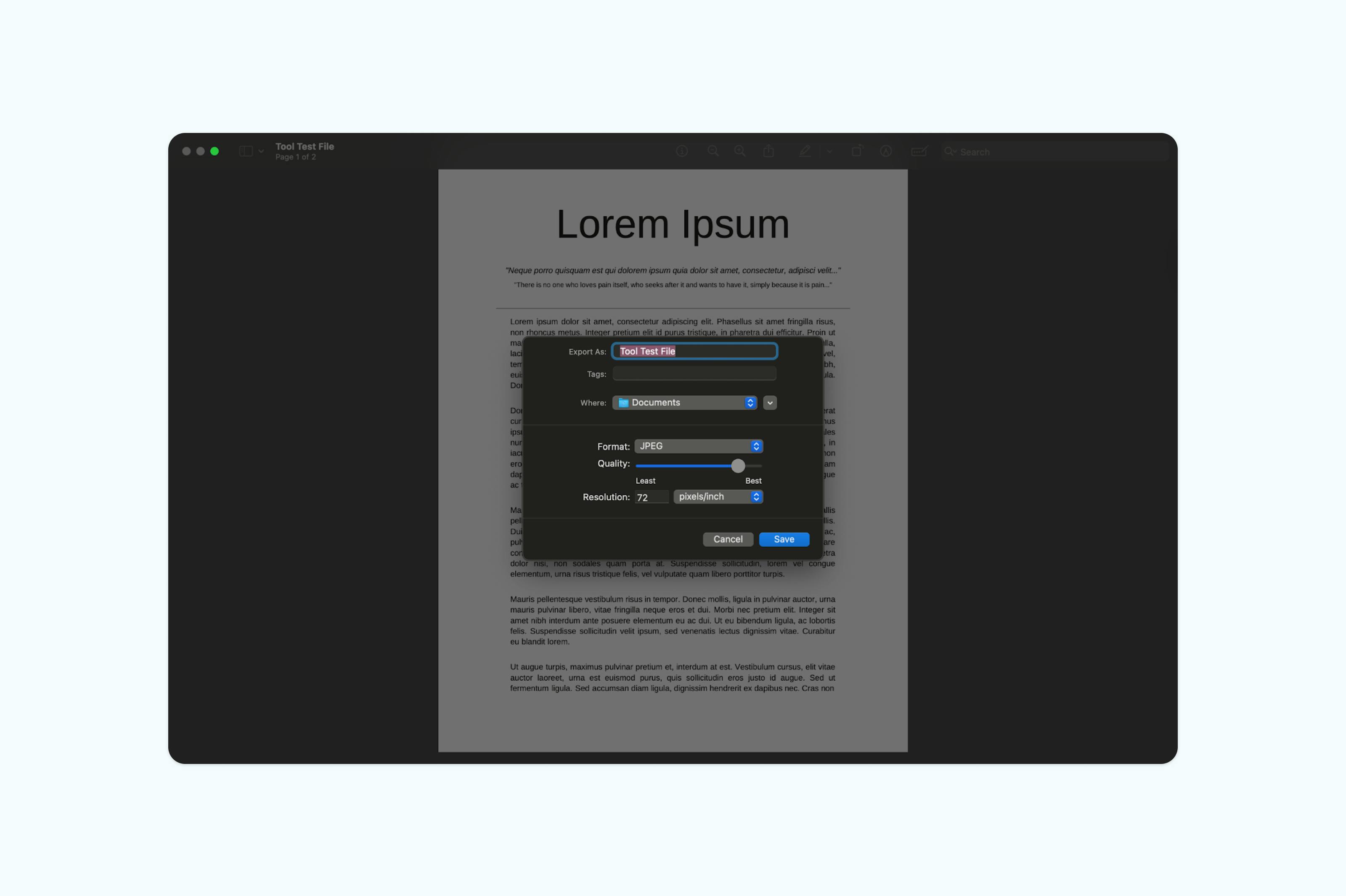
For multi-page PDFs, you'll need to export each page individually. Select the page you want to convert in the sidebar, then follow the export steps above. While this takes more time than automated tools, it gives you full control over each page's quality settings.
Method 3: Convert PDF to JPG on Windows
Windows users can convert PDFs to JPG by taking a screenshot of the PDF pages. This method is free and does not require any additional software.
Follow these step-by-step instructions:
- Open your PDF and navigate to the desired page.
- Press “Windows + Shift + S” to open the Snipping Tool.
- Select the rectangle so you have more control over the area you want to capture.
- Click the notification, and your screenshot will open in the folder where screenshots are saved.
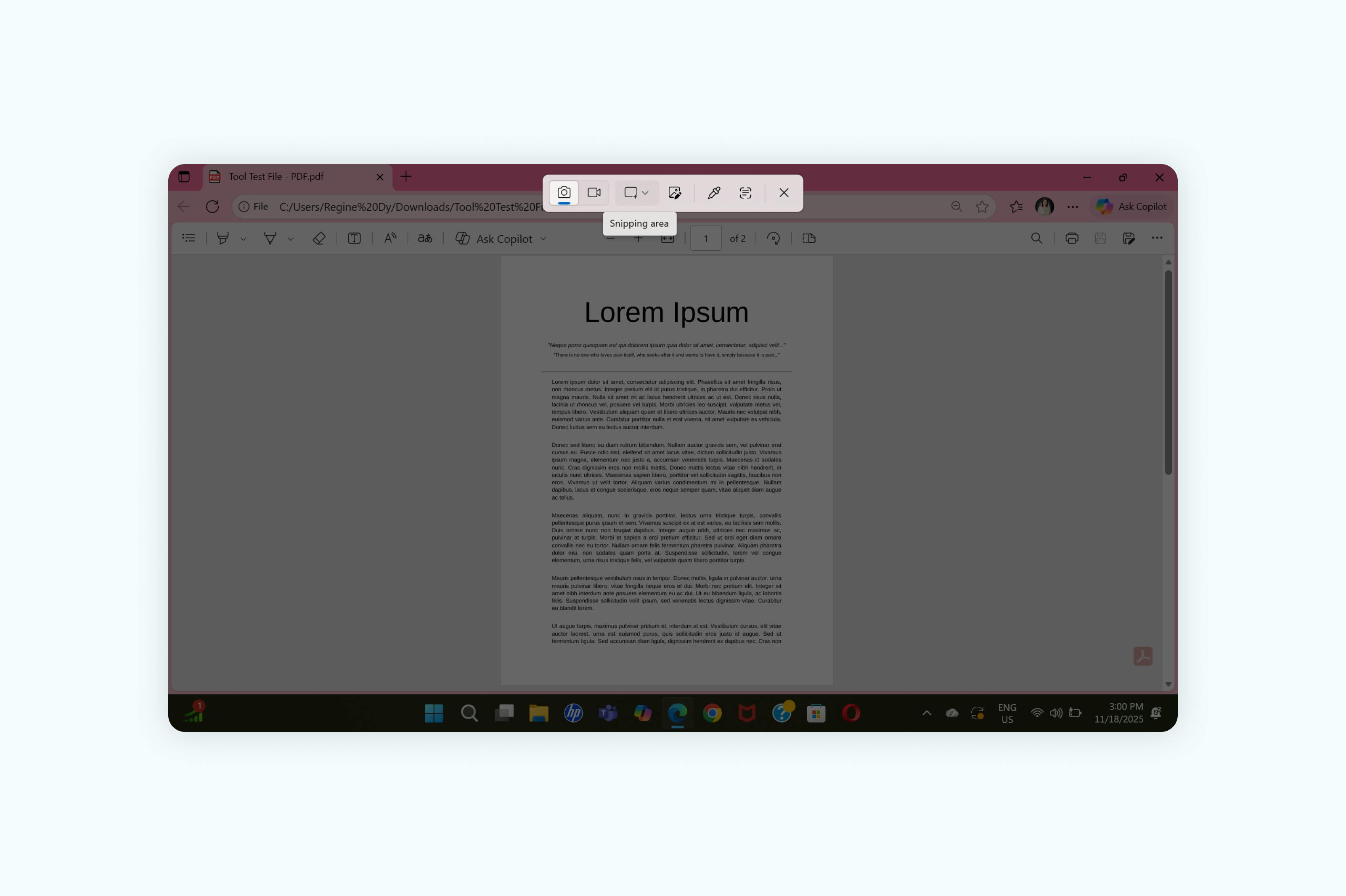
This Windows method works well for occasional conversions but can be time-consuming for multi-page documents. For bulk conversions or professional use, online tools provide faster, more efficient workflows.
Why PDFs need to be converted to JPG
PDFs and JPGs serve different purposes in digital workflows. PDFs are excellent for preserving document formatting and maintaining text searchability, while JPG images are universally compatible and easily shareable across platforms. Many websites, social media platforms, and applications only accept image uploads, making PDF-to-JPG conversion essential for content sharing.
Converting PDFs to JPG also simplifies document previews, creates thumbnails for presentations, and enables quick visual sharing in messaging apps that may not support PDFs. For designers and marketers, JPG conversions allow PDF content to be incorporated into image editing software and creative projects.
Tips for high-quality conversions
To achieve the best results from a PDF-to-JPG conversion, pay attention to a few key details. Start with high-quality source PDFs whenever possible, as the conversion cannot improve the original document’s resolution.
When using online converters, check for options to adjust image quality settings. Higher quality produces larger file sizes but ensures better clarity, which is particularly important for text-heavy documents or detailed graphics. For presentations or web use, medium quality usually offers the best balance between file size and visual clarity.
Frequently asked questions
Is it free to convert a PDF to a JPG?
Lumin's PDF to JPG converter is completely free with no watermarks or quality limitations. You can convert unlimited PDFs without creating an account, though signing up for a free Lumin account unlocks additional PDF editing features.
How do I convert a PDF to JPG without losing quality?
Use a dedicated PDF converter that maintains original resolution. Lumin's converter preserves your document's quality by default. Avoid screenshot methods for professional use, as they're limited by screen resolution.
Can I convert multiple PDF pages to separate JPG files?
Yes, when you convert a multi-page PDF using Lumin's tool, each page becomes a separate JPG file. The converter packages them in a ZIP file with sequential numbering for easy organization.
Why would I convert a PDF to JPG?
Common reasons include uploading to websites that only accept images, creating visual content for social media, inserting PDF content into presentations, sharing documents via messaging apps, and creating thumbnails or previews of PDF documents.

Share this post