
How to turn your pictures into PDFs on iPhone

Need to save photos as PDFs on your iPhone? This guide walks you through the easiest ways to convert images into PDFs using your iPhone’s native features or free apps.
Table of contents
- 1. Method 1: Use the Lumin PDF mobile app
- 2. Method 2: Use the Photos app’s hidden Print‑to‑PDF trick
- 3. Method 3: Use the Files app’s Quick Actions
- 4. Method 4: Convert and save with the Books app
- 5. Method 5: Scan paper documents with the Notes app
- 6. Related guides
Share this post
Ever needed to email multiple photos as a single document, or tidy up a stack of receipts? Then you might just need to convert your iPhone picture files to PDF format.
Below, you’ll discover simple, free ways to do just that.
Method 1: Use the Lumin PDF mobile app
If you need to convert pictures regularly or want professional tools for editing and combining documents, Lumin PDF for iOS is a top choice. Here’s how to turn images into PDF files with Lumin:
- Download the Lumin app for iPhone and sign in (it’s free to create a Lumin account)
- Tap “Tools” at the bottom of the screen, then select “Convert to PDF”.
- Choose an image already in your Lumin account, or tap Add files to upload photos directly from your phone.
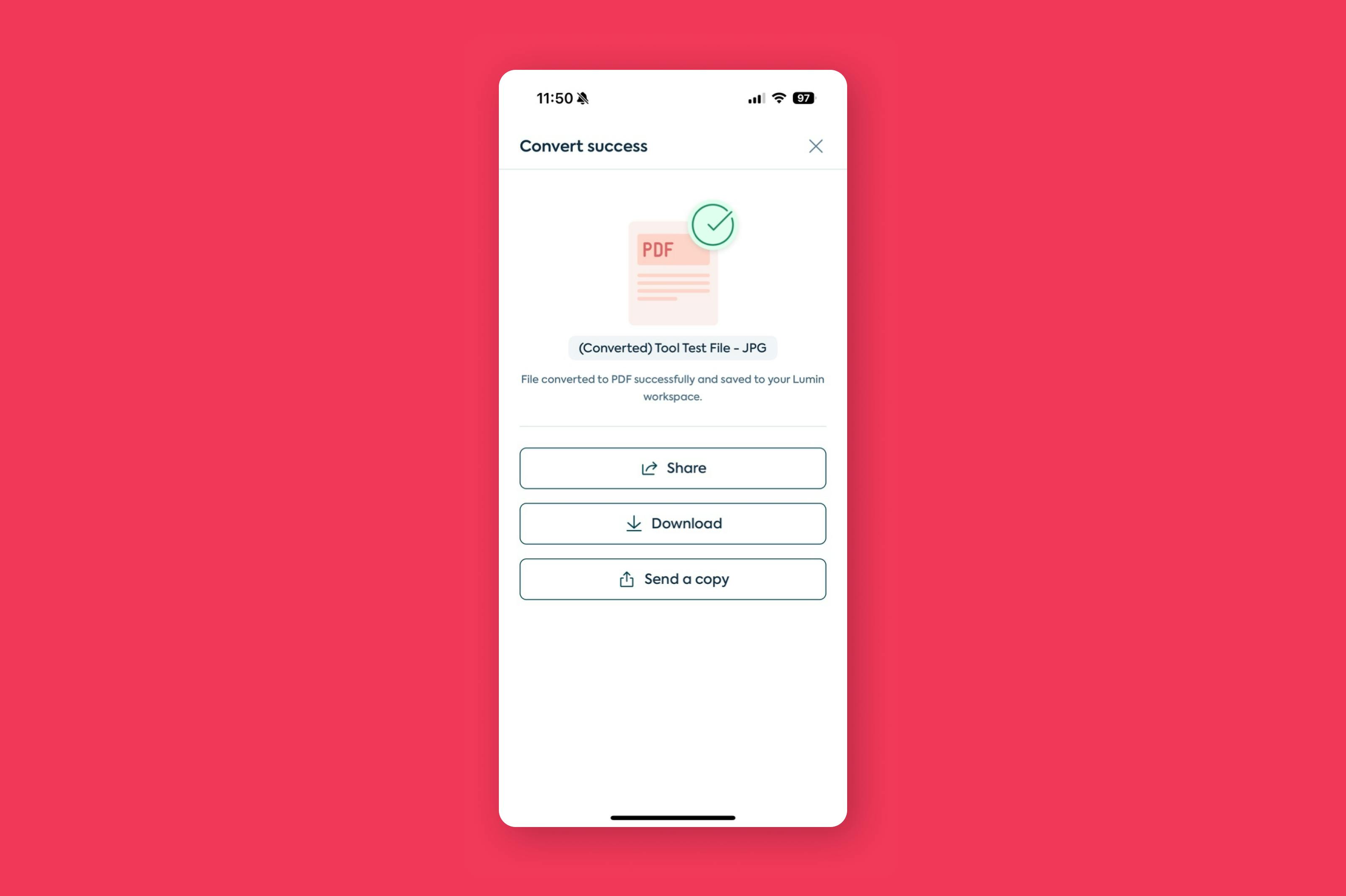
- Once you’ve selected your image, tap “Convert” to turn it into a PDF.
- Your new PDF is automatically saved to your Lumin account, and you can also choose to download or share it.
Can I convert multiple photos into one PDF?
You sure can. Converting multiple photos into a PDF on your iPhone is also easy with Lumin, but it involves a slightly different process:
- Open the Lumin app for iPhone.
- Tap “Tools” at the bottom of the screen, then select “Merge files”.
- Choose the photos that are already in your Lumin account, or tap “Add files” to upload photos directly from your phone.
- Tap ‘“Merge”.
- Your photos will be merged into one PDF file which you can now download or share.
Why choose Lumin PDF?
The app is free to use and offers advanced PDF editing tools, including optical character recognition (OCR) for working with scanned documents. It’s perfect if you handle PDFs daily for work or study.
Method 2: Use the Photos app’s hidden Print‑to‑PDF trick
You can convert pictures to PDFs directly from the Photos app without installing anything:
- Open “Photos” and tap “Select” to pick the image(s) you want to convert.
- Tap the “Share” icon and choose “Print”
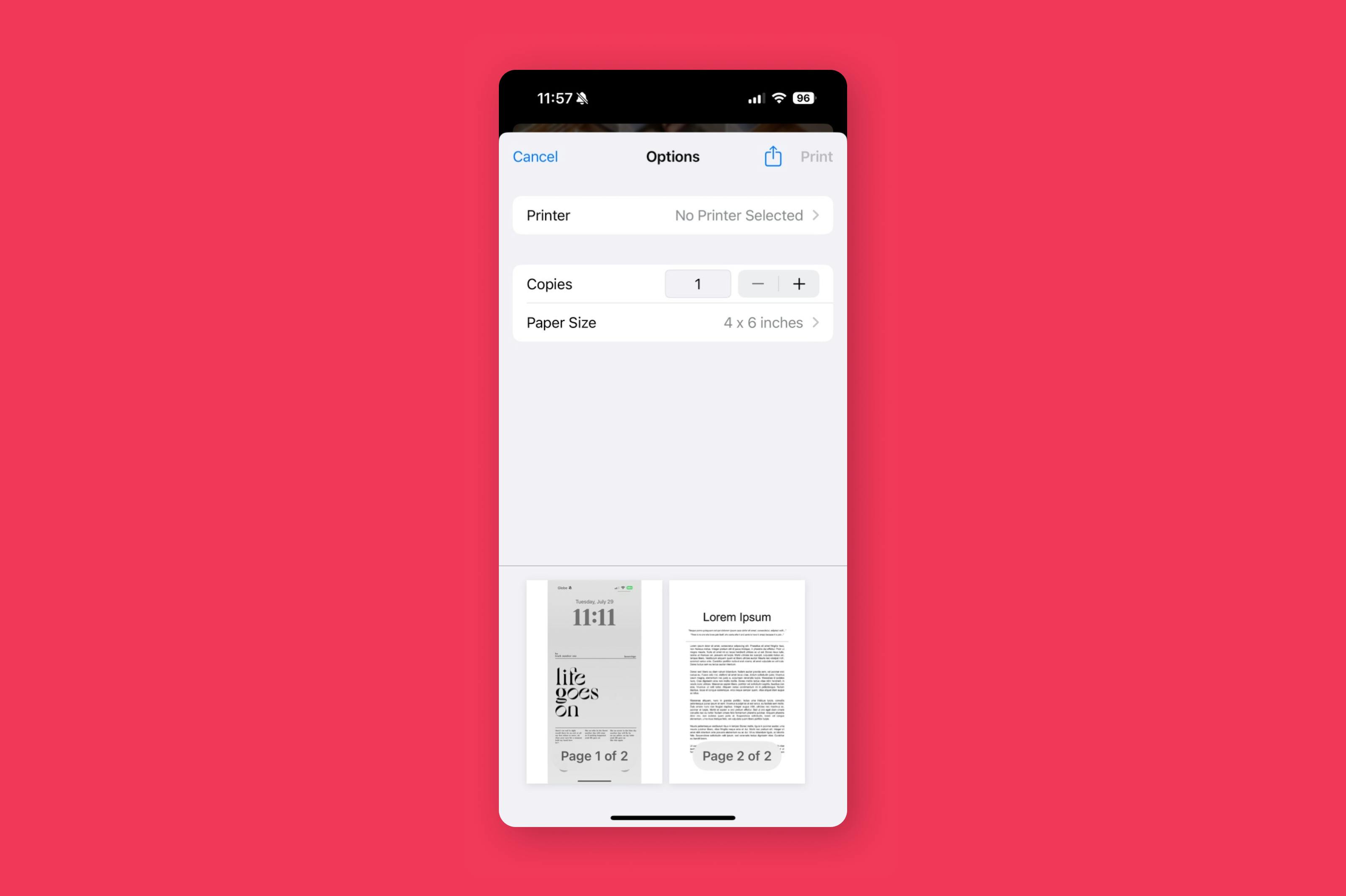
- In the Printer Options screen, pinch out on the thumbnail to open a PDF preview.
- Tap the “Share” icon again and choose “Save to Files” to keep the PDF on your device or send it via Mail, AirDrop, etc. Selecting multiple photos combines them into a single PDF.
This method is ideal when you’re on the go and want a quick, offline way to convert photos to PDF.
Method 3: Use the Files app’s Quick Actions
If your pictures are in the Files app, or you’re happy to move them there, you can convert them with just a couple of taps:
- Open “Files” and locate your image.
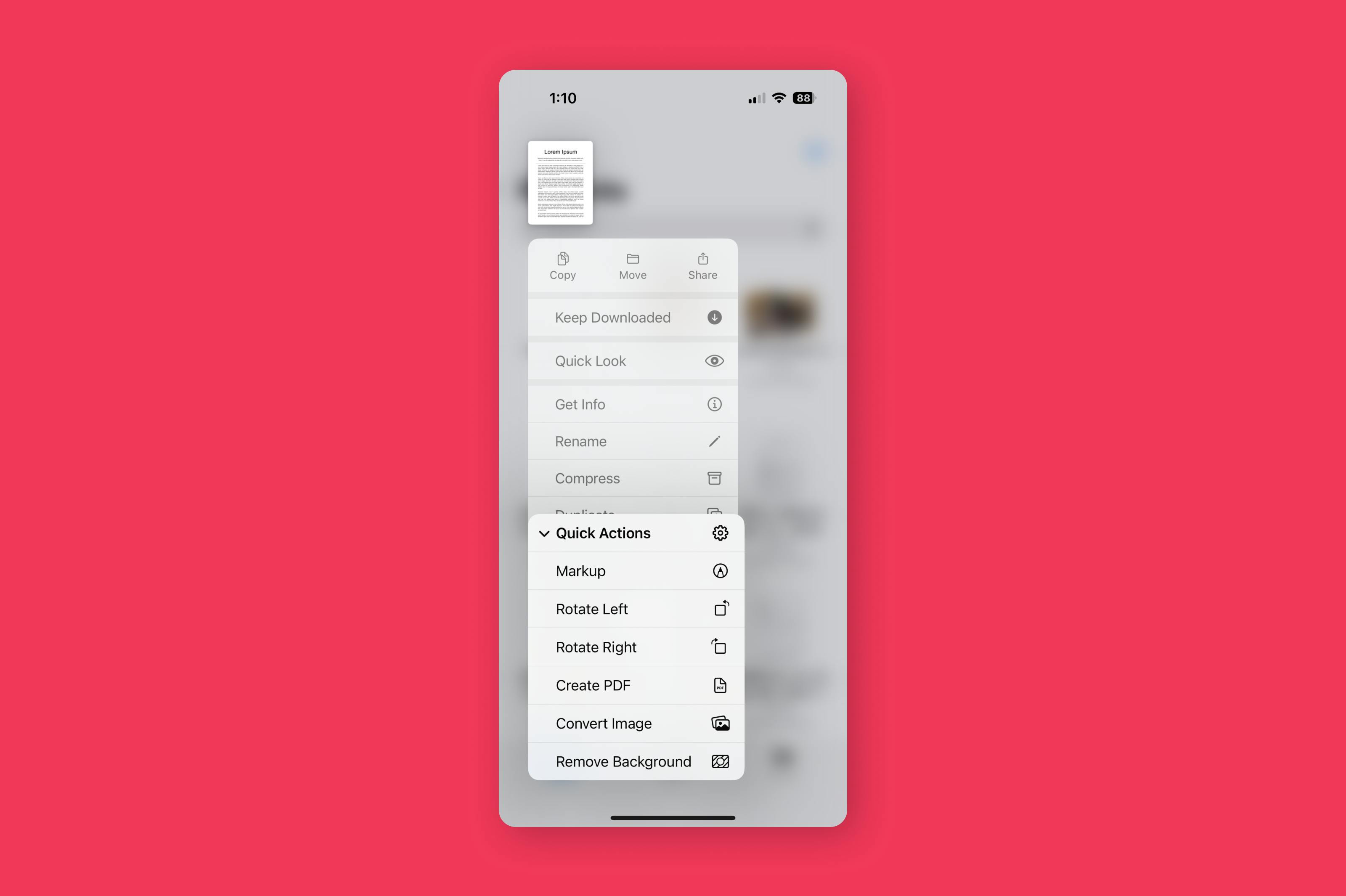
- Long‑press the file and choose “Quick Actions” → “Create PDF”. A PDF version appears in the same folder.
- To convert multiple images at once, tap “Select”, pick the images, then choose “More” (…) → “Create PDF”.
This approach keeps the original dimensions of your picture and works perfectly for documents stored in iCloud Drive or other cloud services.
Method 4: Convert and save with the Books app
The Books app isn’t just for e‑books. You can use it to convert photos to PDFs and store them neatly on your device:
- In Photos, select the images you want to convert.
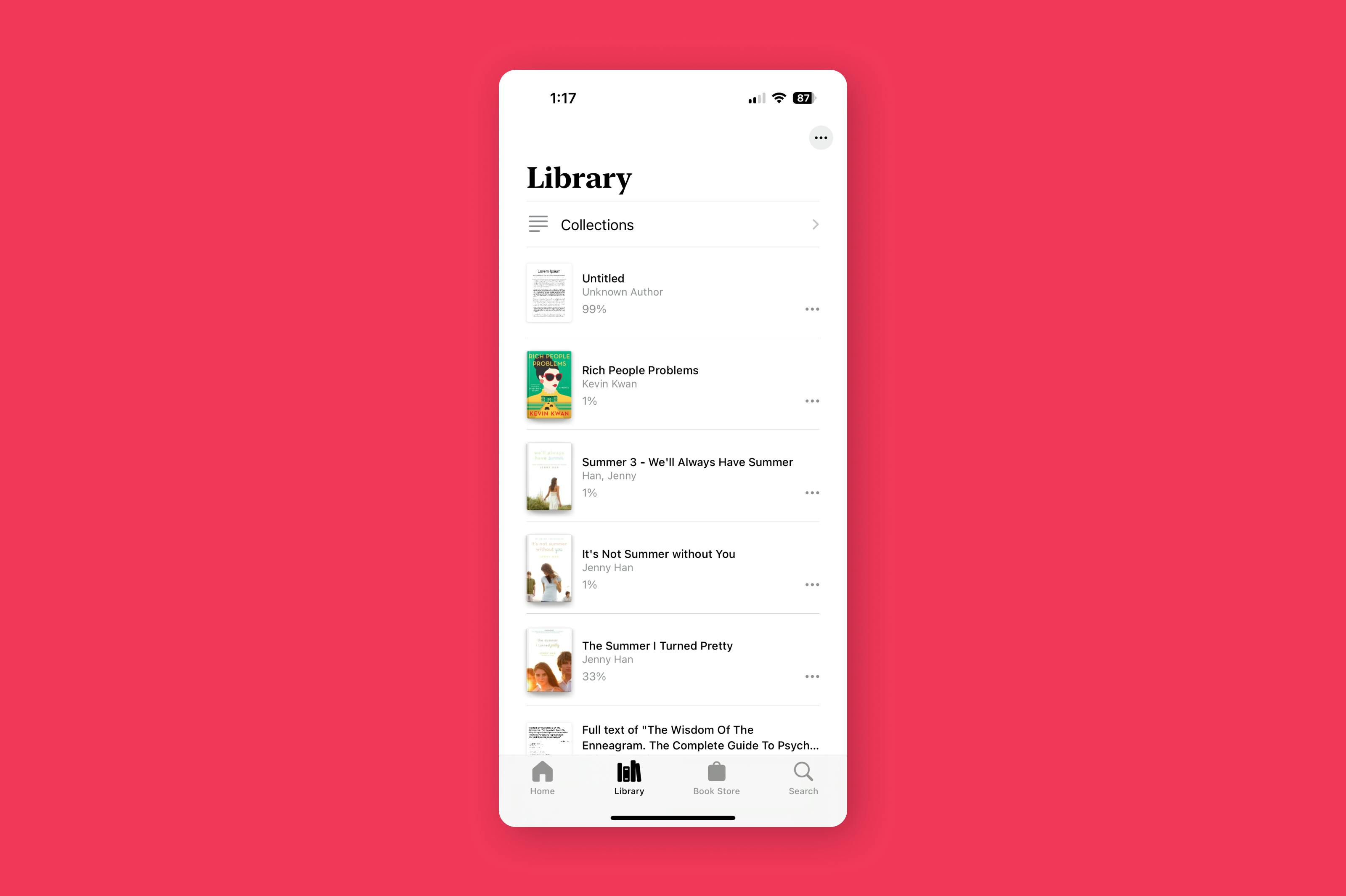
- Tap “Share”, swipe along the app list, and choose “Books”. Your images are instantly converted into a PDF and saved in the Books library.
- To export the PDF, open Books, tap the “More (…)” button under the document, and choose “Share PDF”.
Books is great for organizing PDFs and making quick annotations, particularly for study materials or long documents.
Method 5: Scan paper documents with the Notes app
When you need to digitise a paper receipt or document, the Notes app’s scanning function creates clean, PDF‑quality scans:
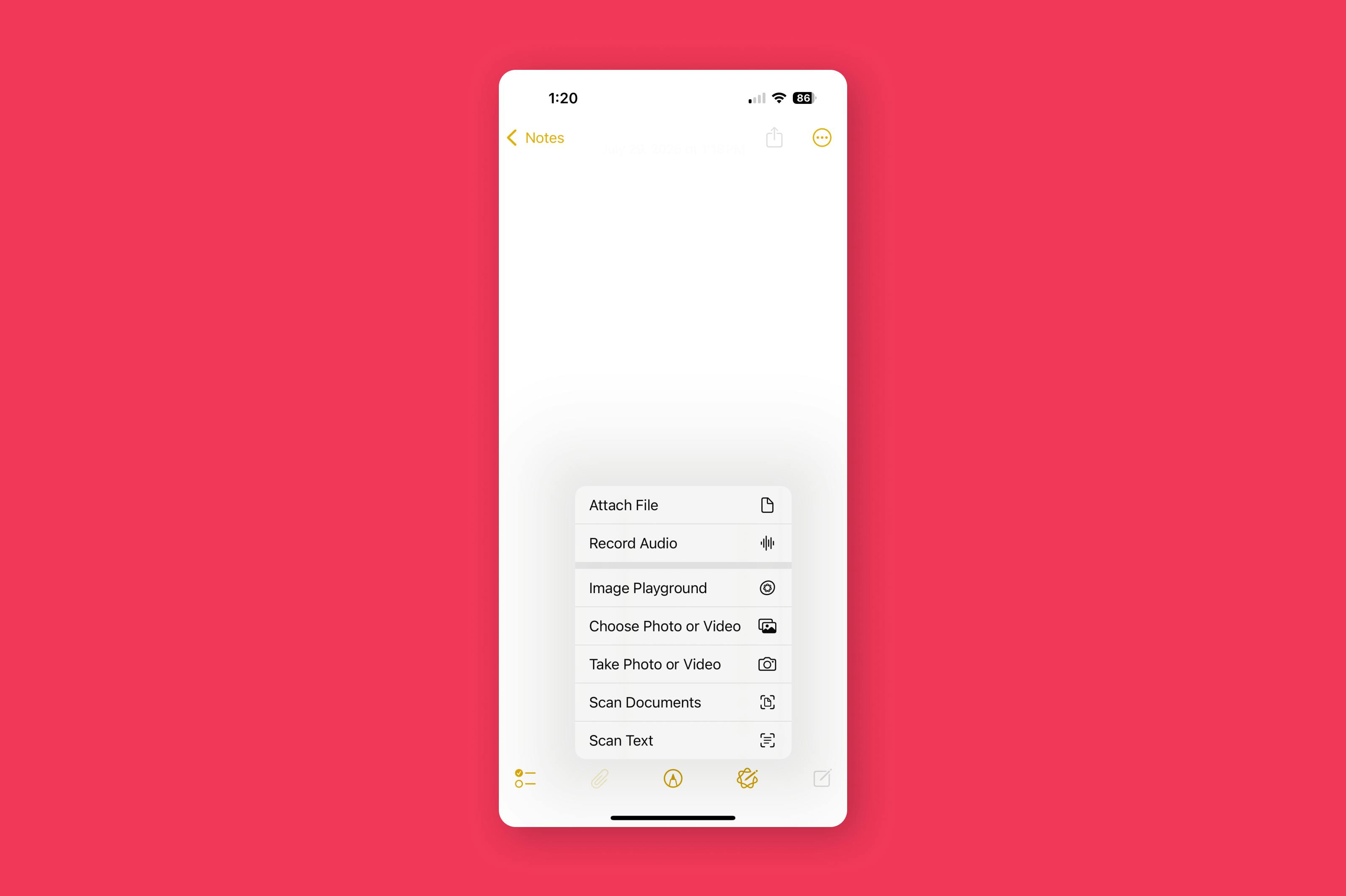
- Open a new note in Notes and tap the “Attachment” or “Camera” icon → “Scan Documents”.
- Hold your iPhone over the paper; Notes automatically detects edges, straightens the scan and enhances contrast.
- Save the scanned pages and tap the “Share” button → “Save to Files” to store the document as a PDF.
Related guides
Check out our other PDF editing guides for Apple products.

Share this post