
Extract PDF
Need just a few pages from a PDF? Lumin’s free tool lets you upload your file, pick the pages you need, and download a clean new PDF in seconds. Free and online.Almost there, finishing the upload.

Drag and drop or click here to upload
You're in good company







How to extract pages from a PDF
Follow these steps to quickly extract the pages you need.
- 1
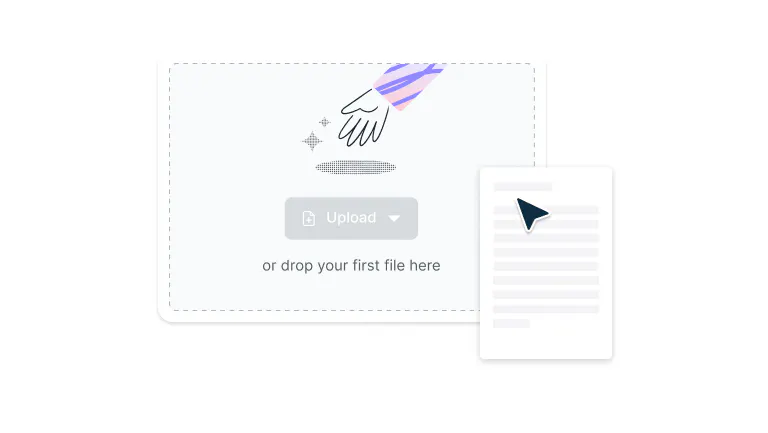
Upload
Drop your PDF file into the extract dropzone above or click the 'Upload' button.
- 2
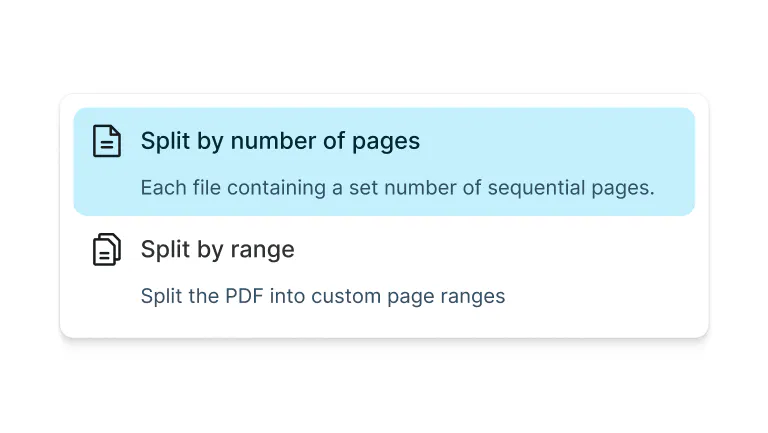
Select pages
Select pages by range or choose to split by number of pages.
- 3
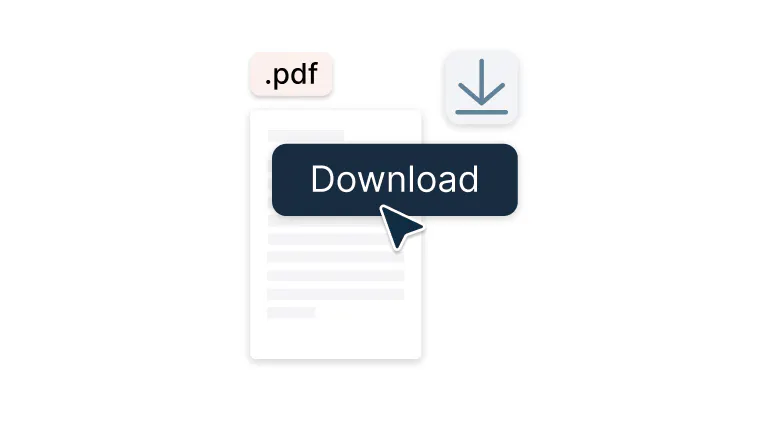
Download
Download your extracted file.
Fast, flexible PDF page extraction
Easily pull out the sections you need from any document. Perfect for reports, contracts, or study materials.

Pull pages instantly
Select and separate specific pages from your PDF with just a few clicks. This tool is designed for saving, sharing, or reviewing only the sections you need. Enjoy fast, accurate results every time without affecting your original file.
Extract multiple pages at once
Grab several pages in one go and create a clean, organized PDF without changing your original document. This is especially helpful for compiling reports, sharing project files, or keeping related pages together.

Custom page selection
Split your file by page range or set the number of pages per document for flexible, precise control. You can tailor your output exactly how you want it for more efficient document management.

Protected with enterprise-grade security
Once you upload your files to Lumin, they're protected with encryption and optional password protection. While stored in Lumin, your documents remain secure and under your control.

No software or downloads required
Work directly in your browser with no installations, sign-ups, or extra steps needed. Get quick access anytime and start managing your PDFs in just a few seconds.

Accessible on every device
Use the tool seamlessly on iPhone, Android, Windows, or Mac and enjoy the same smooth experience anywhere. Whether at home, in the office, or on the go, your PDFs are always within reach.
Frequently asked questions
Yes. Lumin’s PDF extraction tool is completely free to use — no hidden costs or subscriptions. You can extract pages or images from your PDF instantly, right from your browser.
Absolutely. When you extract pages, Lumin maintains the original resolution, formatting, and text clarity of your PDF. The extracted pages will look exactly the same as they did before — perfect for reusing, printing, or sharing individual sections without losing visual quality.
Yes. You can extract multiple pages at the same time by selecting a page range or choosing individual pages.
Once selected, you can export them as a single combined PDF or as separate files, whichever suits your needs. It’s a quick way to reorganize long reports or share only the sections that matter.No software is required. Lumin’s extraction tool works entirely online, so you don’t need to download or install anything. Simply open the tool in your browser, upload your PDF, select the pages you want, and extract them instantly. It’s compatible with Windows, macOS, Linux, and all major browsers.
Yes. To extract pages from a PDF on your phone or tablet, just download the Lumin mobile app.
It’s ideal for quick access and light editing while you’re away from your computer.Yes. Your files are protected with 256-bit AES encryption during upload, processing, and download. As a SOC 2 Type 2 certified platform, Lumin follows strict security standards to ensure your documents stay private and protected at every step.
Trusted by more than 100 million customers



Featured articles
Discover Lumin’s products
Collaborate with existing colleagues and onboard new ones with Lumin and Lumin Sign. Our innovative solutions work great on their own, but they’re even better together.

Lumin Sign