
Rotate PDF
Quickly fix sideways or upside-down pages with Lumin’s Rotate PDF tool. Rotate one, many, or all pages—on any device, with changes saved permanently.Almost there, finishing the upload.

Drag and drop or click here to upload
You're in good company







How to rotate a PDF
Quickly fix sideways or upside-down pages with Lumin’s Rotate PDF tool. Rotate one, many, or all pages—on any device, with changes saved permanently.
- 1
Step 1
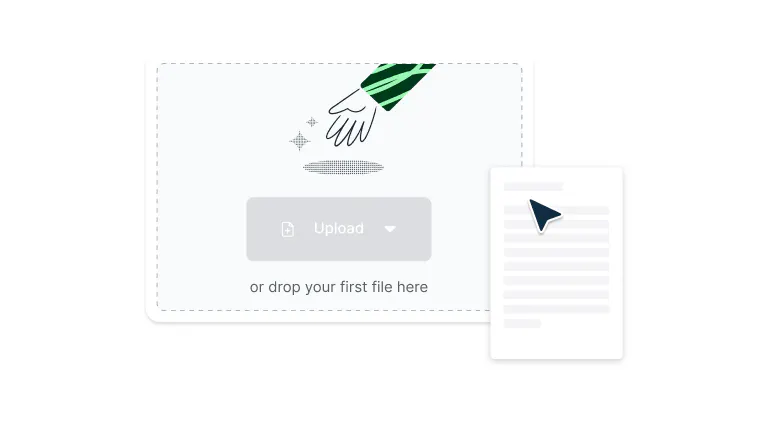
Drop your PDF file into the dropzone above or click the 'Upload' button.
- 2
Step 2
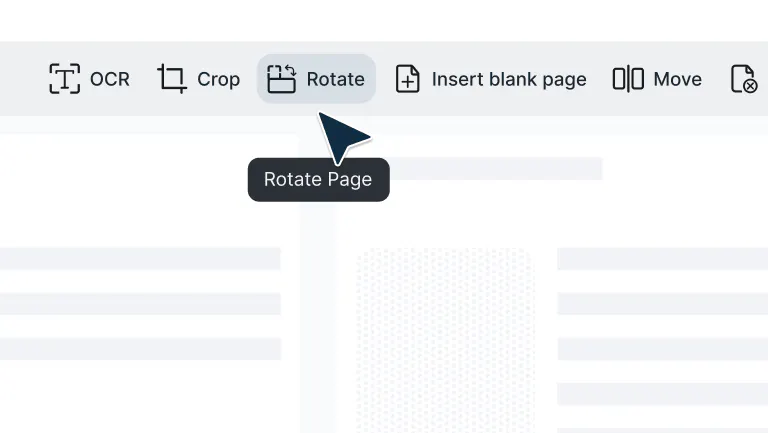
Select ‘Page tools’ and then click the ‘Rotate’ tool.
- 3
Step 3
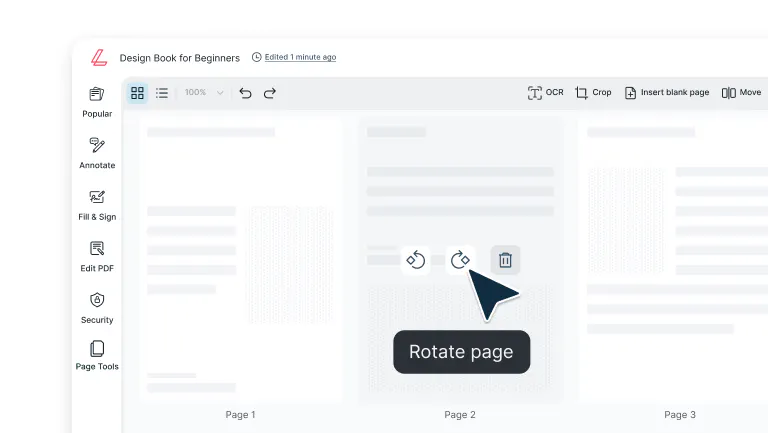
Rotate pages individually or rotate all pages in the PDF.
Powerful rotation features that save time
From fixing scanning errors to rotating entire documents, Lumin gives you simple, precise controls to keep your PDFs properly aligned.

Smart rotation controls
Whether you're fixing a sideways scan or flipping an upside-down page, just click to rotate left or right by 90 or 180 degrees. It's that simple. No more tilting your head or printing wonky documents.

Rotate one page, or all
Rotate just one page, a few pages, or your whole document: whatever makes sense for your workflow. No need to fix things one page at a time when you don't need to.

Rotate on any device
Rotate PDFs instantly from your Mac or Windows desktop, or on an iPhone, iPad or other mobile device. No desk is required—just tap, rotate, and done.

Works with document merging
Combine multiple PDFs while keeping everything properly aligned. Rotate pages in different files, then merge them into one polished document that looks professional from front to back.

Google Drive integration
Open, rotate, and save PDFs directly from Google Drive without the usual file shuffling. Your rotated documents sync automatically with Google Workspace, so your team gets properly oriented files immediately.

Fix scanning errors instantly
Sideways scans, upside-down pages, that one random page at a weird angle – our rotation tool handles all the common scanning errors so your PDFs display and print correctly every time.
Frequently Asked Questions
Google Drive doesn’t offer a built-in way to rotate PDFs permanently, but fortunately, Lumin PDF is integrated with Google Drive. Just right-click the PDF file in your Drive, select Open with > Lumin PDF, then use the Page Tools to rotate specific pages or the entire file. Once you’re done, your changes will be saved directly back to your Drive.
Check out our guide to editing PDFs in Google Drive for more tips.Absolutely. Lumin preserves all your rotation changes when you save or download your file. The rotated orientation becomes permanent in your saved PDF, so your document maintains proper alignment no matter where it's opened or who's viewing it.
Select the specific pages that need adjustment instead of rotating the entire document. Use our page selection controls to target problem pages while leaving the correctly oriented ones alone. It's precision control that saves time and prevents unnecessary changes to pages that are already perfect.
Scanning mishaps happen to everyone. Upload your PDF, spot the problem pages, select them, and rotate 90° left, 90° right, or flip 180° as needed. Our rotation tool is built specifically for fixing these common scanning errors, turning document disasters into professional files in seconds.
Yes, select multiple pages or rotate your entire document in one go. This bulk rotation feature is perfect when several pages share the same orientation issue, saving you from the tedium of rotating pages one by one. Work smarter, not harder.
Navigate through your document, identify the pages that need fixing, select them individually or in groups, and apply the right rotation. This targeted approach means you only adjust what needs adjusting while keeping properly oriented content exactly as it is — precision where you need it, efficiency where you want it.
If you make a mistake while rotating pages, simply repeat the rotation process to correct it. Click the rotate button again to continue rotating the page until it reaches the desired orientation.
Since each click rotates the page 90 degrees, you can easily fix any rotation errors by clicking the rotation button until the page is properly aligned.Yes, Lumin PDF offers a free way to rotate PDFs, making it easy and efficient to update your files. It’s fully integrated with Google Drive, so you can rotate PDFs directly from your Drive without downloading anything.
By creating a free Lumin account, you’ll unlock access to a full suite of PDF editing tools—including scanning PDFs, redacting sensitive information, and more.
Trusted by more than 100 million customers



Featured Articles


Discover Lumin’s products
Collaborate with existing colleagues and onboard new ones with Lumin and Lumin Sign. Our innovative solutions work great on their own, but they’re even better together.


Lumin Sign