Scan to PDF: Turn any document into a PDF
Open Lumin AppCapture clear PDFs using just your phone's camera. Turn any document or image into a professional-quality PDF with the Lumin mobile app.


You're in good company







How to scan your document into a PDF
- 1
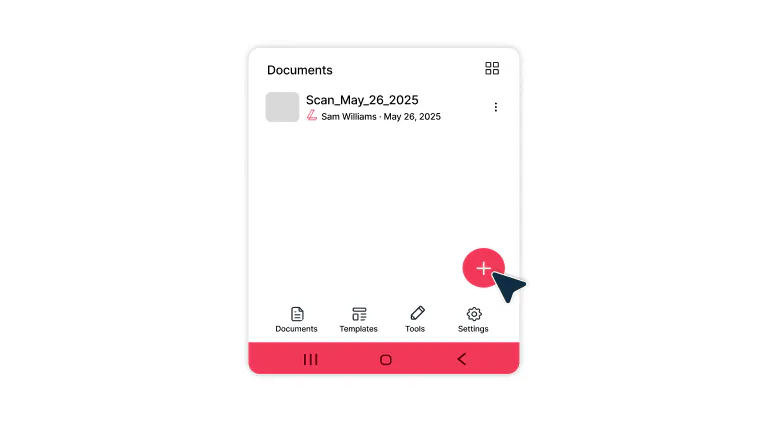
Step 1
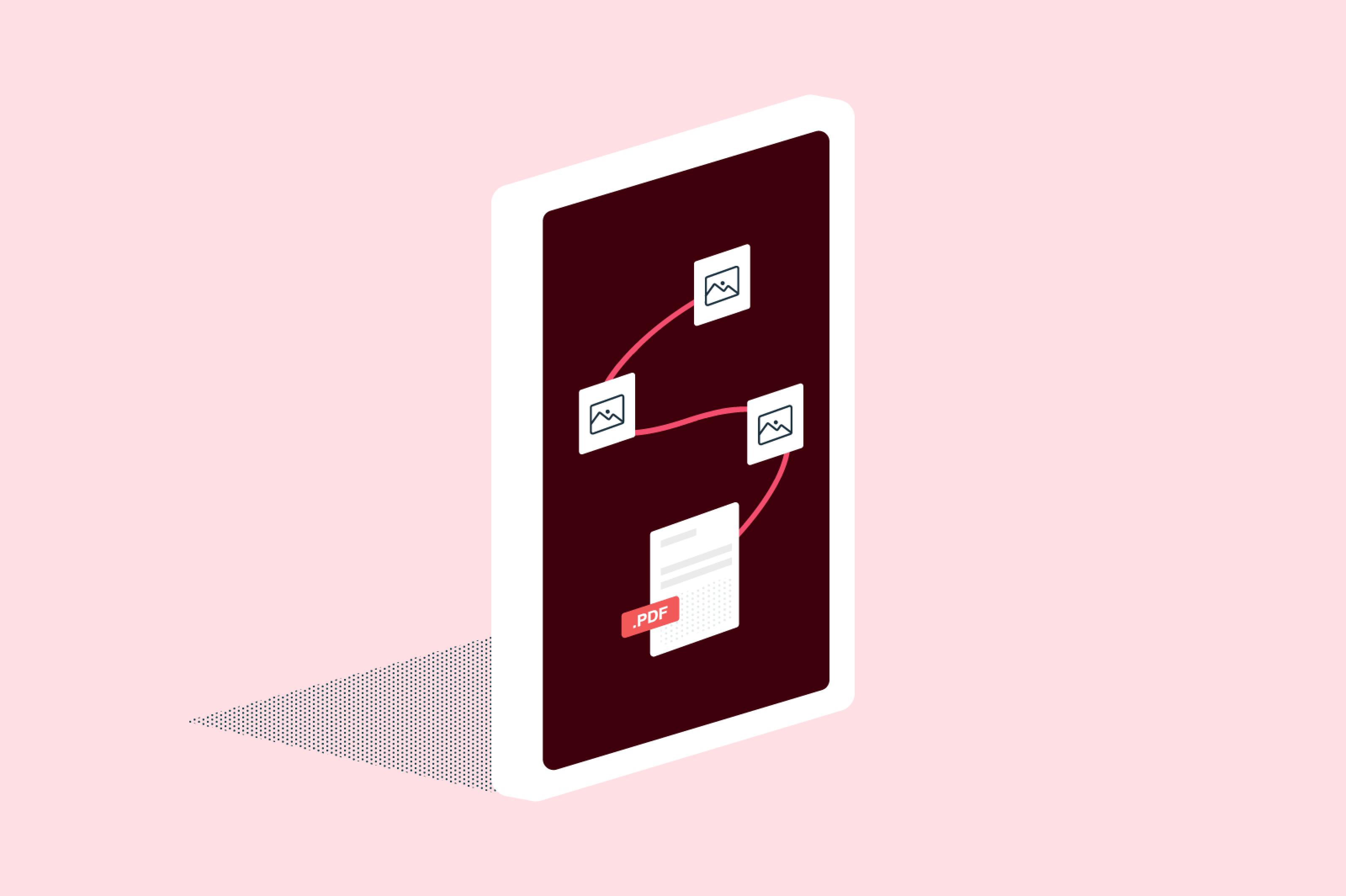
Open the Lumin mobile app for Android or iOS and click the red ‘plus’ button and select ‘Scan document’
- 2
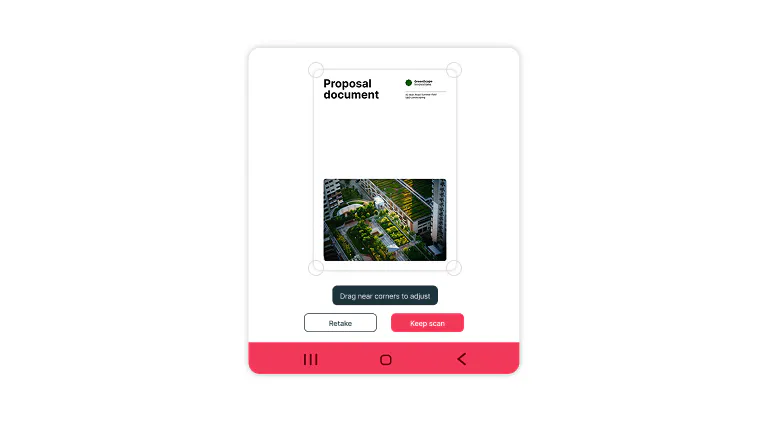
Step 2
Take a photo of the document and crop the scan window to fit the document.
- 3
Step 3
Scan again to add more PDF pages or tap ‘Save’ to finish.
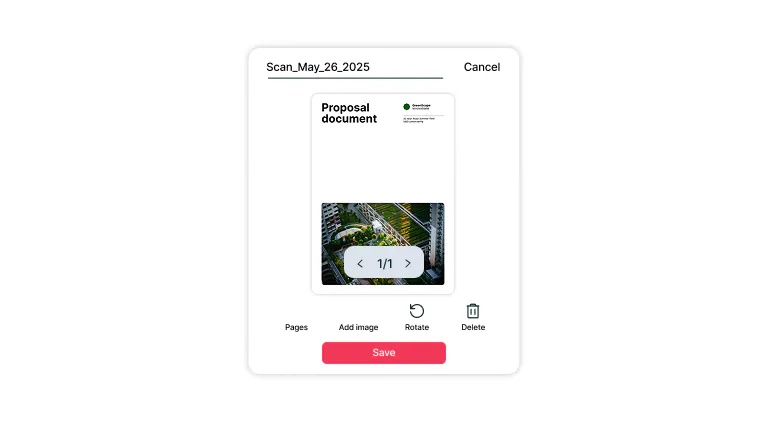
Everything you need to scan smarter
Turn your phone into a powerful scanner with features that make every PDF editable, secure, and easy to share.

Instant document scanning
Scan to PDF using your phone and instantly access the documents on your desktop, without cables, email attachments, or manual uploads. Your scanned PDFs automatically appear across all your synced devices.

Scan from any mobile device
Turn your iPhone or Android into a powerful scan-to-PDF tool that creates high-quality, professional-looking documents. Automatically detect page edges, enhance image clarity, and organize multi-page scans with ease.

Smart OCR recognition
Convert any scanned PDF into a fully editable, searchable document using advanced optical character recognition (OCR) technology. Copy and edit text without retyping, locate information in seconds, and make scanned files fully functional.

Professional annotation tools
Add highlights, annotations, comments, and text to any scanned PDF using built-in markup tools. Whether you're reviewing legal contracts, updating team reports, or giving visual feedback, these editing features turn static documents into interactive workspaces.

Work anywhere, sync everything
Access your entire scanned PDF library even when offline, and sync it automatically when you reconnect. Whether you're on a flight, in a remote location, or just without Wi-Fi, your scanned documents stay available and ready to use.

Enhanced security for PDF protection
Protect your scanned PDF files with enterprise-grade encryption and secure cloud backup. Share documents and sensitive data confidently, knowing advanced security measures and strict privacy controls protect your files.
Frequently asked questions
Lumin automatically syncs your scanned PDFs across all devices when you're signed into your account. Files are securely stored in the cloud, allowing instant access from any smartphone, tablet, or computer.
Simply log in to your Lumin account on any device to view, edit, and share your scanned documents seamlessly.Lumin's advanced OCR (optical character recognition) technology automatically enhances the quality of your scanned PDF by optimizing text clarity and image resolution.
For best results when you scan a document to PDF, ensure good lighting, hold your device steady, and use auto-crop. You can also edit scanned PDF files afterward with enhanced text recognition and searchability.Download the Lumin app from Google Play Store, open it, and tap the scan icon.
Position your Android camera over the document to scan as PDF, ensuring it's well-lit and flat. The app automatically detects edges and captures your scan in PDF format.
You can adjust borders, apply filters, and create searchable scanned PDF files with built-in OCR technology.Install Lumin from the App Store, launch the app, and select the scan function. Lumin automatically detects boundaries and optimizes the image.
The app provides editing tools for cropping, rotating, and enhancing before converting to scan PDF iPhone format with searchable OCR technology.Yes, Lumin can convert existing photos from your camera roll into high-quality PDFs. The app automatically detects document boundaries, corrects perspective distortion, and enhances readability.
This works excellently for whiteboard photos, handwritten notes, receipts, and any paper documents you've previously photographed, making them searchable with OCR.Absolutely! Lumin's scanner easily captures business cards and converts them to scanned PDF format. The OCR technology can extract contact information, making it searchable and editable.
You can organize business cards into folders, share them digitally, or export contact details to your phone's address book for seamless networking management.Yes, Lumin offers a free tier with basic scanning and OCR capabilities.
Lumin Pro unlocks advanced features including text highlighting, underlining, strikethrough, adding images/shapes, creating fillable PDFs, merging documents, unlocking password-protected files, unlimited e-signatures, and raw PDF text editing.
Upgrade to Pro for comprehensive PDF management and collaboration tools.Yes, Lumin prioritizes your document security with enterprise-grade encryption and secure cloud storage.
All scanned files are protected during transmission and storage. The app complies with industry security standards, ensuring your sensitive documents remain private and accessible only to you through your secure account login.
Learn more about how Lumin keeps your data safe.
Trusted by more than 100 million customers