
Delete PDF pages
Quickly remove pages from any PDF file in seconds. Upload, select pages to delete, and download — 100% free and easy to use. No sign-up required.Almost there, finishing the upload.

Drag and drop or click here to upload
You’re in good company







How to delete PDF pages
Follow these simple steps to delete PDF pages.
- 1
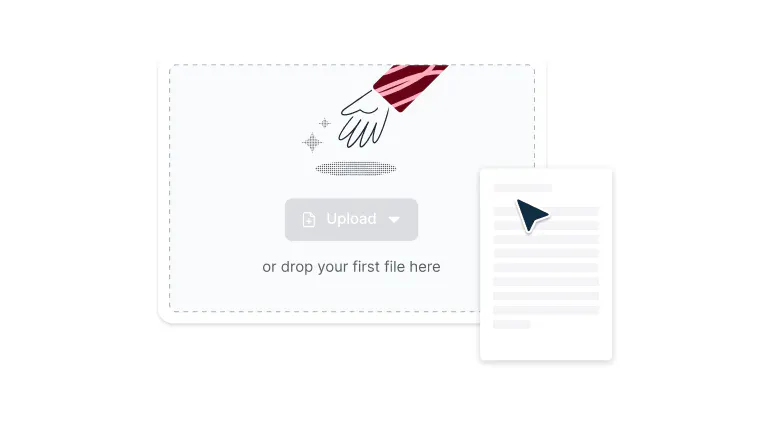
Upload
Drop a PDF file into the dropzone above or click the 'Upload' button.
- 2
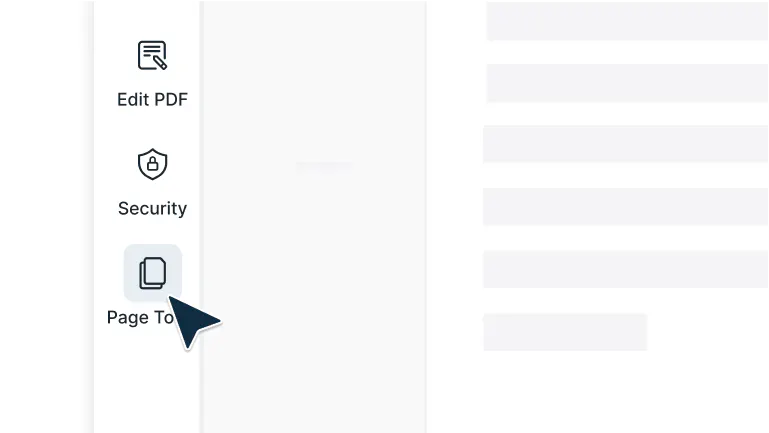
Select page tools
Sign-in and select ‘Page Tools’ in the left navigation bar of the editor.
- 3
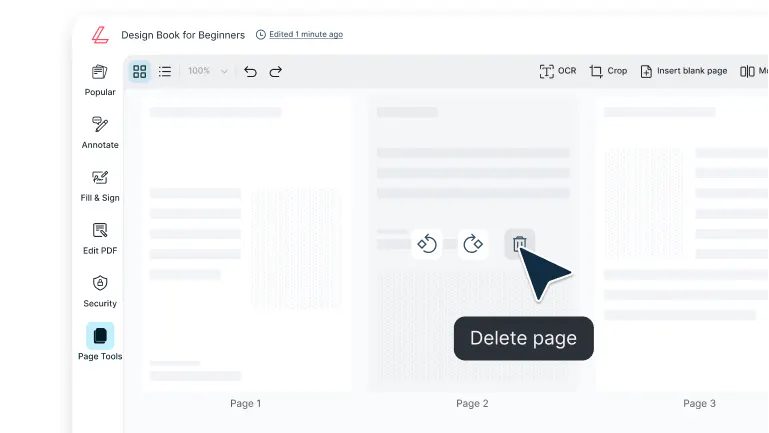
Delete a page
From here hover over a page and select ‘Delete page’.
Easily delete PDF pages
Delete PDF pages instantly with Lumin. Remove unwanted pages and keep only what you need in seconds.

Clean up PDFs in seconds
Remove unwanted pages instantly with just a few clicks. Tidy up scanned documents, eliminate blank pages, or remove outdated sections before sharing or printing.

Delete exactly what you need
Choose specific pages or entire page ranges to keep your document focused and organized. Remove clutter while keeping only the most important content.

Works seamlessly across all devices
Edit PDFs effortlessly on iPhone, Android, Windows, and Mac. Enjoy a smooth, reliable experience whether you’re at your desk or on the go.

Preview every page before deleting
Double-check your selections with a full-page preview so you can confidently remove only what you intend and avoid surprises after saving.

Keep files safe and private
Every file you upload and edit is protected with enterprise-grade 256-bit AES encryption, ensuring your data stays secure at every step.

Edit instantly, no downloads required
Delete pages right from your browser, no installation, registration, or setup needed. Just upload your file, make your edits, and save your clean, updated PDF in seconds.
Frequently asked questions
Lots of our tools are free. You can draw on PDFs, comment on them, add text, signatures and images; all the basics are covered.
Our paid plans expand your toolkit: you can edit PDF text, redact information, create fillable fields and much more. Discover our plans to learn which one is the right fit for you.The Lumin app works on your browser, or you can download our desktop app and keep Lumin handy on your computer. We’ve also got a mobile and tablet app which includes Lumin’s most popular features.
With Lumin PDF, you can delete multiple pages in a single step. Select individual pages or use the range selector to remove entire sections at once.
You can even choose non-consecutive pages, making it simple to clean up your document quickly and efficiently.Yes! You can delete multiple PDF pages simultaneously. Select several pages by holding Ctrl/Cmd while clicking, or use our range selector to remove consecutive pages. You can also delete all blank pages automatically.
Lumin PDF offers free page deletion for basic editing needs. Create a free account to unlock higher page limits and access additional features.
For users who regularly handle large documents or need advanced tools, upgraded plans provide unlimited page deletions and professional editing capabilities.No. Deleting pages doesn’t affect the quality of the remaining content. Your text stays sharp, images remain clear, and all formatting, links, and interactive elements continue to function as before.
The deletion process only removes the selected pages; nothing else changes.Once you save your edited PDF, deleted pages can’t be restored from that version. However, Lumin PDF includes an undo function that lets you reverse deletions before saving.
To stay safe, always keep a backup copy of your original PDF or use the preview feature to confirm your changes before finalizing.If your PDF is password-protected, simply enter the document password when prompted to unlock editing. Lumin PDF supports most standard security settings, but if editing is restricted, you may need owner-level access or permission from the document creator before making changes.
Yes. Lumin PDF makes it easy to spot and delete blank or nearly blank pages from scanned documents. Use the visual preview to view all pages as thumbnails, then select and remove any unwanted pages with just a few clicks.
Open your PDF from Google Drive by right-clicking and selecting “Open with” > “Lumin PDF.” Use the page deletion tool to remove unwanted pages, then save your updated file directly back to Drive.
This integration keeps your workflow smooth while maintaining your file’s organization and sharing permissions.
Trusted by more than 100 million customers



Featured articles

Discover Lumin’s products
Collaborate with existing colleagues and onboard new ones with Lumin and Lumin Sign. Our innovative solutions work great on their own, but they’re even better together.


Lumin Sign