
How to remove or delete pages from a PDF
PDFs are commonly used for contracts, reports, forms and scanned documents because they keep formatting consistent across devices. Over time though, you may end up with PDFs that include blank pages, duplicate pages or sections you no longer need. Removing those extra pages can make the document cleaner and easier to review or share.
Table of contents
- 1. Method 1: Use Lumin's online PDF editor
- 2. Method 2: Use Preview on Mac
- 3. Method 3: Use Microsoft Print to PDF on Windows
- 4. Common questions about deleting PDF pages
Share this post
Deleting pages from a PDF does not have to be complicated. Many tools now let you remove unwanted pages in just a few clicks without affecting the rest of the document. Below are three simple methods to help you delete pages from a PDF quickly and keep your file organized.
Method 1: Use Lumin's online PDF editor
The fastest way to delete pages from a PDF is with a browser-based editor. Lumin’s Delete PDF Pages tool lets you remove single or multiple pages instantly, without downloads or sign-ups.
Here's how to do it:
- Open the Lumin Delete PDF Pages tool and upload your PDF.
- Enter the page numbers or ranges you want to delete (for example, "1-5" or "1, 3, 7").
- Click the “Delete” button to remove the selected pages.
Note: You can select and delete one or multiple pages from your PDF in a single action, even if they are non-consecutive. Lumin’s Delete PDF Pages tool preserves the original structure of the remaining pages, so your file stays clean and intact after editing.
Method 2: Use Preview on Mac
If you're on a Mac, Preview can handle basic page removal without any additional software. It's best suited for quick, one-off edits.
Here's how:
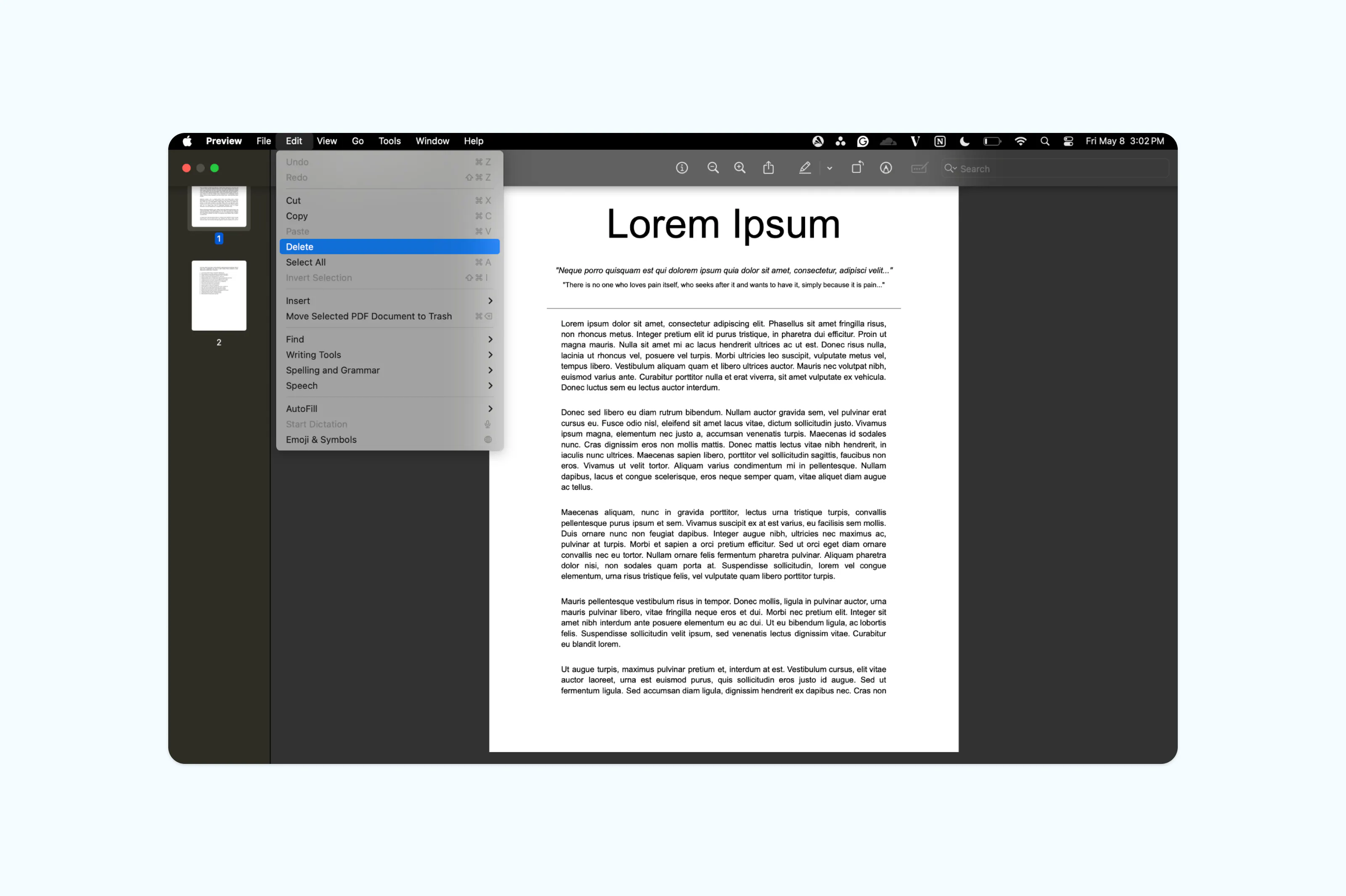
- Open your PDF in Preview.
- If the sidebar is not visible, go to View > Show Sidebar to show it.
- Select the page you want to delete. To remove multiple pages, hold Command while clicking each one.
- Press the Delete key on your keyboard or go to Edit > Delete.
- Once done, save your updated file by selecting File > Export as PDF to keep a clean copy.
Note: Preview only works on macOS and doesn't offer the same control as a dedicated PDF editor. For more complex tasks like rearranging or merging pages, an online tool will be more flexible.
Method 3: Use Microsoft Print to PDF on Windows
If you're on Windows and only need to remove a few pages, you can use the built-in Print to PDF feature. This works by "printing" only the pages you want to keep into a new file.
Here's how:
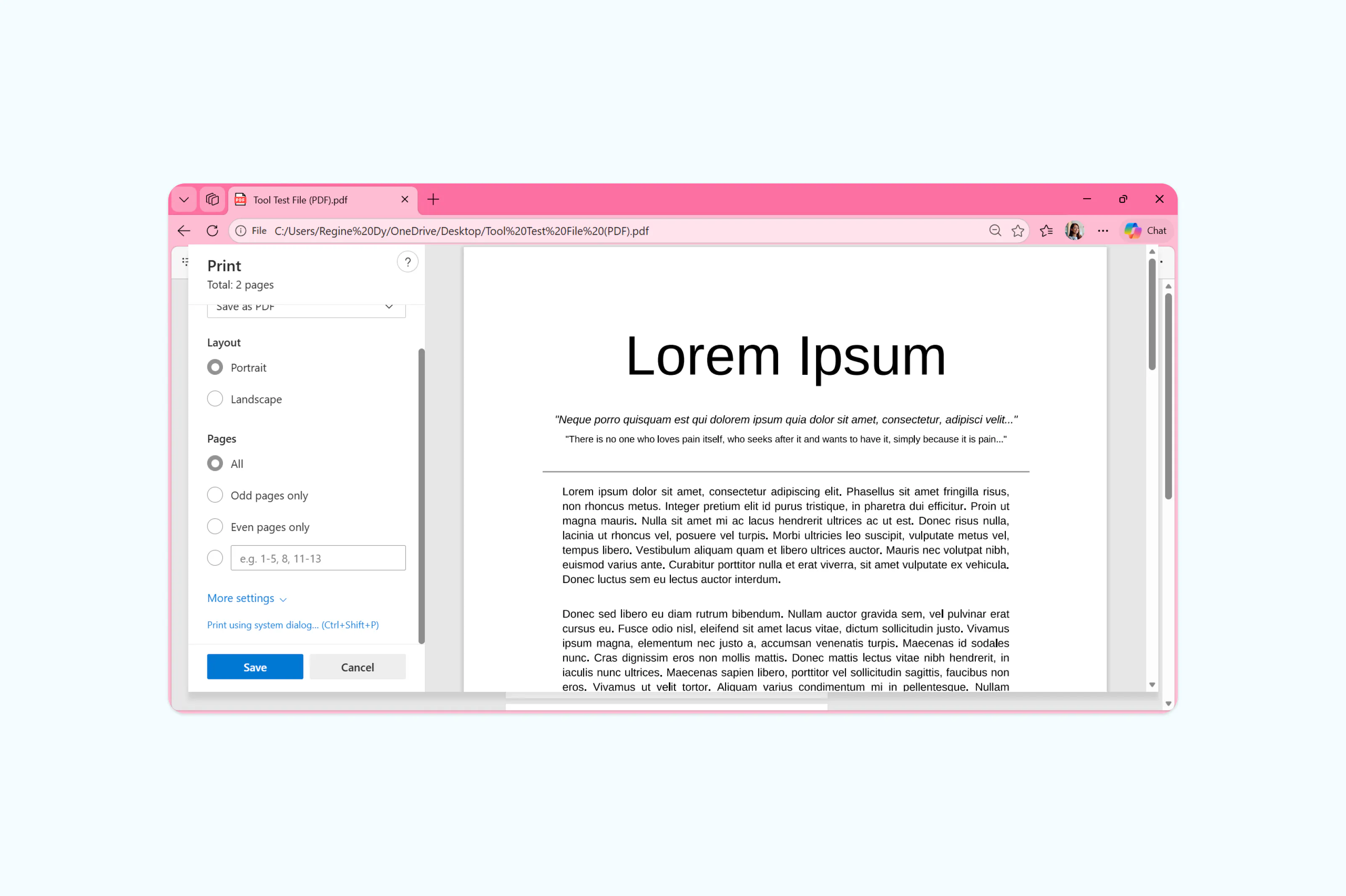
- Open your PDF in any PDF viewer (Microsoft Edge, Chrome or your default reader).
- Press Ctrl+P to open the print dialog.
- Set the printer to "Microsoft Print to PDF."
- In the page range field, enter the pages you want to keep (for example, "1-3, 5-8" to skip page 4).
- Click "Print" and choose where to save the new file.
This method is a handy workaround, but it has limitations. You'll need to know the exact page numbers you want to keep, and it gets tedious with large documents. For anything more, an online PDF editor will be more efficient.
Common questions about deleting PDF pages
Why can't I delete pages from my PDF?
There are a few reasons this might happen. The PDF could be password-protected or have restricted permissions set by the creator. Some PDF readers (as opposed to editors) simply don't support page deletion. If you're running into this, try uploading the file to a full PDF editor like Lumin.
Can I delete pages from a PDF for free?
Yes. Lumin's online PDF editor lets you delete pages at no cost, with no account required. Mac users can also use Preview, which comes pre-installed on macOS.
Is it safe to remove PDF pages online?
Reputable online PDF tools use encryption to protect your files. Lumin uses AES-256 encryption and meets security standards including SOC 2 Type 1, GDPR and CCPA.
Can I remove pages from a scanned PDF?
Yes. The page structure of a scanned PDF is preserved just like any other PDF, so you can select and remove pages the same way you would in a text-based document.
How do I remove multiple pages at once from a PDF?
Most PDF editors let you select more than one page at a time. In Lumin's editor, hold Ctrl (or Cmd on Mac) and click each page you want to remove, then delete them all in one go. This is much faster than removing pages individually.
Should I delete pages or split the PDF instead?
It depends on what you need. If you want to permanently remove unwanted pages, deleting is the way to go. If you need to separate a document into smaller files while keeping all the content, splitting or extracting pages is a better approach.

Share this post