
How to convert a PNG to JPEG for free
PNG files are great for sharp graphics and transparent backgrounds, but they're not always the most practical format. If you need smaller file sizes for email attachments, web uploads or social media posts, JPEG is usually the better choice.
Table of contents
- 1. Method 1: Use Lumin's free online converter
- 2. Method 2: Convert PNG to JPEG on Windows
- 3. Method 3: Convert PNG to JPEG on Mac
- 4. What happens when you convert PNG to JPEG?
- 5. Everything you need to know about converting PNG to JPEG
- 6. Convert, edit and share your files for free
Share this post
The good news is that converting PNG to JPEG is quick and free. In this guide, we'll walk you through three simple methods. The first uses Lumin's free online converter for a fast, browser-based solution. The second and third cover built-in options on Windows and Mac so you can convert files without installing anything. We'll also cover what happens during the conversion and how to get the best results.
Method 1: Use Lumin's free online converter
The fastest way to convert a PNG to JPEG is with a free online tool. Lumin's converter tool handles a wide range of file format conversions and works entirely in your browser. No download required.
How to convert using Lumin:
- Open the Lumin free PDF converter and upload your PNG file.
- Select "JPG Image" from the format dropdown menu.
- Select "Save on your computer" or save directly to Google Drive.
Note: Your PNG is now a JPEG, ready to share or upload. Lumin uses secure file transfer and deletes files shortly after processing, keeping your images private. Once your image is converted, you can also use Lumin’s free OCR tool to extract text from the JPEG, making it editable and searchable.
Method 2: Convert PNG to JPEG on Windows
Windows has a built-in option for converting image formats using Microsoft Paint. It's simple, free and already installed on every Windows PC.
How to do it:
- Right-click your PNG file and select "Open with" > "Paint".
- Click "File" > "Save as" > "JPEG picture".
- Choose where to save the file and click "Save".
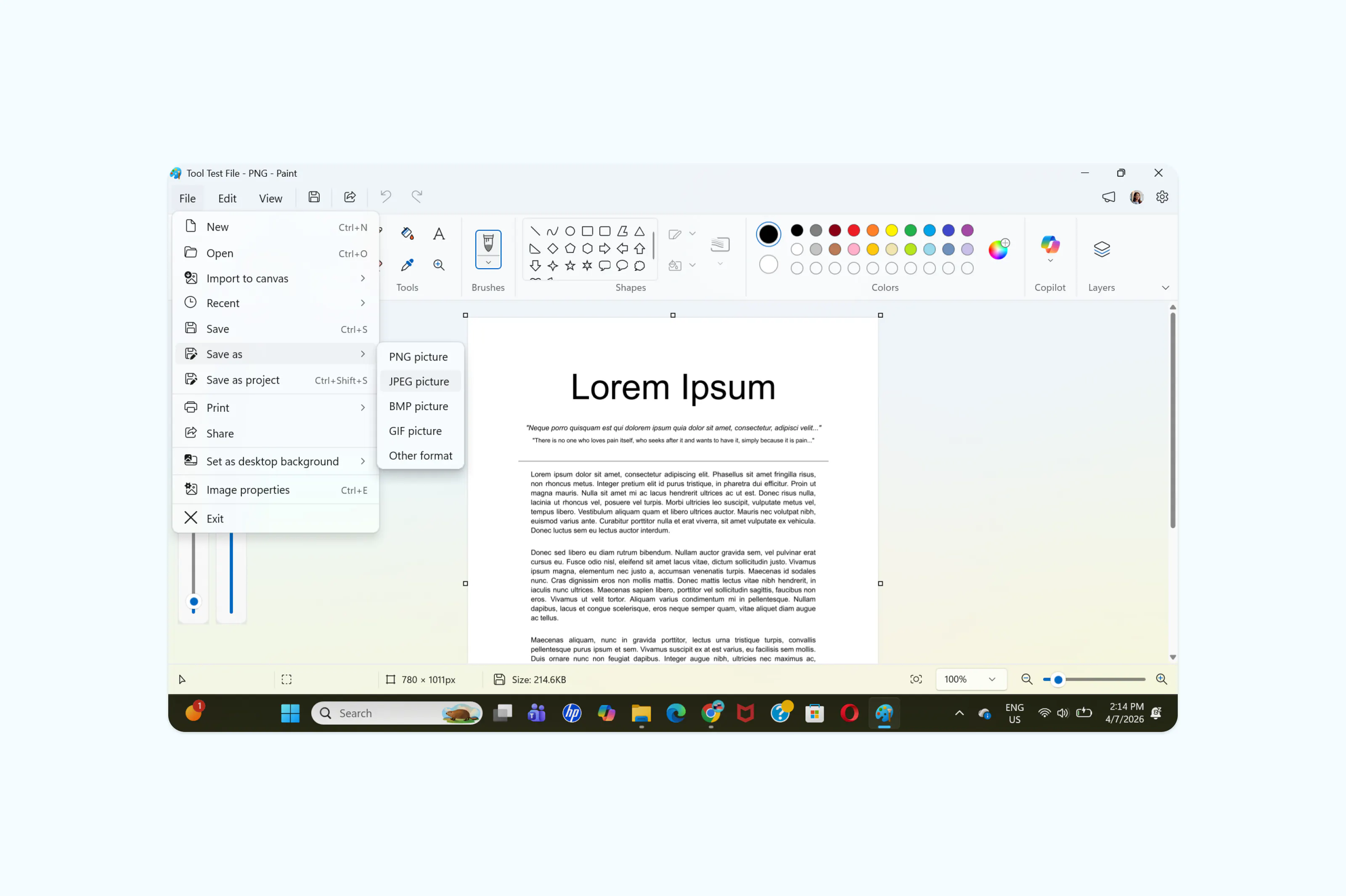
Note: Paint converts the file instantly and gives you a much smaller JPEG version. This method works well for individual files, but it can be slow if you need to convert a large batch of images one at a time. For bulk conversions, an online tool like Lumin is usually faster.
Method 3: Convert PNG to JPEG on Mac
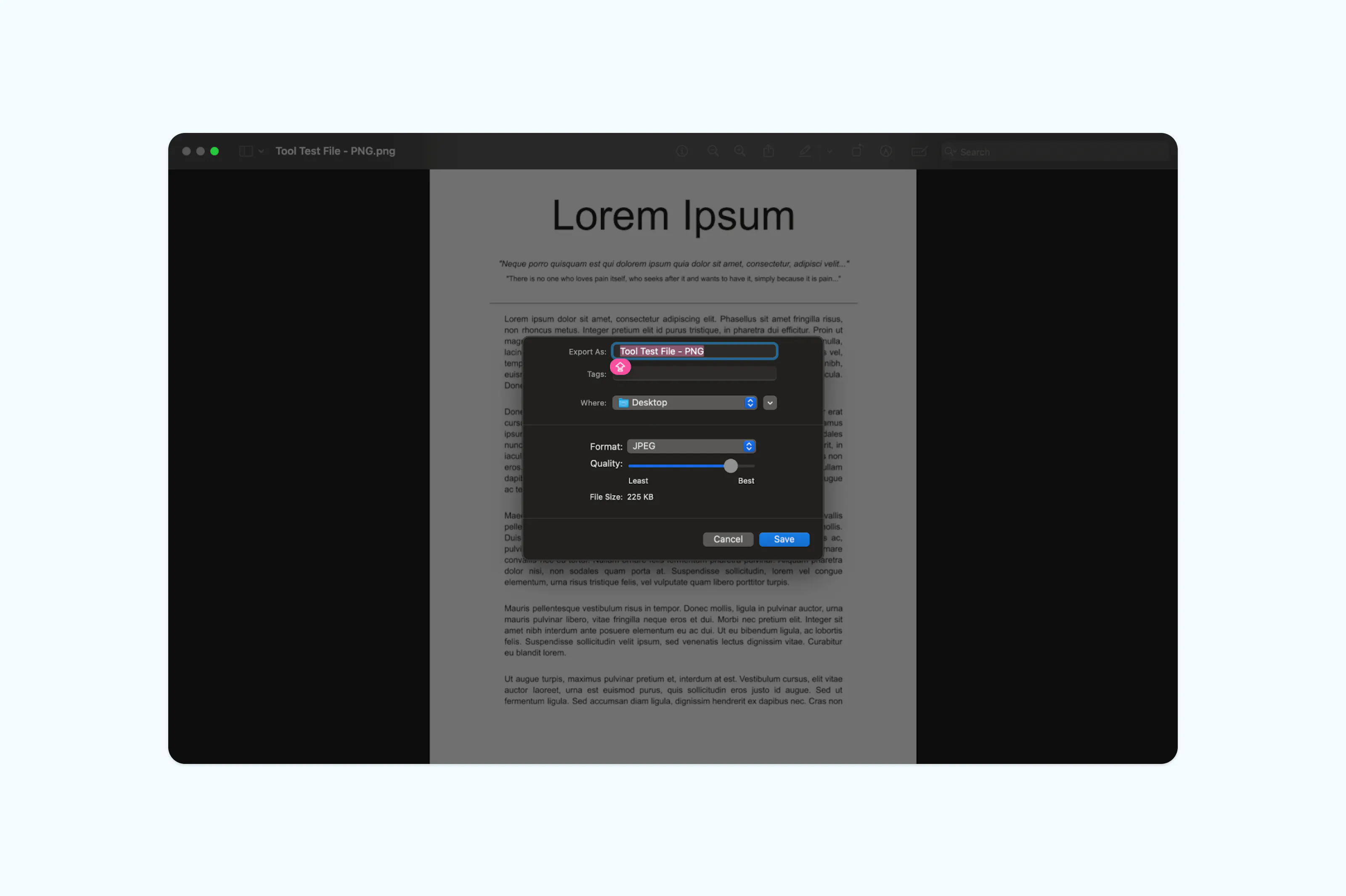
macOS includes Preview, a built-in image viewer that also handles format conversions. You don't need to download any extra software.
How to do it:
- Open your PNG file in Preview (it should open by default when you double-click the image).
- Click "File" > "Export".
- In the Format dropdown, select "JPEG".
- Adjust the quality slider if needed, then click "Save".
What happens when you convert PNG to JPEG?
Understanding the difference between these two formats can help you decide when conversion makes sense. Additionally, this helps maintain the quality and usability of your files throughout the process.
PNG uses lossless compression, meaning it preserves every pixel of the original image. It also supports transparency, making it ideal for logos, graphics and screenshots. The tradeoff is larger file sizes.
JPEG uses lossy compression, which discards some image data to create much smaller files. For photographs and images without transparency, this reduction in file size is usually worth the minor quality tradeoff. Most people won't notice a difference in everyday use.
One important thing to keep in mind is that JPEG does not support transparent backgrounds. If your PNG has a transparent background, it will be replaced with a solid color (usually white) during conversion. If you need transparency, stick with PNG.
Everything you need to know about converting PNG to JPEG
Can I just rename a .png file to .jpg?
No. Changing the file extension doesn't actually convert the file. The image data inside remains in PNG format, which can cause display errors or prevent the file from opening in some applications. You need to use a proper conversion tool to re-encode the image as a JPEG.
Will I lose quality when converting PNG to JPEG?
There will be a slight reduction in quality because JPEG uses lossy compression. For photographs and most everyday images, the difference is barely noticeable. However, for images with sharp text, fine lines or graphics, you may notice some compression artifacts around edges. If maximum quality is important, keep the original PNG as a backup.
How do I convert a PNG to JPEG on my phone?
On iPhone, open the Files app, long-press your PNG image, then tap "Quick Actions" > "Convert Image" and select JPEG. On Android, you can use the built-in photo editor or Google Photos to save a copy in JPEG format.
Convert, edit and share your files for free
Your workflows shouldn't be limited by file formats. Lumin's free tools make it easy to convert, edit and manage your documents and images, all from your browser.

Share this post