
How to add a watermark to a PDF

Adding a watermark to a PDF is one of the simplest ways to protect your documents. You might want to mark a file as "Draft," stamp it "Confidential," or add your company logo. Whatever the reason, a watermark helps establish ownership and control how your documents are used.
Table of contents
- 1. Method 1: Add a watermark to a PDF with Lumin
- 2. Method 2: Add a watermark to a PDF on Mac using Preview
- 3. When to use a watermark on your PDFs
- 4. Frequently asked questions
Share this post
The challenge is that most PDF readers don't include watermark tools. In this guide, we'll cover three reliable ways to add a watermark to your PDF, starting with the fastest option.
Method 1: Add a watermark to a PDF with Lumin
If you want a quick, free way to watermark your PDFs without installing any software, Lumin's online PDF editor lets you add image-based watermarks directly in your browser. This method works well for logos, stamps and custom watermark images.
How to add a watermark using Lumin:
- Open the Lumin PDF editor and upload your document.
- Click the "Annotate" category from the left toolbar, then select the "Image" tool.
- Upload your watermark image (such as a PNG with a transparent background).
- Use the palette tool to adjust the opacity of the image, making it semi-transparent so it doesn't obscure the document content.
- Drag and rotate the watermark to your desired position on the page.
- To apply the watermark to multiple pages, select the image and copy it using Cmd+C (Mac) or Ctrl+C (Windows), then paste it onto each page.
- Save or download your watermarked PDF.
Note: This approach gives you full control over placement, size and transparency. It's ideal for adding a company logo or a ‘Draft" stamp.
Method 2: Add a watermark to a PDF on Mac using Preview
If you're on a Mac and need a quick solution, Preview offers a basic workaround for watermarking PDFs. While Preview doesn't have a dedicated watermark feature, you can use its markup tools to add text overlays that function as watermarks.
Here's how to do it:
- Open your PDF in Preview (right-click the file and select "Open with" > "Preview").
- Click the markup toolbar button (the pencil icon), then select the text tool.
- Type your watermark text (e.g., "Draft" or "Confidential").
- Adjust the font, size and color using the text formatting options. A light gray color works well for watermarks.
- Position the text where you want it on the page.
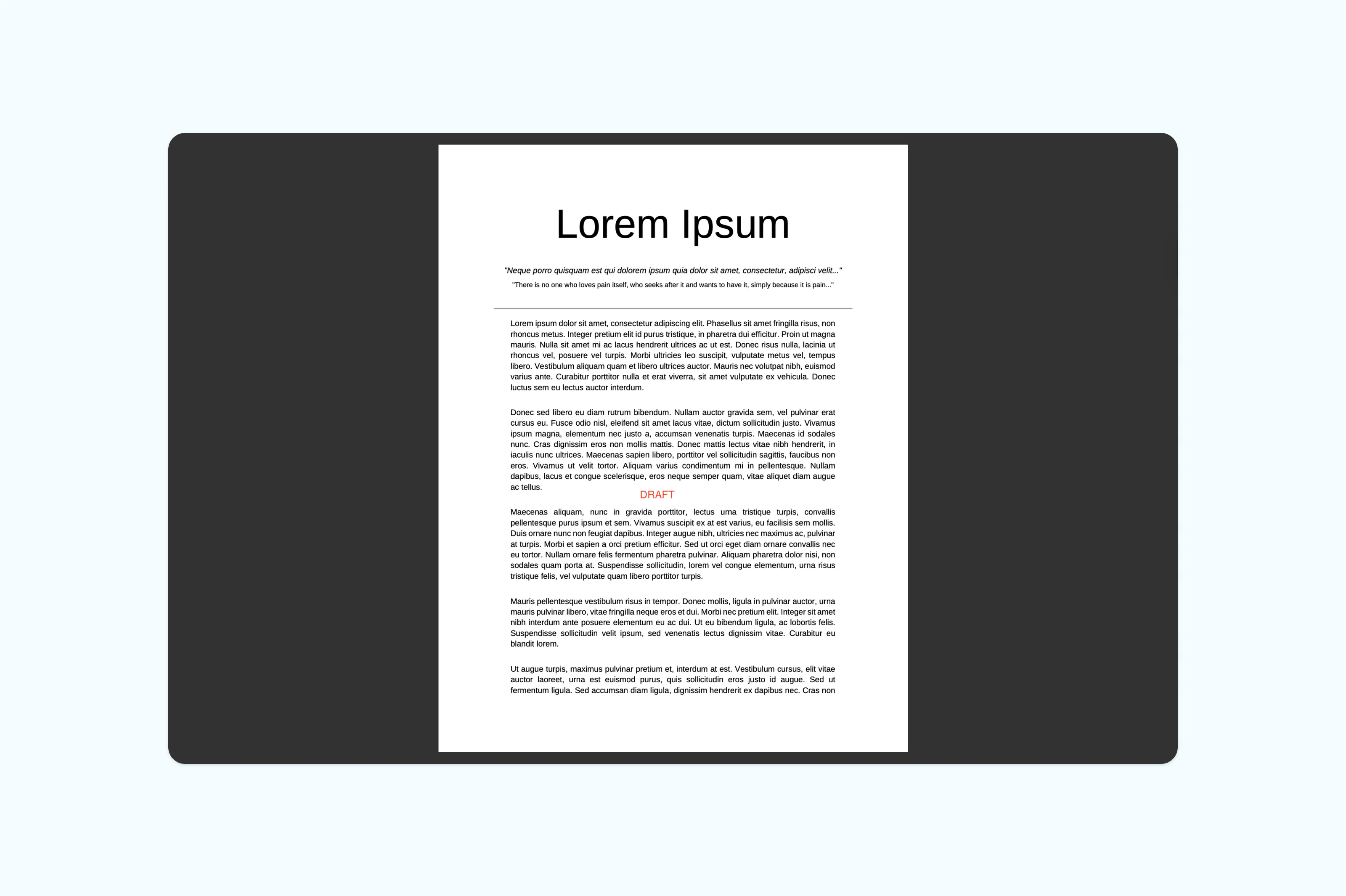
Note: Keep in mind that Preview's text tool doesn't offer opacity controls for text, so the result won't be as polished as a semi-transparent watermark. This method also requires you to manually add the text to each page, which can be time-consuming for longer documents. Tools like Lumin allow you to add an image watermark with adjustable transparency for a more consistent result. It's best for single-page PDFs or quick text overlays.
When to use a watermark on your PDFs
Watermarks serve several practical purposes. Understanding when to use them can help you protect your work more effectively.
Marking documents as drafts is one of the most common uses. A "Draft" watermark makes it clear that a document is not final, helping prevent outdated versions from being circulated or mistaken for approved content.
You might also want to watermark PDFs to indicate confidentiality, assert copyright ownership or brand documents with your company logo before sharing them externally. Legal, real estate and creative professionals frequently watermark documents for these reasons.
Frequently asked questions
Can I add a watermark to a PDF for free?
Yes. Online tools like Lumin let you add image-based watermarks to PDFs without any cost. You upload your watermark as an image, adjust the transparency and position it on your document. No software installation is required for basic editing.
How do I make my watermark transparent?
Most PDF tools let you adjust the opacity of an image or text overlay. In Lumin, you can use the palette tool to reduce the opacity of your watermark image so it appears semi-transparent over the document content. A good starting point is around 30–50% opacity, which keeps the watermark visible without making the text hard to read.
Can I add a watermark to all pages at once?
Some PDF tools allow you to apply a watermark to all pages in a single step. In browser-based editors like Lumin, you can copy and paste the watermark image across each page manually. For shorter documents, this only takes a moment.
How do I add a "Draft" watermark to a PDF?
The easiest way is to create a "Draft" text image with a transparent background and add it to your PDF as an image watermark using a tool like Lumin.
Ready to protect your documents? Add a watermark to your PDFs with Lumin.

Share this post